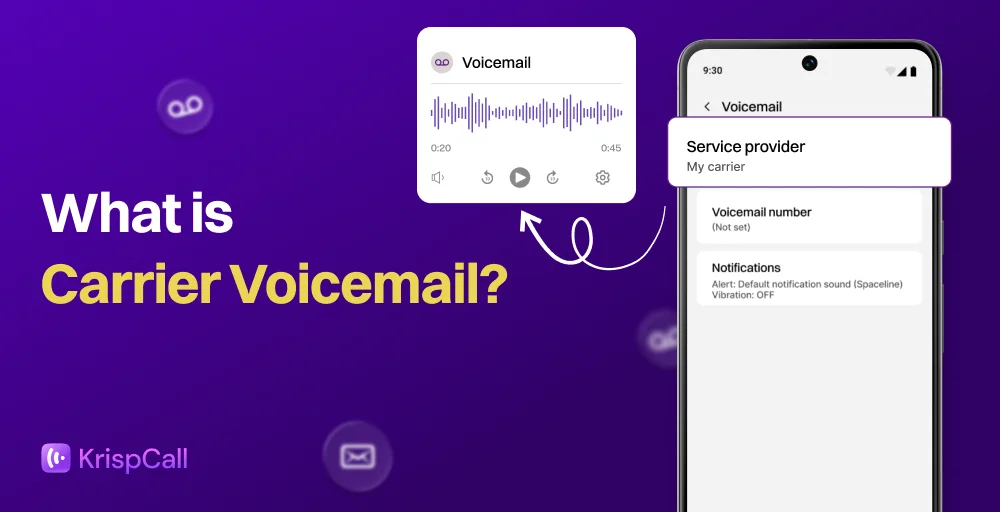
Imagine being in a meeting, driving, or simply out of reach when an important call comes in. Without a reliable way to capture that message, it could be lost forever. That’s the frustration carrier voicemail was designed to solve. Built directly into your mobile network, this built-in voicemail service catches calls you can’t answer and stores them in your voicemail inbox until you’re ready to listen.
But voice mail isn’t without its quirks. Storage limits fill up fast, message notifications can become persistent, and setup isn’t always intuitive, especially after switching mobile network providers or upgrading your smartphone.
Whether you’re setting it up for the first time, troubleshooting a persistent issue, or simply trying to understand what that “Carrier Voicemail” notification means, this guide covers everything you need to know.
✨ Key Takeaways
- Carrier voicemail is a network-based service provided by mobile carriers that stores messages on their servers and works even when your phone is off or unreachable.
- To set up carrier voicemail on Android, open the Phone app, hold down the “1” key on the keypad, or check for a voicemail tab/icon, then follow the automated voice prompts to create a PIN and record your greeting
- To disable carrier voicemail, call your provider (e.g., dial 611) and request deactivation, or try dialing ##002# or ##004# to turn off call forwarding, or fill your mailbox to block new messages.
What is Carrier Voicemail?
Carrier voicemail is a built-in, network-level service provided by mobile carriers (such as AT&T, ToMobile, or Verizon) that answers calls and stores voice messages when you are unable to answer, are busy, or are offline. It acts as a digital answering machine and is linked to a designated voicemail number, often accessed by pressing “1” in the phone app.
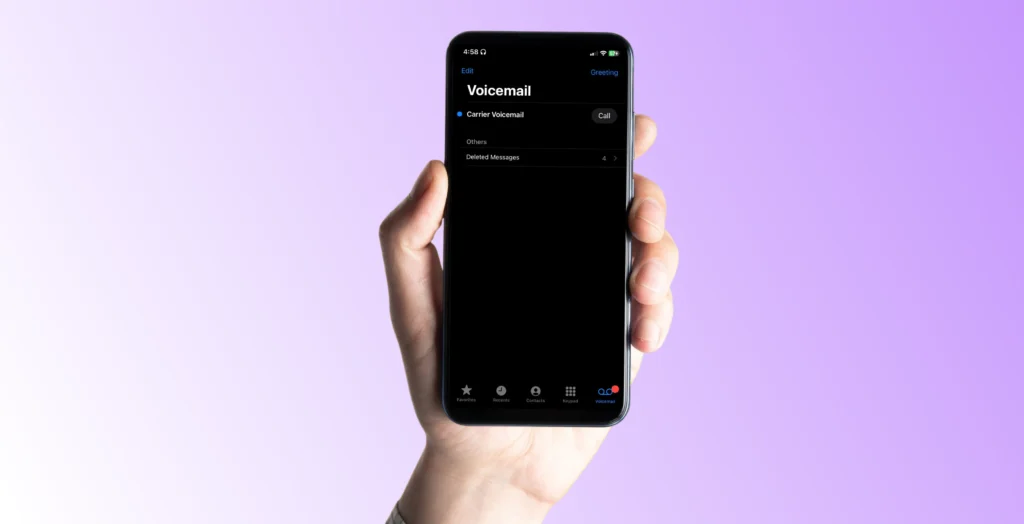
Unlike a third-party app or a device-based feature, carrier voicemail operates entirely at the network level. This means it works regardless of whether your phone is on, off, charged, or even in airplane mode. The service is provisioned to your phone number, not to any specific device.
Key characteristics of carrier voicemail:
- Network-managed: Messages are stored on your carrier’s servers rather than on your phone’s local storage.
- Always active: Because it operates at the network level, it can capture messages even when your device is powered off or out of coverage.
- Number-linked: The service follows your phone number, not your handset, meaning if you switch devices, your voicemail carries over.
- Carrier-configured: Storage limits, retention periods, and available features (such as voicemail transcription) vary by carrier and plan.
- Different from Live Voicemail: Apple’s Live Voicemail is a separate, on-device feature that transcribes messages in real time. Carrier voicemail is the underlying network service that stores the actual recording on the carrier’s server.
How Does Carrier Voicemail Work?
Carrier voicemail operates through a sequence of automated network redirects processes. Here’s a step-by-step breakdown of what happens from the moment a call goes unanswered:
- Incoming call detection: Your carrier’s network receives an inbound call destined for your phone number.
- Call Forwarding Triggers: If your phone is busy, unanswered, powered off, or out of coverage, the network activates Conditional Call Forwarding to voicemail and reroutes the call.
- Greeting Plays: The voicemail server plays either the default or your custom greeting to inform the caller they’ve reached your mailbox.
- Caller Leaves Message: The caller records their message, which is stored with metadata like their name, date, and time.
- Storage on Carrier Servers: Messages are stored in your electronic mailbox and typically retained for 14 to 30 days before deletion.
- Notification: When a new message is recorded, your carrier notifies you via SMS, a push notification, or a missed call indicator.
- Retrieval and Management: Access messages through the visual voicemail interface in your Phone app, or dial your carrier’s voicemail number to listen to, save, forward, or delete messages.
How to Set Up Carrier Voicemail on Your Phone
Carrier voicemail is typically active on your phone number from the moment your plan is provisioned. However, you still need to complete a one-time setup to create your password and record your greeting before you can receive messages.
How to Set Up Carrier Voicemail on iPhone (iOS 18+)
To set up carrier voicemail on iPhone (iOS 18+), follow the given steps:
Step 1: Tap the phone icon on your home screen. Open the Phone App.
Step 2: Tap the Voicemail tab in the bottom right corner.
Step 3: Tap Set Up Now. If it doesn’t appear, your voicemail may already be active, or you may need to call your carrier.
Step 4: When prompted, create a new voicemail password (PIN), tap Done, and confirm it.
Step 5: Set Your Greeting. Choose Default (standard system greeting) or Custom to record your own, then tap Save.
How to Set Up Carrier Voicemail on Android
Steps to set up carrier voicemail on Android are below:
Step 1: Locate and tap the Phone icon on your home screen to open the Phone app.
Step 2: Open the Menu and Tap the three-dot menu icon (vertical ellipsis) in the top right corner of the screen.
Step 3: Select Settings from the drop-down menu.
Step 4: Scroll through the settings list, then tap Voicemail.
Step 5: Choose the SIM Card: If you have a dual-SIM device, select the specific carrier/SIM card you wish to configure.
Step 6: Enter Advanced Settings: Tap on Advanced Settings.
Step 7: Select Setup, then tap Number (which may currently show as “Not set”).
Step 8: Enter the Number: In the pop-up “Number” box, type in your carrier’s voicemail service number (for example, 9803000100).
Step 9: Tap OK to confirm and save the number.
How to Listen to Carrier Voicemail
To listen to carrier voicemail, call your voicemail service by pressing and holding the ‘1’ key on your phone’s dial pad or tapping the voicemail icon/notification in your phone app.
There are two primary ways to access and listen to your carrier voicemail messages.
Using the Built-in Voicemail App
On iPhone:
Step 1: Open the Phone app.
Step 2: Tap Voicemail in the bottom-right corner.
Step 3: Your messages will appear in a list format, sorted by date, with the caller’s name or number and message duration displayed.
Step 4: Tap any message to expand it, then tap the Play button (▶) to listen.
Step 5: By default, audio plays through your earpiece. Tap Speaker to play through your phone’s speaker.
On Android:
Step 1: Open the Phone app.
Step 2: Tap Voicemail from the bottom navigation or dial pad menu.
Step 3: Select any message from the list and tap Play.
Dialing Your Carrier’s Voicemail Number
This traditional method works on any device, with or without Visual Voicemail support.
Step 1: Open the Phone app and navigate to the dial pad.
Step 2: Press and hold the 1 key; on most carriers, this speed-dials your voicemail system automatically.
Step 3: When connected, enter your voicemail PIN or password when prompted.
Step 4: Listen to the audio menu options (typically: press 1 to listen to new messages, press 7 to delete, press 9 for setup options).
Step 5: Navigate through your messages using the numeric keypad as instructed by the voice prompts.
Step 6: To exit, simply hang up or follow the prompt to end the session.
Note: Carrier voicemail access numbers: Most carriers route to voicemail when you hold “1,” but if that doesn’t work, contact your carrier for their specific access number.
How to Disable or Turn Off Carrier Voicemail
There are situations where you may want to disable carrier voicemail, perhaps you’re traveling internationally, you prefer missing calls to accumulate rather than going to voicemail, or you’ve switched to a business phone system with its own voicemail feature, like a voicemail greeting service.
Here is the step-by-step process for both quick and permanent deactivation methods to turn voicemail off:
Quick Disable Methods
The most effective method is to contact your provider directly, though quick disable codes can sometimes provide a temporary or permanent fix, depending on the carrier.
These are shortcodes entered into your phone’s dialer to turn off call forwarding, which is often used for voicemail.
- Deactivate All Call Forwarding: Dial ##002# and press the call button. This instructs your provider to turn off all call forwarding, including to voicemail.
- Alternative Code: Dial ##004# and press call to turn off conditional call forwarding.
- Verification: After calling the code, wait for a message saying “Setting Deactivation Succeeded”.
Note: MMI codes do not work for all prepaid or pay-as-you-go plans.
iPhone (Live Voicemail): Go to Settings > Phone > Live Voicemail and toggle it off.
Android devices (Notifications): Go to Settings > Apps > Phone > Notifications and disable voicemail alerts.
Permanently Deactivating Carrier Voicemail
This is the only guaranteed method to remove the voicemail service completely, ensuring callers cannot leave voicemail messages and that the mailbox is deactivated.
Step 1. Call Customer Service: Dial 611 from your phone or call your Carrier’s customer support line (e.g., T-Mobile: 1-800-937-8997, Verizon: 1-800-922-0204, AT&T: 1-800-331-0500).
Step 2. Request Deactivation: Ask the representative to “permanently disable/deactivate the voicemail feature” on your account.
Step 3. Confirm the Action: Explain that you want calls to ring until they disconnect or reach a “busy” signal, rather than be forwarded to a mailbox.
Step 4. Verify: Ask the agent to confirm the change, then test it by having someone call you from another phone to ensure the voicemail no longer picks up.
Troubleshooting Common Carrier Voicemail Issues
Troubleshooting carrier voicemail issues involves addressing potential problems with network connectivity, account settings, device configuration, or full storage. Common solutions include restarting the phone, checking the cellular signal, verifying voicemail setup, and updating software.
Voicemail Not Showing or Not Appearing
If your voicemail tab is missing or messages aren’t appearing in your Phone app. Start by checking carrier support. Confirm with your carrier that Visual Voicemail is included on your plan. Some plans, particularly older or budget plans, require an upgrade to access them.
Step 1: Restart your phone
Step 2: Turn Airplane Mode ON → wait 30 seconds → turn it OFF
Step 3: Check voicemail setup:
- iPhone: Open Phone app → Tap “Voicemail” → Tap “Set Up.”
- Android: Open Phone app → Go to Settings → Voicemail
Step 4: Check for carrier settings update (iPhone):
- Go to Settings → General → About → Install update if prompted
Step 5: Reset network settings:
- iPhone: Settings → General → Transfer or Reset → Reset Network Settings
- Android: Settings → System → Reset → Reset Network
Unable to Access or Listen to Messages
If you can see messages but can’t play them, or can’t connect to voicemail at all:
- Check your cellular signal: A poor signal can interrupt voicemail playback. Move to an area with stronger coverage.
- Verify your PIN: If you’ve forgotten your voicemail password, contact your carrier; they can reset it for you.
- Clear voicemail app cache (Android): Go to Settings > Apps > Phone (or Voicemail app) > Storage > Clear Cache.
- Reset network settings (iPhone): Navigate to Settings > General > Transfer or Reset iPhone > Reset > Reset Network Settings. Note that this will also reset saved Wi-Fi passwords.
- Contact carrier support: Network-side issues with the voicemail server may require carrier intervention.
Persistent “Carrier Voicemail” Notifications (Especially on iPhone)
Many iPhone users, particularly those on iOS 17 or later, encounter a stubborn “Carrier Voicemail” entry in their Phone app that won’t disappear. This is often caused by a conflict between Live Voicemail and the carrier’s voicemail system, or by a setup prompt from the carrier itself.
Solution 1: Disable, Restart, Re-enable Live Voicemail:
- Go to Settings > Phone > Live Voicemail and toggle it off.
- Restart your iPhone (Settings > General > Shut Down, wait 30 seconds, then power on).
- Return to Settings > Phone > Live Voicemail and toggle it back on.
Solution 2: Call and Clear the Voicemail:
- Tap the Carrier Voicemail entry in your Phone app and select Call.
- Follow the prompts, listen to (or skip) any messages, and delete them.
- Sometimes clearing the mailbox resolves the notification.
Solution 3: Verify Your Plan Includes Visual Voicemail: If your carrier plan doesn’t include Visual Voicemail, the “Carrier Voicemail” prompt may appear persistently. Contact your carrier to upgrade your plan or confirm your voicemail configuration.
Cannot Delete Carrier Voicemail Messages
If voicemail messages refuse to delete:
- On iPhone: Go to Phone > Voicemail, swipe left on the message, and tap Delete. Then scroll to the bottom of the voicemail list, tap Deleted Messages, and select Clear All to remove them permanently.
- On Android: Open the voicemail app, long-press the message, and select Delete. Then check a “Recently Deleted” or “Trash” folder within the app and clear it.
- Using the dial-in method: Call your voicemail system by holding 1, listen to the message, and press 7 (the standard delete key on most carrier systems) to delete it.
Storage Full or Old Messages Not Retrievable
Your carrier manages carrier voicemail storage and typically limits it to 20–40 messages. When the mailbox is full, new callers may hear a “mailbox full” message and be unable to leave new voicemails.
- Delete old messages using either the Phone app or the dial-in method.
- Contact your carrier about upgrading storage if your plan allows it.
- Save important messages using your phone’s screen recorder or a voicemail export app before deleting them.
- Check retention policies: Some carriers automatically delete messages after 14–30 days. If old messages are missing, they may have passed the retention period.
Issues After iOS/Android Update or Carrier Switch
Software updates and carrier changes frequently disrupt voicemail settings.
After an iOS/Android update:
- Check for a carrier settings update under Settings > General > About.
- Reset network settings if voicemail stops functioning.
- Re-enter your voicemail password in the Phone app if prompted.
After switching carriers:
- Complete the voicemail setup process fresh; your old carrier’s voicemail is no longer active.
- Call your new carrier’s voicemail system by holding 1 and follow the setup prompts.
- Note that messages stored with your previous carrier are not transferable.
For eSIM users: Ensure your eSIM is fully activated and that your voicemail settings are configured for the active line. Go to Settings > Phone and confirm the correct line is selected for voicemail.
Conclusion
Carrier voicemail is a crucial feature that should not be overlooked. It’s important to set it up correctly because it allows callers to leave voicemail messages even when your phone is off or busy. Your carrier manages voicemail, not your phone, so it’s essential to understand this distinction. Set it up once using your Phone app to ensure it works properly.
If you experience issues such as silent notifications or messages that won’t delete, try resetting the app, adjusting network settings, or contacting your carrier’s support team for assistance. Don’t let voicemail problems go unresolved; address them promptly.
From choosing a default greeting to troubleshooting when an issue persists, mastering voicemail helps avoid missed opportunities and keeps communication seamless. So, if you’re looking to go beyond carrier voicemail for your business communication needs, consider exploring purpose-built solutions with features like business voicemail greetings and cloud-based storage that give you far greater control than a standard carrier mailbox.