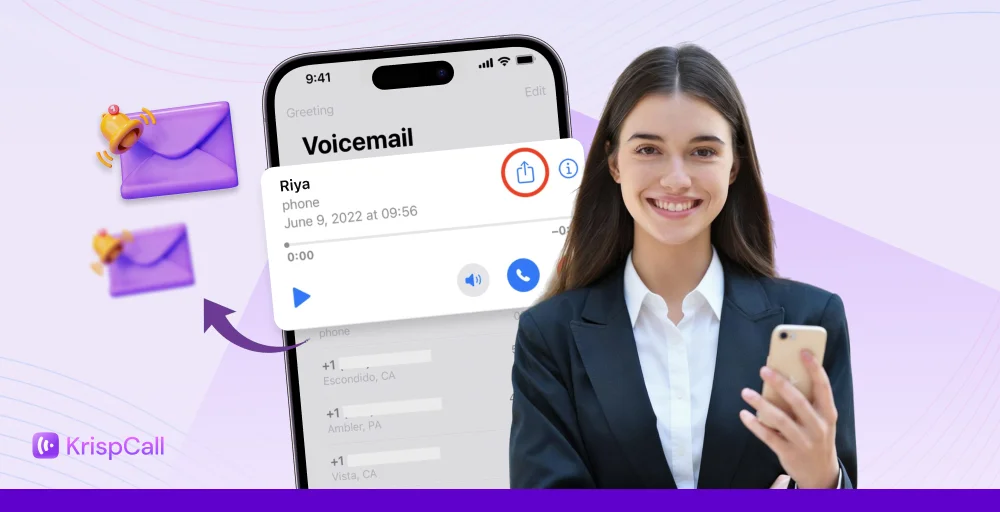
Voicemails are still one of the most reliable ways to capture important messages, whether from a client or colleague. However, sometimes just listening isn’t enough; you need to share that message quickly with someone else.
This is where forwarding voicemails makes this easy, letting you send recorded messages directly from your device to the right person. For personal use, this might mean sharing updates or reminders, while in a business setting, forwarding helps escalate issues and ensure the right team member has the information they need.
In this blog, we will explore the definition of forward voicemails, how to forward voicemails on iPhone, Android, and VoIP systems.
✨ Key Takeaways
- Forwarding a voicemail lets you send the recorded audio to the team via email, messaging apps, or internal systems.
- You can send the voicemail directly via chat apps, or download it and share it as an audio file.
- The process for forwarding voicemail varies depending on the device, operating system, available options, and sometimes even the mobile carrier.
What does it mean to forward a voicemail?
Voicemail forwarding is a feature that lets you share a recorded voice message from your phone system to another person’s device or platform. Instead of keeping the message only in your voicemail inbox, you can send it via email, text, messaging apps, or cloud platforms.
This makes it easier to pass important information, involve the right team member, and keep records for future reference, especially in business and professional settings.
How to forward a voicemail on iPhone?
If you are using an iPhone, you might be wondering how to send a voice message and how the process actually works. While iOS doesn’t offer a traditional forward button, you can still forward a voicemail on iPhone by sharing it as an audio file.
Can you forward a voicemail directly on iPhone?
If you’re wondering, can you forward a voicemail on an iPhone? The answer is Yes. And, the steps are easy to follow.
iPhones don’t have a one-tap “Forward” button for voicemails as they do for emails or messages. Instead, Apple lets you share a voicemail as an audio file using apps such as Messages, Mail, or WhatsApp.
- Native iOS limitations: iOS does not support direct voicemail forwarding between phone numbers. This means you can’t forward a voicemail straight from your inbox to another voicemail box.
- Visual Voicemail requirements (carrier-dependent): To forward or share a voicemail on iPhone, Visual Voicemail must be enabled. If your carrier supports Visual Voicemail, you will see a list of voicemails in the Phone app. If not, you may only be able to call in and listen to messages, which makes sharing difficult.
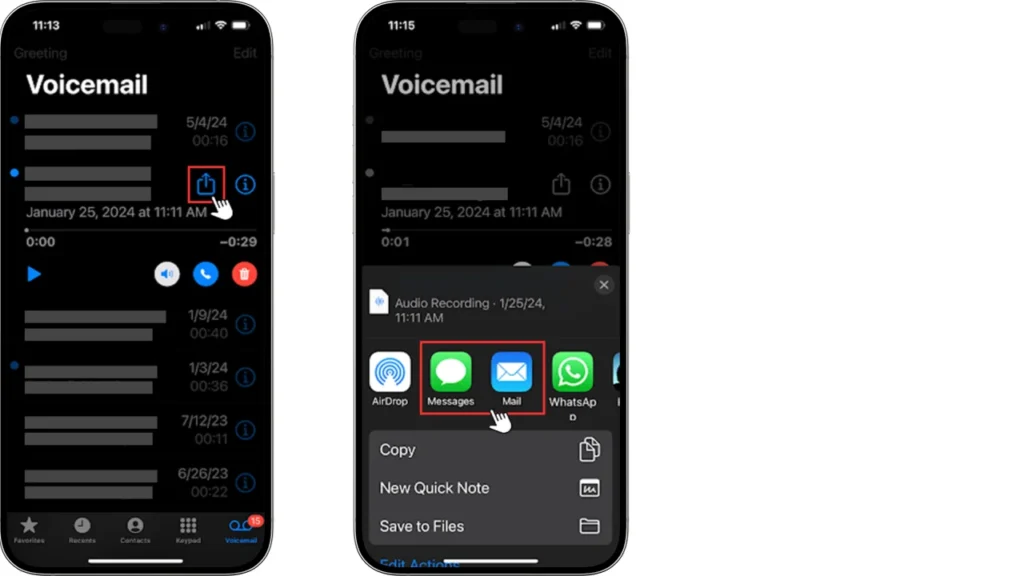
Step-by-step: Forwarding voicemail on iPhone
Here are the steps to forward a voicemail message on an iPhone:
- Open the Phone app and select Voicemail at the bottom.
- Tap the voicemail you want to forward.
- Press the Share button on the right to open the sharing options.
- Pick how you want to send the voicemail, such as via text message or email.
Common iPhone voicemail forwarding issues
Forwarding voicemail on an iPhone can be a bit tricky. Here, we will discuss several issues you might encounter.
- No share option: Some users may not see the Share button when they open a voicemail. This usually happens if the voicemail was not saved properly or if the feature is not enabled on their device. Without this option, you cannot send the voicemail directly via text, email, or apps.
- Carrier restrictions: Even if your iPhone has the Share option, your mobile carrier might limit voicemail forwarding. Some carriers only support sharing within the same network and block sharing messages outside it, or they may only allow forwarding in certain formats. This means you might need to use alternative methods, like downloading the voicemail first or using a third-party app.
- iOS version differences: iPhones running older versions of iOS may not support voicemail sharing, or the interface may look different, making it confusing to find the right options. Features like the Share button or saving voicemails to Files may only appear in newer updates, so keeping your iPhone updated can help prevent these issues.
Related Article👉: Your Call Has Been Forwarded: What Does It Mean?
How to forward a voicemail on Android
To forward voicemail on Android, you usually need a Visual Voicemail app from your play store. Most default voicemail systems on Android don’t include a direct forward option. These apps let you access, save, and share voicemails as audio files.
Does android support voicemail forwarding?
Yes, Android supports voicemail forwarding, but how it works depends on your device and mobile carrier.
- Device & carrier dependence: To forward voicemail in Android, you need a carrier that supports the visual voicemail feature. Some of the carriers provide Visual Voicemail, where you can view, save, and share voicemails. However, other carriers might limit voicemail access, which might create difficulty in voicemail forwarding.
- Visual Voicemail apps: Most Android users rely on apps to manage and forward their voicemails. These apps allow you to view all voicemails in a list, play and download messages, and share them as audio files via SMS, email, WhatsApp, or other messaging apps.
Step-by-step: Forwarding a voicemail on android
Here are the steps to forward voicemails on Android:
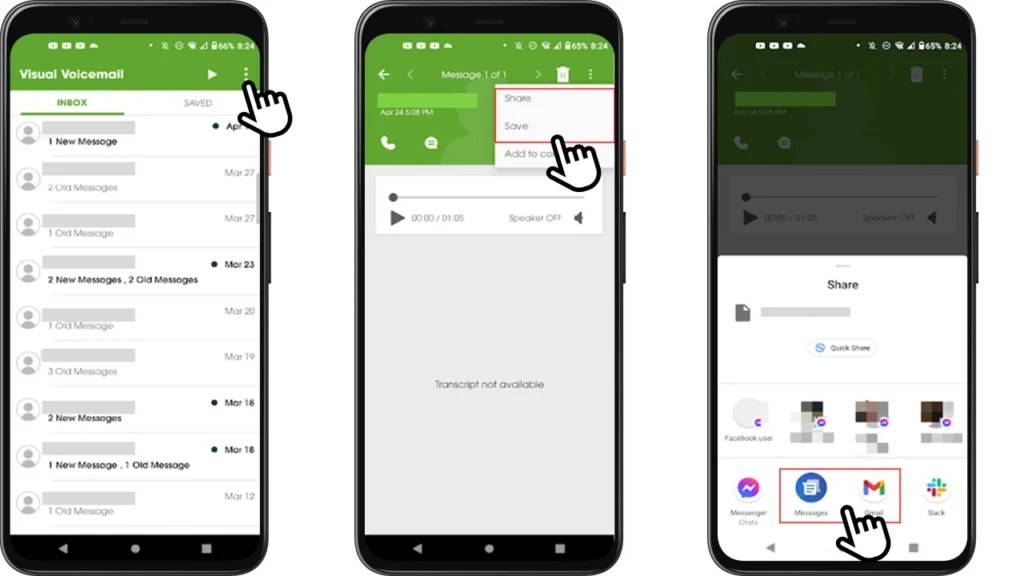
- Install voicemail apps on your Android.
- Next, tap voicemail message you want to forward.
- Tap three dots in the top right corner. Then, look for the Share or Forward messages option.
- Finally, choose how you want to send the voicemail, such as through email, SMS, or a messaging app.
- Select the recipient and send it. The voicemail will be shared as an audio file that the recipient can easily listen to.
This way, you can easily start forwarding voicemails in your Androids, including Google Pixels and Samsung phones.
Android voicemail forwarding problems
When forwarding voicemail on Android, users may experience issues depending on their device or carrier. Here are the most common problems:
- Missing share icon: Users may sometimes not find the Share button in the voicemail app. This may occur for many reasons, such as Visual voicemail not being enabled on your device or your carrier not supporting voicemail sharing.
- Carrier voicemail lock-in: Some carriers lock voicemails inside their system, preventing downloads or sharing. This means you can only listen to voicemails by calling your voicemail number, making forwarding impossible.
How to send a voicemail to someone else (any device)
Sending a voicemail to someone is simple. You can send a voicemail through message apps or as an audio file. Whether you’re using a smartphone or a cloud phone system, you can quickly pass the message to the right person using common communication tools.
Sending voicemail via message apps
You can send a voicemail using messaging apps by sharing it directly from your phone or a VoIP app. Platforms like WhatsApp make it easy to send voicemail messages as audio files in personal or group chats.
Also, Slack is useful in professional settings, allowing teams to share voicemails in channels or via direct messages for quick collaboration. Email is another reliable option, especially when you need a formal record or want to share the voicemail with multiple recipients.
Sending a voicemail as an audio file
Another common method is sending a voicemail as an audio file. This involves downloading the voicemail to your device first, then attaching it wherever you need it. Most voicemails are saved in widely supported formats like .mp3 or .wav, which work on almost all devices and apps.
Using compatible audio formats ensures the intended recipient can easily open and listen to the voicemail without technical issues, making this method practical for both personal and business use.
How to forward voicemail using a VoIP or cloud phone system
With VoIP service providers like Google Voice, Nextiva, and KrispCall, you can easily forward voicemail messages to the right person or team. Most cloud phone systems let you access voicemails via a web dashboard or mobile app, making it easy to share new messages without using your personal phone.
Here are the steps on how you can forward voicemail using a VoIP or cloud phone system:
- Log in to your provider’s web portal using your account credentials.
- Once logged in, navigate to the Voicemail or Messages section of the dashboard, where all recorded messages are listed.
- Select the voicemail message you want to forward and open its details.
- Look for the Forward, Share, or More options menu, which usually appears as an icon.
- Choose Email as the forwarding option, enter the recipient’s email address, and review the details.
- Finally, confirm and send the message to securely and quickly share the voicemail.
When should you forward voicemail messages?
Usually, people do not use voicemail message forwarding for personal use. It is more commonly used in professional or business fields, where sharing important information quickly is necessary.
You should forward voicemail messages in such situations.
- When you are part of the customer support team, you need to forward the customer’s voicemail to the specialist who can resolve the issue efficiently.
- To ensure timely follow-ups, you need to forward voicemails from potential clients or leads to sales representatives. This prevents opportunities from being missed.
- You want to solve critical issues, forwarding it to supervisors or the relevant department ensures that the matter is addressed promptly.
- For keeping records, audits, or compliance purposes. Forwarding ensures that the message is properly documented and stored in accordance with company policies or legal requirements.
A smarter way to manage voicemails: KrispCall
Forwarding voicemail often depends on the device you own. For an iPhone, you can only share voicemails as audio files, while on Android, forwarding may require a Visual Voicemail app or carrier support. This can make forwarding voicemails time-consuming, especially for businesses that handle high phone calls.
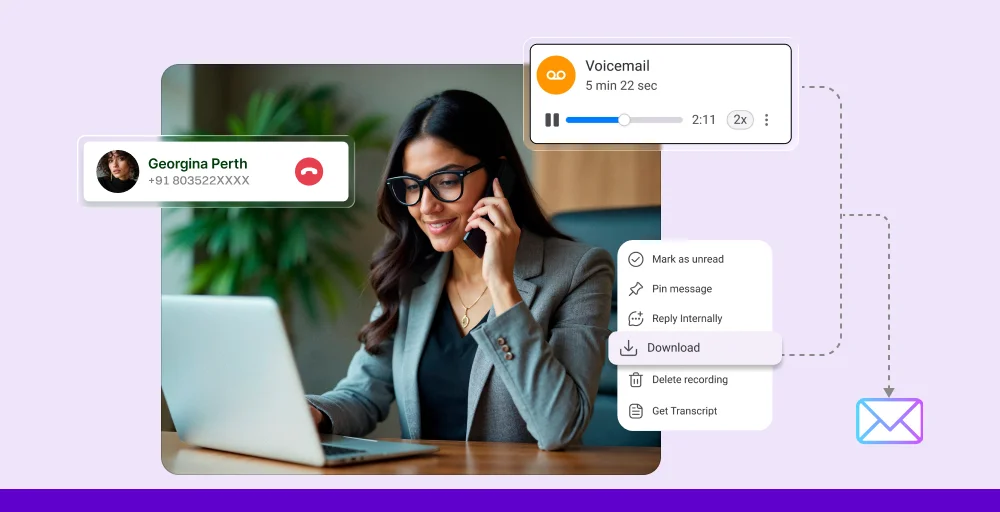
KrispCall can be a good choice if you are looking for a safe way to manage your sensitive voicemails. It enables you access, forward, and manage voicemails from a unified platform, regardless of your device. You can instantly forward voicemails to team members via email or integrated apps, ensuring important messages are never missed.
With KrispCall, you don’t need to worry about device limitations, missing share icons, or carrier restrictions. It allows businesses to forward voicemail-to-email, where voicemail notifications pop up that make it easier for customer support teams and sales departments to respond quickly. This approach saves time, enhances engagement, and ensures that all messages are tracked and recorded in one place.