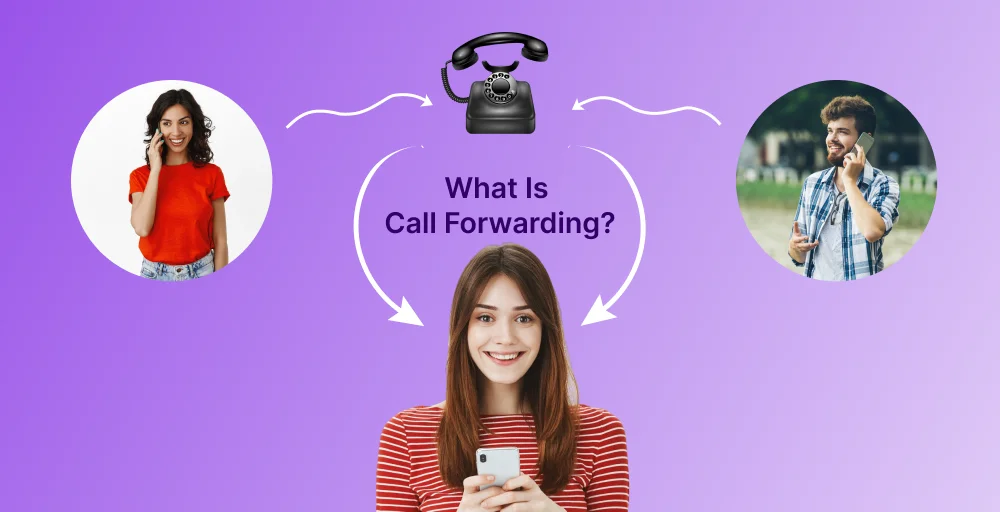
Call forwarding, also known as call divert, allows you to redirect incoming calls to another number automatically. Whether you’re switching devices, traveling, or temporarily unavailable, this feature keeps you reachable without interruption.
To forward calls on most devices, open your phone’s call settings and enable call forwarding, or dial *72 followed by your destination number on landlines and most mobile carriers.
You can choose to forward all calls or use selective call forwarding, where calls are only redirected under specific conditions, like when you’re busy, unreachable, or don’t answer.
This guide covers setup instructions for every major device and platform, troubleshooting steps for when forwarding isn’t working, and the situations where call forwarding makes the most practical sense.
✨ Key Takeaways
- iPhone: Settings > Phone > Call Forwarding > enter number
- Android: Phone app > Menu > Settings > Call Forwarding > enter number
- Landline: Dial *72 + destination number > press # > hang up
- VoIP: Log in to your dashboard > Call Settings > Forward Calls > enter number
How to forward calls on Android
Knowing how to forward calls on Android can save you from missing important calls when you’re switching devices, traveling, or simply unavailable. So, here’s how to do it:
Step 1: Open the Phone app, then tap the Menu icon (the three lines) in the upper-right corner and select Settings.
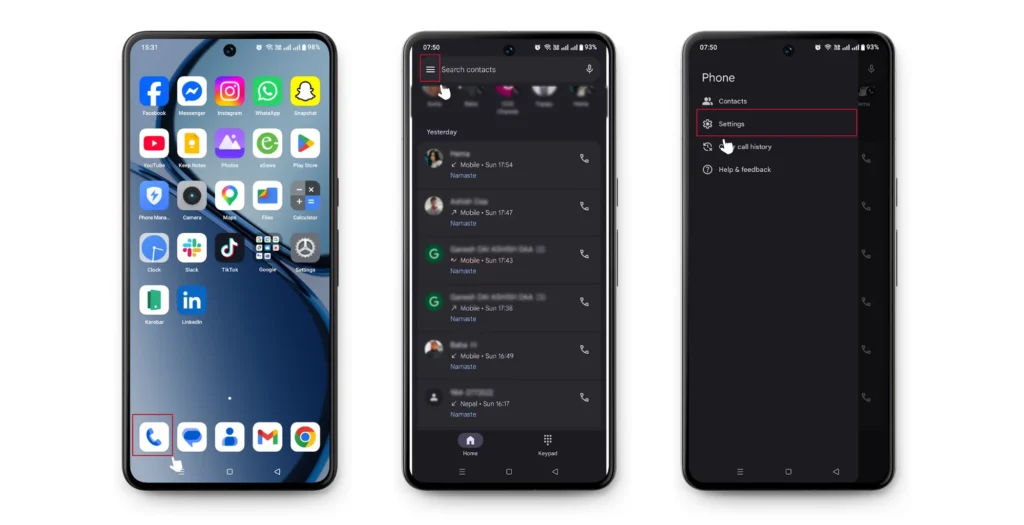
Step 2: In Settings, tap Calling accounts (on some devices, this may appear as Call settings or your carrier’s name). If you’re using a dual-SIM device, you’ll be prompted to choose which SIM to set forwarding for.
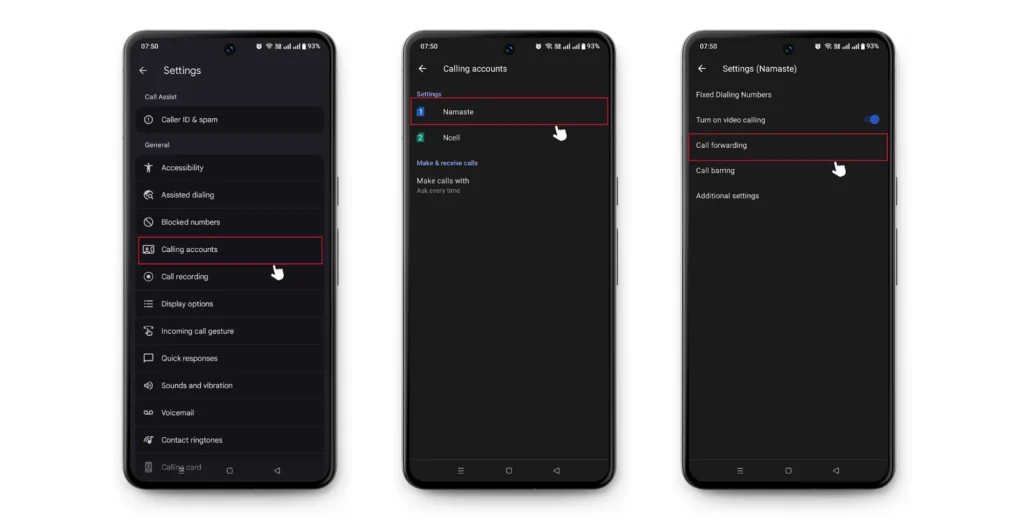
Step 3: After selecting your SIM, tap Call Forwarding, then choose whether you’d like to forward Voice Calls or Video Calls.
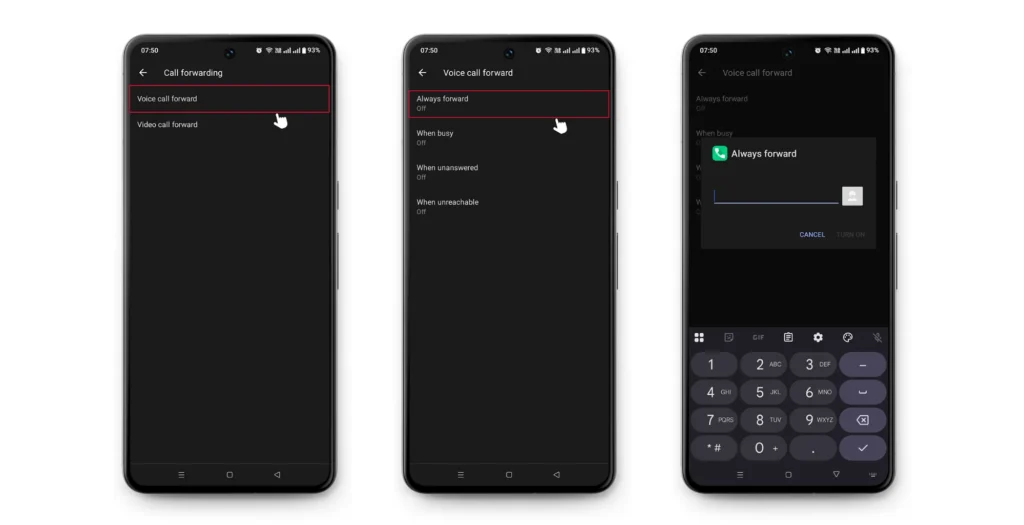
Step 4: You’ll see four forwarding options to choose from:
- Tap Always forward to redirect all incoming calls
- Tap When busy to redirect calls when you’re already on a call
- Tap when unanswered calls to redirect you don’t pick up
- Tap when unreachable to redirect calls when your phone is off or out of signal
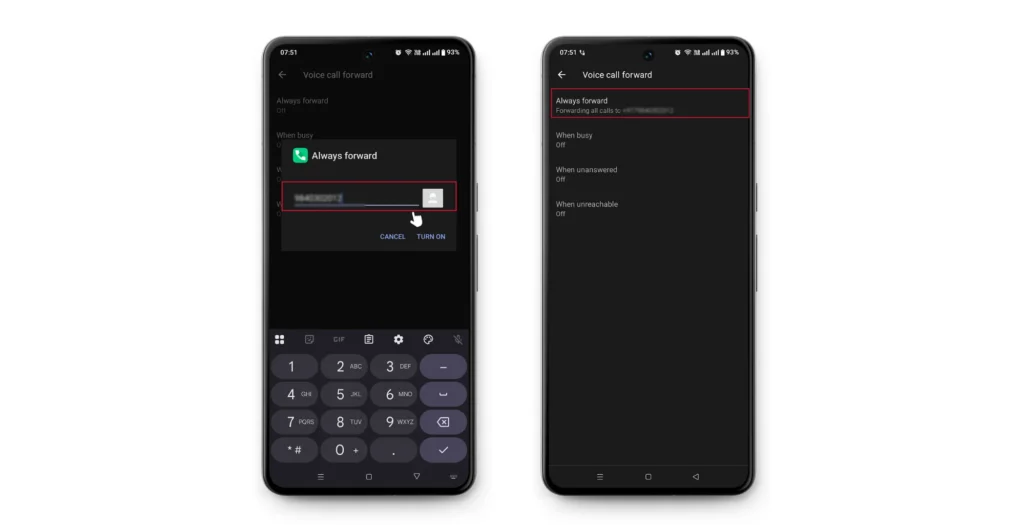
Step 5: For Always forward, enter the phone number you want to forward your calls to, then tap Turn On to activate the setting.
Step 6: Once activated, you’ll see a confirmation message that says Forwarding all calls to [your chosen number]. This confirms your calls are now being routed to that number.
NOTE: The exact menu labels can vary slightly depending on your Android version and manufacturer. If you can’t find Call Forwarding, try typing it into your device’s Settings search bar. If it still doesn’t appear, your carrier may not support call forwarding.
How to fix call forwarding not working on Android?
Here are the most common troubleshooting steps to get call forwarding working on Android devices again:
1. Check your carrier support: Not all mobile carriers support call forwarding, and some may restrict it to certain plans. Always ensure that call forwarding is included in your plan.
2. Make sure you entered the correct number: Double-check that the forwarding number is entered correctly, including the country code if you’re forwarding calls to a different region.
3. Disable and re-enable call forwarding: Sometimes the setting glitches. Turn off call forwarding completely, restart your phone, then set it up again from scratch.
4. Check your network connection: Call forwarding is a carrier-level feature, so a weak or unstable signal can prevent it from activating properly.
5. Update your OS: An outdated app or system version can cause features to malfunction. Perform a Software Update, then retry call forwarding after the update.
6. Try using a USSD code instead: If the in-app method isn’t working, you can activate call forwarding directly through your dialer by entering a code like **21*[number]# and pressing call. This bypasses the app entirely and communicates directly with your carrier.
NOTE: USSD codes can vary by carrier, so check with yours for the exact code. If none of these steps resolves the issue, reaching out to your carrier’s support team is the most reliable next step.
Related Article 👉: How to Turn on Auto Answer Calls in Both Android and iPhone
How to forward calls on iPhone
If you’re an iPhone user, forwarding calls on iOS is just as simple as on Android. So, here’s how to do it:
Step 1: Open the Settings app on your iPhone, then scroll down and tap Phone.
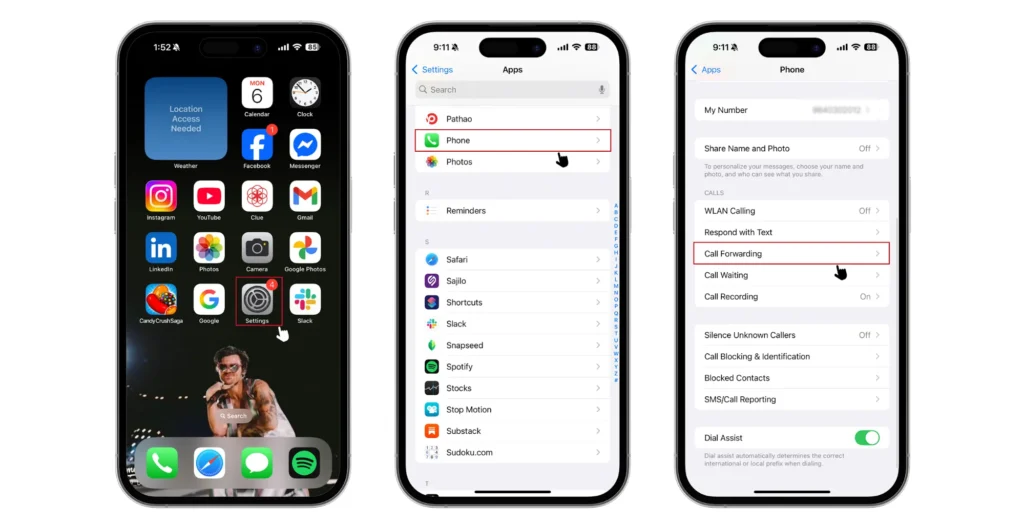
Step 2: Tap Call Forwarding (on some carriers, this may appear under a different label or may not be visible if your carrier doesn’t support it).
Step 3: You’ll see the Call Forwarding toggle; tap it to turn it on. Unlike Android, iPhone offers two forwarding options:
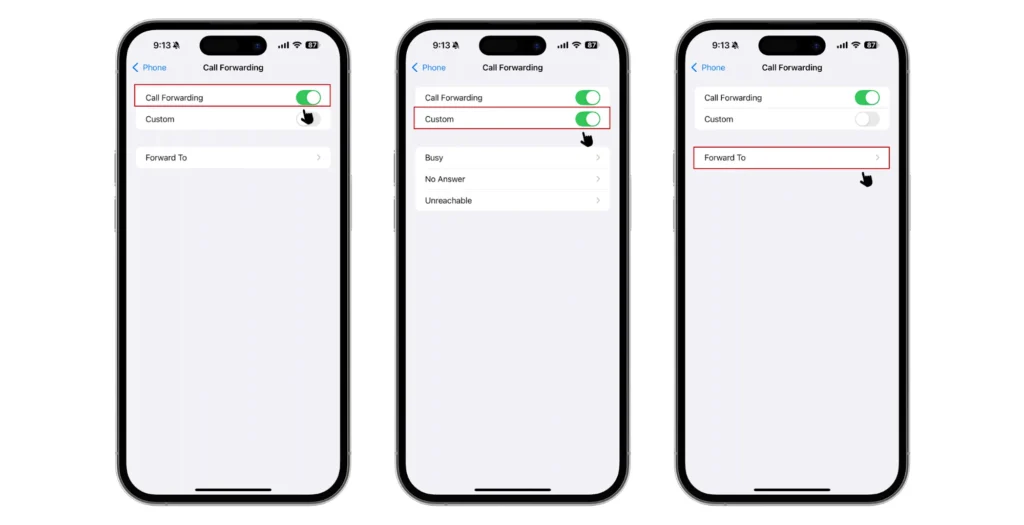
- Custom (Busy, No Answer, Unreachable): redirects incoming calls to your chosen number only when a specific condition is met
- Forward To: directs all incoming calls straight to your chosen number, regardless of your availability
Step 4: Once toggled on, tap Forward To and enter the phone number you want to forward your calls to, then go back to confirm the setting is active.
Step 5: Once activated, you’ll see the number on the Forward To option. This confirms your calls are now being routed to that number.
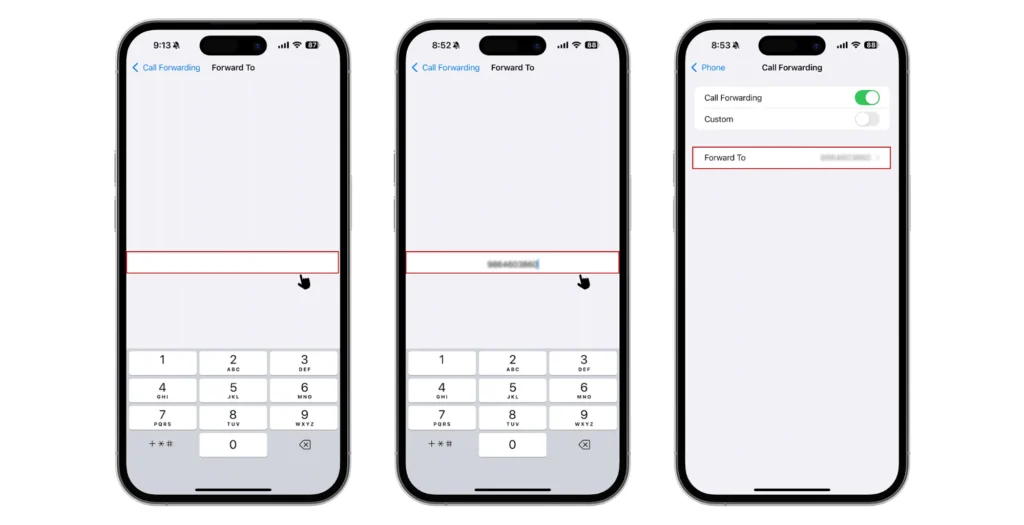
NOTE: If you can’t find Call Forwarding in your Phone settings, your carrier may not support it or may have it hidden. Try contacting your carrier directly to confirm.
Check Out 👉: How to Block Text Messages on iPhone and Android?
How to fix call forwarding not working on iPhone?
If you’ve set up call forwarding on your iPhone, but it’s not routing calls as expected, here are the most common troubleshooting steps to get it working again:
1. Check your carrier support: Not all carriers support call forwarding on iPhone. Check with your carrier directly to confirm that the feature is available on your plan.
2. Make sure you’re on a cellular network: Unlike Android, the iPhone requires an active cellular signal to activate call forwarding. It won’t work over Wi-Fi alone. Move to an area with a stronger signal and try enabling it again.
3. Double-check the forwarding number: Verify the number entered is correct, including the country code if you’re forwarding calls to a different region.
4. Disable and re-enable call forwarding: Sometimes the setting needs a fresh start. Toggle Call Forwarding off, restart your iPhone, then go back and set it up again.
5. Update your iOS: Install any available updates, then retry call forwarding.
6. Reset your network settings: This clears any network-related glitches that may be blocking call forwarding from activating.
7. Try using a USSD code instead: If the Settings method isn’t working, open your Phone dialer and enter **21*[number]# and press call to activate forwarding directly through your carrier. To disable, dial ##21#.
How to forward calls on VoIP?
If you’re using a VoIP service, forwarding calls works a little differently than on a traditional mobile device. While the exact steps may vary slightly between providers, the general process is the same across most services. Here’s how to do it:
Step 1: Log in to your VoIP platform via a web dashboard, desktop app, or mobile app, depending on your provider.
Step 2: Navigate to the Settings or Account Settings section, then search for Call Forwarding (Call Handling or Call Routing). Again, the label varies by platform, but it is usually found under the calling or phone settings.
Step 3: Once inside the call forwarding settings, choose your preferred forwarding type:
- Always Forward: redirects all incoming calls to your chosen number
- Forward when Busy: redirects calls when you’re already on a call
- Forward when Unanswered: redirects calls you don’t pick up within a set number of rings
- Forward when Offline: redirects calls when your VoIP app is inactive or disconnected
Step 4: Enter the phone number or extension you want to forward your calls to, such as another VoIP number, a mobile number, or a landline.
Step 5: Save your settings and test them by making a call to your VoIP number.
Note: Some VoIP providers may require a paid plan to unlock call forwarding features. If you can’t find the option, check your plan details or contact your provider’s support team.
How to forward calls from your landline?
For those who are still using landlines, forwarding calls to another number is easier than most people think. Most major landline carriers support call forwarding via a simple set of dial codes. Here’s how to do it:
Step 1: Pick up your landline handset and listen for the dial tone to confirm your line is active.
Step 2: Dial *72, then enter the phone number you want to forward your calls to, followed by #. Also include the country code and area code if calling internationally.
Step 3: Wait for a confirmation tone or a voice message indicating that call forwarding has been successfully activated. This usually sounds like two short beeps or a standard ring followed by an answer.
Step 4: Hang up and test it by calling your landline number from another phone. The call should now automatically route to the forwarding number you entered.
Step 5: When you’re ready to turn it off, simply pick up the handset and dial *73 to deactivate call forwarding and return your line to normal.
Note: The codes *72 and *73 work for most landline providers across the US and Canada, but some regional carriers may use different codes. If these don’t work, check your carrier’s website or call their support line to confirm the correct activation code for your area.
What to do if call forwarding is not available?
If call forwarding isn’t available on your phone, or if call forwarding not working issues persist, try these quick troubleshooting steps:
- Verify that your carrier offers call forwarding, as it isn’t guaranteed across all carriers or plans.
- Make sure your SIM is active and has signal (no “No Service” or “Emergency Only”).
- Check the phone settings path to confirm that call forwarding is indeed enabled.
- Restart your phone, as sometimes a simple reboot can fix temporary glitches.
- Update software and install any pending system updates that may fix bugs.
- Test with another SIM to determine whether the issue is with your carrier or your phone.
- If all still fails, then contact your carrier’s customer support.
What is call forwarding?
Call forwarding is a phone feature that automatically redirects incoming calls to another number. Simply put, if someone calls you, the call is routed to a different phone instead of ringing on yours.
Common uses of call forwarding:
- When your phone is off or unreachable
- When you’re busy on another call
- When you don’t answer
- When you want calls to go to another number (like an office phone to a mobile device)
What are the types of call forwarding
Depending on your needs, you can either always redirect every call or forward only under specific conditions. Here are the two main types:
Unconditional call forwarding (always forward)
Every incoming call is redirected to your chosen number immediately, without your phone ringing. Unconditional call forwarding ideal when you’re completely unavailable, switching to a different device, or want all calls handled by another number full-time.
Conditional call forwarding
Conditional Call Forwarding: Unlike unconditional forwarding, conditional forwarding only kicks in when a specific situation is met. Your phone rings first, and the call is redirected only if one of the following conditions applies:
- When Busy: redirects the call when you’re already on another call
- When unanswered, it redirects the call after a set number of rings with no answer
- When Unreachable: redirects the call when your phone is switched off, out of signal, or in airplane mode
Is there a difference between call forwarding, call transfer, and call routing?
While all three features move calls from one place to another, they serve different purposes and operate in distinct ways. Here’s a clear breakdown:
| Feature | Call Forwarding | Call Transfer | Call Routing |
| How it works | Automatically redirects incoming calls before they are answered | Manually moves an active, already-answered call to another number | Distributes incoming calls based on predefined rules (time, availability, location, etc.) |
| When it happens | Before the call is picked up | After the call is already in progress | As soon as the call is received, based on the routing logic |
| User involvement | No action needed; works automatically | Requires manual action to transfer the call | No manual action; runs automatically in the background |
| Best for | Being unavailable or switching devices | Routing a live caller to the right person or department | Managing high call volumes, teams, or business workflows |
| Activation | Set up in advance through device or carrier settings | Done in real time during an active call | Configured in VoIP systems or business phone platforms |
How to turn off call forwarding?
Once you no longer need your calls redirected, turning off call forwarding is just as simple as setting it up. Here’s how to do it on both Android and iPhone:
On Android
Step 1: Open the Phone app, tap the Menu icon (the three lines) in the upper-right corner, and select Settings.
Step 2: Tap Calling accounts, select your SIM if prompted, then tap Call Forwarding.
Step 3: Select the currently active forwarding option, such as Always forward, When busy, When unanswered, or When unreachable.
Step 4: Tap Disable or Turn Off to deactivate it.
On iPhone
Step 1: Open the Settings app, scroll down, and tap Phone.
Step 2: Tap Call Forwarding and toggle it off.
Step 3: Once the toggle turns grey, call forwarding is fully deactivated.
Note: If you activated call forwarding using a USSD code, you’ll need to turn it off the same way. On most US and Canadian carriers, dial ##21# on your phone’s dialer and press call to deactivate it. Check with your carrier if this code doesn’t work on your network.
When should you use call forwarding?
Call forwarding is a genuinely useful feature for a wide range of everyday situations. Here’s when it makes the most sense to use it:
- When you’re traveling for business, stay reachable on a local or alternate number so your important calls never go unanswered.
- When you’re switching devices, forward calls to your new phone while you get everything set up and transferred over.
- When you’re unavailable, redirect calls to a colleague, assistant, or secondary number so nothing goes unanswered.
- When you’re in a meeting, send incoming calls straight to voicemail or another number so your phone doesn’t keep ringing.
- During high-traffic periods, forward calls to additional lines or team members to distribute the load evenly and reduce callers’ wait times.
- For after-hours support, redirect incoming calls to an on-call team member or an answering service outside business hours, so customers always have someone to turn to.
What are the use cases of call forwarding
Here are some of the most common use cases showcasing how call forwarding solves practical communication challenges for individuals and businesses alike:
Example 1: Remote and hybrid teams
A marketing agency has team members spread across New York, London, and Manila. They use call forwarding to route client calls to whichever team member is currently within business hours, ensuring no client ever hits a dead end.
Example 2: Healthcare practices
A local clinic forwards after-hours patient calls to an on-call nurse’s number, so urgent medical concerns are addressed immediately rather than waiting until the next morning.
Example 3: E-commerce customer support
An online retailer experiences a surge in customer calls during the holiday season. So, they forward overflow calls to a secondary support line to manage the increased volume efficiently.
Example 4: Office relocation transition
A law firm moving to a new office forwards all calls from its old number to the new one during the transition period, ensuring no client contact is lost.
Steps to enable call forwarding with KrispCall
Setting up call forwarding through KrispCall is far simpler than navigating your phone’s carrier settings. Everything is managed from one clean dashboard, and it takes less than a minute to activate. Here’s how to do it:
- Step 1: Sign up for a KrispCall account and log in using your credentials.
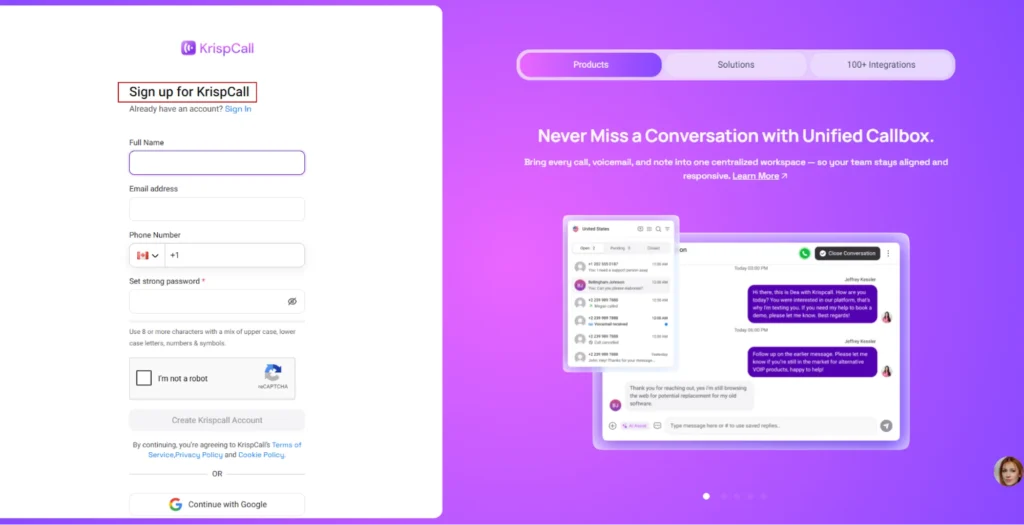
- Step 2: On the left-hand side of the dashboard, tap the number you want to set up call forwarding for.
- Step 3: Click the … (three-dot ellipsis) icon next to the number, then select Number Settings.
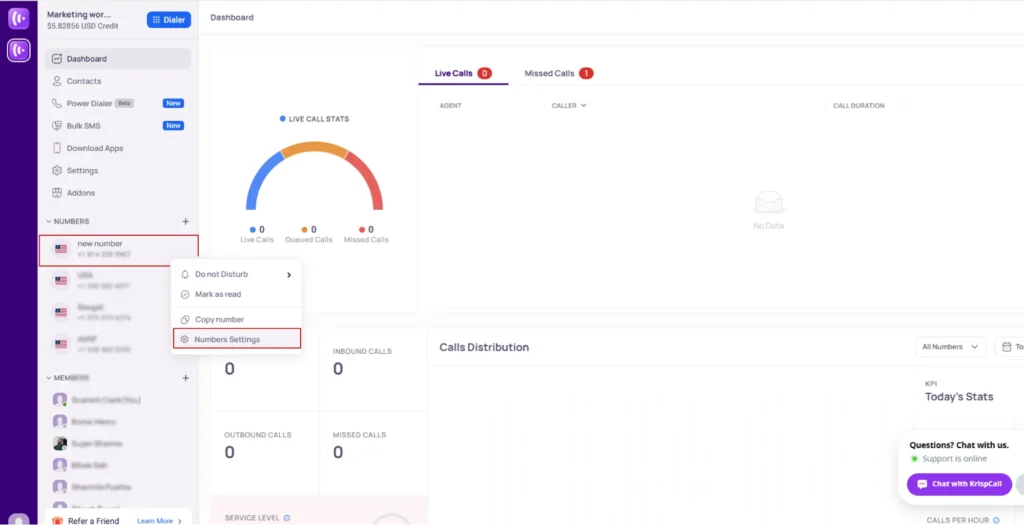
- Step 4: Scroll down until you find the Incoming Call Strategy section, then click on Forward Calls.
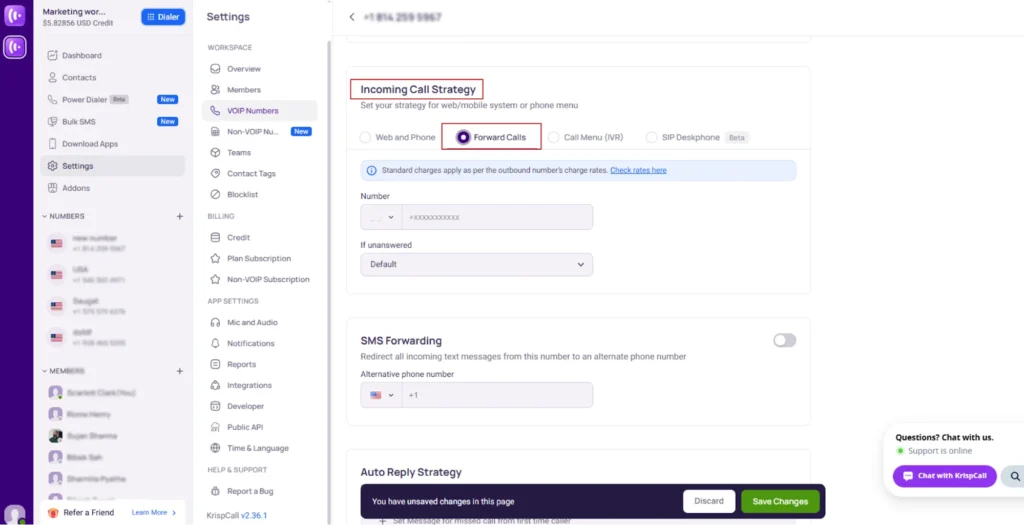
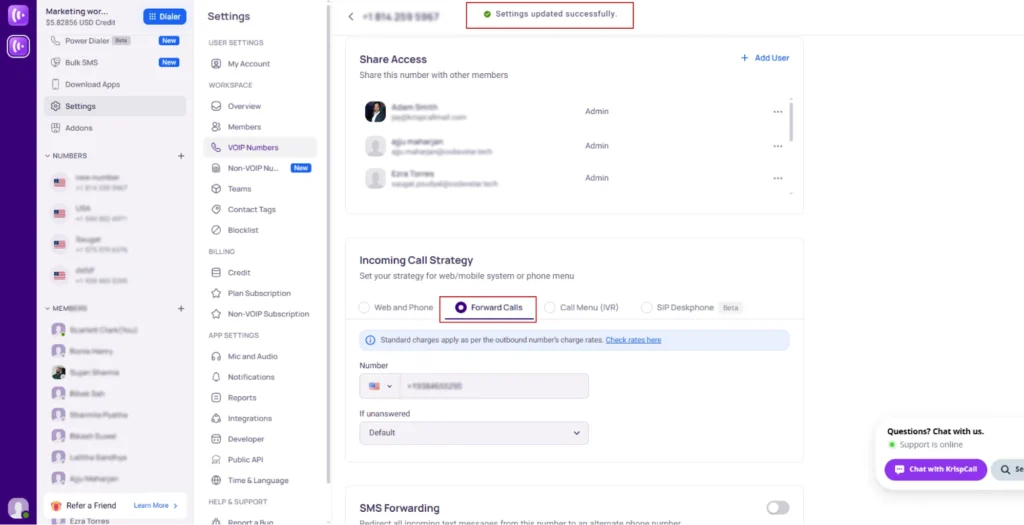
- Step 5: Enter your desired forwarding number along with the correct country code.
- Step 6: Once entered, call forwarding will be activated immediately. Now any incoming call to that number will be redirected to your chosen destination.
To ensure you never miss another call, get a virtual number from KrispCall today and start forwarding calls instantly. No carrier restrictions, no complicated setup, just reliable call forwarding built right into your dashboard.