TL;DR
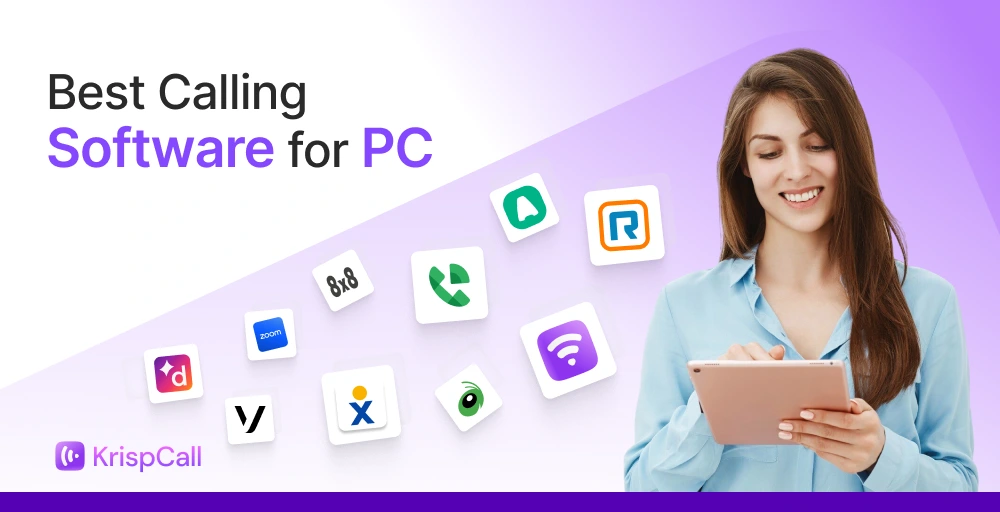
We reviewed 30+ most widely used PC calling platforms in 2026 and narrowed them down to the 10 best options for business use across sales, support, and remote teams.
Here’s a quick shortlist of the top five that stand out most before reading the full breakdowns:
- KrispCall: best overall for remote and global teams needing affordable calling, CRM integration, and a clean unified workspace
- RingCentral: best for large enterprises needing a full, all-in-one UCaaS platform
- Dialpad: best for AI-first teams that want real-time transcription and call coaching built in
- Nextiva: best for customer-focused teams that prioritize reliability and omnichannel support
- Zoom Phone: best for teams already running on Zoom that want to consolidate voice into the same desktop interface
Read on for the full breakdown of all 10 tools, including pricing, standout features, pros, cons, and what each platform is best for.
Business calls no longer require a desk phone, a SIM card, or a fixed office location. With the right calling software for PC, your browser or desktop app becomes a fully functional business phone.
The challenge isn’t finding a PC calling app. It’s finding one that actually fits how your team works.
This guide evaluates 10 of the best calling software options for PC, so you can make a confident decision without testing every platform yourself.
Quick comparison table: Best calling software for PC
Before diving into the full breakdowns, here’s a quick look at how all 10 options stack up, so you navigate the crowded unified communications (UCaaS) landscape with ease:
| Provider | Starting price (annual billing) | Standout feature | Best for | G2 rating |
| KrispCall | $12/user/month | Unified Callbox, 100+ CRM integrations | Solopreneurs & expanding SMBs | 4.5 / 5 |
| RingCentral | $20/user/month | All-in-one Cloud Communications (UCaaS) platform | Large enterprises & Global scaling | 4.1 / 5 |
| Nextiva | $15/user/month | All-in-one UCaaS and Customer Experience (CXM) Platform | Customer-focused teams | 4.5 / 5 |
| Google Voice | $10/user/month | Seamless Google Workspace integration | Small US-based teams | 4.1 / 5 |
| Zoom Phone | $10.50/user/month | Native video-to-voice transition | Zoom-first companies | 4.6 / 5 |
| Dialpad | $15/user/month | Proprietary built-in AI, DialpadGPT | AI-first operations & Contact centers | 4.4 / 5 |
| Grasshopper | $14/month | Virtual extensions & Simplistic forwarding architecture | Micro-businesses & Solopreneurs | 3.9 / 5 |
| 8×8 | Custom pricing | Advanced analytics & Global coverage | SMBs and UCaaS platforms | 4.1 / 5 |
| Vonage | $13.99/month/line | Flexible API & Unlimited domestic calling | Established mid-size businesses | 4.3 / 5 |
| Aircall | $30/license | Bi-directional CRM Sync & AI voice agents | SMB sales and support teams | 4.4 / 5 |
How we ranked the best PC calling software
Every platform on this list was evaluated against the same set of criteria. The rankings contain no sponsored placements or arbitrary ordering. The goal was to surface tools that actually hold up under real business use, not just ones with polished marketing pages.
Each provider was assessed on ease of setup on PC and desktop, availability of web apps, call quality and reliability, and virtual number coverage. From there, we looked at the depth of core calling features. CRM and helpdesk integrations were weighted heavily, too, since a PC calling tool that doesn’t connect to the rest of your workflow creates more friction than it removes.
Finally, pricing transparency played a significant role. Platforms with clear, publicly listed plans were favored over those requiring a sales call just to get a number. Each tool was also assessed for fit across common use cases, such as sales teams, customer support, remote teams, and small businesses.
Why trust our product reviews?
Our team has spent entensive time researching and testing PC calling software across real-world business use cases, including their feature lists. We evaluate each tool on call quality, reliability, and virtual number coverage, including local, mobile, toll-free, and international options.
From there, we also looked at its pricing transparency, the depth of access to each feature per tier, CRM & helpdesk integration, and support responsiveness.
Our findings are cross-referenced with verified user reviews from G2, Capterra, and TrustRadius, alongside candid community feedback from Reddit and Quora, so recommendations reflect how these tools perform in practice, not just on paper.
Learn more about our content update process, content integrity standards, and software review methodology.
10 Best calling software for PC
The market is packed with lots of options, and not all of them are worth your time. So, here’s a breakdown of the 10 best calling software for PC, starting with the strongest all-round option.
1. KrispCall
Best for: Solopreneurs, remote customer support units, and expanding SMBs that require global caller identification and cost-effective numbers across multiple markets.
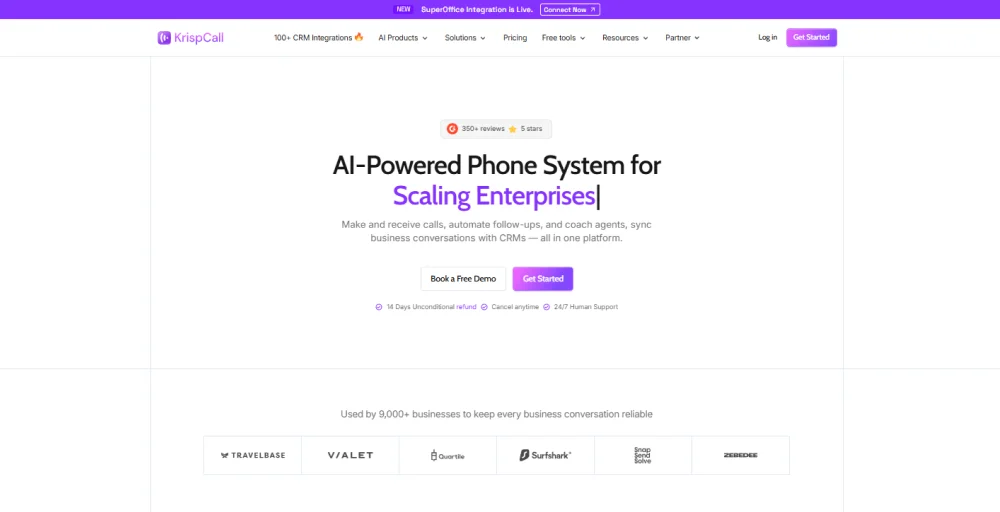
KrispCall is a cloud-based VoIP phone system that lets your team make and receive calls directly from a web browser. It eliminates geographical friction by allowing users to make phone calls from PC hardware while maintaining a localized appearance globally.
For teams that need a full-featured PC calling setup without the complexity of legacy phone systems, KrispCall is a strong, cost-effective starting point.
Standout features
- Unified Callbox: All your calls, SMS, voicemails, and call recordings live in one shared workspace.
- Click-to-Call: Turn any phone number on a webpage or CRM into a one-click call directly from your browser.
- Power Dialer: Automates sequential outbound calling, with built-in voicemail drop and CRM sync.
- Global Virtual Numbers: Get local, toll-free, or mobile numbers in 100+ countries.
Best integrations
- HubSpot: Auto-logs every call with timestamps and notes directly to contact records.
- Pipedrive: Syncs call activity to deals and contacts in real time, no manual entry needed.
- Zapier: Connects KrispCall to 7,000+ tools through simple, no-code automated workflows.
Pros
- Affordable entry point with core calling features included from the base plan.
- Highly intuitive interface with 24/7 customer support availability.
- Sync seamlessly over 100+ collaboration and CRM tools.
Cons
- It operates solely as software for calling and SMS and lacks video conferencing tools.
- Available as a mobile app and web app only; no native desktop app..
- Call quality can dip under unstable internet conditions.
Pricing
KrispCall pricing starts at just $12/user/month for the Essential tier, with one free local/mobile from the UK or one local number from either the USA or Canada available for each user.
Reviews
Across 346+ verified G2 reviews, users consistently praise KrispCall for its ease of use, easy installation, clean dashboard navigation, reliable international call quality, and customer support.
How to start calling from a PC with KrispCall
Setting up KrispCall to start calling from your PC is extremely simple. Here’s exactly how to go from sign-up to your first call:
- Step 1: Sign up for a KrispCall account and choose a subscription that suits your business needs.
- Step 2: Pick a virtual phone number (mobile, toll-free, or local) in 100+ countries.
- Step 3: Install the KrispCall Dialer
- Step 4: Connect your CRM or helpdesk to KrispCall auto call logs.
- Step 5: Make your first call directly from your browser or from inside a web app.
Total setup time: 5 to 10 minutes
2. RingCentral
Best for: Mid-to-large businesses that need an all-in-one Unified Communications as a Service (UCaaS) platform.
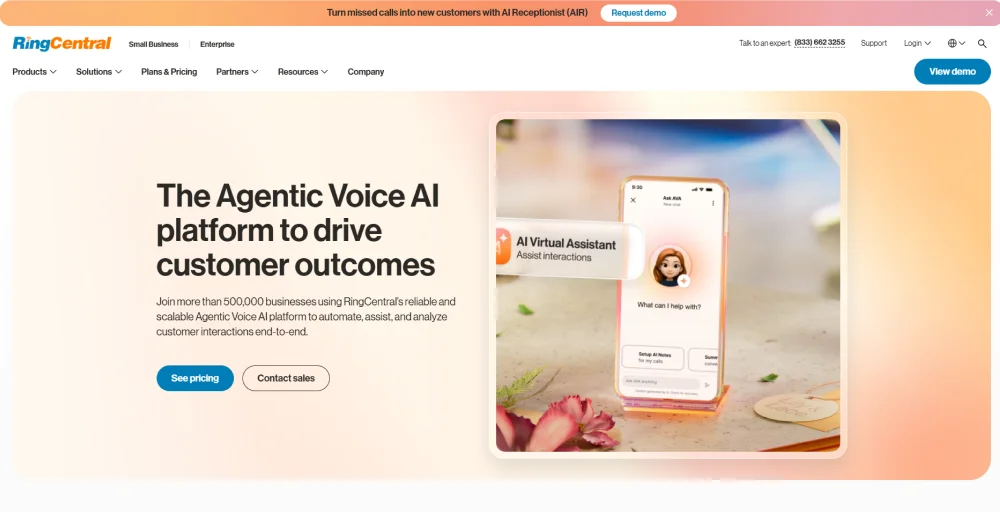
RingCentral brings voice, video, team messaging, and fax into a single desktop application for Windows and Mac. It relies on its proprietary, purpose-built RingCentral Global Connect Network, which delivers consistently strong call quality even over weaker connections.
Standout features
- RingOut: Initiates calls from any application on your PC with a single click.
- AI Call Summaries: Automatically generates post-call summaries with action items and transcripts.
- Group SMS/MMS: Simultaneously send a text message to multiple people, either separately or as a group text.
- Multi-Level IVR and Call Queues: Handles complex inbound call routing across teams, departments, and time zones.
Pros
- Native desktop app for Windows and Mac with a polished, consistent interface across devices.
- A financially backed 99.999% uptime SLA.
- 500+ integrations covering CRM, helpdesk, productivity, and analytics tools.
Cons
- Advanced features like AI Receptionist and call queue boosters are sold as paid add-ons.
- Initial setup and admin configuration carry a noticeable learning curve.
- The baseline tiers are priced higher than other alternatives.
Pricing
RingCentral’s RingEX Core plan starts at $20/user/month (billed annually). For a detailed breakdown of plans and add-on costs, see our RingCentral pricing guide.
3. Nextiva
Best for: Small to mid-sized customer service and support teams that prioritize a highly collaborative platform.
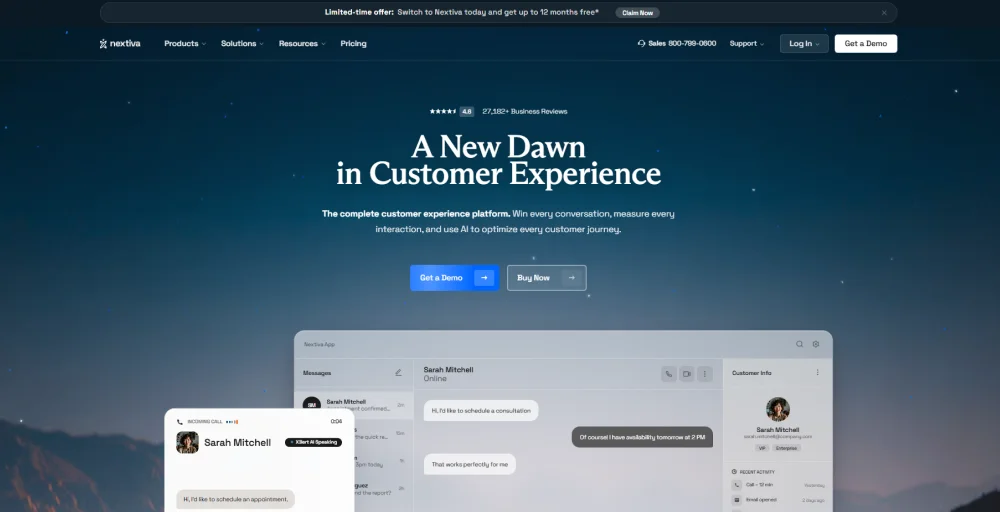
Nextiva is a unified communications platform that combines voice calling, SMS, video, and team messaging into a single desktop application. It’s built on a 99.999% uptime guarantee and includes an AI virtual assistant on every plan (though the feature differs by plan).
Standout features
- Conversational AI: Handles inbound calls using natural language, routing callers without forcing them through rigid menu options.
- Voicemail to Text: Transcribes voicemail messages into readable text, allowing agents to scan and respond without listening to every message.
- Call Recording and Rating: Records calls automatically, lets managers rate them, and generates reports directly from the dashboard.
- Advanced Call Routing: Customizes how inbound calls are handled either by time, department, or caller criteria.
Pros
- Calls, video meetings, and team messaging are included on all plans.
- Desktop app, mobile app, and browser access are all available, giving teams full flexibility on how they call from their PC.
- 24/7 support via phone, email, and chat is included on every plan.
Cons
- Call recording is a paid add-on on the Core plan.
- CRM integrations with Salesforce, HubSpot, and others are add-ons across all plans, including higher tiers.
- AI features like real-time transcription, call summaries, and AI Answer Assist are only available on the Scale plan at $75/user/month.
Pricing
Nextiva’s Core plan starts at $15/user/month (billed annually). For a comprehensive look at their advanced tiers and specific platform add-ons, visit our Nextiva pricing 2026 guide.
4. Google Voice
Best for: Solopreneurs and small US-based teams already using Google Workspace that need basic calling and voicemail.
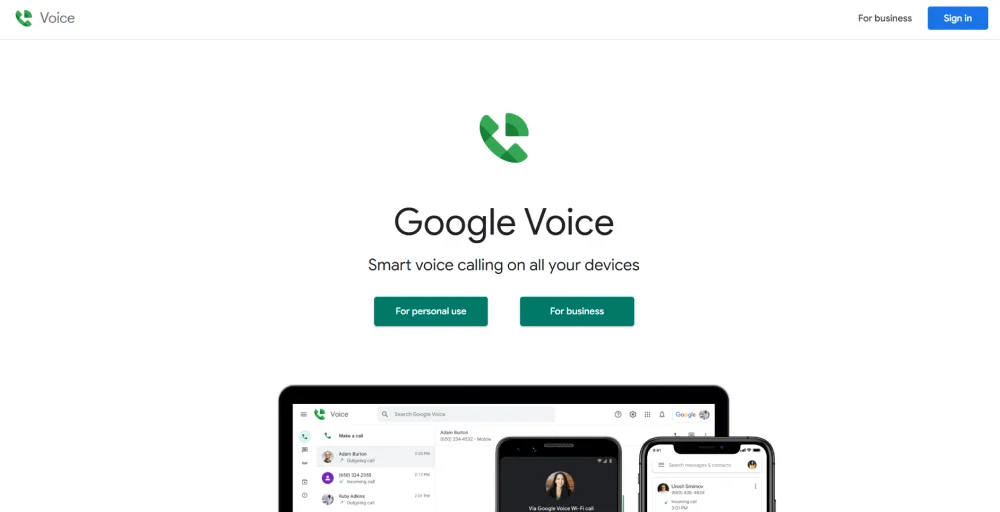
Google Voice is a cloud-based VoIP service that runs entirely through a web browser on a PC. It works within the Google ecosystem, making it a natural fit for teams already using Google Workspace tools.
Standout features
- Google Workspace Integration: Syncs natively with Gmail, Google Calendar, and Google Meet for a connected workflow.
- Voicemail Transcription: Automatically converts voicemails into text and delivers them to your inbox.
- eDiscovery and Vault Integration: Brings call, voicemail, and text records into a single compliance and retention system.
- Auto Attendant & Ring Groups: Routes inbound calls intelligently to the right person or device.
Pros
- Most affordable entry point on this list at $10/user/month, with unlimited domestic calling included.
- AI-powered spam filtering that helps reduce unwanted SMS and calls.
- Deep native integration with Gmail, Google Calendar, and Google Meet.
Cons
- No dedicated desktop app.
- CRM integrations outside the Google ecosystem are virtually nonexistent.
- Automatic call recording is locked to the Premier plan ($30/user/month).
Pricing
Google Voice plans start at $10/user/month (Starter), voice-only, while other plans require an active Google Workspace subscription. For a full cost breakdown, see our Google Voice pricing guide.
5. Zoom Phone
Best for: Remote and hybrid teams already using Zoom for video meetings that want to consolidate their communications into a single dashboard.
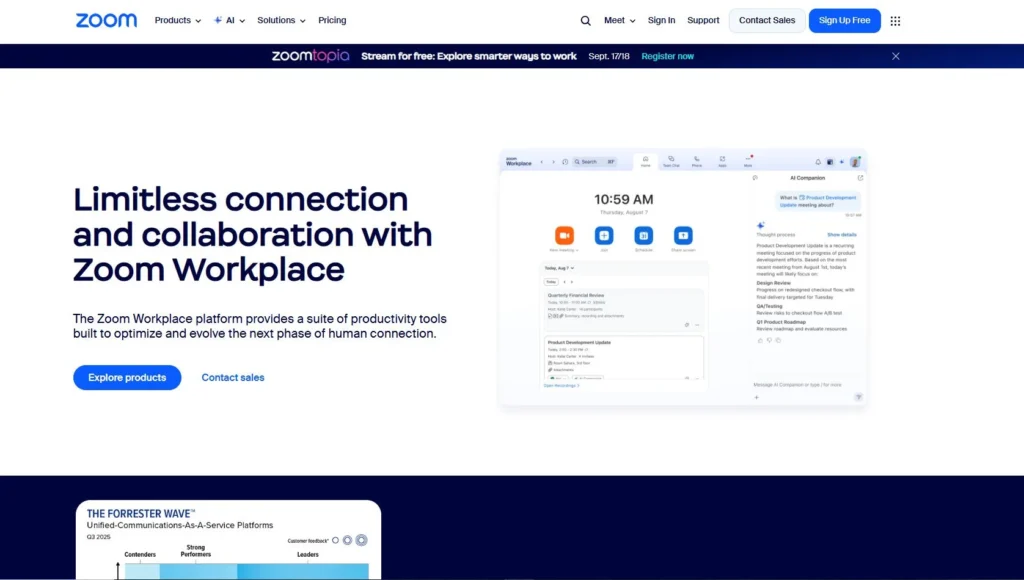
Zoom Phone is a cloud-based VoIP system built directly into the Zoom Workplace app. It lets its users make and receive calls from the same desktop interface they already use for video meetings and team chat. It runs on Windows and Mac without additional software.
Standout features
- Post Call Summaries: Automatically captures key discussion points, action items, and next steps after every call.
- Call Recording: Records calls on demand or continuously with automatic transcription, and stores them for access from any device.
- Voicemail Transcription: Converts voicemails to text with task extraction, turning missed messages into actionable follow-ups.
- Bring Your Own Carrier (BYOC): Plug your existing carrier into Zoom Phone, avoiding the need to migrate numbers.
Pros
- Minimal learning curve, as most modern professionals are already deeply familiar with the Zoom interface.
- Voice, video, and team chat live in one desktop app.
- 99.999% uptime target backed by Zoom’s global infrastructure, with coverage across 45+ countries.
Cons
- Advanced features, such as adding traditional desk phones or setting up conference rooms, require separate licensing.
- AI Companion features are locked to the Zoom ecosystem only.
- The most affordable plan, US & CA Metered charges for outbound calling on a per-minute basis.
Pricing
Zoom Phone’s US & Canada Metered plan starts at $10.50/user/month (billed annually), with the US & CA Unlimited plan at $16/user/month. For a full cost breakdown, see our Zoom Phone pricing guide.
6. Dialpad
Best for: Sales and support teams that want an AI-powered unified communication platform from day one.
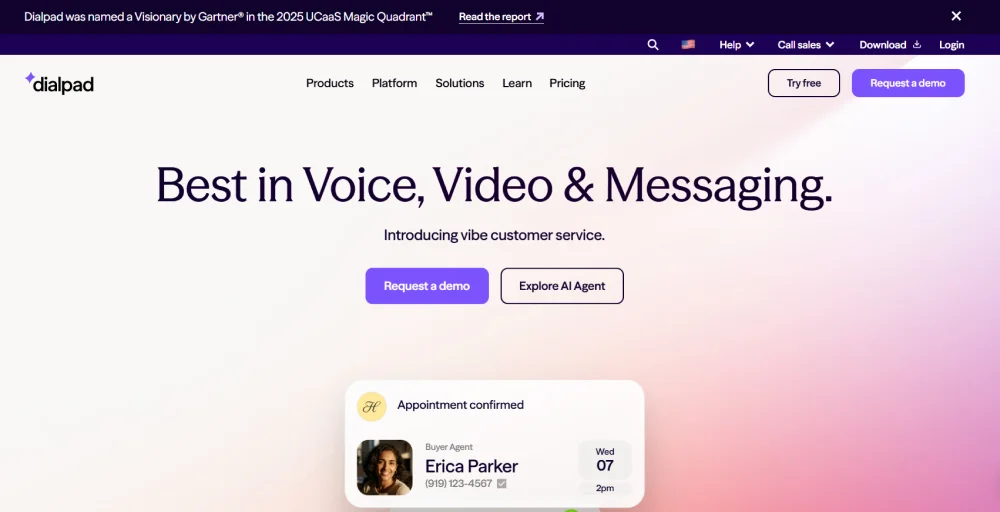
Dialpad is an AI-native cloud communications platform that runs on both Windows and Mac through a dedicated desktop app. It’s built on DialpadGPT, its own large language model, which powers real-time transcription, live coaching, and post-call summaries.
Standout features
- AI Recaps: Automatically generates post-call summaries with action items, key highlights, and next steps immediately after every conversation ends.
- AI CSAT Scoring: Automatically gather customer satisfaction scores (CSAT) from call conversations, without any post-call surveys.
- Live AI Coaching Cards: Surface relevant talking points, objection handling tips, and compliance prompts to agents in real time during active calls.
- AI Scorecards: Automatically evaluate agent performance against QA criteria after each call, reducing the time supervisors spend on manual reviews.
Pros
- Core AI features, including real-time transcription, call summaries, and live coaching, are included in the Standard plan.
- Features open API architecture alongside a deep app marketplace to custom-build your workspace.
- 14-day free trial available with no credit card required.
Cons
- SMS overages kick in after 250 messages at $0.008 per message (even if the message is undelivered).
- CRM integrations like Salesforce and HubSpot are only available on the Pro plan ($25/user/month) and above.
- Unlimited calling applies only to the local calling in your country, the US, and Canada.
Pricing
Dialpad Connect pricing starts at $15 per user/month (when billed annually) for the Standard tier, while the integration-heavy Pro tier sits at $25 per user/month. For a full cost breakdown, check out our Dialpad pricing guide.
7. Grasshopper
Best for: Solopreneurs, freelancers, and small business owners who need a professional business number with basic call management features.
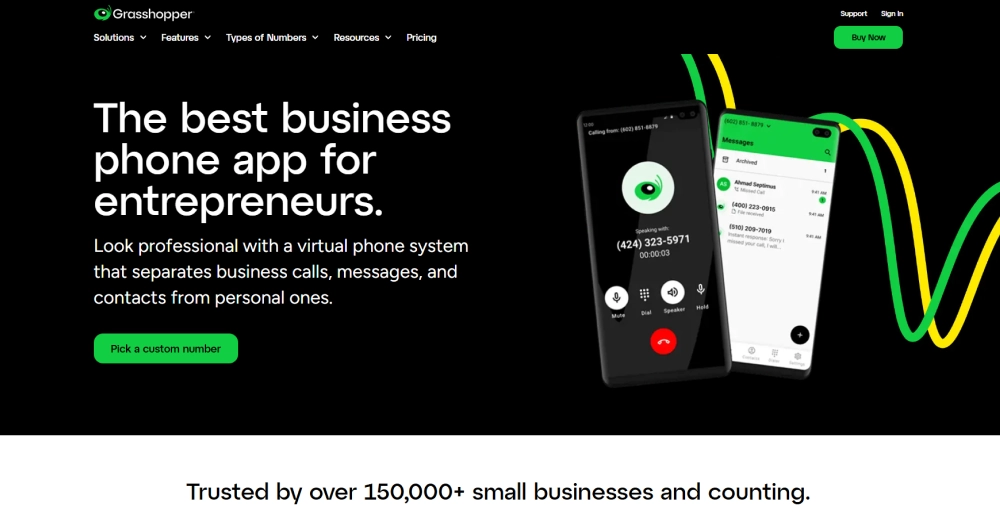
Instead of competing with a heavy-duty corporate dialer or an AI contact center, Grasshopper serves as a highly efficient virtual forwarding layer. It runs through desktop and mobile apps on Windows and Mac, requiring no hardware or technical setup.
Standout features
- Virtual Faxing: Automatically receive inbound corporate faxes directly into your computer phone calling application feed.
- Virtual Extension: Create specific departments as needed (e.g., Press 1 for Sales, 2 for Support).
- Business Texting: Send and receive texts from your business number through the desktop or mobile app.
- Custom Greetings: Set personalized greetings, after-hours messages, and automated replies based on your business hours and custom schedules.
Pros
- No contracts or credit cards required, with a 7-day free trial to get started.
- Super cost-effective for small teams.
- Simple setup with no hardware or IT support.
Cons
- Lacks native app integrations for common enterprise tools like Salesforce, HubSpot, or Helpdesk suites.
- No video conferencing, team messaging, or advanced call analytics.
- Calling is limited to the US and Canada; international calls are billed at per-minute rates.
Pricing
Grasshopper plans start at $14/month (billed annually) for the True Solo plan, up to $55/month for the Small Business plan. For a breakdown of active extensions and number limits, see our Grasshopper pricing guide.
8. 8×8
Best for: SMBs that need an all-in-one unified communications (UCaaS) and contact center platform.
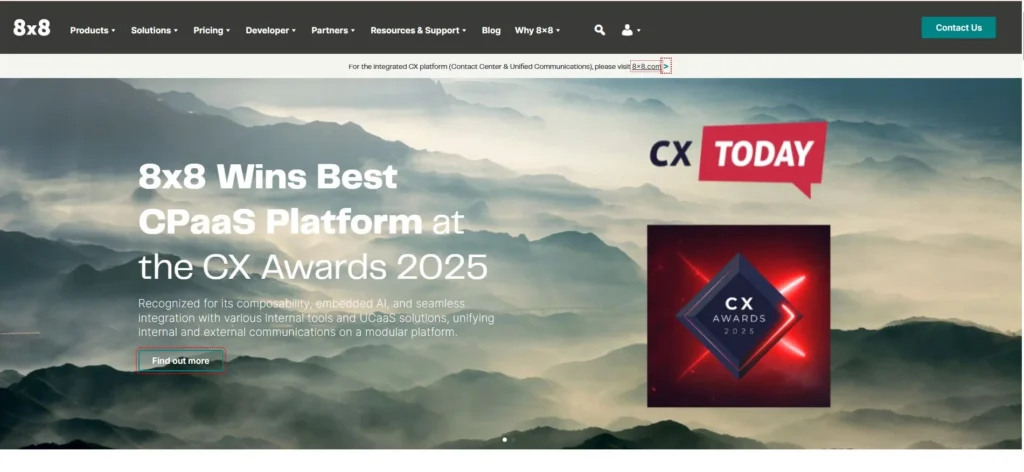
8×8 is a cloud-based unified communications platform that combines voice, video, team messaging, and contact center capabilities under a single platform. It runs through the 8×8 Work desktop app on Windows and Mac and offers a 99.999% uptime SLA.
Standout features
- Global Unlimited Calling: Freely call up to 48 countries within a single user license tier.
- Speech Analytics: Automatically transcribes calls and surfaces AI-generated summaries, action items, and topic tracking.
- Compliance-Grade Call Recording: Built with advanced encryption frameworks that align directly with global privacy standards like PCI-DSS, HIPAA, and GDPR.
- XCaaS Platform: Brings UCaaS and contact center under one license, so voice calls, video meetings, and customer support operate from the same desktop app.
Pros
- Unlimited international calling to 14 to 48 countries, depending on your plan.
- Audio or video meeting hosting for up to 500 active participants.
- 99.999% uptime SLA covering both UCaaS and contact center.
Cons
- All of its plans require a sales quote, making upfront budgeting difficult.
- Contract cancellation requires written notice at least 30 days before the end of the term.
- User reports for occasional background noise, latency, or inconsistent app performance.
Pricing
8×8 requires contacting their sales division for custom quotes. For a detailed breakdown, see our 8×8 pricing guide.
9. Vonage
Best for: Mid-sized businesses and developer-led teams that need a flexible, customizable phone system.
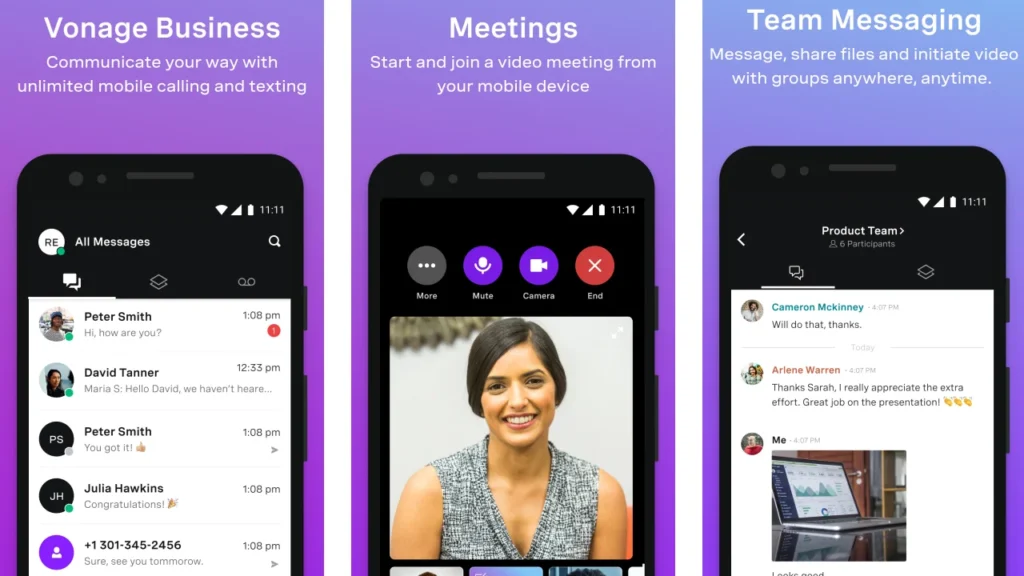
Vonage Business Communications (VBC) is a cloud-based unified communications platform. It offers a developer-facing Communications API layer that lets businesses build custom calling and messaging workflows directly into their own products and internal tools.
Standout features
- Video Conferencing: Supports up to 200 participants with whiteboarding, virtual backgrounds, and recording options.
- AI Virtual Assistant: Uses a voice-driven self-service model to address routine customer inquiries immediately.
- Communications APIs: Programmatic voice, video, messaging, and verification APIs to embed calling functionality directly into custom-built applications.
- Call Continuity Service: Automatically reroutes calls to a backup number in the event of a power outage or internet loss.
Pros
- Seamlessly flip calls between the desk phone and mobile app or team chat to a video meeting.
- Strong developer-facing API layer for teams that need to build custom communication workflows.
- 10DLC and e911 support, along with other compliance support.
Cons
- Call queues are not included in any plan and are sold as add-ons.
- Users frequently complain about occasional call drops, choppy audio, and connection instabilities.
- Sometimes users report support channels being slow and unhelpful.
Pricing
Vonage Business Communications pricing scales dynamically based on team size, starting at $13.99 per line/month (for 1–4 users under a 12-month promotional agreement) for the Mobile tier. For a full cost breakdown, see our Vonage pricing guide.
10. Aircall
Best for: SMB sales and support teams that prioritize fast setup and deep CRM connectivity.
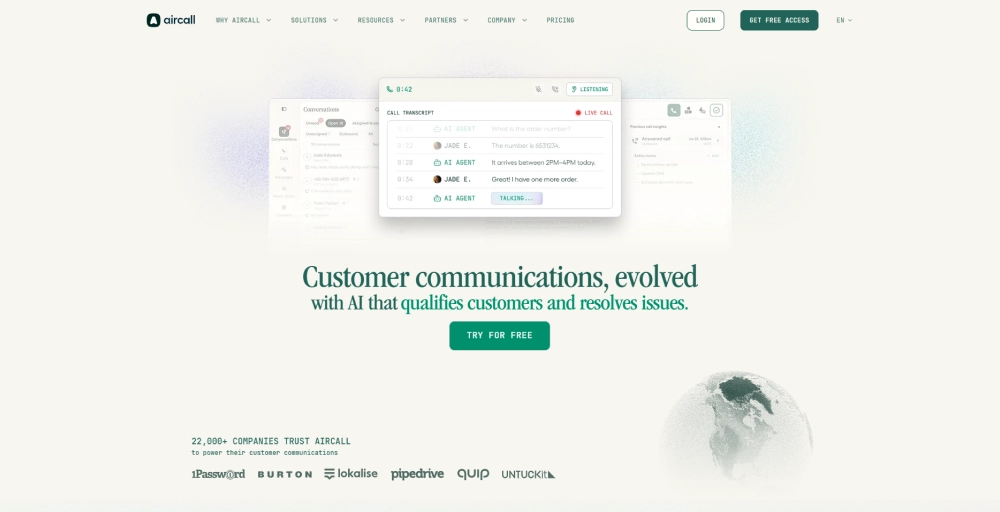
Aircall is a cloud-based phone system that brings calls, SMS, MMS, and WhatsApp together in a single platform and connects deeply with CRM tools through 250+ integrations. It runs on a desktop app and a browser-based softphone and requires no hardware.
Standout features
- Power Dialer: Automates outbound lead lists by dialing numbers sequentially from your PC app.
- AI-Generated Call Summary: Automatically summarizes calls, detects key topics and sentiment, and surfaces conversation intelligence after every interaction.
- Insight Cards: Surface relevant CRM and helpdesk data from connected tools directly on screen during an active call.
- Call Coaching & Whispering: Managers can coach reps during actual calls without the customer hearing, alongside live dashboards.
Pros
- 250+ one-click integrations with CRM, helpdesk, and productivity tools.
- Every account gets 50 free minutes with the AI Voice Agent per month.
- Unlimited calls within the USA and Canada.
Cons
- A minimum of 3 seats is required on every plan.
- The entry plan is more expensive than other calling software for PCs.
- AI-powered features like call summaries and sentiment tracking are available only as add-ons on the Essential plan.
Pricing
Aircall’s Essentials plan starts at $30/license/month (billed annually) and requires a minimum purchase of 3 user licenses. For a full cost breakdown, see our Aircall pricing guide.
Best free calling software for PC
If you are operating a lean startup, testing a secondary line, or simply need an occasional way to handle external communications without a recurring subscription, a free calling app can provide substantial value.
- WhatsApp Desktop: WhatsApp Desktop is a highly secure, lightweight desktop calling app. It brings end-to-end encrypted voice and video calling directly to your PC and syncs seamlessly with your mobile account.
- Viber: Viber offers a feature-rich calling app for laptops and desktops that functions similarly to traditional softphones. It supports free PC-to-PC calls and low-cost calls to non-Viber numbers via the Viber Out feature, and group calling for up to 20 participants.
- TextNow: TextNow provides a free US virtual phone number and operates via an ad-supported browser interface or desktop application. It allows you to make phone calls from a PC to standard mobile phones and landlines.
- Microsoft Teams (free version): The free tier of Microsoft Teams allows users to launch instant, high-quality video or voice calls directly from their computer. The free version also includes unlimited text chatting, file storage, and shared community spaces.
- Telegram: Telegram’s desktop application allows users to make high-quality peer-to-peer voice calls on PC, secured by strong network encryption layers. It supports massive group sizes and channels with no call time limits.
- Facebook Messenger: Facebook Messenger allows you to call people on computer networks instantly. It enables free voice and video calls to Facebook contacts directly from the desktop app or browser with no account setup beyond a Facebook profile.
Note: Free PC calling apps work well for personal use, but most businesses quickly outgrow them. Features such as call forwarding, dedicated business numbers, CRM logging, call analytics, compliance controls, team-level access, and priority support are available only on paid platforms.
Key features to consider when choosing a PC calling app for business
When evaluating the best voice calling software for PC, it is easy to get distracted by flashy add-ons. However, a business-grade computer phone software solution must be judged on its ability to streamline workflows, protect data, and optimize agent productivity.
When choosing a platform for your business operations, prioritize these essential features:
1. Interactive Voice Response (IVR) & Call Routing: An intelligent IVR acts as a digital receptionist, directing incoming calls to the right department or agent based on their input, without manual switchboard handling.
2. Native CRM & Helpdesk Integrations: Your desktop calling app shouldn’t operate in a silo. Look for native integrations that enable automatic call logging, click-to-call from within your CRM, and bidirectional contact sync.
3. SMS and Messaging Support: A platform that handles SMS alongside calls keeps all customer communication in one place, so no interaction falls through the cracks.
4. Outbound Productivity Engines (Power Dialers): For sales teams, manual dialing is a time sink. Power dialers, parallel dialers, and click-to-call extensions increase talk time by automating lead queues and bypassing unanswered lines.
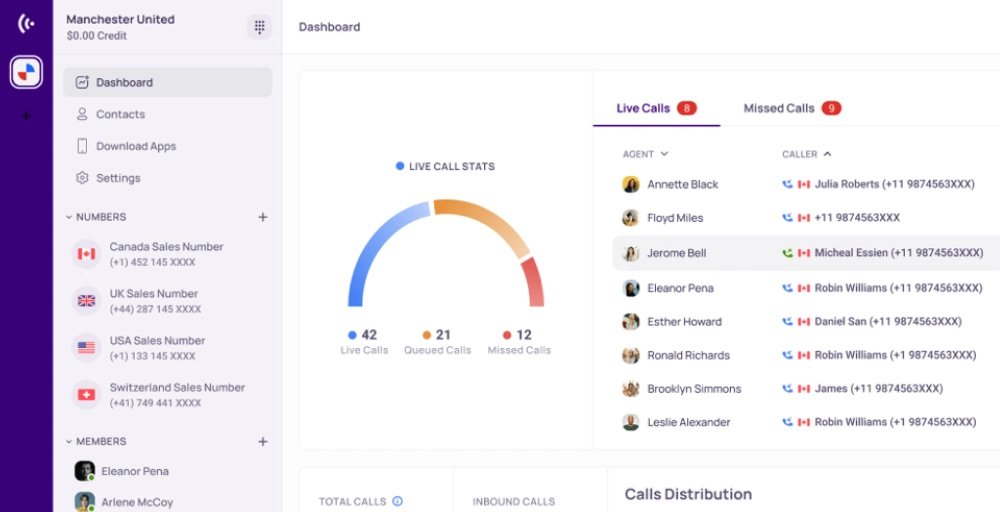
5. Advanced Call Analytics & Live Monitoring: Look for real-time dashboards tracking handle times, answer rates, and call volumes, alongside live monitoring tools like call whispering and barging for in-call agent coaching.
6. Call Recording and Voicemail: Recording supports QA, agent coaching, and compliance. Voicemail transcription ensures missed calls don’t become missed context.
7. Virtual Number Support: Look for local, mobile, toll-free, and international number options. A local number in the region you’re calling significantly improves pickup rates for outbound teams.
Step-by-step method to call from a PC
Getting started with PC calling is simple, regardless of which platform you choose. Here’s how to go from zero to your first business call in these simple steps:
1. Choose your PC calling software
Select a calling software for PC that aligns with your specific communication requirements. Look for core features like native CRM integration, call history, reliable uptime, and international number availability to ensure your team never loses context during client conversations.
2. Install or open the software application
Access your chosen platform using one of the following deployment paths:
- For browser-based solutions:
- Sign up and log in through your browser
- Install the Click-to-Call extension (like KirspCall’s Click-to-Dial) if available
- Allow microphone access when prompted
- For desktop app solutions:
- Download and install the app from your provider
- Log in and configure your account credentials
- Test your microphone and speakers
3. Configure your calling preferences
Before your first call, take a few minutes to set up the essentials:
- Select or purchase your virtual phone number
- Connect your CRM or helpdesk for automatic call logging
- Set up call routing, voicemail, and business hours
- Add team members and assign numbers if needed
4. Start calling from your PC
You’re ready to call. From here you can:
- Dial manually using the in-app keypad
- Use Click-to-Call to dial any number on a webpage or inside your CRM
- Initiate calls directly from your contact list or CRM records
Conclusion
Choosing the right calling software for PC comes down to understanding what your team actually needs day to day. Some businesses need a simple, low-cost number to separate personal and professional calls.
Others need AI-powered transcription, deep CRM sync, and outbound automation running simultaneously across a distributed team. The ten platforms covered in this guide cover the full range of those needs.
That said, if you’re looking for one platform that balances cost, features, global reach, and ease of use without forcing you into an enterprise contract, KrispCall stands out as the strongest all-around option.
It runs entirely in a web browser, supports calling in 100+ countries, includes a Unified Callbox, and connects natively with 100+ CRM and helpdesk tools, all starting at $12/user/month.