Imagine waiting for an urgent business call only to realize it’s being diverted to your office landline while you’re on the road.
Leaving call forwarding on by mistake is a common frustration that leads to missed opportunities and poor customer experiences
In this guide, you’ll learn how to turn off call forwarding on Android, iPhone, landline phones, and VoIP services. We’ll also cover troubleshooting tips, carrier codes, and common mistakes.
✨ Key Takeaways
TL;DR: Quick ways to turn off call forwarding
If you’re in a hurry, try one of these quick methods:
- Dial
##002#on most phones to cancel all call forwarding - iPhone: Settings → Phone → Call Forwarding → Toggle off
- Android: Phone app → Settings → Call Forwarding → Disable
- Landline: Dial
*73or##002# - VoIP: Turn off call forwarding from your provider’s dashboard
How to turn off call forwarding on Android devices?
Turning off call forwarding on Android may vary slightly depending on your device and carrier, but the process is generally the same.
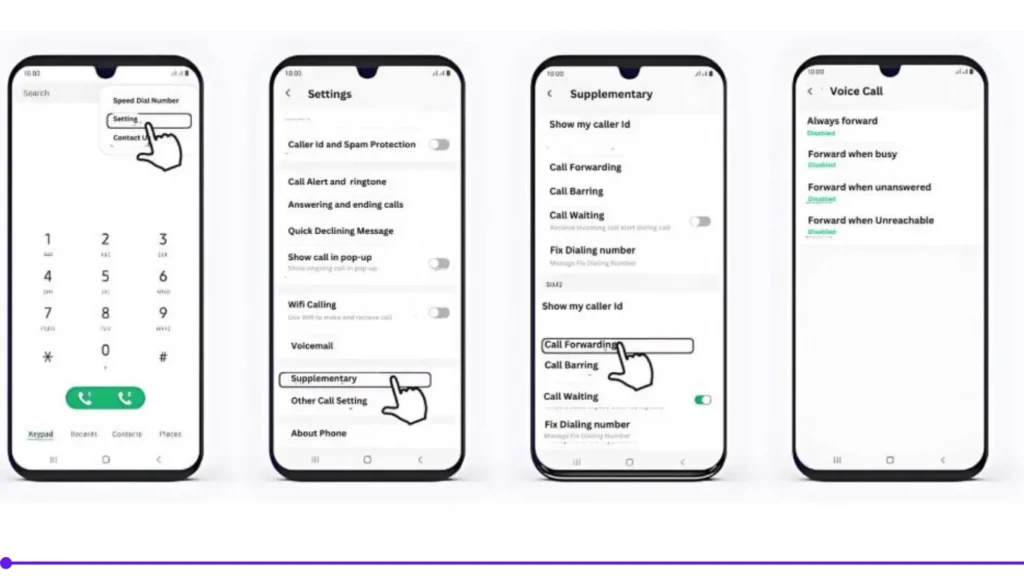
Method 1: Using phone settings
Step 1: Open the Phone app
Step 2: Tap the three-dot menu (top-right corner)
Step 3: Go to Settings
Step 4: Select Call forwarding
Step 5: Disable all enabled options:
- Always forward
- Forward when busy
- Forward when unanswered
- Forward when unreachable
Method 2: Using dial codes
Dial one of the following:
- ##002# : Cancels all call forwarding
- *73: Disables unconditional call forwarding
Tip: Restart your phone after disabling it to ensure the settings apply.
How to turn off call forwarding on iPhones?
On iOS, call forwarding is managed directly through your system settings. Follow these steps for the most recent iOS versions:
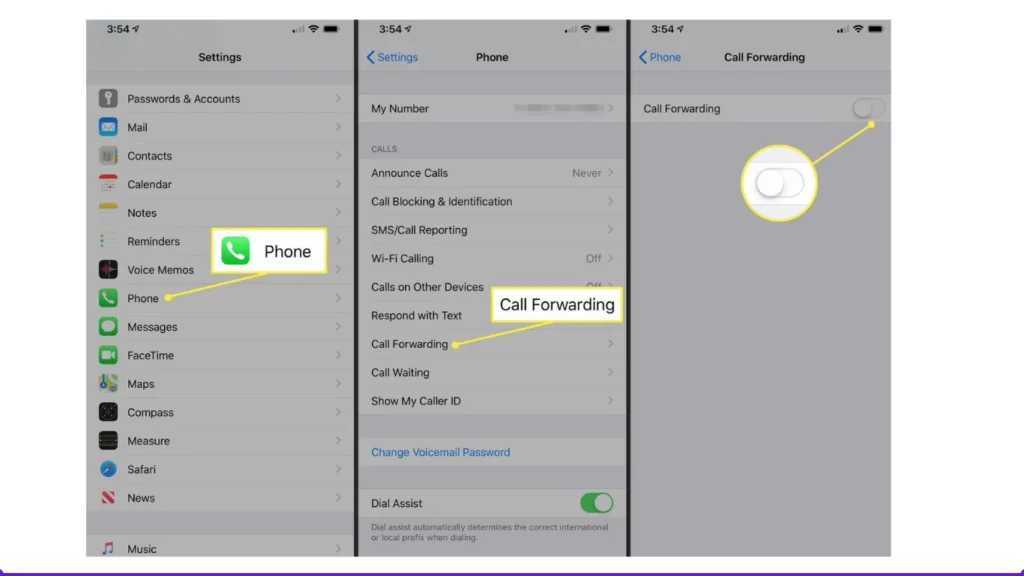
Sep 1: Open the Settings app.
Step 2: Scroll down and tap Apps, then select Phone.
Step 3: Tap on Call Forwarding.
Step 4: Toggle the Call Forwarding switch to the OFF position (it should turn from green to grey).
If you use carrier codes
- Dial ##002# to turn off all call forwarding
- Dial *73 if supported by your carrier
⚠️ Note: Some carriers manage forwarding through their own network settings, so changes may take a few seconds to apply.
How do I disable call forwarding on a landline phone?
Turning off call forwarding on landline phones is straightforward. Here is a step-by-step process to remove call forwarding on a landline phone:
Step 1: Pick up your landline handset
Step 2: Dial the appropriate deactivation code for your carrier to cancel call forwarding:
- Verizon: Dial *73 to disable all business calls
- AT&T: Dial *73# for call forwarding, *93# for no answer, *91# for busy, *373# for safe, and *83# for exclusive.
- T-Mobile: Dial ##21# for unconditional, ##004# for all conditional forwarding, ##61# for no answer, ##67# for busy, and ##62# for not reachable
Step 4: Wait until you hear a confirmation tone, then a regular dial tone, and end the call. Now, this will cancel the forwarding feature on our device.
Note: If it doesn’t work, contact your landline service provider, as codes may vary.
Why do you need to disable call forwarding?
You need to disable call redirecting features when you don’t need to redirect your calls to another number and want to receive them directly on your primary device again.
- Prevent missed calls: When a call is redirected, you lose control over how and when it is answered. If the call is forwarded to an unused or outside service number, it delays the response or results in a missed call. Disabling forwarding ensures all calls reach you, reducing the risk of missed calls.
- Maintain privacy: Forwarding calls to other numbers increases the risk of exposing confidential details of the conversation. So, turn off forwarding to maintain your privacy and keep your conversation between you and the caller.
- Avoid unnecessary costs: When you forward calls to another number, your phone service provider charges you additional fees for each forwarded call. This can quickly add up on your phone bill, even if a forwarded number is receiving the calls.
- Reduce confusion for callers: Forwarding a call to another business number might solve a short-term issue. But over time, it creates confusion for the caller. They might reach someone who isn’t expecting it or isn’t familiar with the context.
Why call forwarding may not turn tff (troubleshooting)
If call forwarding keeps staying active, try these fixes:
- Restart your phone after disabling
- Disable all forwarding types, not just “Always forward.”
- Check carrier-level settings
- Dial ##002# to reset all forwarding rules
- Ensure no third-party calling apps are overriding settings
- Log in to your VoIP dashboard to verify routing rules
How to stop call forwarding on VoIP services?
For VoIP or virtual phone systems, call forwarding is managed through the admin dashboard.
General Steps
Step 1: Log in to your VoIP provider’s dashboard
Step 2: Navigate to Call Settings or Call Routing
Step 3: Find Call Forwarding
Step 4: Disable forwarding rules
Step 5: Save changes
If you’re using a business phone system like KrispCall, you can easily manage call forwarding, schedules, and routing rules from a single dashboard — without relying on carrier codes.
Frequently Asked Questions
Can I turn off call forwarding remotely?
Yes, you can turn off call forwarding remotely. Many phone systems and VoIP providers let you manage call forwarding settings through an online portal or a mobile app. For traditional landlines, you can dial specific codes from any phone.