

Ever finished an important call and realized you can’t remember half of what was said?
It happens more than you’d think. Important details fade fast, especially when the conversation involves work, clients, legal matters, or anything you need to act on later.
Recording a phone call solves that problem instantly. It gives you an accurate record you can revisit, reference, and share, so you never have to rely on memory alone for the things that actually matter.
✨ Key Takeaways
- Call recording laws vary by state and country. Always confirm whether one-party or all-party consent rules apply in your location before you hit record.
- iPhone (iOS 18.1+): Open Phone → tap More during a call → select Call Recording. Both parties are notified automatically. Saved in Notes.
- Android: Open Phone → Settings → Call Recording. Choose automatic or manual. Replay under Recents.
- For business teams that handle VoIP calls or need transcription, a dedicated app like KrispCall offers compliance-ready recording with secure cloud storage.
- When in doubt: always inform the other person before recording. It’s the legally safest and most respectful approach.
Is it legal to record a phone call?
Recording a phone call is not automatically illegal, but it is not automatically legal either. The rules hinge on consent, and they differ dramatically by country, state, and even the type of call.
⚠ Legal disclaimer: This article provides general educational information only and does not constitute legal advice. Laws change frequently. If you have specific concerns, consult a qualified attorney in your jurisdiction.
United States: one-party vs. all-party consent
US federal law (18 U.S.C. § 2511) requires at least one-party consent, meaning if you are on the call, you can legally record it without notifying the other person. However, many states go further.
One-party consent states
You can record without notifying the other party.
- Most US states fall into this category
- New York, Texas, Ohio, Georgia
- Federal default (18 U.S.C. § 2511)
All-party consent states
Everyone on the call must agree before recording begins.
- California
- Connecticut
- Delaware
- Florida
- Illinois
- Maryland
- Massachusetts
- Michigan
- Montana
- Nevada
- New Hampshire
- Oregon
- Pennsylvania
- Vermont
- Washington
Cross-state calls
If you’re in a one-party consent state but the person you’re calling is in California or Florida, courts have generally applied the stricter standard. When callers are in different states, the safest rule is: get consent from everyone.
Here’s a simple script you can use at the start of any call:
Sample consent phrase
“Just so you know, I’d like to record this call for my notes. Are you okay with that?”
United Kingdom
Individuals may record calls for personal use without notifying the other party. However, sharing or publishing the recording without consent may violate GDPR and privacy laws. Businesses must have a lawful basis, inform callers, and comply with GDPR regulations.
International overview
| Country / Region | Consent rule | Notes |
| Canada | One-party | Personal use permitted |
| UK | One-party | Sharing without consent may breach GDPR |
| India | One-party | Sharing may be restricted |
| Ireland, Belgium, Netherlands | One-party | – |
| France | All-party | Penal code violation if breached |
| Germany | All-party | Strict privacy laws apply |
| UAE | All-party | Criminal penalties possible |
| New Zealand | All-party | Crimes Act 1961 applies |
| Australia | Varies by state | NSW, VIC: one-party. QLD, WA: all-party |
How to record a phone call?
iPhone vs Android: Quick comparison
| Feature | iPhone (iOS 18.1+) | Android |
| Built-in recording | Yes (iOS 18.1+) | Varies by brand/region |
| Other party notified | Yes – automatic | Depends on device/app |
| Where recordings save | Notes app | Phone app → Recents |
| Minimum OS version | iOS 18.1 | Android 9+ (varies) |
| Available in all regions | No – region restricted | No – region restricted |
| VoIP call recording | No (need 3rd-party) | No (need 3rd-party) |
| Transcription built-in | No | No |
Recording on iPhone (iOS 18.1 or later)
Before you start: Apple’s built-in call recording is available on iOS 18.1 and later, but it may not be available in all countries due to regional legal restrictions. Go to Settings → General → About to check your iOS version.
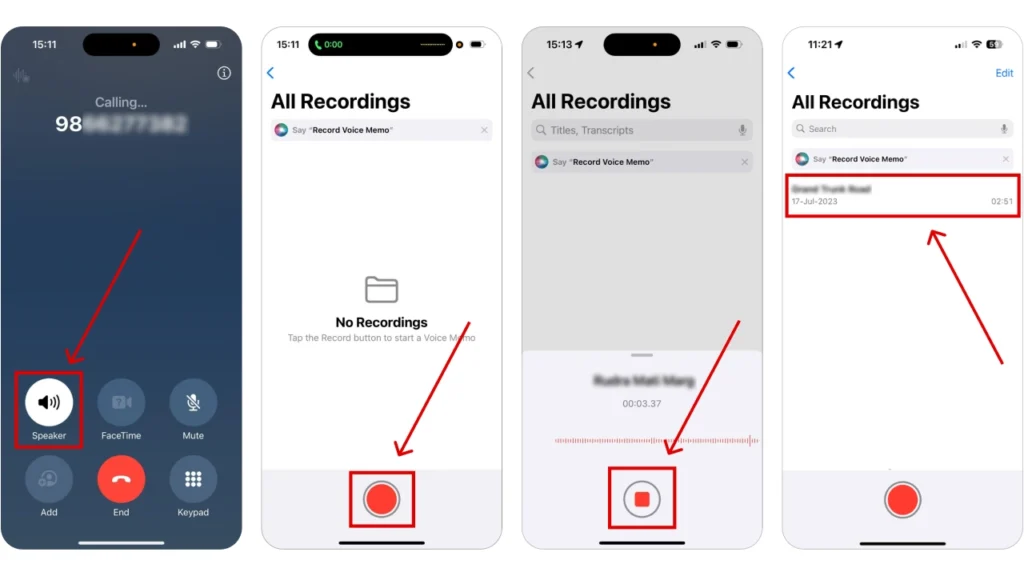
- Open the Phone app and make a call: Dial normally. The feature works for both outgoing and incoming calls.
- Tap the “More” button during the call: This appears as three dots (•••) on the call screen.
- Select “Call Recording”: An automated message plays immediately to notify all parties that the call is being recorded.
- Recording starts automatically: A recording indicator appears on your screen. You cannot disable the notification to the other party.
- Stop recording and find it in Notes: Tap Stop, or simply end the call. The recording is automatically saved to your Notes app, where you can listen, share, or delete it.
Feature not available? If you don’t see the Call Recording option, either your iOS version is below 18.1 or the feature is restricted in your region. In this case, use a third-party app such as TapeACall Pro or KrispCall.
Recording on Android
Built-in call recording availability varies significantly depending on your device.
Samsung (One UI) supports it in many countries, Google Pixel offers it via the Phone app in supported regions, and brands like OnePlus and Xiaomi have their own implementations.
If you do not find the option on your device, a third-party app is your best alternative.
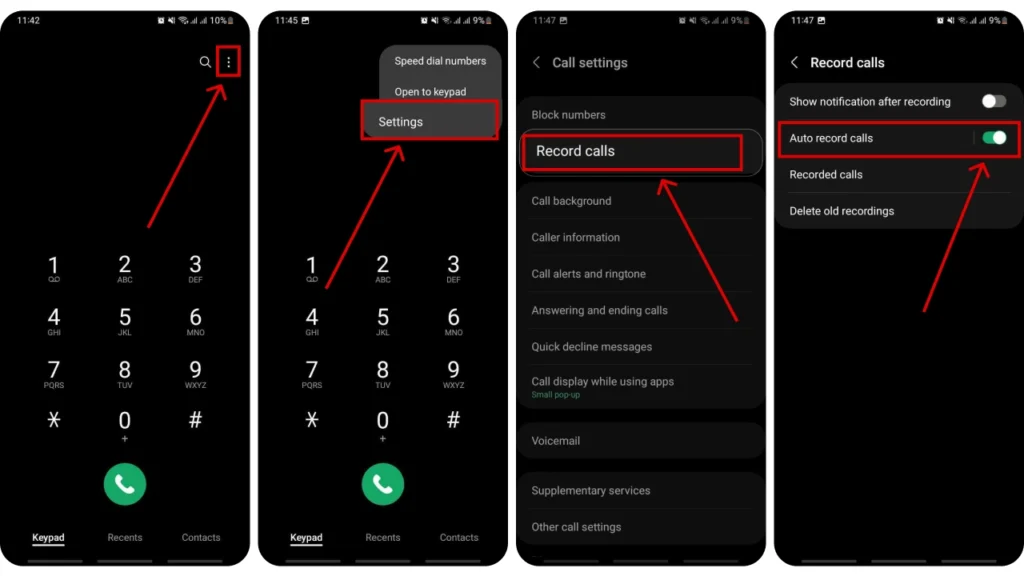
- Open the Phone app: Use the default dialer that came with your device, not a third-party calling app.
- Tap ⋮ (three dots) → Settings: On Samsung devices this may be labeled “Call Assist” instead of “Call Recording.”
- Enable Call Recording: Choose between recording all calls automatically, or specific contacts only.
- During a call, tap Record: For manual recording, the Record button appears on your live call screen.
- Find recordings under Recents: Open the Phone app → Recents, tap the call entry, and you’ll see a Play button next to recorded calls.
Recording VoIP, WhatsApp & video calls
Neither iPhone nor Android natively records WhatsApp, Zoom, Microsoft Teams, or Google Meet calls. You’ll need a dedicated solution:
- Use a business phone system (recommended): Apps like KrispCall handle VoIP calls and record them automatically in the cloud, with transcription and CRM sync.
- Use the platform’s built-in recording: Zoom, Teams, and Google Meet all offer built-in recording for meeting hosts. Participants are notified when recording starts.
- WhatsApp: use Cube ACR: Cube ACR is one of the few apps that can capture WhatsApp audio calls on Android. iOS restrictions make this much harder on the iPhone.
- Screen recording as a last resort: On iPhone and Android, the built-in screen recorder can also capture audio from a live call. Quality may vary, and consent rules still apply.
5 Best apps to record phone calls
If built-in recording isn’t available on your device or region, or you need extra features like transcription and cloud storage, these apps are worth considering.
1. KrispCall
Platform: Android · iOS · Web
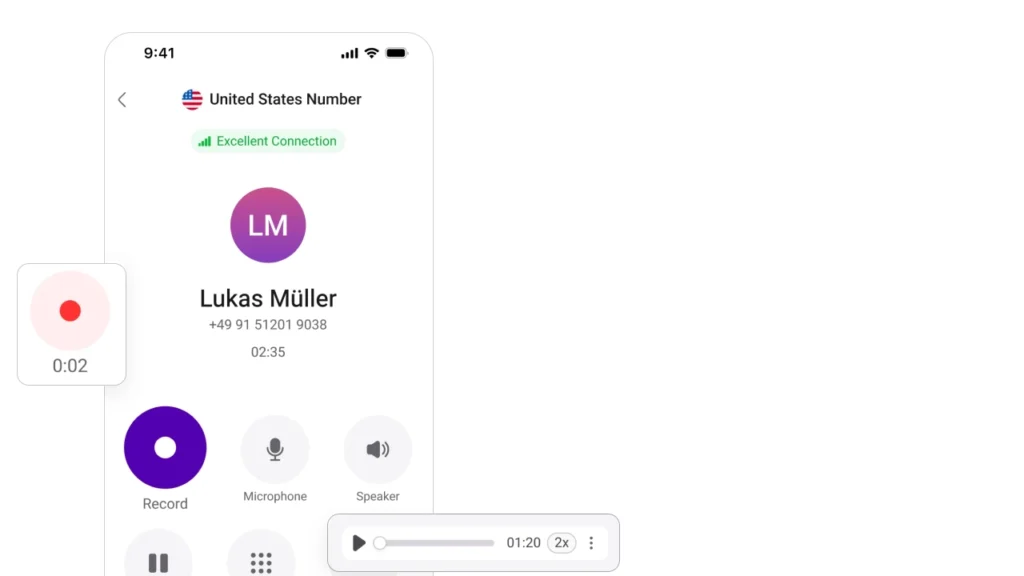
KrispCall is a cloud-based business phone system designed for teams that need more than just basic call recording. It brings together professional-grade call recording, AI-powered transcription, automated call summaries, and deep CRM integrations with tools like Salesforce, HubSpot, and Pipedrive, making it easy for teams to log, review, and act on every conversation without switching between platforms.
Every recording is stored securely in the cloud and accessible from one central dashboard, so team members and managers can review calls, track performance, and stay aligned no matter where they are working from.
For businesses handling VoIP, SMS, and international calls across multiple regions, KrispCall offers a reliable and compliance-ready solution built to scale.
Key Features
- AI transcription & summaries
- Salesforce & HubSpot CRM sync
- Automatic cloud recording
- Analytics & reporting
- International VoIP numbers
Pricing: Free demo available. Paid plans start from $15/user/month.
2. Cube ACR
Platform: Android · iOS | Free tier available

Cube ACR is one of the most widely used call recording apps on mobile, known for its reliability and broad compatibility. It automatically records both incoming and outgoing calls without any manual input, and works across regular phone calls as well as VoIP platforms including WhatsApp, Skype, and Viber.
Android users in particular get the best experience, with options to record all calls automatically or select specific contacts. Recordings can be backed up to the cloud, organized by contact, and protected with a PIN on the premium plan.
Key Features
- WhatsApp & Skype recording
- Automatic recording modes
- Cloud backup
- PIN protection (premium)
Pricing: Free tier available. Premium from ~$1.99/month.
3. TapeACall Pro
Platform: iOS
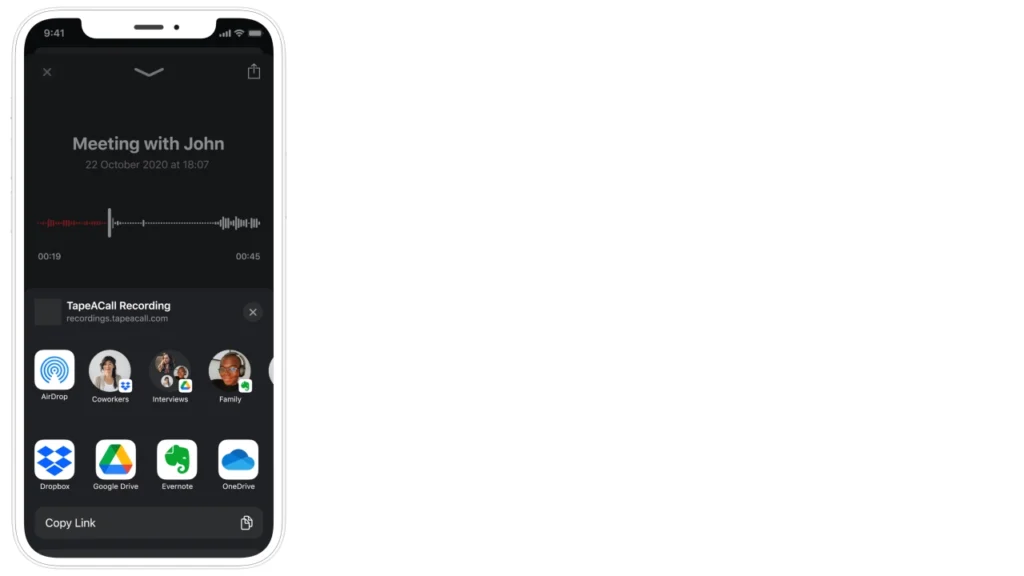
TapeACall Pro is one of the most trusted call recording apps for iPhone users, particularly for those who need a straightforward and dependable solution without dealing with complex setups.
It works by merging a three-way call through its own recording line, which allows it to capture audio on iOS without running into Apple’s system-level restrictions.
This makes it a practical choice for journalists conducting interviews, freelancers discussing project details, and business professionals who need a clear record of important conversations. The app records both incoming and outgoing calls with consistently clear audio quality.
Key Features
- Unlimited recording length
- Unlimited cloud storage
- Share via email or Dropbox
- Zoom call recording
Pricing: $10.99/month or $35.99/year. No free tier – paid only.
4. Rev Call Recorder
Platform: iOS | Free
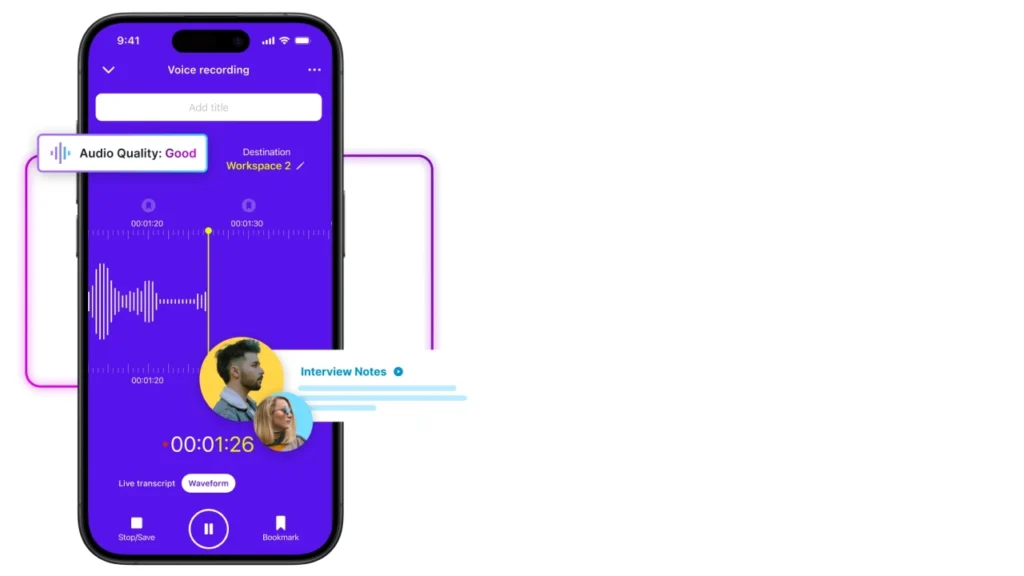
Rev Call Recorder is a straightforward and completely free call recording app designed exclusively for iPhone users. It stands out from other recording apps by offering professional transcription services directly within the app, giving users the option to convert their recorded calls into accurate, searchable text.
You can choose between AI-powered transcription for a faster and more affordable turnaround, or human transcription for situations where precision and context matter most, such as legal discussions, medical consultations, or detailed business negotiations.
Recordings are easy to access, share, and organize, and transcripts can be delivered straight to your inbox or accessed within the app. It is an especially good fit for researchers, writers, reporters, and anyone who regularly needs a written record of their conversations.
Key Features
- Free unlimited recording
- AI transcription ($0.25/min)
- Human transcription ($1.99/min)
- Searchable transcripts
Pricing: Free to record. Transcription billed per minute.
5. Google Voice
Platform: Android · iOS | Free (US only)

Google Voice is a free VoIP service from Google that provides US-based users with a dedicated phone number along with a basic set of communication tools, including call recording. While it is not a dedicated recording app, it does offer one-tap inbound call recording and automatic voicemail transcription, which makes it a convenient option for personal use or light professional needs.
Recordings and transcripts are stored in the cloud and sync seamlessly with Gmail and other Google Workspace tools, making it easy to search and revisit past conversations.
However, it is worth noting that Google Voice only supports recording for incoming calls, not outgoing ones, and its overall feature set is limited compared to purpose-built recording apps. It works best for individuals in the US who want a no-cost solution for occasional recording without committing to a paid app.
Key Features
- 100% free for US users
- Inbound call recording
- Voicemail transcription
- Gmail & Google ecosystem sync
Pricing: Free. US only. Outbound recording not supported.
Troubleshooting common issues
🔇Recording saved but there’s no audio: Check that the app has microphone permission in your phone settings. On iPhone: Settings → Privacy → Microphone. On Android: Settings → Apps → [App name] → Permissions.
🔍Can’t find where recordings are saved: iPhone native recordings save to the Notes app. Android saves to the Phone app under Recents. Third-party apps typically have their own in-app library, check the app’s main screen.
🚫Call Recording option doesn’t appear: On iPhone: ensure you’re on iOS 18.1+. On Android: the feature may be disabled in your region or unavailable on your device model. Update your OS or use a third-party app.
📦Running out of storage space: Long calls create large files. Use a cloud-based app like KrispCall that stores recordings remotely, or regularly export and delete older recordings from your device.
📶Recording cuts out mid-call: This often happens when your phone switches between Wi-Fi and mobile data. Keep a stable connection during important calls, or use a dedicated VoIP system that records server-side.
Wrapping Up
Recording phone calls is one of those tools that seems like a small convenience until you actually need it, and then it becomes essential. Whether you are trying to capture the details of a client negotiation, protect yourself in a legal matter, or simply stop relying on memory for important conversations, a good recording solution pays for itself the first time you use it.
The right approach depends on your situation. The built-in option works fine for occasional personal recording, a third-party app fills in where native support falls short, and a business phone system like KrispCall is the right move if you are handling volume, need transcription, or want compliance built in from day one.
Whatever you choose, always check the consent rules in your area first. It takes seconds and keeps you on the right side of the law.