Have you ever wanted to send a message at the right time, like a morning reminder, birthday greeting, or follow-up with a client, without actually typing it at the moment? That’s where text scheduling comes in.
Scheduling SMS allows you to automatically send messages at the perfect time, ensuring consistent, professional, and organized communication without missing important conversations.
In this blog, we will explore how to schedule a text message and the best time for scheduling text messages on both your iPhone and Android devices.
✨ Key Takeaways
- You can send later text on iPhone by using the Messages app’s scheduling options, automation shortcuts, or reliable third-party scheduling apps.
- Android users can schedule texts easily, using Samsung phones or Google Pixel devices, which come with a built-in scheduling feature.
- Scheduling texts enables you to send texts immediately, daily, weekly, or monthly, ideal for recurring reminders or greetings.
- It is essential to schedule messages at the best time so that your audience can see and engage with them.
Can you schedule a text on iPhone or Android?
Definitely yes, you can schedule text messages on both iPhone and Android at a specific time. However, the methods of queuing messages vary depending on your mobile device.
iPhone users need to use the shortcuts app to schedule messages because the default Messages app does not have a built-in scheduling feature. With shortcuts, you can create an automation that sends a message at your chosen time.
On the other hand, Android users can use Google Messages as it offers a built-in scheduled send option. You can simply type your message, long-press the send button, and choose a date and time.
How to schedule a text from your iPhone?
Here are the 4 different ways to schedule text messages on iPhone:
1. Use the Messages app
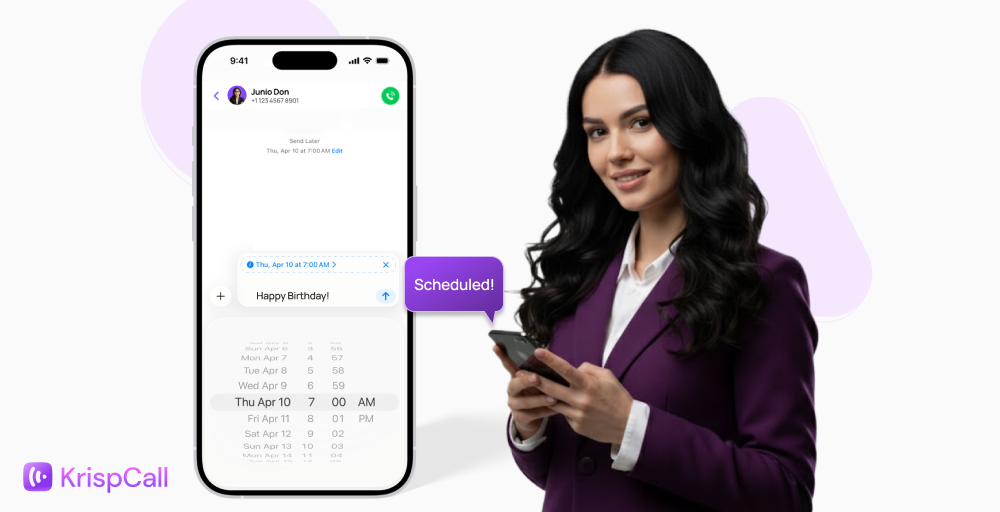
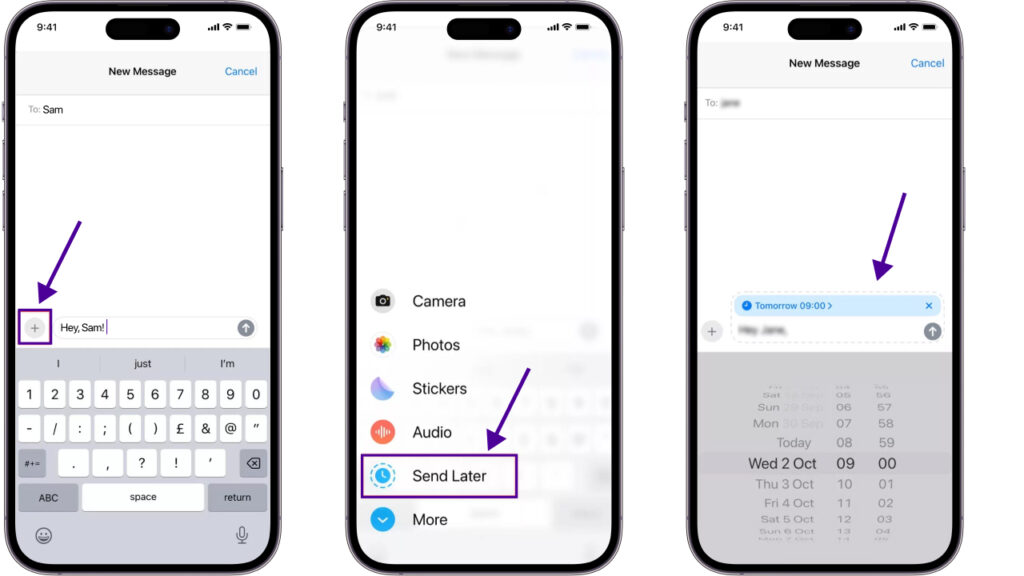
Simply, you can schedule a text message from a messaging app. Make sure you’re running iOS 18 or later on a compatible model — for example, iPhones from XS, XR, 11, 12, 13, 14, 15 series, or newer. It is simple and most reliable to send your messages. Here are the steps you need to follow:
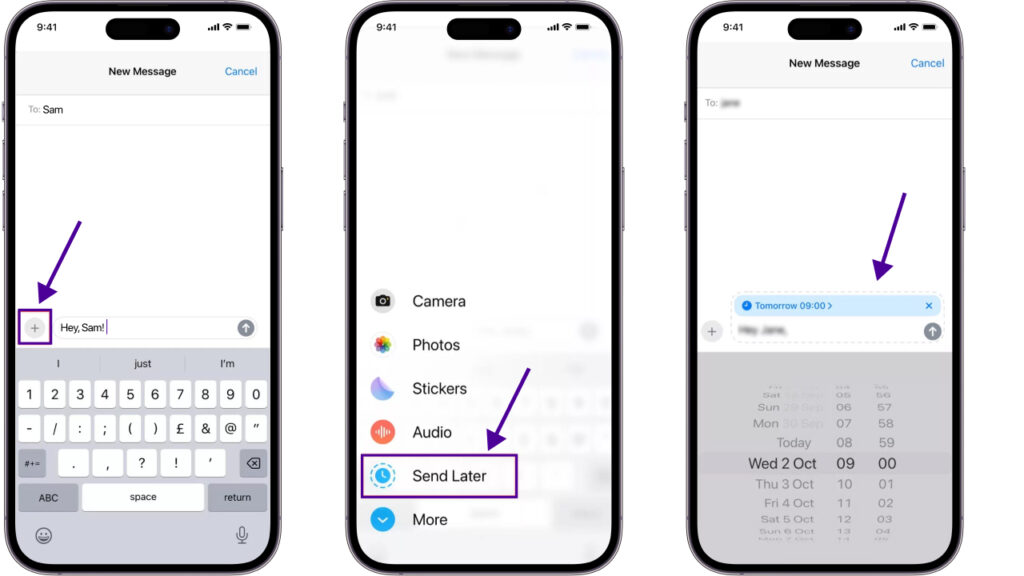
- Open the Messages app and pick the contact you want to message.
- Type your message in the text box.
- Tap the + button next to the text box.
- Choose the date and time you want the message to be sent.
- Finally, tap Send.
2. Use the shortcut app
Another method for iPhone users to schedule text messages is from the shortcut app, which allows you to create personal automations to send text messages automatically. If your iPhone has iOS 13 or above, you can follow these steps:
- If your iPhone is on iOS 13 or later, just open the Shortcuts app. For older iOS versions, you may need to download the latest Shortcuts app from the App Store.
- Tap Automation at the bottom of the screen.
- Tap the + button in the top right corner.
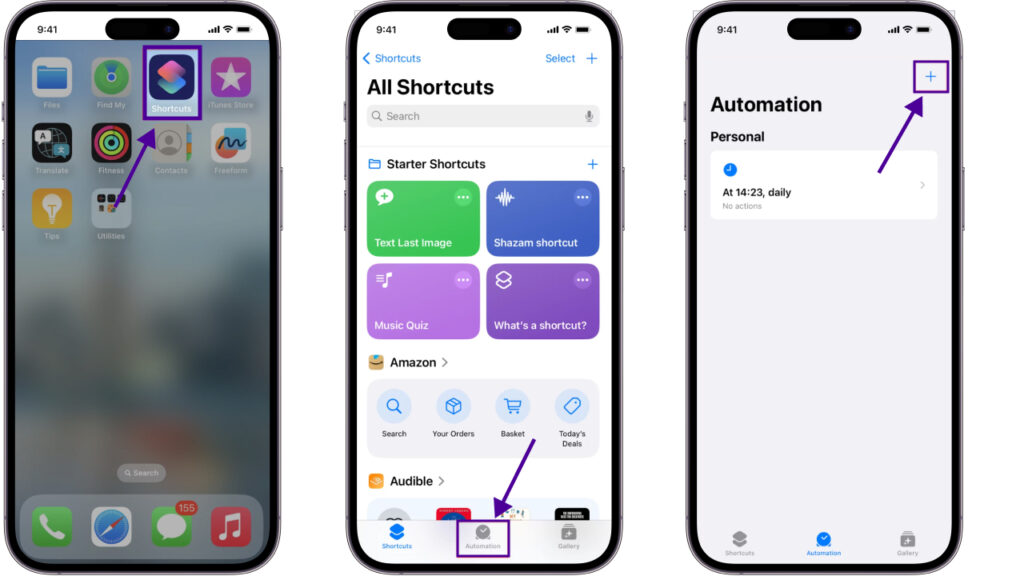
- Select the time for your text to be delivered at your chosen time, then tap Next.
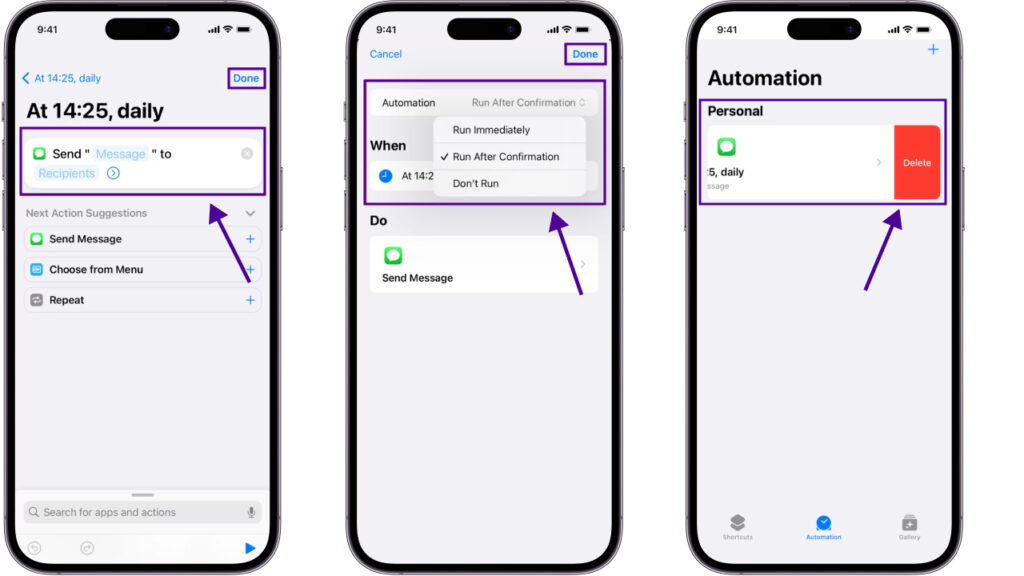
- Select Send Message.
- Type your message in the Message box and add the recipients in the Recipient box, then tap Done.
- If you want to check the message before it sends, turn on Run After Confirmation and tap Done again.
- After the message is sent, delete the automation so it doesn’t send again the next day, unless you want it to.
3. Use a third-party app such as AutoSender
You can use third-party messaging apps like AutoSender to schedule texts directly. It has a built-in feature for scheduling options under the message or chat settings. Follow these steps to use AutoSender:
- Download AutoSender from the App Store (iOS) and sign up.
- Go to AutoSender’s home screen.
- Tap the “Add” button to create a new scheduled message.
- Enter a task name for your reference.
- Set the time and date you want the message to be sent.
- Select the contact or group you want to send the message to.
- Type the message content. Click “Schedule” to confirm.
4. Use the iPhone reminders app
While the Reminders app on your iPhone can’t automatically send a text for you, it’s a helpful way to get a prompt to send one at a specific time. This method works well if you want a simple reminder without downloading any third-party apps.
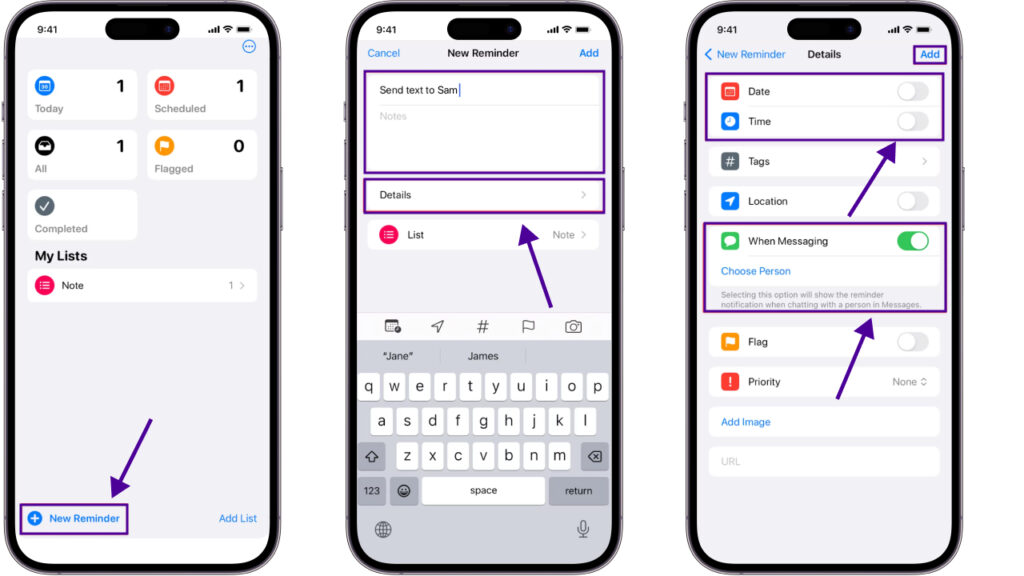
- Open the Reminders app and tap New Reminder at the bottom of your screen.
- For the title, type “Send a text to [recipient’s name]” and tap Details.
- Enter the date and time, tap Add, and you have the option to include a contact using When Messaging.
How to schedule a text message on an Android?
Like iPhone users, Android phone (Samsung, Pixel, and OnePlus 13 ) users can also schedule text messages easily to send them automatically at a specific time and date. Here are different ways to send messages automatically in the future:
1. Use Google Messages
To schedule a text message on Android devices and deliver it automatically, you can use Google Messages. Follow these steps to do so:
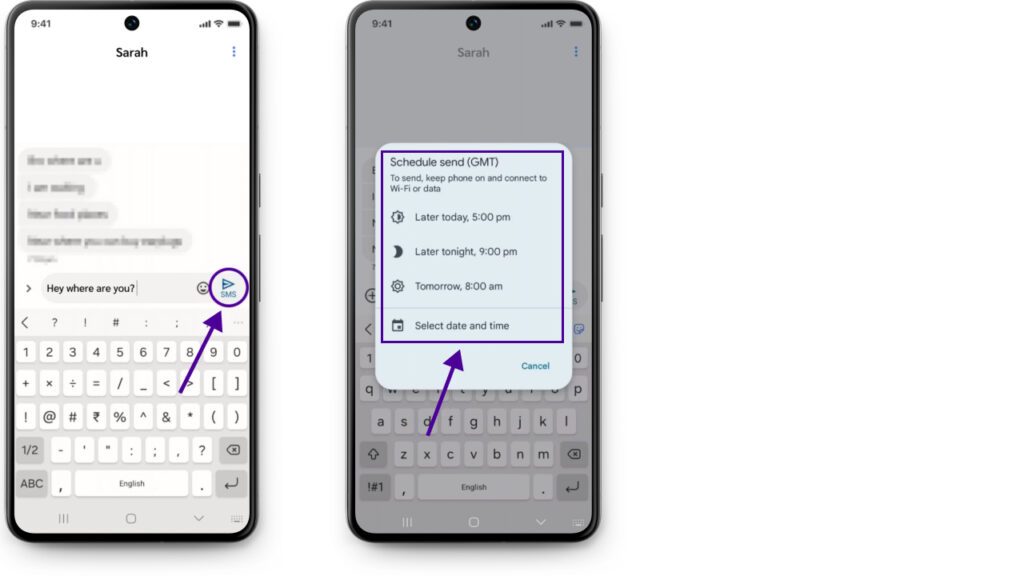
- Open your Messages app and choose the person you want to text
- Type your text, but don’t send it yet.
- Hold down the Send button.
- Pick the date and a certain time you want the message to go out, then tap Next and Send.
2. Use a third-party app
If you want more advanced options or extra features, then you can use a third-party app such as Textra SMS or Pulse SMS to schedule your texts. Here are the steps for using a third party for scheduling texts:
- Download your preferred third-party app and sign up.
- Choose the person you want to text.
- Type your message.
- Tap the + button next to the text box.
- Select “Schedule message” from the menu.
- Pick the specified time and date. Tap Done.
What is the best time to schedule text messages to customers?
Sending a message at the correct time is important to ensure the receiver sees it. Even the most important text messages can go unnoticed if it sent at the wrong time. Therefore, it schedules your text messages to reach potential customers at the right time.
1. Morning (8 AM-11 AM): Best for promotion and updates
People often check their phones in the morning to catch up on messages and plan their day. This makes it a good time to send updates, promotions, or reminders.
2. Midday (12 PM-2 PM): Best for engagement
Lunch hours are usually a relaxed time when people check their phones. This is a suitable window for sending messages that encourage interactions, like surveys or reminders.
3. Afternoon (3 PM -5 PM)
The late afternoon is a good time to spend on reminders or follow-up. People are usually wrapping up their day and are more likely to notice messages related to appointments, tasks, or events.
4. Evening (6 PM -8 PM): ideal for promotion and announcement
Evening is when many people have finished work and are relaxing at home. Sending messages during this time works well for promotions, announcements, or special offers.
5. Avoid early morning and late night
Messages sent too early or too late can annoy recipients. It’s best to avoid sending texts before 8 AM or after 9 PM to ensure your message is received positively.
4 common scenarios for scheduling texts
There are several common scenarios where scheduling text can make communication more effective and efficient. Some of them are explained below:
- Appointment reminders: Scheduling appointment reminders ensures that your clients, patients, or customers never miss their scheduled time. This enhances professionalism and reduces no-shows, which saves business time and money.
- Event notifications: Scheduling event notifications in advance, you can ensure attendees receive timely updates without having to send messages at the last minute manually.
- Customer follow-ups: Following up with customers after a purchase, inquiry, or service interaction is crucial for maintaining relationships and encouraging repeat business. Schedule texts allow businesses to automatically send follow-ups, such as thanking a customer for their order or requesting feedback.
- Birthday or holiday greetings: Sending personalized birthday or holiday greetings can create a positive emotional connection with your customers. Scheduling messages ensures they are sent on time, without the risk of forgetting important dates.
Easily send text messages at the perfect time with KrispCall
With KrispCall, you can easily schedule SMS messages to clients and customers, ensuring timely delivery every time. Whether you use an iPhone or Android, KrispCall’s business phone number feature allows you to send and receive texts professionally, all from one unified business phone system.
It also offers auto-replies to keep your conversations active when you’re busy and a shared number option that allows your whole team to manage messages collectively. This makes it ideal for businesses that rely on teamwork and need to maintain seamless communication with customers.