You can call anyone from a computer, mobile phones, landlines, and international numbers, using a VoIP service, a browser-based web phone, or your operating system’s built-in calling tools. No mobile phone, no desk phone, and no extra hardware required.
KrispCall is a cloud telephony platform that lets remote teams, customer support agents, and individual users make and receive professional calls directly from a Windows PC, Mac, or browser tab.
This guide covers the four methods available in 2026, what to look for when choosing a platform, and the key benefits of switching your calling workflow to your computer.
✨ Key Takeaways
- To call someone from a computer, sign up for a VoIP service like KrispCall, pick a virtual phone number, open the browser login, and dial, setup takes under 5 minutes.
- You can call any real phone number, mobile, landline, or international, directly from a PC browser. No mobile phone or desk phone required.
- KrispCall works on Windows, Mac, and all major browsers – Chrome, Firefox- with no extra hardware beyond a laptop microphone.
- VoIP calls cost up to 90% less per minute than traditional business phone lines (Deloitte TMT Predictions, 2025).
- Multiple team members can share one virtual phone number and answer calls from their own computers, no missed calls.
What do you need to call someone from a computer?
To call from a computer, you need four things: a stable internet connection, a microphone, a VoIP calling app or browser-based web phone, and a virtual phone number. Most laptops already have the first two built in.
Internet connection (min. 1 Mbps upload/download): A minimum of 1 Mbps upload and download speed is sufficient for clear VoIP calls. Wi-Fi works for most setups, a wired ethernet connection reduces packet loss and echo on high-volume business calls.
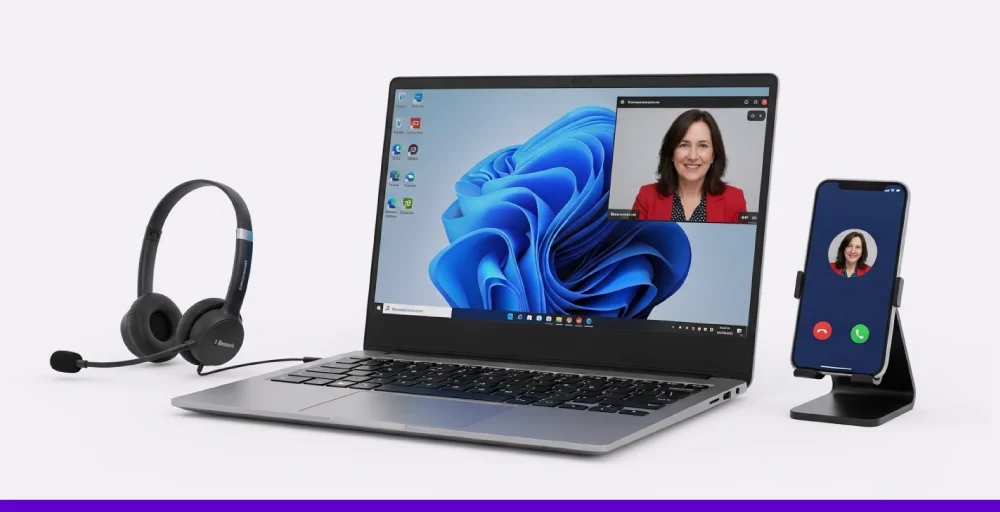
Microphone and speakers or USB/Bluetooth headset: Most laptops have a built-in microphone and speakers adequate for basic calls. For professional or high-volume calling – customer support teams, sales teams making 20+ calls per day – a USB or Bluetooth headset eliminates background noise and improves call clarity significantly.
A VoIP app or browser-based calling tool: This is the critical distinction: consumer apps like WhatsApp, FaceTime, and Skype only support app-to-app calling, meaning the person you are calling must have the same app installed. Business VoIP platforms let you dial any real phone number, mobile or landline, without the recipient having any software. For business use, a dedicated VoIP service is the only option that works like a real phone.
A virtual phone number: KrispCall assigns you a local, toll-free, or international virtual phone number during signup. It functions identically to a physical phone line, callers see a real number on their screen, you receive calls on your computer, and your team can share the same number across multiple devices simultaneously.
Different ways to call from a computer
There are several ways to make a phone call from a computer, depending on your needs.
Method 1: Using a VoIP provider
VoIP tools allow you to dial real phone numbers directly from your computer. These are commonly used for business and international calls. Using a dedicated VoIP (Voice over Internet Protocol) service like KrispCall is the most reliable way to make international and local calls. Unlike personal apps, these give you a professional caller ID.
How to do it:
- Sign up: Create an account on KrispCall.
- Pick a Number: Choose a local, toll-free, or international number.
- Download or Log In: Use the desktop app or the web dashboard.
- Dial: Enter the number on the digital keypad and hit “Call.”
Method 2:Using built-in OS apps (FaceTime / Phone Link)
If you are looking for a quick, personal solution:
- On Mac: Use FaceTime. If your iPhone is on the same Wi-Fi network, you can make cellular calls directly from your Mac.
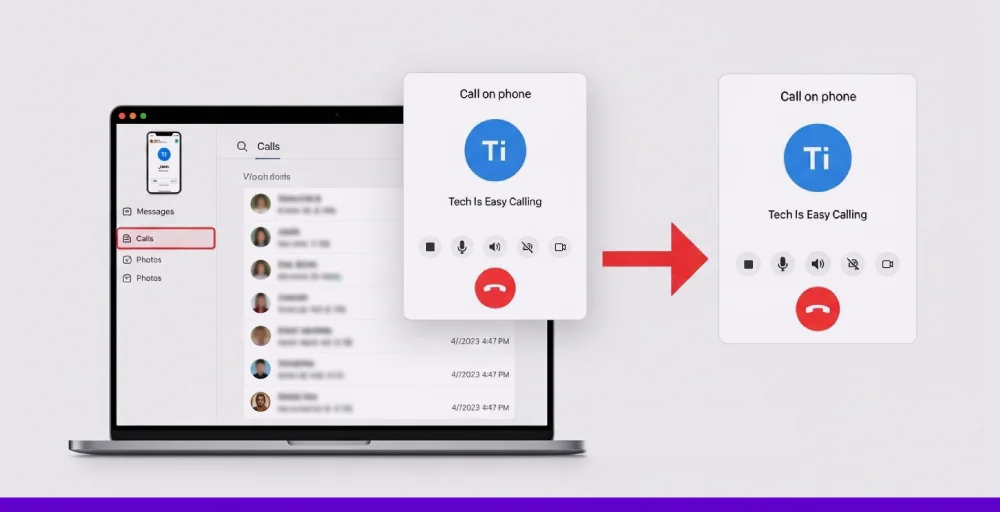
- On Windows: Use the Phone Link app. It syncs with your Android or iOS device, allowing you to send texts and make calls via your PC’s speakers.
Method 3: Using web-based browser apps
Many platforms offer “Click-to-Call” functionality directly through Chrome or Firefox. This is ideal if you don’t want to download heavy software. Simply log in to your cloud phone dashboard in a browser tab to manage your calls.
To make a call from the KrispCall webphone browser, you can follow these steps:
- Open the KrispCall web app in your browser to log in to your KrispCall account.
- Once you log in to the KrispCall dashboard, click on the dialer on the left side of the dashboard.
- Now, the dialer will pop up.
- Choose the desired country and phone number.
- Lastly, click the call button to start dialing.
Method 4: Search for a contact in the web app in your browser
KrispCall allows you to easily access saved contacts, reducing the need to dial manually.
Follow these simple steps to make a call from a saved contact.
- Log in to the KrispCall account.
- Click on the “Contacts” on the left-hand side of the dashboard.
- Search for contact. You can also use the “User Tags” to filter out.
- Choose the contact number and make a call
How to choose the right platform to make a call from a computer?
Finding the right platform for making calls from your computer depends on whether you’re looking for a simple personal use or a robust business system.
Here is a breakdown of the key factors to evaluate and the top platforms for 2026.
Define your purpose( personal vs business): Decide if you need a simple tool for friends (like WhatsApp/FaceTime) or a professional system with a dedicated business number and advanced features (like KrispCall).
Check Hardware & OS Compatibility: Ensure the platform works seamlessly with your specific operating system (Windows, Mac, or Linux) and supports your audio hardware (headsets and microphones).
Review Pricing Structure: Compare monthly subscription fees versus “pay-as-you-go” rates. For high-volume calling, a flat monthly rate is usually the most cost-effective.
Prioritize Essential Features: Identify “must-haves” like SMS/MMS capability, Call Recording for training, and Auto-Attendants to route callers to the right department.
Look for Software Integrations: Choose a platform that connects with tools you already use, such as CRMs (Salesforce/HubSpot) or Helpdesks, to automatically log your call data.
Benefits of making calls from a computer
Phone calls from a computer offer numerous benefits for remote work environments, businesses, and individuals looking to streamline communication.
1. Flexibility and convenience
Making calls from a computer will provide immense flexibility and convenience for your work. With the ability to call from a browser, you can easily switch to other applications while working remotely. It will also eliminate the need for a mobile phone just for a call.
2. Cost affordable
Compared to a traditional phone system, VoIP-based calls from a computer offer a cost-effective solution. Most calls from computers use VoIP technology. This will definitely reduce the business costs of handling high call volumes or international calls.
Many VoIP service providers also offer virtual phone numbers and local phone numbers that can help businesses establish a global presence without extra hardware setup, reducing the upfront cost.
3. Access to advanced business features
Beyond simple calling features, this computer-to-computer call offers call recording, shared phone numbers, real-time transcription, unified communications, and integrations with CRM, ERP, and other business tools.
With the integration of artificial intelligence, these platforms can transcribe conversations in real time. Moreover, it automates workflows, detects sentiment, runs a ChatGPT paraphrase pass over draft replies, and even provides smart replies, improving the overall customer interactions and staff productivity.
4. Enhanced call management and data access
Calling from a computer will enhance call management, as you can make a call while accessing documents, customer information, or other project-related details on your screen. Moreover, through detailed call logs, analytics, and reporting features, business executive can easily track performance and optimize their communication strategies.
Combining with a cloud-based contact center will enable support for multiple channels, such as voice calls, SMS/MMS, and video, in a unified interface.
Start making calls from your computer with KrispCall
KrispCall is a cloud telephony software that lets you make and receive phone calls from both mobile and computer devices. KrispCall goes beyond just making phone calls. It offers a unified callbox, phone number porting, global calling, call analytics, phone tree, and other advanced features.
The KrispCall app can be installed on Windows and is supported by many web browsers, including Chrome, Firefox, and Edge. To start making a call from your computer with KrispCall, simply log in to your account through any device you prefer- computer, tablet, or even cell phone.
Book a Free Demo or get started today to make a call from your computer with KrispCall.