Every phone call with a customer carries context that matters. People want fast answers, and agents need quick access to the customer’s details. When teams jump between a phone system and Salesforce just to figure out who is calling, that slows everything down.
Salesforce CTI (Computer Telephony Integration) makes that process smooth by connecting telephony features directly to your CRM, providing seamless salesforce phone integration. Calls, caller information, notes, and history stay right where the team already works. No juggling different tabs and no wasted time searching for data.
In this blog, you’ll learn what Salesforce CTI means, the benefits it brings to sales and support teams, and how you can set it up in a few simple steps.
✨ Key Takeaways
- Salesforce CTI brings telephony features into your CRM, allowing teams to handle calls, view caller details, and record interactions without switching tools.
- Automatic call logging and unified caller context support faster work, accurate records, and confident customer interactions at every step.
- Business using Salesforce CTI sees improvements in productivity, customer experience, and overall workflow.
- The setup takes place entirely inside Salesforce. You need to install the CTI package, assign users to the call center, and add the dialer to the utility bar for instant access.
What is CTI for Salesforce?
CTI, or computer telephony integration, for Salesforce connects your phone system with Salesforce CRM, so your team can place and receive phone calls without leaving the platform. CTI links your cloud phone system with Salesforce, placing a dial pad right inside the CRM or through a softphone app.
Agents can simply click to call a lead or client without dialing numbers manually. Incoming calls also appear inside Salesforce with proper context from the customer record. Every call detail stays tied to the right contact, account, or ticket.
This Salesforce telephony integration removes unnecessary tab switching. Daily tasks become faster because call handling, history, and notes stay in one dashboard. That creates a smoother workflow for teams making high call volumes, resulting in an efficient calling experience for sales and support teams.
Business advantages of using Salesforce CTI
One of the main reasons many sales and support teams look for a phone system that connects with Salesforce (if they are not already using Salesforce Service Cloud) is that it keeps their daily work simple and organized. Here are the key advantages your business gains from this setup:
1. Improved productivity
CTI Salesforce integration keeps calling tasks organized in a single workspace. Reps no longer have to move between different tools to place or receive calls. They click a number, speak with the customer, and record details in the same dashboard.
Automatic call logging and instant access to contact information reduce manual steps throughout the day. This helps your teams to handle more calls in less time while maintaining accuracy in every interaction.
2. Enhanced customer experience
Salesforce CTI presents customer details at the exact moment a call connects. Agents can easily understand the caller’s history, recent activities, and current needs without asking repetitive questions.
Every interaction feels prepared and informed, which encourages faster responses and more accurate handling, thereby building trust and creating a smooth experience for customers seeking support or sales guidance.
3. Better analytics & reporting
All the calls and interactions that go through the Salesforce CTI become easily traceable with precise data and information. Managers can track performance metrics, monitor call outcomes, and analyze workload trends directly from Salesforce CTI reports and dashboards.
This clear visibility into reports of different metrics helps you make strong decisions, keep your follow-ups consistent, and improve overall results across sales and support operations.
4. Seamless workflow
CTI integration with Salesforce keeps all calling activities in a single system. Reps manage calls, notes, and follow-ups without switching between different tools. This keeps work consistent throughout the day, especially for teams handling a large volume of phone calls.
A connected process reduces confusion, prevents missed follow-ups, and maintains continuity across conversations. When every action happens in one controlled workspace, the entire team operates with clarity. Reps stay focused on customer needs rather than tool management, resulting in smoother progress from call initiation to resolution.
5. Reduced manual errors
Salesforce CTI removes many of the small tasks that often lead to mistakes. Call logs are automatically attached to the correct contact, and customer data appears without copying and pasting information from another system.
Fewer manual steps also prevent issues like misplaced details. Clean and accurate records that stay up to date throughout the customer journey support reliable follow-ups and stronger decision-making.
How to set up Salesforce CTI Integration?
Follow this step-by-step guide to complete your Salesforce CTI setup.
Step 1: Log in to your Salesforce account and access your dashboard.
Step 2: Install the KrispCall package to begin the setup process.
Step 3: The Salesforce account login pops up, asking you to confirm the installation login. Enter your credentials and continue.
Step 4: The “Upgrade KrispCall” interface appears. Select the “users” for the integration.
Step 5: Tick the checkbox and click “Upgrade” or “Continue” to complete the installation. (Upgrade is shown on older versions of packages.)
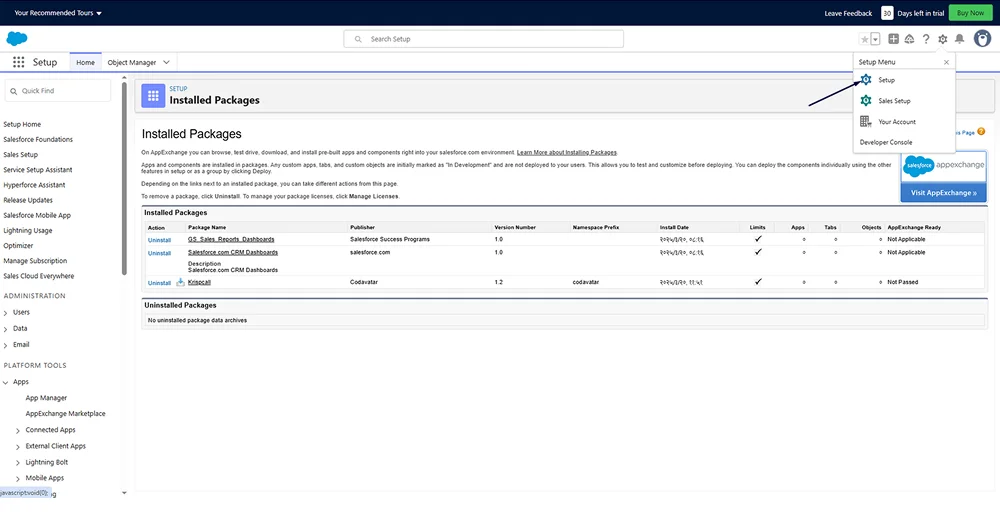
Step 6: Click on the settings icon in the top right corner and choose the “Setup” option.
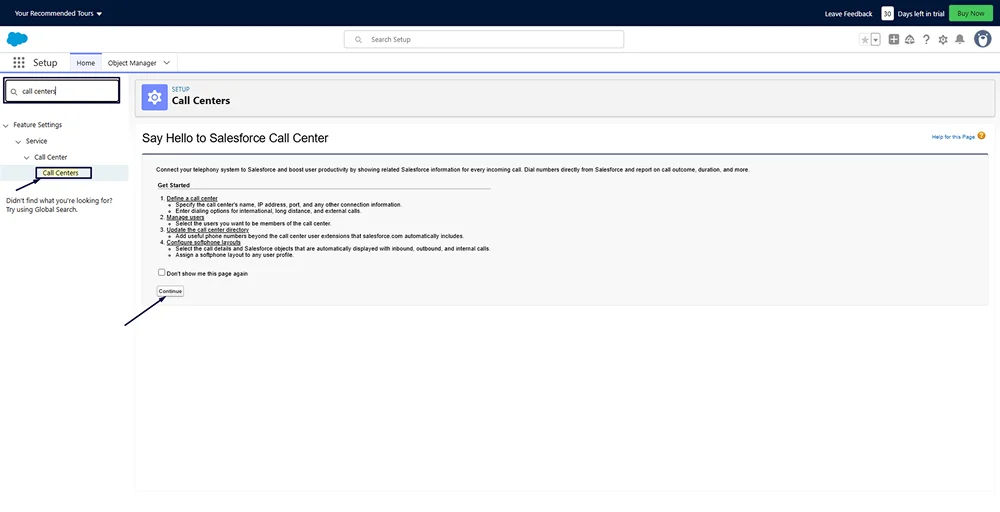
Step 7: Search “Call Centers” in the Quick Find bar and open the menu to configure the call center settings.
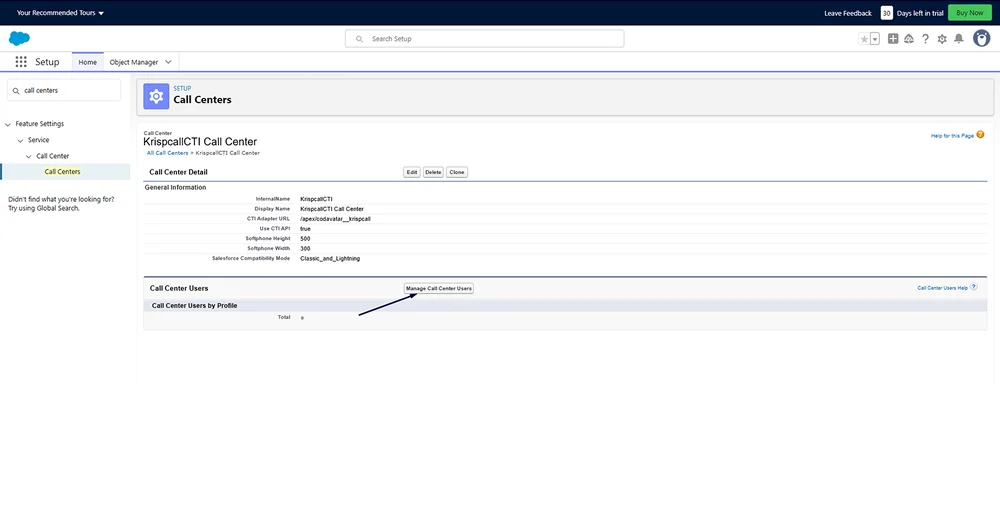
Step 8: Select “KrispCall CTI Call Center” and then open the call center profile and choose “Manage Users.”
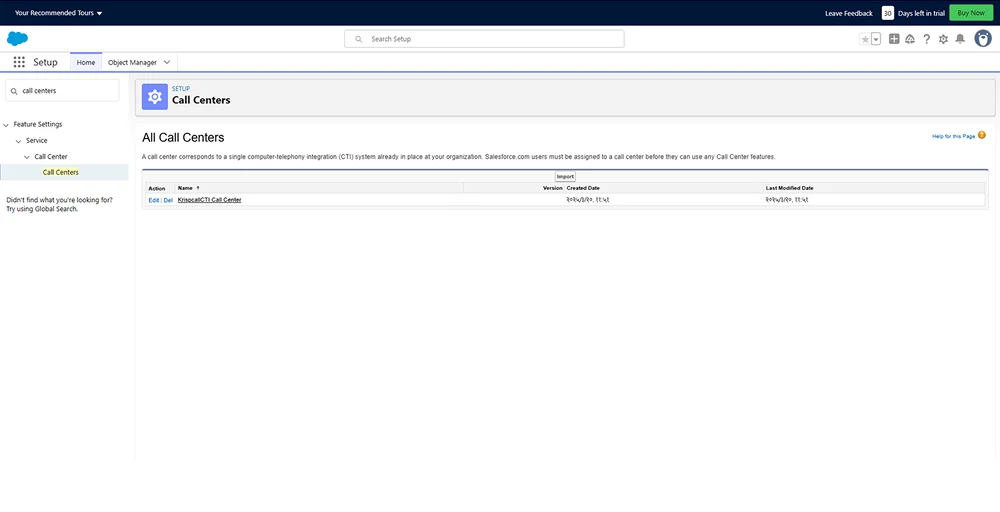
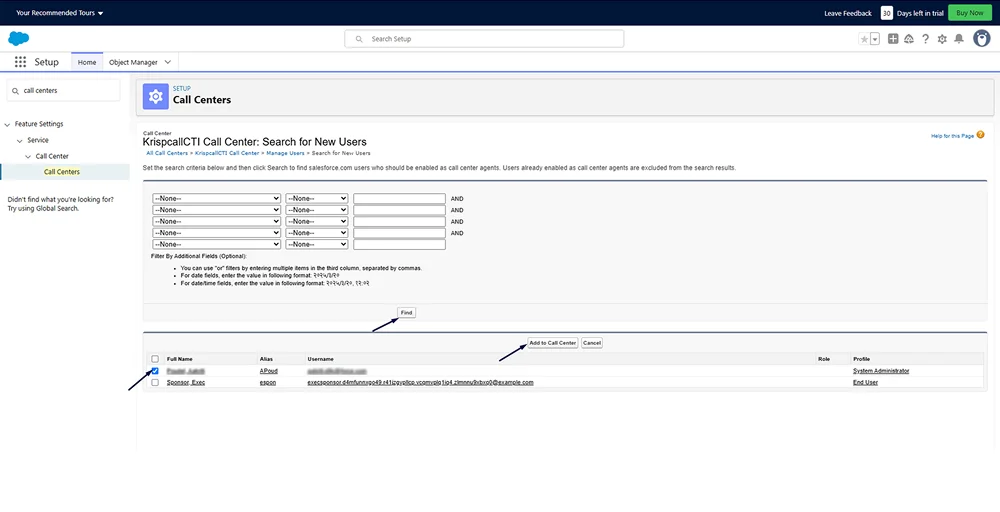
Step 9: Click “Add More Users,” select the required “users” from the list, and confirm to add them to the call center.
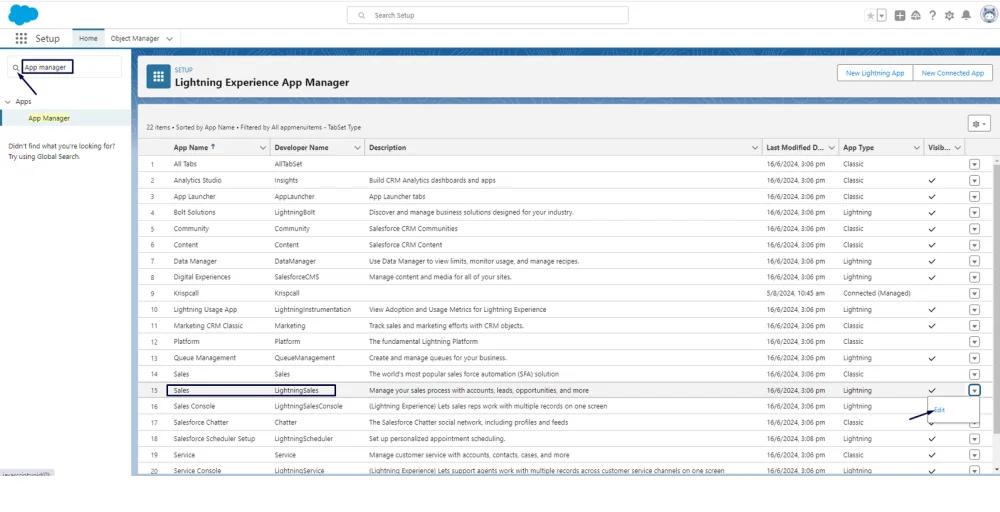
Step 10: Search “App Manager” in the setup. Select “Sales Lightning” and click “Edit” to modify App Manager settings.
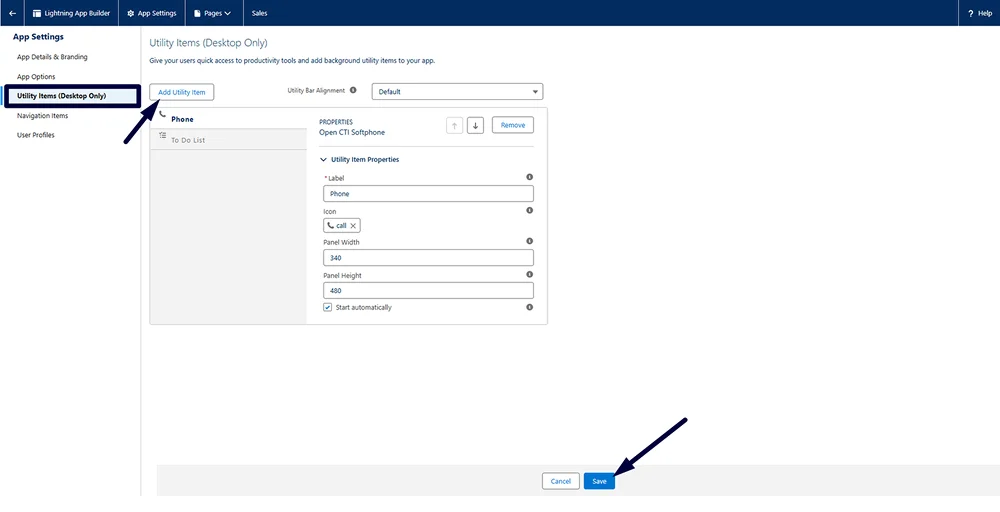
Step 11: Now, add the dialer to the utility bar. Go to Utility Items > Add utility item as OPEN CTI softphone. Enter the label name, width, and height for the dialer, then save it.
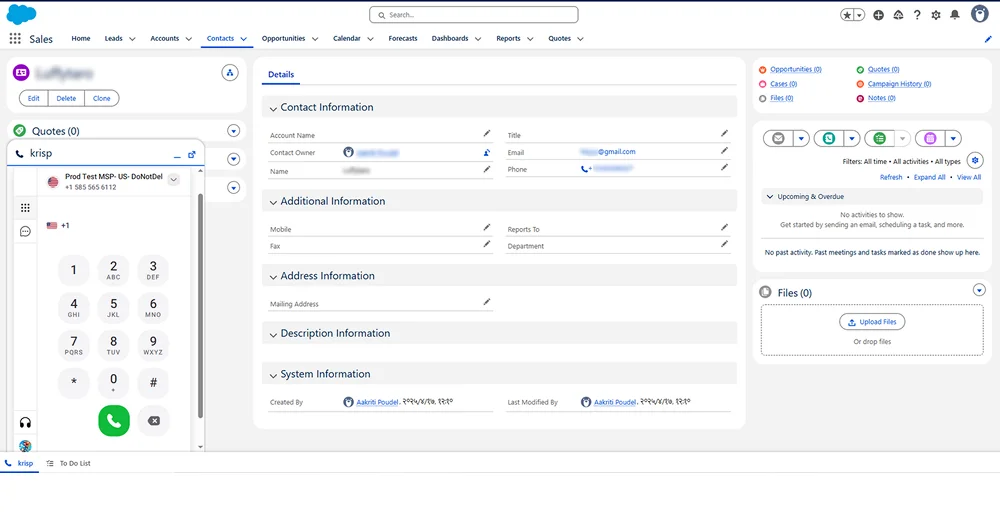
Step 12: Finally, you can open the Salesforce Sales page and view the dialer in the bottom panel.
Integrate Salesforce with KrispCall to streamline your call management
Salesforce CTI keeps calls, customer details, and follow-ups connected in one place. The result is faster work, consistent data, and confident conversations across every sales or support interaction. It strengthens productivity and helps teams provide clear, informed assistance from the very first ring.
KrispCall provides Salesforce users with a reliable telephony experience, featuring click-to-call, automatic call logging, and real-time visibility for every customer touchpoint. It supports teams that rely on accurate information and smooth workflows throughout the day.
For a quick visual guide, check out this YouTube video to see the setup in action.
Businesses that embrace CTI position their teams for efficient work and stronger customer relationships. Every call becomes easier to manage and more valuable to the organization.
Integrate Salesforce with KrispCall to keep your calls organized and effective.