


Everyone relies on text messages for day-to-day conversations. Whether you’re sending a message to your relatives or friends, sharing updates, confirming appointments, or following up with customers, we’ve all been there.
But the challenge comes when you have to send a quick response with a six-inch screen. Additionally, multitasking becomes challenging when you have to jump between your laptop and phone to operate your workflow.
A better solution is to use your computer to send and receive text messages. With this, you can use various tools, applications, and tabs while responding quickly to messages, all from one computer.
In this blog, we will explore both free and paid ways to text from a computer, along with the benefits of using a computer to send texts in 2026.
✨ Key Takeaways
- The benefits of sending texts from a computer include faster, easier typing, fewer distractions, and the convenience of multitasking.
- To send text from a computer, you can use Google Messages for Android and iMessages for macOS.
- Use encrypted apps like WhatsApp, TextNow, and KrispCall help you to send and receive phone calls or text messages directly from your computer.
What is texting from a computer? (A quick glance)
Texting from a computer simply means sending and receiving text messages on a laptop or desktop, rather than a mobile phone. So, how can you send text from computer? Here are some of the major ways for each device at a glance:

- Android device: You can access Google Messages on the web from a desktop by pairing your phone. Or, Microsoft Phone Link for using SMS services in Windows.
- iPhone: Add the same Apple ID on your MacBook, and you get access to iMessages.
- Online platforms: Platforms like Messenger, WhatsApp, and Instagram are accessible through a browser by logging into your account.
- Virtual phone numbers: Free and affordable providers such as Google Voice, TextNow, and KrispCall offer virtual numbers that work in any browser.
- Business teams: Choose a reliable phone system that supports calls and texts on both desktop and mobile devices and makes conversations visible to your team.
Advantages of sending text from your desktop or laptop
Research shows that 77% of people now prefer texting for service and quick communication, underscoring the importance of SMS and a reliable texting system. By using your computer to text, you can reply to messages faster and improve your productivity.
Whether you’re an individual or a business, texting directly from a computer can offer several benefits over using your mobile phone.
1. Easier typing and quick response
Typing on a full-sized keyboard is much faster and more comfortable than typing on a phone screen, especially for long messages. It saves time and reduces typing errors.
2. Multi-tasking convenience
If you’re sending texts from computer, you can switch between different tabs, web apps, or documents with ease. You can respond to messages while checking your emails or working on your reports.
3. Fewer distractions
Using a PC to text instead of a mobile phone means you will be less distracted by other notifications and fully commit to responding to texts. Put your phone on silent mode, turn off notifications for other apps on your computer, and stay focused.
4. Integrations for business
Business SMS platforms integrate with CRMs, email tools, and marketing automation software to handle a high volume of messages. If you’re using one of them, it’s convenient for you to sync customer data, track communication, and automate repetitive tasks.
5. Integrations with other tools
Many business SMS platforms integrate with CRM systems, email tools, and marketing automation software. This allows you to sync customer data, track communication, and automate repetitive tasks. It ensures smoother workflows and better team collaboration.
5. Personalize and organize conversations
Create richer content by adding links, high-quality images, and files in messages. Additionally, sending messages to multiple contacts at once, group texts, or bulk messages is easier than using a mobile phone.
6 free ways to send text messages from your computer
Below are free, easy ways to start texting from your computer without any paid tools. Find what works best for you and initiate new messages from your laptop or desktop.
1. Google Messages for Android.

Google Messages is an in-built messaging application in Android phones. It’s the primary software for Android users to send and receive texts. The good news is that you can connect Google Messages to your existing computer, too.
When to use it
Use Google Messages if you’re an Android user.
What you need
You just need the Google Messages app on your mobile device. In addition, you need to have access to your specific Google Account that you’ve logged into your google messages in your phone.
How to use Google Messages in computer
- Go to your Google Messages app on your phone and set it as your default SMS.
- Now, go to messages.google.com/web in any browser (Chrome, Safari, Firefox, Microsoft Edge, and Brave).
- Sign in with the same Google Account that you’ve in your phone. And, you’ll see a QR code.
- In your phone’s Google Messages app, click your profile ( or three-dot menu), and tap on “Device Pairing”. Click on “QR code scanner” and show your phone at the computer’s QR code.
- Confirm by clicking “Pair with QR code” on your computer and tapping the emoji(image) on your phone that is shown in the computer’s browser.
- And, you’ve successfully connected Google Messages; now the web reflects SMS, MMS, and RCS chats.
Pro tip💡: Click the “Remember this sign in” section to stay signed in whenever you need it again.
Pros of using Google Messages:
- Features like read receipts, high text limits, and group texts.
- Easy accessible from any web browser
- End-to-End encrypted (if RCS chats are enabled).
- Best for the Google ecosystem.
Cons of using Google Messages:
- More focus on Android phones (limited to non-Android).
- Google removes the pairing with your Google Messages if you stop sending messages for a while.
- RCS features may vary by carrier.
3. Send from Mac via iMessage
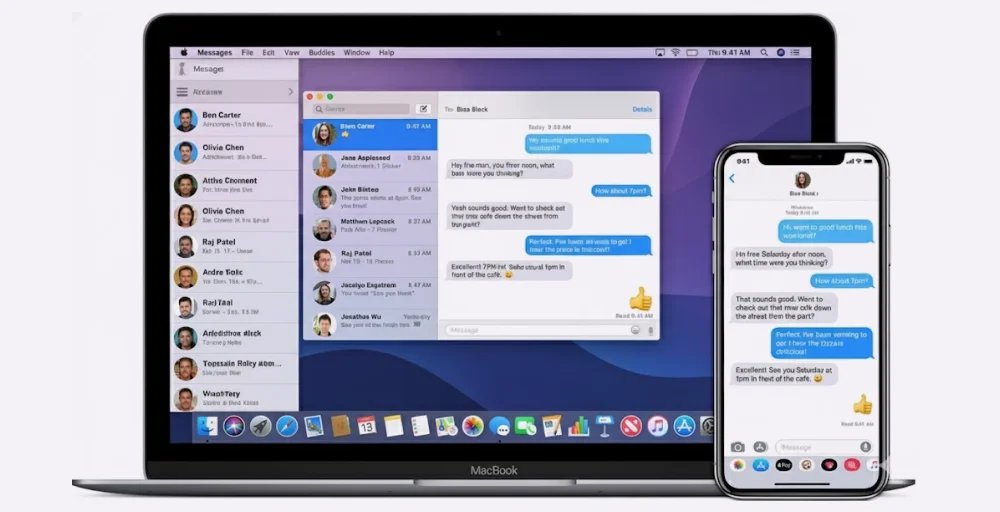
If you use a Mac, you can send and receive text messages securely through iMessage. iMessage uses end-to-end encryption, so your conversations remain private. Messages syncs seamlessly with your iPhone, which makes it easier to manage texts across the Apple ecosystem.
When to use it
If you’re an Apple user who wants seamless messaging across your devices for personal reasons.
What you need
- A MacBook
- An iPhone or Apple ID for setup
How to use
- Open the Messages app on your Mac and sign up with your Apple ID.
- Select a contact or start a new conversation.
Pro tip💡: Enable iCloud message storage to sync your messages across devices.
Pros of using iMessage
- Messages sync automatically across all Apple devices
- Supports multimedia, group chats, and reactions
- Built-in, free, and reliable for Apple users
Cons of using iMessage
- Only works with Apple devices — not cross-platform.
- Standard SMS (green bubble) is not encrypted.
- Requires both sender and receiver to have iMessage.
Related Article 👉: How to Set Up Auto Reply Text on iPhone? – KrispCall
3. Use encrypted messaging apps like WhatsApp
Encrypted messaging apps like WhatsApp, Signal, and Telegram offer end-to-end encryption, which means only you and the recipient can read the messages. When sending messages from these apps, your texts remain private, secure, and protected from unauthorized access.
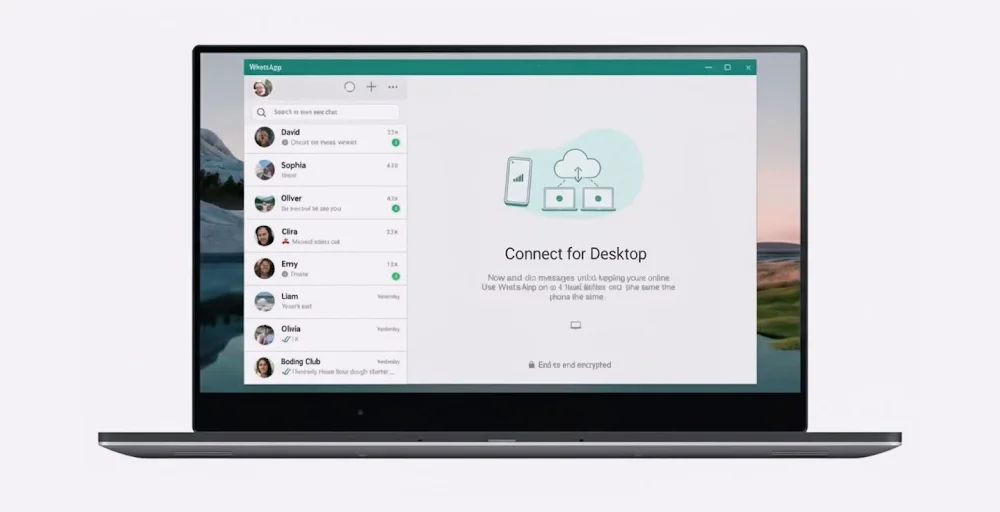
You can use a web browser to access the platform or download the desktop app. However, it requires a real SMS phone number for verification.
When to use it
Use WhatsApp Web to send personal or small-business messages securely from your computer. It’s best for one-on-one or small-group interactions.
What you need
You need a WhatsApp account on your phone and access to the web or desktop app.
How to use
- Install WhatsApp on your device and register with your original phone number. WhatsApp sends a verification code. Enter it, and you’re in. If you’ve already WhatsApp, you can skip the first part.
- Either download the WhatsApp Desktop application or just open “web.whatsapp.com“ in any browser.
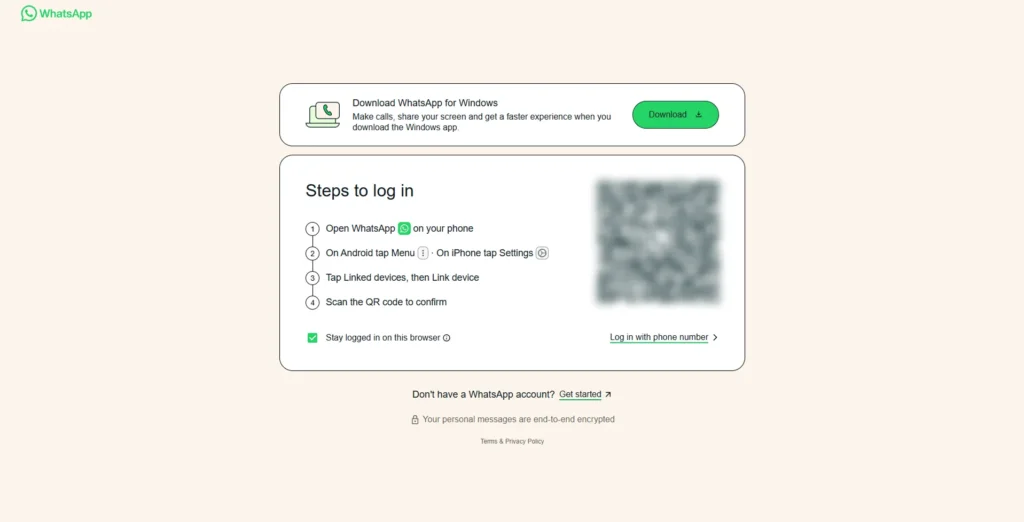
- As given in the above image, QR will show up. On your phone, go to WhatsApp settings (More section) > Linked Devices > Link a Device and use the camera to scan the QR from your computer.
- With this, your WhatsApp chats sync to the computer. Select contacts, send a message, and receive them easily from your computer.
Pros of using WhatsApp
- Strong end-to-end encryption.
- Free and easy to set up.
- Multimedia support.
Cons of using WhatsApp
- Requires a phone to be online for WhatsApp.
- Limited business or bulk messaging.
- Only work with other app users.
Related Article 👉: How to Get a Free US Number for WhatsApp?
4. Windows and Android link (Microsoft Phone Link)
On Windows and Android phone, you can even link your phone to your PC. It’s called Microsoft Phone Link and can be used to text and manage notifications from any computer.
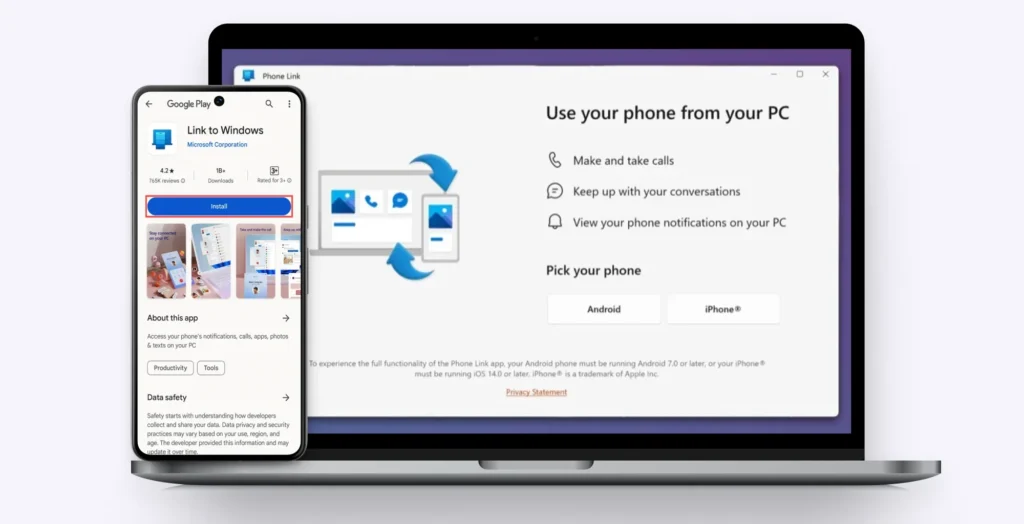
However, you’ll need an app installed on your smartphone to use this messaging method from a computer.
When to use it
You should use this way when you’re using Windows and want to link your smartphone to it.
What you need
- An app named “Linked to Windows” on your smartphone.
- Windows 11 or higher.
- Android 7.0 or higher.
How to use
- On your Windows, go to the Start menu > Phone Link and sign in with your Microsoft account.
- On your smartphone, install the Link to Windows app from Google Play (only if you don’t have it). Sign in with the exact Microsoft account you used on the PC.
- Select Android on your PC in Phone Link to generate a QR code.
- Then open the app on your phone, scan the QR code, and enter the code displayed on your PC to pair the devices successfully.
- Accept all the requested permissions on your device so that your PC can access and read and send messages and do other things like calling.
- Open the Message tab in your PC’s Phone Link to send or view SMS and start conversations from your keyboard.
Pros of using Microsoft Phone Link
- Ideal for Windows users.
- Easier to transfer files between the phone and PC.
- Notification management can be handled from your PC.
Cons of using Microsoft Phone Link
- Limited to Android users and not for iPhone users.
- Installation of the Microsoft app is required.
- Difficulties might show up while setting up the app.
- Device and Windows requirements. (Android 7 + and Windows 11+)
5. Free number providers like TextNow
TextNow is an application that provides free phone numbers, along with features such as messaging and calling. It can be a good option if you want a free new number for basic text and calls.

However, you won’t get the advanced features essential to a VoIP system with TextNow.
When to use it
Use TextNow if you’re in the US and Canada and looking for a burner or second phone number for personal or business use.
What you need
- A TextNow account (Sign up via email or social login).
- A stable internet connection (WiFi or Ethernet).
- A web browser (Chrome, Firefox, Edge) or the TextNow desktop app for Windows/Mac.
How to use it
- Go to the TextNow website “textnow.com” or install the TextNow app and create a free account.
- Choose a local area code to generate the free number that is assigned to you.
- Log in on the computer and navigate to the “Web Messaging” page on the TextNow site.
- Start texting by typing a contact’s number in the “New Message” field and start your conversation.
Remember🔖 : You’ll need to enter only a US or Canadian number.
Pros of using TextNow
- No monthly fees for basic texting and calling in the US/Canada.
- Your messages sync instantly between your phone and your computer.
- You get a real 10-digit number that anyone can text back.
Cons of using TextNow
- The desktop interface is cluttered with ads
- If you don’t use the number frequently, TextNow may give it to someone else.
- Lacks essential features like auto-replies, CRM integrations, or the ability for teams to share one number.
6. Use email to SMS gateway
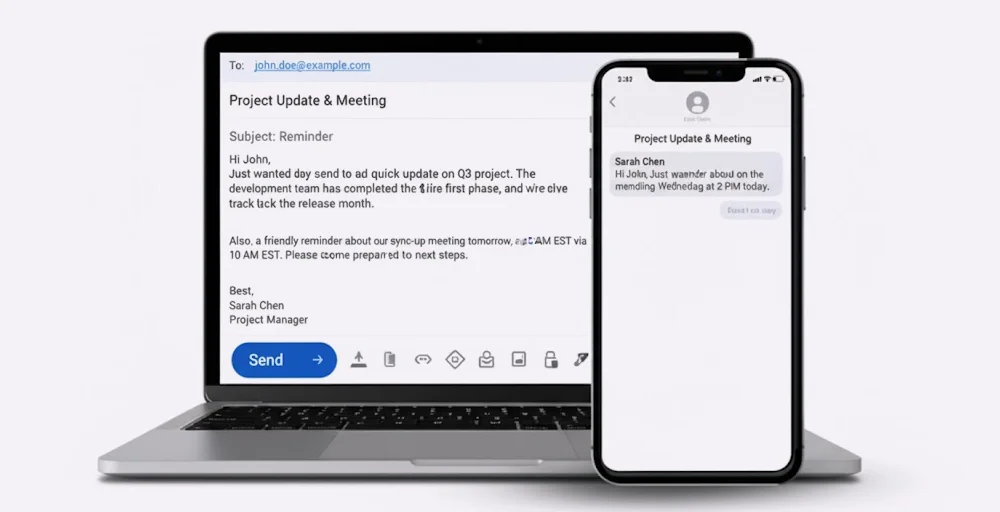
Many carriers provide an email-to-SMS service gateway, allowing you to send a text message directly from your email account. By sending messages through a secure email provider, you can maintain privacy and track communication while using your computer.
When to use it
Perfect for sending quick text messages from your computer without installing special software, especially for recipients who can receive SMS. Remember to check if your carrier supports the feature.
What you need
- An email account
- The recipient’s phone number and carrier information
How to use
- Open your email client (e.g., Gmail).
- In the “To” field, enter the recipient’s phone number followed by the carrier’s SMS gateway domain. For example: [10-digit phone number]@(carrier).
- Write your message (keep it under 160 characters).
- Click Send. The recipient will receive it as a regular SMS.
Pros
- No special software needed.
- Can be done from any computer with internet.
- Works for anyone with SMS access.
Cons
- Limited to plain text.
- May not support attachments or replies effectively.
- Requires knowing the recipient’s carrier.
Paid ways to send business texts from a computer
Businesses have higher requirements to operate their regular business operations. So, the free option mentioned may not be suitable for enterprises. Below are the two convenient ways for businesses to send texts from a computer.
1. Use a secure business SMS platform
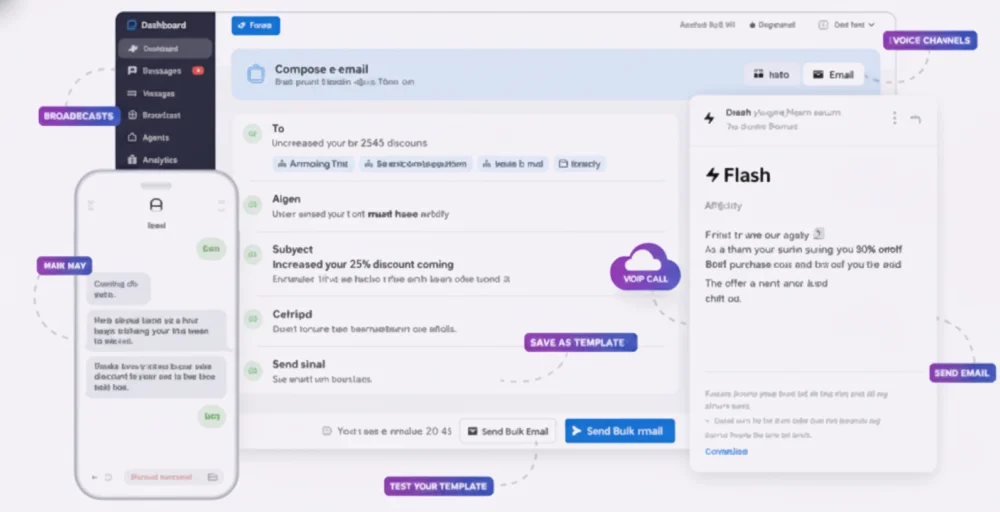
A business SMS platform allows companies to send and receive text messages with customers, clients, or team members from a computer or web interface. Unlike regular texting apps, these platforms offer enhanced security, encryption, and professional features such as bulk messaging, automated responses, scheduling, and integration with CRM or support tools.
When to use it
Use a secure business SMS platform to send confidential or professional messages from your computer, such as client updates, OTPs, support messages, or internal alerts. Use it if you’re handling customer communication, marketing campaigns, or service notifications.
What you need
- A business SMS account with a trusted provider
- A verified business number (local, toll-free, or virtual)
- A web or desktop interface to send messages
How to use
- Create an account with a secure business SMS provider.
- Verify your business number or purchase one from the platform.
- Open the SMS dashboard or app on your computer.
- Enter the recipient’s phone number and compose your message.
- Click Send. Messages are encrypted and delivered securely.
- Monitor delivery status, replies, and message history from the same dashboard.
Pros
- End-to-end encryption ensures privacy.
- Support SMS, MMS, and VoIP (varies based on provider)
- Advanced features like bulk messaging, scheduling, and analytics.
Cons
- Relies on internet connectivity.
- A subscription or paid plan is required to access all features.
2. VoIP service provider
If you’re a business looking for ways to send texts to customers and initiate an SMS marketing campaign. There are plenty of VoIP service providers available, and KrispCall is considered one of the most affordable and reliable.
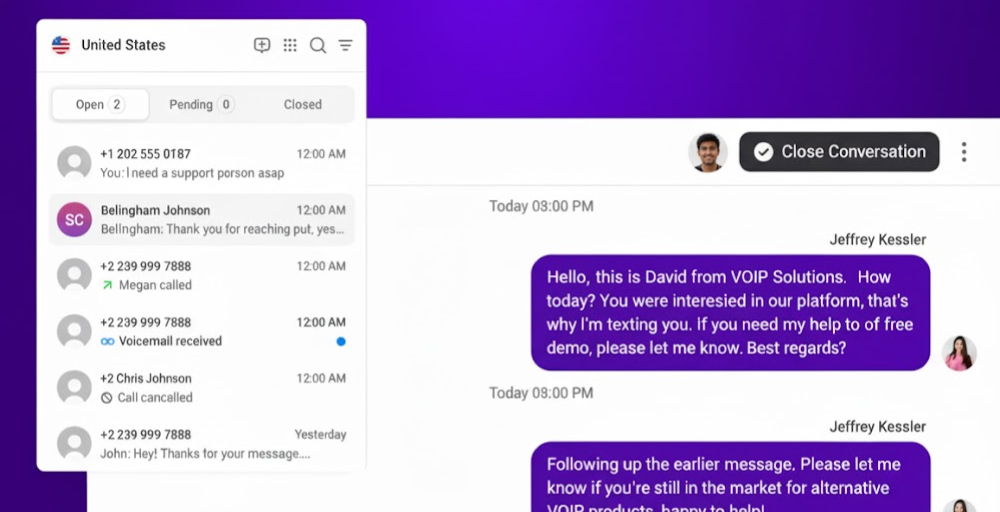
You can send and receive messages through a virtual phone number. The platform uses end-to-end encryption to safeguard your business conversations. Best part? KrispCall doesn’t limit you to basic texting and calling; instead, it offers advanced AI features, including AI reply and AI SMS, to automate responses.
Do you know? 💡 KrispCall provides a free US or Canada virtual phone number for anyone subscribing to the monthly or yearly plan.
When to use it
Best for businesses that need a single unified platform for calls, SMS, and team collaboration.
What you need
Signing up for KrispCall is all it takes to start texting from your computer.
How to use
- Sign up for a KrispCall account and log in to your dashboard.
- Get a virtual number for your preferred country or region.
- Go to the Messages tab and enter the recipient’s phone number.
- Type your message and click Send.
Pros
- 100+ integrations with CRM software and business tools.
- SMS marketing
- More affordable than other competitors.
Cons
- Require subscription to send SMS.
- Require a reliable internet connection.
Message directly from your computer with KrispCall
Stay connected with your customers anytime, anywhere. Send and receive business texts securely from your desktop or laptop with KrispCall’s SMS platform, all in one easy-to-use dashboard. Utilize features like AI reply & SMS to make every message more engaging and effective.
Instead of relying on your mobile phone, you can use KrispCall to send SMS, MMS, and VoIP messages directly from your computer. Boost productivity, manage multiple numbers, and never miss an important message again.