Ever missed an important message while driving, in a meeting, or just stepping away from your phone? Auto-reply texts let your iPhone respond automatically, so your contacts always know you’re unavailable, even when you can’t type a single word.
The challenge: iPhone doesn’t have a built-in, dedicated auto-reply feature. But there are four proven methods to make it work, from native iOS workarounds to business-grade VoIP solutions.
This step-by-step guide covers all of them, with exact steps, honest limitations for each, and guidance on which method is right for your situation. Whether you need to meet customer expectations for timely responses or simply want to stay responsive while driving, one of these approaches will work for you.
✨ Key Takeaways
- iPhones don’t have a native auto-reply text on the iPhone button, but Driving Focus mode is the fastest built-in workaround for most iPhone users.
- The Shortcuts app gives you more control over auto-text reply triggers (keywords, specific contacts), but is inefficient for business use.
- Third-party apps like AutoSender fill gaps but have permission limitations on iOS.
- For businesses managing missed phone calls and team communication, KrispCall’s VoIP auto-reply is one of the best scalable solutions.
- Always test your auto-reply before relying on it, and remember to turn it off when you’re back online.
Does the iPhone Have a Built-In Auto-Reply Feature?
Not exactly. Apple doesn’t offer a standalone ‘auto-reply’ toggle in iOS settings. What it does offer are two native workarounds:
Driving Focus mode (the simplest option) if you have Apple’s iOS 15 or higher and the Shortcuts app (more customizable but more complex). Among the available focus modes on iPhone, Driving is the only one with a built-in auto-reply feature, making iPhone auto-replies possible without any third-party tools.
Neither is ideal for business use. Both require manual setup and management per device, and neither handles missed phone calls, team inboxes, or scheduled business hours.
After-hours coverage and continuous communication across your team aren’t possible with native iOS alone. If you’re managing customer interactions at scale, you’ll need a VoIP solution, but let’s start with the native options first.
Missed a call from a new customer? iPhone’s Driving Focus only auto-replies to incoming texts — missed phone calls get nothing. KrispCall detects first-time callers and automatically sends them a personalized welcome message the moment the call goes unanswered, so potential customers never feel ignored.
How do you auto-send text messages on your iPhone?
You can set up a text reply in iPhone messages in a few different ways, based on your needs. Some of the ways are explained below.
Method 1: Driving Focus Mode (Quickest Native Option)
Driving Focus is Apple’s built-in distraction mode, available on iOS 15 and above. This driving focus feature silences notifications and automatically replies to incoming messages on your behalf. It’s the fastest way to set up an auto-reply without installing anything, and it’s built directly into your iPhone’s Focus settings.
To set up auto-replies in driving focus mode, you need to follow specific steps. And the steps are:
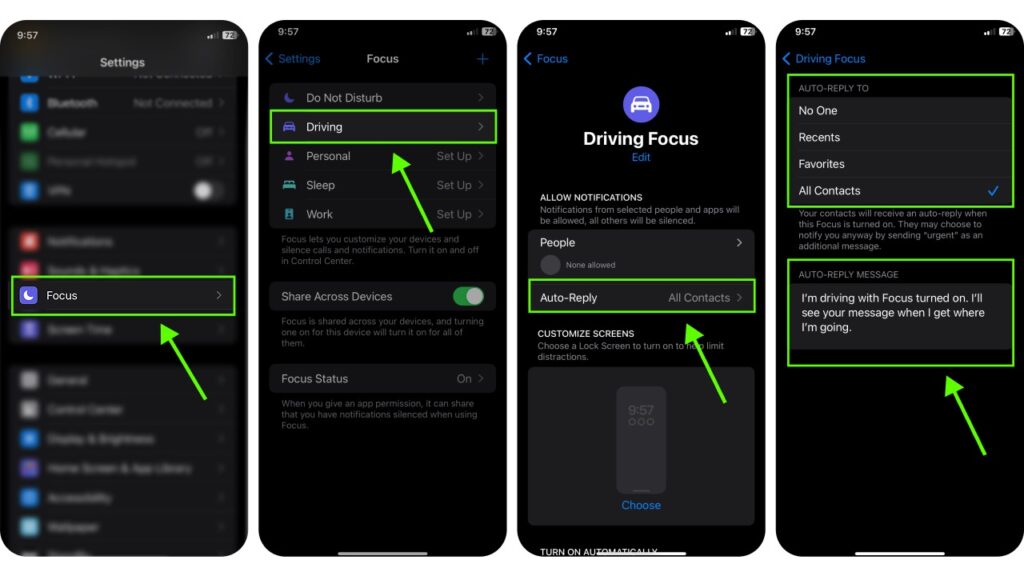
- Open Settings app > Focus > Driving. Now, tap Driving to customize it.
- Tap auto-reply and who receives replies to: Recent, Favorites, All Contacts, or No One.
- Type your custom message.
- Turn on Driving Focus manually or set it to activate automatically when driving is detected.
Limitations of Driving Focus Auto-Reply
⚠️ Your phone becomes effectively unusable for normal call/message notifications while Driving Focus is active. You won’t receive incoming call alerts unless you’ve specifically allowed contacts in your Focus settings.
- Manual activation only — you must remember to turn it on and off every time.
- Cannot schedule auto replies for specific times (e.g., 6 pm–9 am, or weekends)—you can’t set up auto reply based on business hours.
- Sends the same message to everyone — you can’t send different replies to clients vs. friends, which makes it hard to maintain your brand’s tone with customers.
- Doesn’t respond to missed phone calls — only incoming text message traffic while Driving Focus is active, leading to missed opportunities with callers.
- Every team member needs to set it up individually on their own device — not scalable for business teams.
- Only works for iPhone users — Android contacts calling your business phone number won’t benefit from this auto-reply feature.
Method 2: Shortcuts App (More Control, More Complexity)
iPhone’s shortcut apps allow automation, such as scheduling messages or sending auto-replies under specific conditions.
This is ideal for users like you who want more control over when and to whom messages are sent. Also, you can automate notifications based on time, location, or message content.
To set up an auto-reply text in the shortcut app, here are some steps:
- Open shortcuts > automation at the bottom.
- Tap the new automation button.
- Tap message.
- Select the sender to choose who will get your auto-reply.
- Tap the Message Contains > Choose: enter a word that must appear in the message .
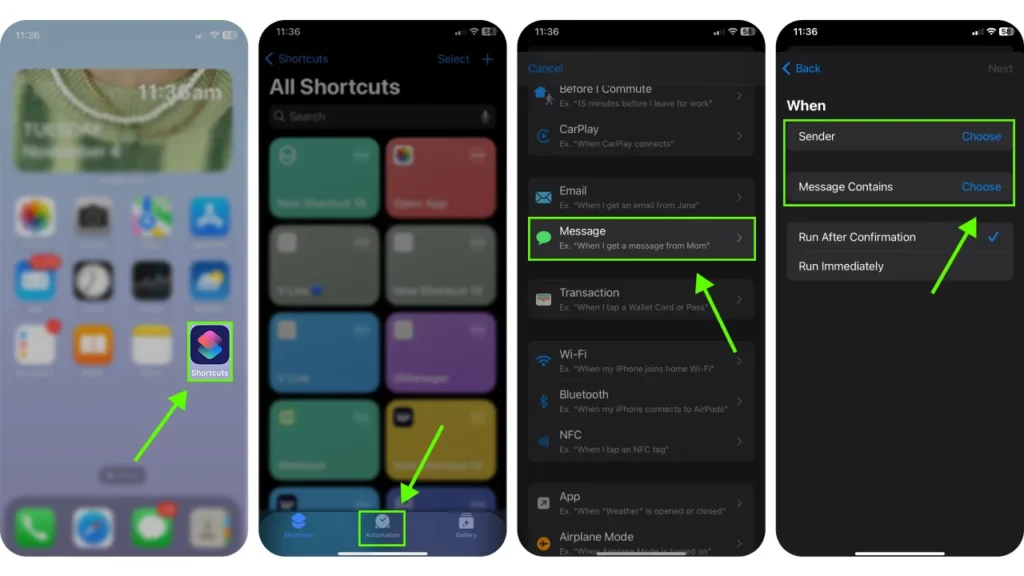
6. Choose Run After Confirmation: You’ll be asked before it runs.
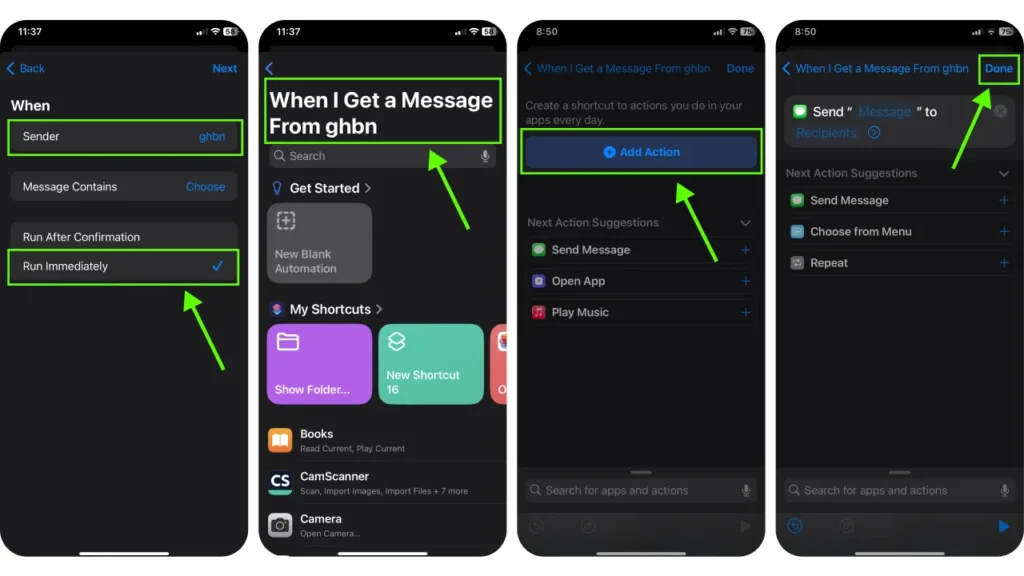
7. Tap “Run Immediately”: it runs automatically (though iOS may still ask sometimes).
8. Tap Next, add your desired Actions (like send a reply, show a notification, etc.) Then done to save.
Limitations of Shortcuts Auto-Reply
⚠️ iOS may still show a confirmation prompt before sending the auto-reply, even with ‘Run Immediately’ enabled — this is an Apple privacy restriction that cannot be fully bypassed.
- Limited to pre-selected contacts — new potential customers or unknown numbers won’t receive your auto-reply unless you add them manually. You can only send auto replies to contacts already in your list.
- Manual contact management means adding every client or lead one by one, which is simply not scalable for any growing business.
- No scheduling support means you can’t set it to run only during business hours or specific days, and you have no control over response time windows.
- No missed call response means Shortcuts only triggers on incoming messages, not missed calls, leaving urgent matters from callers completely unacknowledged.
- Automation can break after iOS updates since Apple frequently changes Shortcuts permissions without warning.
- Not built for teams since each person needs their own automation to automatically reply, and there’s no shared inbox for managing text auto replies across a business.
Method 3: Third-Party Auto-Reply Apps
If you want more control than Driving Focus but find Shortcuts too complicated, there are a few ways to get auto-reply functionality through third-party apps on the App Store. This auto-reply feature is best for personal use or simple solo workflows, though each app works differently.
Popular Third-Party Auto-Reply Apps for iPhone
- AutoSender: schedule and automate texts with contact filtering
- TextAssured: away message-style auto-replies with custom schedules
- Away Message: simple out-of-office auto-reply for iMessage and SMS
How to Set Up a Third-Party Auto-Reply App
- Open the App Store and search ‘auto reply text iPhone’ or ‘iPhone auto text reply’ to find dedicated apps.
- Install a reputable app (check reviews, ratings, and last update date).
- Open the app and grant the required permissions (typically Contacts and Messages access).
- Choose your trigger conditions including time of day, specific contacts, or keywords to set up your auto text reply for text messages.
- Write your auto reply message, then set up auto reply mode within the app to activate it.
- Test with a message from another number before relying on it.
Limitations of Third-Party Apps
⚠️ Apple’s iOS sandboxing significantly restricts third-party access to Messages. Most apps have limited or unreliable access to iMessage and SMS may work better depending on the app.
- Reliability varies significantly between apps and iOS versions.
- Privacy concerns around granting contacts and messages access to third party apps carry real risk, which can also affect your credibility with customers when staying professional matters most.
- Not suitable for business use since there are no team features, shared inboxes, or call handling, meaning the customer experience suffers when volume increases.
- App Store policies change and apps can lose key permissions after iOS updates.
4. VoIP business app
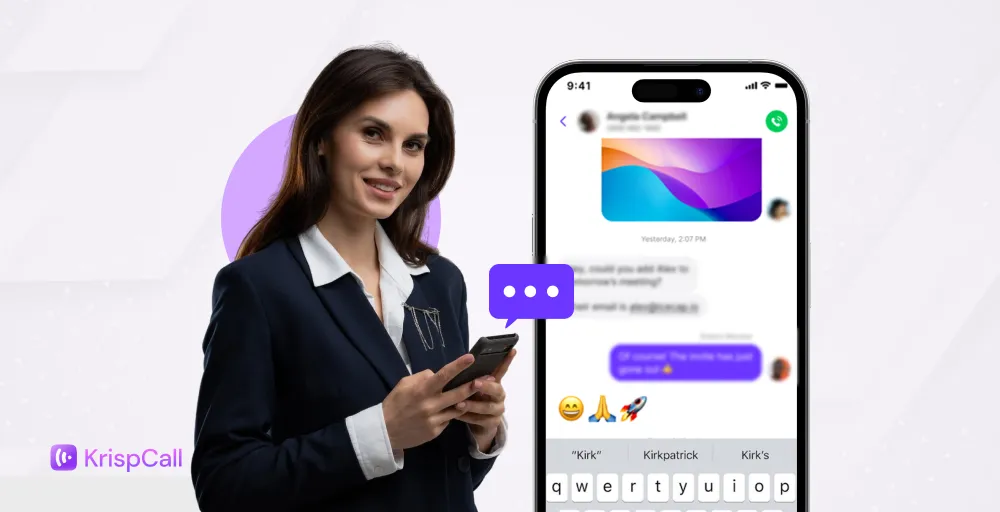
You can also use a business VoIP service provider to send an auto-reply text. It comes with advanced auto-reply features, not only allowing you to send automated texts but also managing shared phone numbers, organizing auto replies for missed phone calls during busy business hours, and even scheduling future text messages.
Here are some steps for setting up:
- Sign up for a VoIP service like KrispCall.
- Access your KrispCall dashboard.
- Go to Settings. Select the number you’d like to set up Auto Reply.
- In the Number Setting page, scroll to find the “Auto Reply Strategy.”
- Write your custom auto reply text example (e.g., “Thanks for your message!”). We will get back to you shortly.”
- Save your changes, and the auto-reply feature will be active for missed calls.
5 Auto-Reply Mistakes iPhone Users Should Avoid
Even with the right method set up, these common mistakes can undermine your auto-reply experience:
1. Running an Outdated iOS Version
Driving Focus and Shortcuts automation features improve with every iOS update. Running an outdated version can cause glitches, broken automations, or missing options in the Focus settings menu. Always keep iOS up to date by going to Settings → General → Software Update.
2. Sending the Same Generic Message to Everyone
“I’m unavailable” reads fine to a friend. To a customer expecting a quote or a callback, a generic auto-reply text message signals unprofessionalism. Take 5 extra minutes to create context-specific messages: one for clients, one for personal contacts, one for after-hours business inquiries. KrispCall makes this easy with conditional auto-reply rules, whether your team is in the office or working remotely.
3. Not Testing Before Relying On It
Every method, including Driving Focus, Shortcuts, third-party apps, and VoIP, should be tested from a different phone before you depend on it. Getting your auto text reply working correctly is just the beginning — you also need to verify that it fires under real-world conditions. The most common failure points are Shortcuts running in confirmation mode rather than immediately, or Driving Focus being set to ‘No One’, meaning no replies are sent at all.
4. Leaving Auto-Reply On Permanently
Forgetting to disable auto-reply after a meeting or trip is one of the most common complaints contacts have. It’s disorienting to receive automated text replies from someone who’s actually available, and it undermines your effort to stay genuinely connected. Set a phone reminder to turn it off, or use KrispCall’s schedule feature to automatically deactivate after business hours.
5. Overcomplicating Shortcuts Automations
It’s tempting to build elaborate Shortcuts chains that reply differently based on time, keyword, and contact group simultaneously. In practice, complex chains frequently break after iOS updates or cause conflicting triggers. Keep each automation simple with one condition and one action. Build separate automations for different scenarios. Other features like scheduled triggers or contact filtering are worth exploring only after your core auto reply is working reliably.
Keep the conversation going on your iPhone effortlessly with KrispCall auto-replies
Whether you are managing client calls or missed messages, KrispCall’s auto-reply and VoIP tools let you handle everything in one app. With features like automated texts and shared phone numbers, it ensures your conversation stays smooth, efficient, and professional.
Furthermore, with auto-replies for missed calls, you can instantly acknowledge them, ensuring your contacts never feel ignored. Additionally, the call management feature helps you prioritize missed calls and schedule follow-ups, keeping your workflow organized and professional.
Whether it’s for business or personal use, KrispCall saves you time while ensuring every message is addressed promptly. It’s the ideal solution for staying responsive without constantly monitoring your phone.