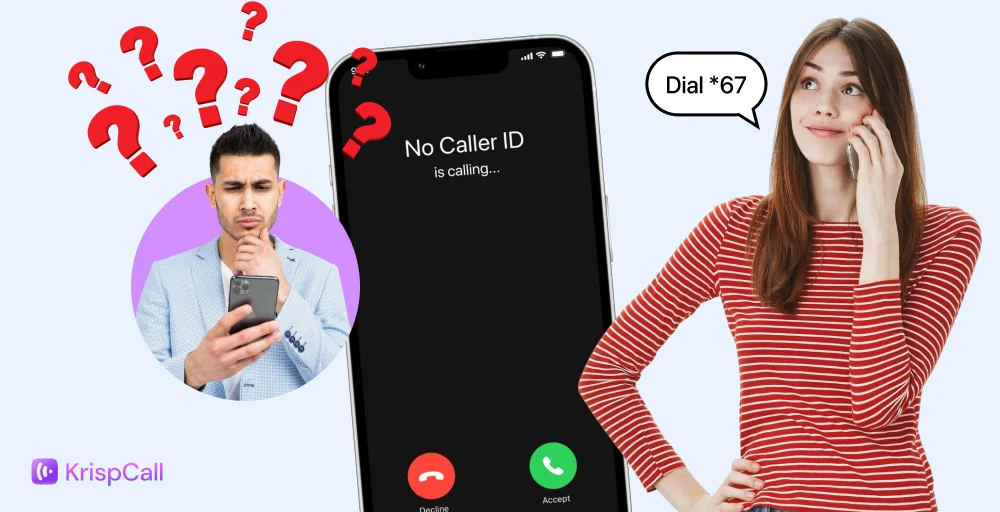
Need to make a call without revealing your number? Both iPhone and Android devices include built-in settings that let you hide your caller ID in just a few taps. Whether you’re using an iPhone or an Android phone for everyday calls, you can quickly switch your number to private and control what others see on their screen.
Quick Fix: Make one Private Call in Under 20 Seconds
Don’t want to change any settings? Use this instant per-call method (works on both iPhone and Android):
- Open the Phone app on your iPhone or Android.
- Tap the keypad.
- Dial 67+ followed by the 10-digit number to hide your caller ID for only one call (US/Canada)
- Press the Call button.
Example: *67-555-236-4567 – It instantly hides your number
3 Methods to Make a Private Call using your iPhone, Android, or landline
Maybe you’re calling a potential buyer, a job contact, or someone you don’t fully trust yet. Or perhaps you’re trying to avoid spam callbacks, unknown numbers, or unsolicited replies. Whatever the reason, hiding your caller ID can help you stay more in control of who gets your number.
1. Method 1: Hide Your Caller ID for One Call Using *67 (US & Canada)
The fastest way to make a private call is dialing *67 before any number. No settings to change. Works on iPhone, Android, and landlines.
How to use *67:
- Open your Phone app
- Dial *67 + the full phone number (include area code)
- Tap Call
📞 Example: *67-555-123-4567
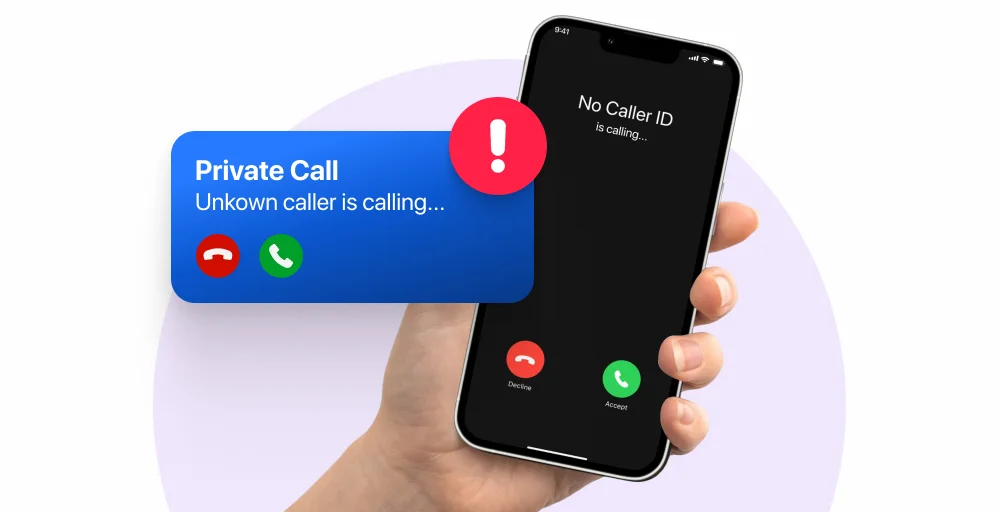
The person you’re calling will see “Private,” “Unknown,” or “No Caller ID” — never your real number.
Star 67 still works but with limits
| Situation | Star 67 works or not |
| Regular mobile/landline calls | Yes |
| Toll-free numbers (800, 888) | No |
| Emergency services (911) | No |
| Recipient blocks private calls | Call may fail |
If you are not in the US or Canada, you can use to code to make private call
| Country | Code |
| UK | 141 |
| Australia | 1831 |
| India | #31# |
| Germany | #31# |
| France | #31# |
Method 2: Hide Your Caller ID on All Calls
If you make private calls regularly, changing your iPhone or Android settings once is far easier than dialing *67 every time.
Steps to Hide Your Number on iPhone:
- Open the Settings app
- Scroll down and tap Phone
- Tap Show My Caller ID
- Toggle it Off
That’s it. From now on, every call you make will show as “No Caller ID“ on the recipient’s screen — until you turn it back on.
Want to Show Your Number for Just One Call?
If your caller ID is permanently hidden but you need to show your number for a specific call (like a delivery driver or customer service callback), dial *82 before the number.
Example: *82-555-123-4567
What if iPhone Caller ID Toggle Missing?
Don’t see the “Show My Caller ID” option in your Settings? This is a common issue. It usually means one of two things:
| Reasons | Fix |
| Your carrier controls the setting | Call your carrier and request caller ID blocking on your account |
| Your carrier doesn’t support it | Use *67 per call or a second number app instead |
Steps to Hide Your Number on Android:
Android lets you hide your caller ID permanently, just like the iPhone, but the exact steps depend on which phone brand you’re using.
- On a Google Pixel, open the Phone app, tap the three-dot menu in the top right corner, and go to Settings. From there, tap Calls, then Additional Settings, then Caller ID — and select Hide number.
- On a Samsung Galaxy, the path is slightly different. Open the Phone app, tap the three-dot menu, and head into Settings. Look for Supplementary Services, tap Show Caller ID, and choose Hide number.
- On OnePlus or Oppo devices, open the Phone app, tap the three-dot menu, go to Settings, then Additional Settings, then Caller ID, and select Hide number.
If your phone isn’t listed above, don’t worry. Open your device’s main Settings app and simply search for “Caller ID” in the search bar.
Most Android phones will surface the option directly. If nothing appears, it’s likely your carrier is controlling the setting at the account level. In that case, call your carrier and request that caller ID blocking to be enabled on your account.
Method 3: Use a Second Phone Number App (Best for Full Privacy)
If hiding your caller ID isn’t enough, a second phone number app gives you the strongest level of privacy. Instead of masking your real number, you get a completely separate phone number that has no connection to your identity or your main SIM card.
You can give it out freely, use it for calls and texts, and delete it the moment you no longer need it.
This method is especially useful if you’re selling items online, dating, freelancing, running a small business, or dealing with any situation where you want a clear boundary between your personal number and the outside world.
Google Voice (Best Free Option): Google Voice is the most popular free second number app available. It gives you a real US phone number that rings directly to your existing phone. Calls made from your Google Voice number show that number, not your real one, on the recipient’s screen.
Burner Apps (Best for Temporary Privacy): If you need a number that’s truly disposable, burner apps like Burner, Hushed, or MySudo are worth considering. These apps let you create a temporary phone number, use it for as long as you need, and then delete it permanently
Method 4: Make a Private Call on WhatsApp
WhatsApp calls work differently from regular phone calls, instead of your number appearing on the recipient’s dialer, they simply see your WhatsApp name and profile. This means your real phone number is never exposed during the call.
For an extra layer of privacy, WhatsApp has a built-in “Protect IP Address” feature that routes your call through WhatsApp’s relay servers, preventing the other person from seeing your IP address as well.
How to enable it on iPhone:
- Open WhatsApp → Settings → Privacy → Advanced
- Toggle on Protect IP Address in Calls
How to enable it on Android:
- Open WhatsApp → three-dot menu → Settings → Privacy → Advanced
- Toggle on Protect IP Address in Calls
Keep in mind, this only works if both parties use WhatsApp. Also, while your number is hidden from the recipient, WhatsApp (Meta) still has access to your call metadata on their end.
What if Your Private Calls Doesnot Work?
Even when you follow every step correctly, private calls don’t always go as planned. Here are the most common problems and exactly how to fix them.
Your *67 call isn’t working: This usually means the person you’re calling has set their phone to automatically reject private or unknown numbers. There isn’t much you can do in this case, try calling with your real number and explaining the situation, or leave a voicemail. It could also mean you’re dialing a toll-free number, which always bypasses caller ID blocking regardless of method.
The “Show My Caller ID” toggle is missing on your iPhone: This is almost always a carrier restriction. Some carriers remove this toggle entirely from iPhone settings and control it at the account level instead. Call your carrier’s customer support, ask specifically for “caller ID blocking,” and they can enable it on your account, sometimes for free, sometimes for a small monthly fee.
Your Android caller ID setting saves but your number still shows: This happens when your carrier overrides your phone-level settings. Like the iPhone issue above, the fix is to contact your carrier directly and request account-level caller ID blocking. Your phone setting alone won’t be enough if your carrier is pushing your number through regardless.
Your private call went straight to voicemail: The recipient likely has a setting that automatically sends unknown or private numbers straight to voicemail. This is increasingly common as a spam prevention measure. Your best option here is to leave a clear voicemail identifying yourself and your reason for calling, most people will call back once they know who you are.
You’re not sure if your number is actually hidden: Always test before making an important call. Ask a friend or family member to check what shows up on their screen when you call. You can also call your own voicemail from a second device to confirm. If you see “Unknown,” “Private,” or “No Caller ID” it’s working.