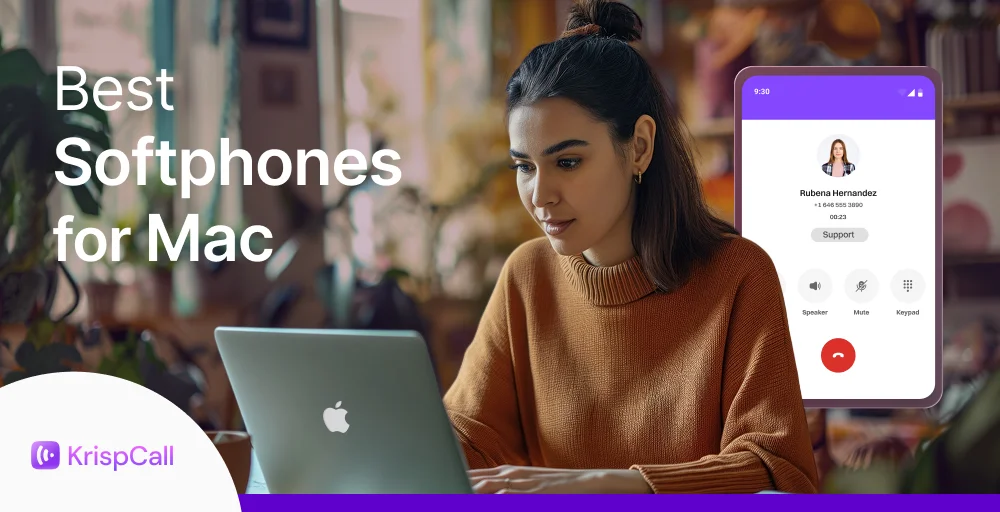
Selecting the right softphone for macOS requires balancing app framework efficiency with the telephony features your business needs.
This guide covers the 11 best Mac softphones tested and ranked in 2026, from full-featured business phone systems to lightweight SIP clients.
✨ Key Takeaways
- CloudTalk: Best for high-volume outbound sales and call centers requiring automated power dialers
- KrispCall: Best overall for scaling SMBs and startups needing a clean, unified multi-country VoIP phone service
- Quo (OpenPhone): Best for startups seeking a collaborative and text-heavy shared inbox
- MightyCall: Best for small businesses managing high call volumes
- Phone.com: Best for solopreneurs and budget-conscious small businesses
- 8×8: Best for enterprise teams needing unified audio and video communications
- RingCentral: Best for mid-to-large businesses needing an all-in-one platform
- GoTo Connect: Best for mid-sized teams combining calling and video conferencing
- Zoiper: Best for technical users needing a highly configurable, multi-protocol desktop SIP client
- Telephone: Best for minimalists looking for a lightweight, distraction-free Mac App Store dialer
- Linphone: Best for developers needing an open-source, privacy-focused engine
What is a softphone for Mac?
A softphone (or a SIP softphone) is a software-based phone that lets you make and receive SIP calls over the internet instead of using a physical phone or a traditional phone line. It runs on your existing devices and uses VoIP system technology to handle voice communication.
A softphone for Mac is simply a softphone application built or optimized to run on macOS. Instead of buying desk phones or managing extra hardware, your MacBook or iMac can serve as a fully functional business phone. It lets you make calls, handle missed calls, manage call history, and receive push notifications directly from your MacBook.
How we tested and ranked these softphones
We conducted a rigorous, hands-on evaluation of 18 softphones and shortlisted 11 based on their features, market presence, and native Mac support.
Here’s what we looked at:
- macOS compatibility: We checked how each softphone performed across macOS 13 Ventura, macOS 14 Sonoma, and macOS 15 Sequoia, since not every app keeps pace with Apple’s updates.
- Feature depth per pricing tier: We looked at what you actually get at each price point, not just what’s advertised on the website.
- CRM integration reliability: We tested how cleanly each softphone synced with popular CRMs such as HubSpot, Salesforce, and Pipedrive, and whether it did so consistently.
- Support responsiveness: We contacted each provider’s support team and tracked response time and quality.
- G2/Capterra/TrustRadius verified review analysis: We cross-referenced findings with user feedback from G2, Capterra, and TrustRadius to validate our test results.
No sponsored placements. No inflated scores. Just an honest shortlist worth your time.
For a full breakdown of how we research, score, and maintain this content, see our content update process, content integrity standards, and software review methodology.
Quick comparison: Best softphones for Mac (2026)
Here is a side-by-side breakdown of how these top softphones and SIP clients stack up when deployed on macOS.
| Provider | Starting Price | SMS/MMS | Shared Numbers | Add-on Numbers | macOS Compatibility |
| Quo (OpenPhone) | $15/user/month | Yes | Yes | $5/month | macOS 10.15 (Catalina) or later |
| KrispCall | $12/user/month | Yes | Yes | $4/month (local USA number) | macOS 12.0 or later |
| CloudTalk | $19/user/month | Yes | Yes | $6/month | macOS 11 (Big Sur) or later |
| MightyCall | $20/user/month | Yes | Yes | $5/month | macOS 13.5 or later |
| Phone.com | $15/user/month | Yes | Yes | $4.99/month | macOS 10.12 or later |
| 8×8 | Custom pricing | Yes | Yes | Contact the sales team | macOS 12 (Monterey) or a later version |
| RingCentral | $20/user/month | Yes | Yes | $4.99/month | macOS 11 (Big Sur) or higher |
| GoTo Connect | Contact Sales | Yes | Yes | macOS 10.15 or newer | |
| Zoiper | Free or $59.95 per license | Yes, but SMS only | No | It does not provide any phone numbers | macOS 10.14 Mojave or later |
| Telephone | $2.99 -$29.99 | No | No | No | macOS 10.13 or later |
| Linphone | Contact the sales team for a quote | No | No | It does not provide any phone numbers | macOS 12.3 (Monterey) or later |
The 11 best softphones for Mac: Full reviews
When choosing the right Mac softphone, it all comes down to how well it fits your workflow, your team size, and your existing tools. Here’s a detailed breakdown of each provider to help you find the one that works best for you.
1. Quo
Quo is a Mac softphone built around simplicity and team collaboration. It offers a native desktop app for Mac, along with browser and mobile access, keeping calling, texting, and contact management in one clean workspace.
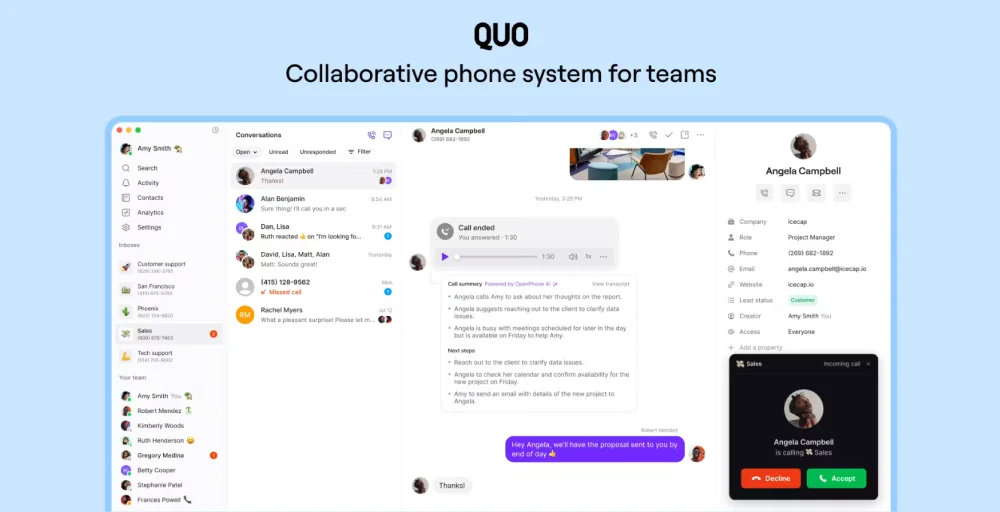
With unlimited US and Canada calling, shared numbers, and built-in AI call summaries, it’s a solid softphone for Mac users who want a straightforward setup without a steep learning curve.
Who it’s best for
Quo is ideal for small to mid-sized teams and solo operators that place a heavy emphasis on text-based customer communication (SMS/MMS), shared office telephone numbers, and cross-team collaboration.
Key features
- Sona AI voice agent for handling inbound calls
- Auto-attendant (IVR) and call forwarding
- Unlimited calls and texts within the US and Canada
- Internal threads and contact notes
- Automated SMS and auto replies
macOS compatibility
Quo is available on desktop, in the browser, and on smartphones, with a native Mac app available for direct download. You can stay logged into up to three devices at once, letting you switch between your Mac, phone, and tablet without losing connectivity. The app runs on macOS 10.15 (Catalina) or later, covering Ventura, Sonoma, Sequoia, and Tahoe.
Integrations
Quo integrates with over 8,000 business apps via Zapier. But offers few direct integrations, including Gmail, Slack, Zapier, and Make. CRM integrations are available from the Business plan upward.
Pricing breakdown
- Core subscription plans
- Starter: $15/user/month (annual billing)
- Business: $23/user/month (annual billing)
- Scale: $35/user/month (annual billing)
- One free local or toll-free number included per user on all plans
Pros & Cons
Pros
- 7-day free trial available, no credit card required
- Texting snippets and message scheduling save massive amounts of daily operational time
- Shared numbers and inboxes are built in from the base plan
Cons
- CRM integrations only available from the Business plan upward
- No video conferencing
- Sona AI features come with additional usage costs
G2 / review score
G2 Rating: 4.7 / 5
Verified users consistently praise Quo for its clean interface and excellent text message integration. However, some long-term reviewers note that following the structural transition from OpenPhone to Quo, they have experienced occasional call dropouts or audio sync lag across desktop and mobile devices.
2. KrispCall
KrispCall is a cloud-based softphone that works on Mac through any modern browser or via WebCatalog. KrispCall turns your MacBook or iMac into a full-featured business phone without needing a native desktop app.
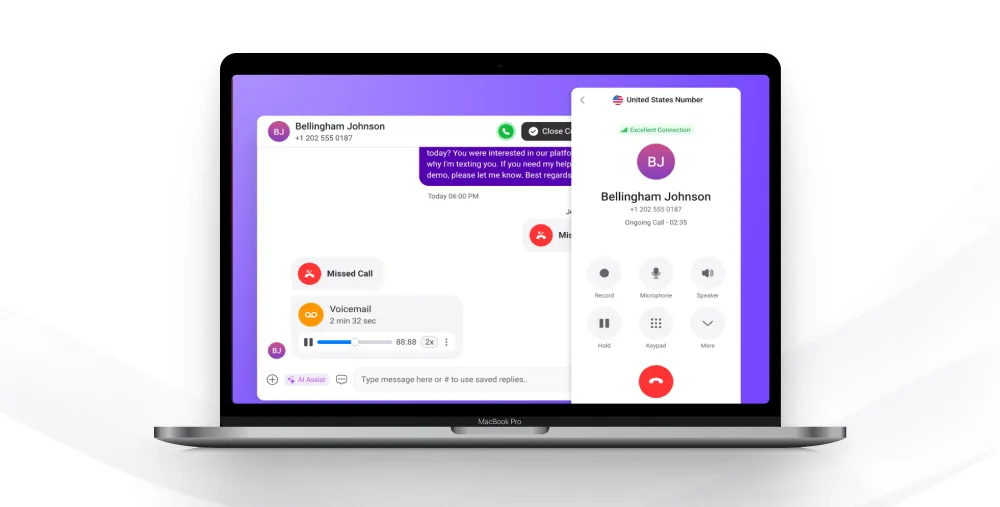
It consolidates calls, SMS, voicemail, and contact management into a single Unified Callbox. With virtual numbers available in 100+ countries, it’s a strong fit for teams that handle international communication directly from their Mac.
Who it’s best for
Small to mid-sized teams and remote-friendly businesses that need an affordable, globally capable Mac softphone with CRM connectivity and a clean interface.
Key features
- Unified Callbox that consolidates calls, SMS, voicemail, and notes in one shared workspace
- Click-to-call from any webpage or CRM directly on macOS
- AI-powered call summaries and transcriptions
- Power Dialer for outbound-heavy teams
- Call recording, monitoring, and whisper coaching
macOS compatibility
KrispCall offers highly compatible mobile apps, but does not have a standalone native Mac desktop app. It runs as a web application accessible through any modern browser on macOS, such as Chrome, Safari, or Firefox.
It can also be added as a dedicated workspace app or Mac using WebCatalog. As long as your browser is up to date, KrispCall works smoothly across all recent macOS versions.
Integrations
KrispCall integrates flawlessly with 100+ tools, including HubSpot, Salesforce, Pipedrive, Zoho, Zendesk, Slack, and more, with two-way contact sync and automatic call logging across all major CRMs.
Pricing breakdown
- Core subscription plan
- Essential: $12/user/month (annual billing)
- Standard: $32/user/month (annual billing)
- Enterprise: Custom quote
- Get one free local/mobile number in the UK or one local number in the USA or Canada upon signup.
Pros & Cons
Pros
- Affordable entry price with strong feature depth at the Essential tier
- 100+ CRM integrations available from the base plan
- 24/7 customer support across all plans
- Remarkably low CPU and RAM footprint saves MacBook battery life
Cons
- Does not offer true unlimited international calling on the base tier. It relies on a credit/resource allotment.
- No free trial available before purchase
G2 / review score
G2 Rating: 4.5 / 5
Overall, users praise KrispCall for its sheer simplicity and reliability. Reviews frequently highlight that the app doesn’t suffer from dropped audio or freezing issues common in other cross-platform desktop frameworks, proving itself as a stable, hassle-free daily driver for Mac-based remote workers.
3. CloudTalk
CloudTalk is one of the most capable Mac softphones for sales and support teams that handle high call volumes. It comes with a dedicated desktop app for Mac, along with a browser-based version, giving Mac users the flexibility to work however they prefer.
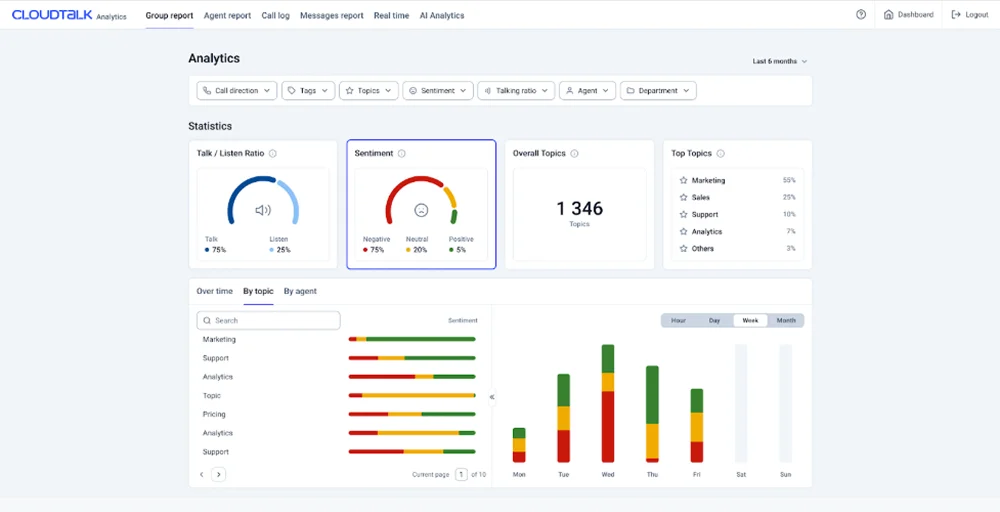
With local numbers in 160+ countries, AI-powered analytics, and deep CRM integrations, it covers everything a Mac-based team needs in a VoIP softphone without having to piece together multiple tools.
Who it’s best for
CloudTalk is built for mid-market outbound sales teams, high-volume customer service operations, and scaling businesses that require advanced automation tools (like power dialers and live call coaching).
Key features
- Native Mac desktop app (downloadable) plus browser-based access
- AI-powered call transcription, summaries, and sentiment analysis
- Power Dialer and Smart Dialer for outbound teams
- Skill-based routing and multi-level IVR
- Local numbers in 160+ countries
macOS compatibility
CloudTalk is accessible over both browser and desktop apps, with the Mac installation package delivered as a .dmg file. The desktop app runs on macOS 11 (Big Sur) or later, covering Monterey, Ventura, Sonoma, and Sequoia without issues.
Integrations
CloudTalk integrates with popular CRM, helpdesk, and eCommerce solutions, including Zendesk, Freshdesk, Salesforce, HubSpot, Zoho CRM, Magento, etc., with predefined one-click integrations and an open API for custom connections.
Pricing breakdown
- Core subscription plans
- Lite: $19/user/month (annual billing)
- Essential: $29/user/month (annual billing)
- Expert: $49/user/month (annual billing)
- AI Conversation Intelligence is available as a separate add-on at $9/user/month (annual billing)
Pros & Cons
Pros
- 14-day free trial available without a credit card
- Strong AI features for call coaching and performance tracking
- Extremely reliable voice quality boasting 99.999% uptime
Cons
- CRM integrations only available from the Essential plan upward
- AI features require an additional paid add-on
- Power Dialer locked behind the Expert tier
G2 / review score
G2 Rating: 4.4/5
Users consistently praise CloudTalk’s intuitive interface, CRM call logging, and power dialer as standout features that improve outreach productivity and team visibility. The main complaint is that add-ons such as AI features and advanced dialers drive the actual cost well above the base plan price.
4. Mightycall
MightyCall is a reliable business phone system that offers a multifunctional softphone for Mac, available either via a desktop application or directly in browsers like Safari and Google Chrome.
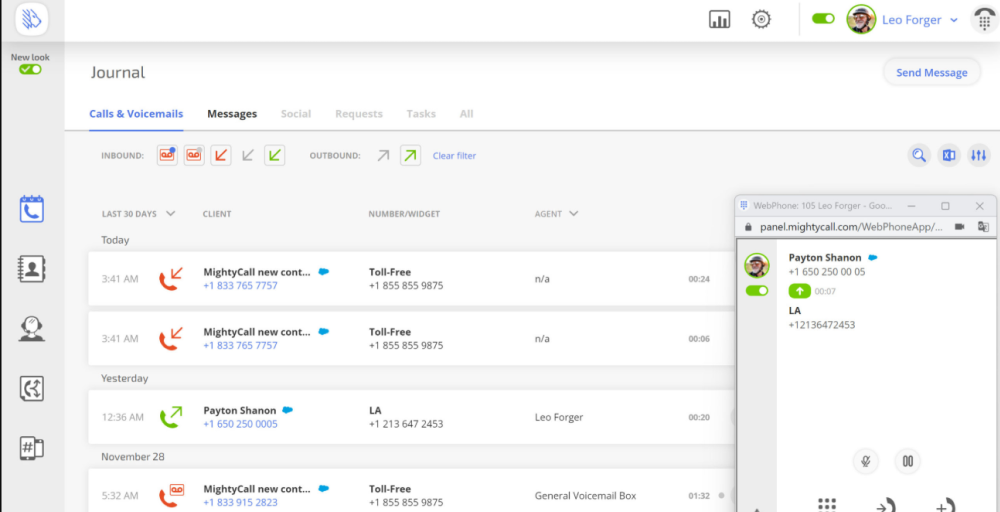
Packed with more than 35 business-centric calling features, MightyCall transforms any MacBook into an agile call-center terminal without requiring external hardware or complex network configurations.
Who it’s best for
MightyCall is an excellent choice for hybrid offices, customer service teams, and growing companies that want a reliable business softphone app backed by complimentary, white-glove onboarding.
Key features
- 911 emergency calling with unlimited calling minutes
- Multi-level IVR and custom greetings
- Call recording, monitoring, whispering, and barging
- Progressive and preview dialers for outbound teams
- STIR/SHAKEN certified & HIPAA compliant
macOS compatibility
MightyCall requires macOS 13.5 or later and a Mac with an Apple M1 chip or later. This means it runs natively on Ventura, Sonoma, Sequoia, and Tahoe, but only on Apple Silicon Macs. Intel-based MacBooks are not supported through the App Store version. A Chrome extension is also available to enable click-to-call on Mac.
Integrations
Integrates out of the box with major customer relationship management platforms like HubSpot and Salesforce, alongside 1,500+ apps via automated Zapier workflows.
Pricing breakdown
- Core subscription plans
- Core: $20/user/month (annual billing)
- Pro: $38/user/month (annual billing)
- Power: $54/user/month (annual billing)
- Enterprise: $65
- Minimum of 3 users required across all standard plans
Pros & Cons
Pros
- Free trial available for 7 days before committing
- Strong call center feature set at a relatively affordable price
- Supervisor workspace with live monitoring built in from lower tiers
Cons
- Advanced outbound auto-dialer features are restricted to higher tiers
- The Unlimited texts and calls come with a limit of 100,000 voice minutes and 2,000 messages
- Mandatory 3-user minimum makes it expensive for solo users or very small teams
G2 / review score
G2 Ratings: 4.4 / 5
Users commonly praise MightyCall for its ease of setup, intuitive outbound workflows, and suitability for small remote teams. On the downside, reporting and analytics lacking advanced customization are a recurring complaint, and the 3-user minimum catches solo operators off guard.
5. Phone.com
Phone.com stands out as a reliable choice for traditional, cost-conscious business calling on Apple computers. It features a dedicated macOS application, Phone.com Communicator, a tailored softphone client that turns your computer into a functional virtual office extension.
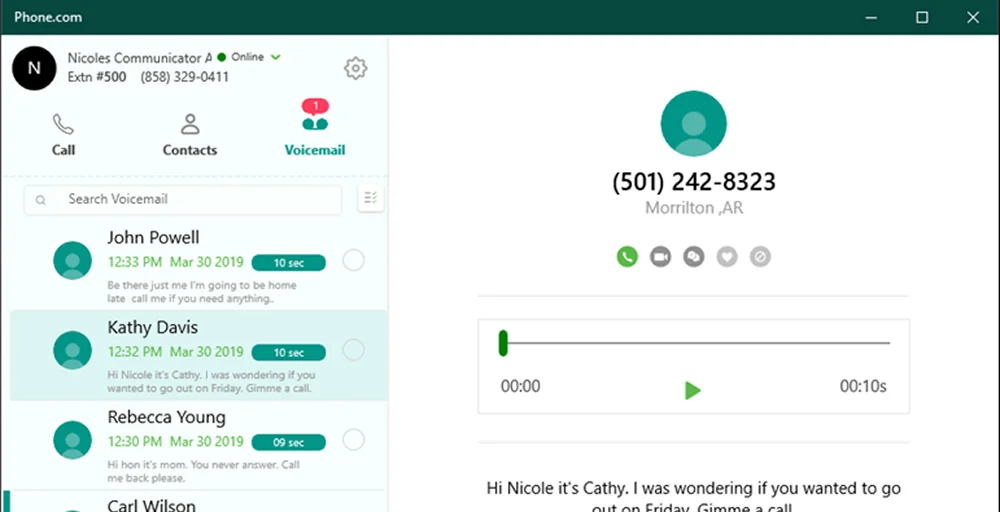
By bridging cloud telephony and your desktop, this Mac SIP phone application provides streamlined access to standard corporate features, including extensions, shared address books, and secure voicemail logs.
Who it’s best for
Solopreneurs, small businesses, and healthcare or legal teams that need a budget-friendly, HIPAA-compliant Mac softphone app with reliable call routing and essential call management tools.
Key features
- HIPAA-compliant voice and video
- Call routing, forwarding, and auto-attendant (IVR)
- Dial-by-name directory
- Unlimited meeting duration & Video recording
- AI-powered appointment scheduling
macOS compatibility
Phone.com offers a dedicated Communicator softphone app for Mac, available as a downloadable desktop application and with full browser-based access. The Communicator app works on macOS 10.12 (Sierra) or later, covering Ventura, Sonoma, Sequoia, and Tahoe.
Integrations
Phone.com’s integration library is leaner than that of most modern softphone providers. Native integrations include Zoho, Zapier, Comm100, Chrometa, and AllProWebTools. Zapier connectivity provides access to 1,000+ third-party apps, helping bridge the gap, but teams needing deep, out-of-the-box CRM sync will find Phone.com limited on that front without custom setup.
Pricing breakdown
- Core subscription plans
- Basic: $15/user/month (annual billing)
- Plus: $22.50/user/month (annual billing)
- Pro: $33.33/user/month (annual billing)
- 30-day money-back guarantee
Pros & Cons
Pros
- Affordable, mix-and-match user plan assignments to keep overhead low
- 50+ standard voice features included across all plans
- 24/7 customer support on all plans
Cons
- The visual layout of the Communicator app feels somewhat dated compared to modern startup tools.
- Call recording and CRM integrations are only included in the Pro tier
- Add-ons push real costs significantly higher than base plan pricing suggests
G2 / review score
G2 Ratings: 3.4 / 5
Users value Phone.com for its customer support and ease of use. While some users point out that the interface lacks the sleek visual styling of newer competitors, they consistently praise its rock-solid core calling features and straightforward user extension setup.
6. 8×8
8×8 is an enterprise-grade Mac softphone that brings voice, video, team messaging, and contact center features under one roof. Its desktop flagship software, the 8×8 Work App, embeds an enterprise call controller directly into your desktop workflow.
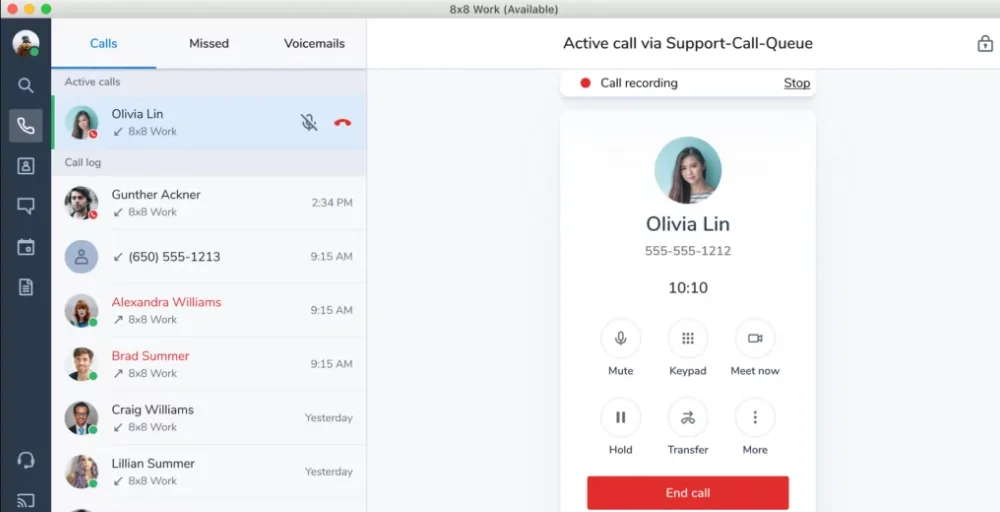
To keep multi-site businesses running smoothly, it combines high-security SIP phone configurations for Mac with global network routing.
Who it’s best for
8×8 is ideal for large corporate entities, multinational organizations, and compliance-sensitive industries that need a highly secure macOS softphone app integrated with a larger omnichannel call center system.
Key features
- HD video conferencing for up to 500 participants
- Voice and video detailed transcription with accurate timestamps
- Intelligent Customer Assistant (ICA) Digital & Voice
- Omnichannel routing & RCS messaging
- Call recording, monitoring, whisper, and barge
macOS compatibility
8×8 offers separate Mac desktop app builds for Intel Macs and Apple Silicon Macs (M1, M2, M3, and M4). Support for macOS 11 (Big Sur) ends with version 8.30 in January 2026, meaning the app currently requires macOS 12 (Monterey) or later. The Mac app auto-updates only for users with admin privileges; non-admin users need to update manually.
Integrations
8×8 connects with a broad range of apps and software, bringing 8×8 functionality to mail, messaging, CRMs, spreadsheets, and more. Native integrations include Microsoft Teams, Slack, Salesforce, and Google Workspace, with deeper contact center connectivity available through partners like Salesforce, Verint, Calabrio, and Cognigy.
Pricing breakdown
8×8 does not publish pricing on its website, meaning all plans require contacting sales for a custom quote. The platform is structured around four product lines that can be mixed and matched based on your needs:
- Core product lines (all contact sales for pricing)
- Unified Communications (8×8 Work)
- Contact Center
- CX Beyond the Contact Center (8×8 Engage)
- Communications APIs
- 8×8 for Microsoft Teams is available as an add-on with contact center integration
Contact 8×8 directly at 8×8.com/request-a-quote for accurate pricing based on your team size and feature needs.
Pros & Cons
Pros
- Unlimited calling to 48 countries without any additional long-distance charges
- Excellent global network redundancy with 99.999% uptime SLA
- Comprehensive security compliances (including strict HIPAA and FISMA protocols)
Cons
- Pricing is fully quote-based, meaning no transparency until you talk to sales
- Disconnect fees of $59.99 per device if canceled within 12 months, and $200 per Plus Extension if canceled within 24 months, are applied
- Auto-renewal clauses and billing surprises are a consistent frustration for existing customers
G2 / review score
G2 Ratings: 4.1 / 5
Users consistently praise 8×8 for its reliable VoIP call quality, easy-to-navigate interface, and strong uptime. The main complaints center on opaque billing, surprise regulatory fees, and support that doesn’t always match the platform’s enterprise positioning.
7. RingCentral
RingCentral is one of the most well-established platforms in the unified communications landscape, providing an incredibly secure cloud telephony setup. Its desktop application features the RingCentral Softphone, embedded directly into its main desktop interface.
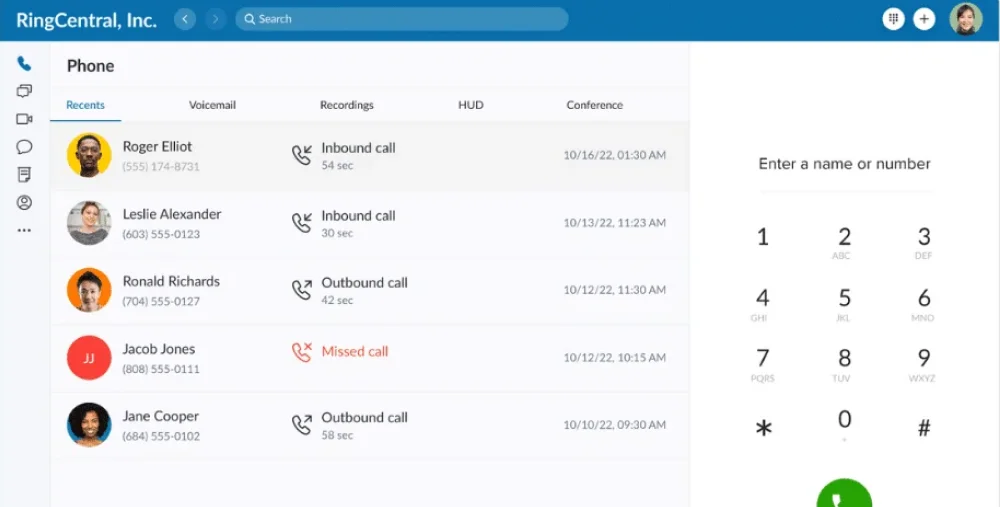
This helps transform your Apple computer into a highly capable office calling terminal. While serving as an all-in-one software softphone for Mac, it balances traditional phone features, such as virtual faxing and extension mapping, with modern cloud features, such as AI transcription.
Who it’s best for
RingCentral is best suited for mid-to-large businesses that need a full unified communications platform with deep CRM integrations, strong uptime, and the infrastructure to scale across multiple locations or departments.
Key features
- AI-powered call summaries and transcription
- HD video conferencing for up to 200 participants
- Call flip & Business SMS/MMS
- Multi-way conference call & shared lines
- Auto-attendant, call queues, and IVR
macOS compatibility
The RingCentral desktop app requires macOS 10.13 (High Sierra) or later, an Intel Skylake-class 6th Gen i3, i5, or i7 processor, and at least 8 GB of RAM. Separate downloads are available for Intel Macs and Apple Silicon Macs (M1 and later).
The Mac app supports auto-update only when the user has local admin privileges; non-admin users need to update manually.
Integrations
Offers an extensive app marketplace featuring hundreds of pre-built integrations with major productivity tools like Google Workspace, Microsoft 365, Salesforce, and ServiceNow.
Pricing breakdown
- Core subscription plans
- Core: $20/user/month (annual billing)
- Advanced: $25/user/month (annual billing)
- Ultra: $35/user/month (annual billing)
- Business SMS Booster is available as an add-on for $25/month
Pros & Cons
Pros
- Comprehensive, multi-party video conferencing and team messaging tools
- 14-day free trial available before committing
- Extremely reliable, high-definition call quality backed by a 99.999% uptime SLA
Cons
- Pricing tiers sit on the higher end of the market for small teams
- Core plan SMS limit of 25 messages per user per month, which is easy to exceed for teams that text clients regularly
- Setting up advanced IVR logic and call center routing queues involves a noticeable learning curve
G2 / review score
G2 Ratings: 4.1 / 5
Users consistently praise RingCentral for its clear voice clarity and the stability of its mobile-to-desktop call switching features. While some smaller business owners note that the platform offers more advanced features than a tiny team truly needs.
8. GoTo Connect
GoTo Connect blends cloud-based telephony with virtual meeting spaces to provide a highly integrated softphone for Mac. Operating as a unified desktop application, it allows users to manage professional voice calls, team chat rooms, and face-to-face video conferences from a single window.
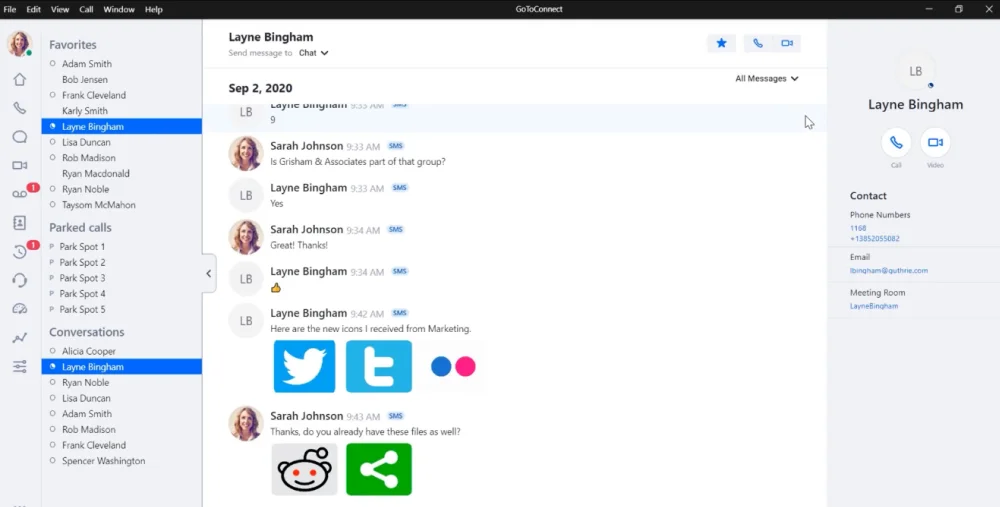
GoTo Connect gives Mac users a flexible softphone experience without being tied to a single device. It also offers a visual dial plan editor and a call quality monitoring dashboard, making it easier to maintain consistent caller experiences.
Who it’s best for
GoTo Connect is an exceptional option for mid-sized companies and remote-first offices that want to combine their business phone system and video conferencing tools into a unified Mac dashboard.
Key features
- AI text-to-speech sound clips
- Customizable dashboards & SMS usage reports
- Shared inboxes for Facebook, Instagram, and website chat
- AI voice features and call summaries
- 24/7 around-the-clock customer support
macOS compatibility
GoTo Connect offers a downloadable desktop app for Mac alongside full browser-based access, making it compatible with all recent macOS versions. The app can also be run through WebCatalog on Mac for a dedicated, distraction-free window experience.
Integrations
GoTo Connect integrates with a range of CRMs and help desk platforms, including Salesforce, MS Dynamics, Pipedrive, ServiceNow, Freshdesk, Capsule CRM, HubSpot, Zoho, SugarCRM, Zendesk, and Freshsales. Most GoTo Connect integrations require an add-on package or a Connect CX or Contact Center subscription.
Pricing breakdown
GoTo Connect no longer publishes pricing publicly. All plans require a quote. Based on third-party verified data:
- Core subscription plans
- Phone System
- Customer Experience (CX)
- CX Complete
- Contact Center
- CRM integrations available as an add-on bundle on the Phone System plan
Pros & Cons
Pros
- Every subscription tier is multisite compatible
- 24/7 support with 99.999% reliability available in all plans
- Unlimited US and Canada calling is included across all plans
Cons
- Pricing is fully quote-based
- Add-on features can get expensive for small businesses with 2–5 employees
- Reporting features on the low tier lack the depth needed for intensive data analysis
G2 / review score
G2 Ratings: 4.5 / 5
Users love GoTo Connect for its clean, modern interface and the simplicity of its drag-and-drop routing builder. While some reviewers note that the app occasionally takes a moment to reconnect after waking a MacBook from sleep mode.
9. Zoiper
Zoiper is a lightweight, Mac softphone built around SIP and IAX2 protocols. It is designed for users and businesses that already have a VoIP provider or PBX and just need a reliable client to connect to it.
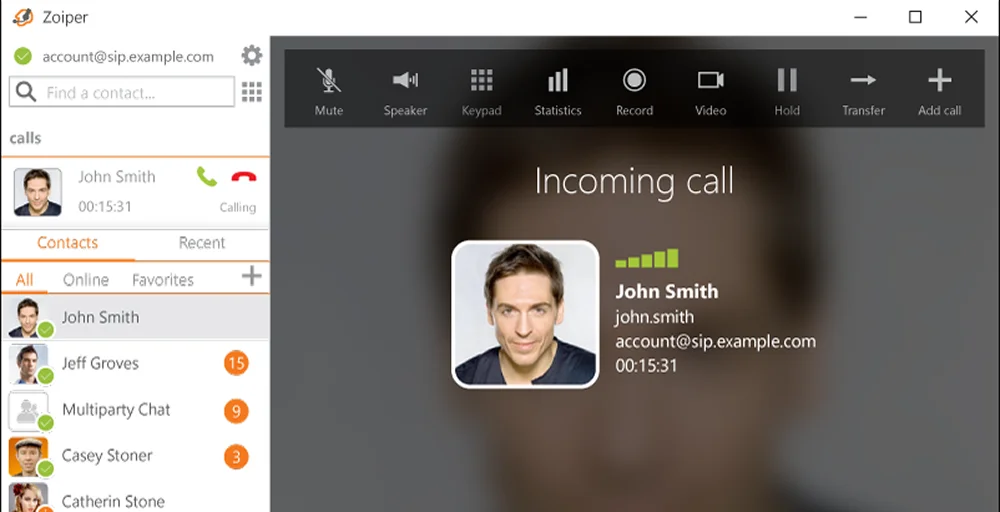
It caters to service providers, call centers, VoIP integrators, and businesses that require softphones independent of their service provider. Unlike the full business phone platforms on this list, Zoiper doesn’t provide phone numbers or calling plans; it’s purely the softphone client.
Who it’s best for
Zoiper is a top-tier choice for IT managers, security-focused businesses, and technical users who want a highly secure, SIP phone Mac application without recurring monthly software costs.
Key features
- Multi-lingual speech to text(100 + languages)
- Auto-provisioning (HTTP, HTTPS, SFTP, and FTP)
- Audio codecs: Opus, G.722, G.726, GSM, Speex, iLBC, G.711 (ulaw, alaw)
- Packet loss concealment & Echo cancellation
- Optional auto-pop-up-window on incoming call
macOS compatibility
Zoiper 5 officially supports macOS 10.14 (Mojave) or later, covering Ventura, Sonoma, Sequoia, and Tahoe on both Intel and Apple Silicon Macs. It is built on a low-overhead architecture that is notably lightweight compared to full UCaaS softphones.
Integrations
Zoiper supports contacts integration with Outlook, LDAP, Thunderbird, and macOS address book in the paid version, along with browser integration for click-to-dial and the ability to open URLs. It also provides its own SDK for integrating Zoiper’s functionality with any hardware or software.
Pricing breakdown
- Core subscription plan
- Zoiper Free: $0 (Includes basic SIP calling tools and standard configurations)
- Zoiper 5 PRO: $59.95 flat rate (One-time per license fee)
- Zoiper operates strictly as a software client app; it neither sells nor provides business phone numbers.
Pros & Cons
Pros
- One-time flat-rate pricing with no monthly subscription
- Works with any SIP provider or PBX system; no vendor lock-in
- Outstanding security controls and voice encryption features
Cons
- Limited support options compared to full business phone platforms
- Requires manual configuration of SIP credentials, which can be challenging for non-technical users
- No shared numbers, team inboxes, or CRM sync out of the box
G2 / review score
G2 Ratings: 4.4 / 5
Technical users and system administrators highly recommend Zoiper for its reliability and low system resource footprint. Users frequently praise its ability to connect with almost any global SIP trunk. However, reviews from everyday office workers note that the setup process is quite complex and requires a solid understanding of VoIP networking to get it running properly.
10. Telephone
Telephone is a super-simple Mac softphone that lets users make and receive calls through a SIP provider. It’s fast, lightweight, and free, but extremely limited, with no texting, analytics, shared numbers, or team functionality.
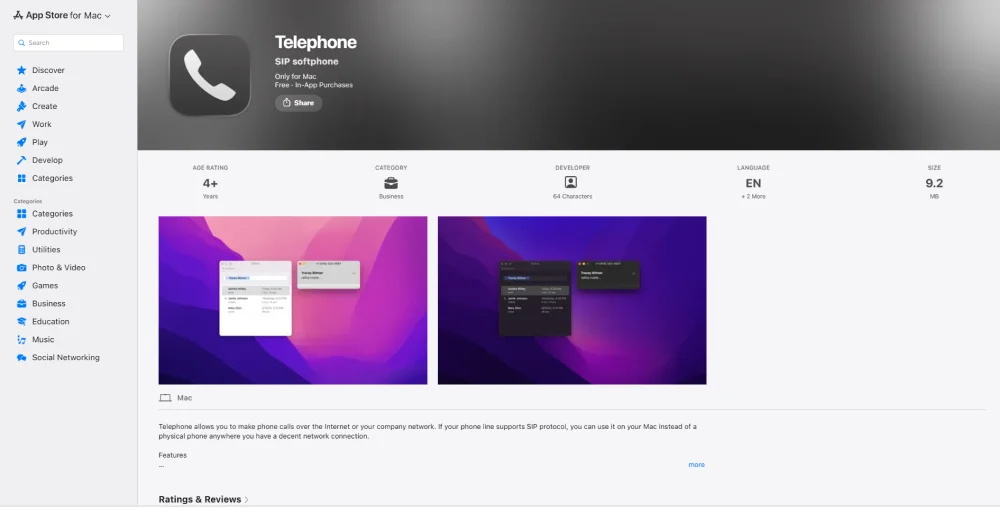
Available exclusively through the Mac App Store, it’s built purely for individual Mac users who need a pure SIP calling client and nothing else.
Who it’s best for
Individual Mac users and solo operators who already have a SIP provider, need basic calling functionality, and want the simplest possible softphone without subscriptions, setup complexity, or team features.
Key features
- Multiple SIP account support
- Contacts autocomplete
- Mute, hold, transfer, and call waiting
- TLS and SRTP encryption
- Click-to-call from sip: and tel: links in browser
macOS compatibility
The Telephone is available exclusively from the Mac App Store for anyone running macOS. It requires macOS 10.13 (High Sierra) or later, covering Ventura, Sonoma, Sequoia, and Tahoe. As a native Mac App Store app, it installs cleanly on both Intel and Apple Silicon Macs without any additional configuration.
Integrations
Telephone has no native CRM integrations, no API, and no third-party connectivity. The only external interaction it supports is clicking sip: and tel: links in the browser to trigger a call.
Pricing breakdown
- Core subscription plan
- Free Version: $0
- Pro Subscription: $2.99/month or $29.99/year
- Telephone is a standalone software dialer; it does not provide telephone numbers or calling networks.
Pros & Cons
Pros
- A minimalist design that blends perfectly with the native look of Apple desktops
- Available directly through the Mac App Store for safe and simple updates
- Completely free for basic SIP calling
Cons
- Does not include modern collaboration features like business text messaging (SMS) or video conferencing
- Requires you to source your own third-party SIP calling provider or office PBX login
- No customer support beyond community resources
G2 / review score
App Store Ratings: 3.3 / 5
Mac users consistently praise Telephone for its elegant simplicity and small system footprint. Even though it lacks advanced call routing settings, texting, team features, or CRM integration, users praise it for its clean, distraction-free SIP calling tool.
11. Linphone
Linphone is a free, open-source macOS softphone and a Voice over IP (VoIP) application. It serves as a flexible, open-ended platform that lets users link their SIP accounts or phone systems to their Mac.
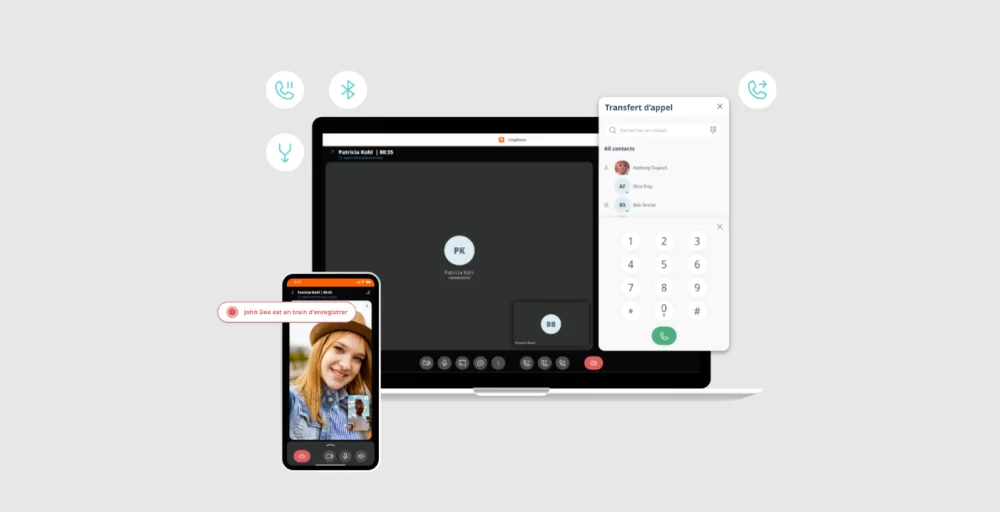
Unlike the commercial softphones on this list, Linphone gives developers and IT teams full access to its source code, making it one of the most customizable Mac softphone options.
Who it’s best for
Linphone is tailored for developers, IT teams, and technically capable organizations on Mac that need a free, open-source SIP softphone they can customize, white-label, or integrate into their own communication infrastructure.
Key features
- HD audio and video calls, audio conference calls with multiple participants
- Presence indicators showing colleague availability
- SDK and APIs available for custom VoIP development and white-label deployment
- End-to-end encryption through ZRTP, SRTP-DTLS, and SRTP protocols
- Call recording (audio and video) with playback functionality
macOS compatibility
Linphone for Mac is installed from a .dmg file. The new version of Linphone, 6.0 “Desktop Call Edition,” is now available as a parallel download for Mac users who want the updated interface and an optimized call experience.
The app is supported on macOS 12.3 (Monterey) or later, covering Ventura, Sonoma, Sequoia, and Tahoe on both Intel and Apple Silicon Macs.
Integrations
Provides open-ended customization options, allowing developers to integrate Linphone’s VoIP functionality directly into their applications. Out-of-the-box CRM or helpdesk integrations are not available; all connectivity must be custom-developed.
Pricing breakdown
- Linphone Client Application: $0 (Completely free and open-source under the GPL license)
- Enterprise services from Belledonne Communications (contact sales for pricing):
- Professional support packages starting from €3,600 for a 20-hour package, valid for 3 months.
- Custom development available at a personalized quote
- Linphone does not bundle or sell virtual phone lines; you must configure it with a separate SIP network.
Pros & Cons
Pros
- Completely free with no subscription or per-user fees
- Fully customizable with full access to source code for transparency
- Cross-platform support (Mac, Windows, Linux, iOS, and Android)
Cons
- Version 6.0 Call Edition drops instant messaging and conferencing. Users who need those features must stay on version 5.2
- No shared numbers, team inboxes, CRM sync, or business phone features
- No native API for third-party integrations
G2 / review score
G2 Ratings: 4.4 / 5
Users consistently praise Linphone’s stability, lightweight footprint, codec flexibility, and ease of use for basic enterprise calling. While some non-technical users find the manual configuration and interface design a bit intimidating, it remains a powerful and trusted tool for anyone who wants complete control over their Mac softphone setup.
macOS compatibility guide for softphones
To make sure that your current macOS version is actually supported by these 11 softphones, here is a brief compatibility breakdown:
| Provider | App Type | macOS Sequoia (15.x) | macOS Sonoma (14.x) | macOS Ventura (13.x) | Apple Silicon |
| Quo | Native app + browser | Supported | Supported | Supported | M1, M2, M3, M4 |
| KrispCall | Browser / WebCatalog | Supported | Supported | Supported | M1, M2, M3, M4 |
| CloudTalk | Native .dmg + browser | Supported | Supported | Supported | M1, M2, M3, M4 |
| MightyCall | Native (App Store) + browser | Supported | Supported | Supported (13.5+ only) | M1 or later, required |
| Phone.com | Native Communicator + browser | Supported | Supported | Supported | M1 or later |
| 8×8 | Native .dmg + browser | Supported | Supported | Supported | M1, M2, M3, M4 (separate build) |
| RingCentral | Native .dmg + browser | Supported | Supported | Supported | M1, M2, M3, M4 (separate build) |
| GoTo Connect | Native app + browser | Supported | Supported | Supported | M1, M2, M3, M4 |
| Zoiper | Native .dmg only | Supported | Supported | Supported | M1, M2, M3, M4 |
| Telephone | Native .dmg only | Supported | Supported | Supported | M1, M2, M3, M4 |
| Linphone | Native (App Store) only | Supported | Supported | Supported | M1, M2, M3, M4 |
Note: MightyCall’s App Store version requires macOS 13.5 or later and Apple Silicon. Intel Mac users on any version should use the browser version instead.
Key features to look for in a Mac softphone
Here are some essential features to look for when choosing a Mac softphone application:
- Call quality and codec support (G.711, G.722, Opus): Prioritize platforms that offer a range of codecs, as codec support determines voice clarity and bandwidth efficiency.
- Shared numbers and team collaboration: Look for a softphone with shared inboxes, internal notes, and call assignment so nothing gets missed across your team.
- CRM and help desk integrations: Prioritize native, two-way integrations with Salesforce, HubSpot, Zendesk, and Pipedrive, not just Zapier workarounds, so call logs and contacts sync automatically.
- Call recording: Check whether the platform provides automatic company-wide recording or manual per-call toggles, and verify whether recordings are stored indefinitely or capped by storage limits.
- IVR and call routing options: Look for a multi-level IVR and flexible call routing options, especially if your team handles inbound calls at any volume.
- Analytics and reporting depth: Look for real-time dashboards, agent performance tracking, and historical reporting.
- AI features: Look out for whether AI features such as summaries, sentiment analysis, and transcription are built in or available as add-ons, so you can factor that into your total cost.
- SMS/MMS availability by plan tier: Confirm which plan tier enables texting, whether MMS is supported, and the monthly message limits before signing up.
- International number availability: Check provisioning speed and international calling rates if your team operates across borders.
- HIPAA and compliance considerations: Healthcare and legal operations must choose providers that implement end-to-end encryption (TLS/SRTP) and agree to sign a Business Associate Agreement (BAA) to ensure strict HIPAA compliance.
How to choose the right softphone for your Mac
With so many options available, narrowing down the right Mac softphone comes down to a few practical decisions. Work through these steps before you commit.
Step 1: Define your team size and call volume
Defining your team size and daily call volume will immediately eliminate most of the wrong options for your business. Solo users or small teams really need enterprise-grade features, and large or high-volume teams won’t survive on what small teams need.
Step 2: Identify your must-have integrations
List the tools your team already uses. Then check whether the softphone offers a native integration or just a Zapier workaround. As a native, two-way sync will save your team hours of manual data entry every week.
Step 3: Set your per-user budget
Softphone pricing varies widely. Use this as a quick benchmark:
| Budget Range | What to Expect |
| $0-$15/user/month | Basic SIP calling, limited integrations, few AI features |
| $15-$30/user/month | Shared numbers, CRM integrations, call recording, SMS |
| $30–$50/user/month | Power dialers, AI summaries, analytics, advanced routing |
| $50+/user/month | Full contact center features, sentiment analysis, enterprise compliance |
Factor in add-on costs for AI features, extra numbers, and call recording storage. These often push real costs well above the base plan price.
Step 4: Check macOS version compatibility
Not every softphone keeps pace with Apple’s annual macOS updates. Confirm your Mac’s current OS version and check whether the provider supports it, natively or via browser.
Step 5: Test before committing
Make proper use of the free trial. Test call quality on your actual Mac hardware, verify that CRM integrations sync correctly, and confirm that the required features work on your plan tier.
Step 6: Evaluate support responsiveness
Your phone system going down mid-business day is not the time to discover your provider only offers email support. Before committing, contact the support team with a real question and note how fast and how helpfully they respond.
Softphone for Mac vs Windows: Key differences
If your team uses a mix of Macs and Windows machines, here’s what to know before picking a softphone.
| Feature | Mac | Windows |
| App architecture | Split between native .dmg installers, browser-based apps, and App Store versions ported from iPadOS. | Standardized .exe or .msi installers that run directly on the Windows OS layer. |
| Hardware dependency | Modern App Store softphones are optimized for Apple Silicon (M1–M4). Intel Mac users are sometimes limited to browser-only versions. | Universally compatible across Intel and AMD processors. |
| Audio device handling | macOS handles AirPod and Bluetooth switching natively and quickly, mid-call. | Relies on third-party drivers (Realtek, ASIO), which can cause device conflicts or microphone dropouts when swapping headsets mid-call. |
| System interruptions | macOS automatically pauses background audio (Spotify, Apple Music) when an incoming call rings. | Requires manual app-level configuration to reduce background media volume during active calls. |
| Interface style | Clean, minimal layouts that hide complex SIP and network settings behind simple menus. | More detailed, utility-focused interfaces with deep manual configuration options for SIP accounts and network settings. |
How to install a softphone on a Mac?
Installation depends on whether your softphone is a native desktop app or a browser-based one. Here’s how to get set up for both.
Native desktop app installation
Step 1: Download the installer
Go to the provider’s official website and download the .dmg file for Mac.
Step 2: Install the app
Open the .dmg file, drag the softphone icon into your Applications folder, and double-click to launch. If macOS shows a security prompt on first open, click Open to proceed.
Step 3: Grant permissions and sign in
Allow microphone access when prompted. Log in with your account credentials or enter your SIP server address, username, and password if you’re using a SIP-based client like Zoiper or Linphone.
Step 4: Configure your audio devices
Go to the app’s settings and select your preferred microphone and speaker. If you use AirPods or a USB headset, set them manually to prevent macOS from defaulting to the wrong audio output during calls.
Browser-based softphone installation
Step 1: Open your browser and log in
Open Chrome, Safari, or Firefox, navigate to the provider’s web app, and sign in with your account credentials. Make sure your browser is up to date.
Step 2: Allow microphone access
Your browser will prompt you to allow microphone access, click Allow. Without this, calls will not connect.
Step 3: Optional, install via WebCatalog
For a dedicated, app-like experience on Mac, download WebCatalog from webcatalog.io, search for your softphone, and install it as a standalone desktop workspace.
Step 4: Set your audio devices
Go to the softphone’s settings and manually select your microphone, speaker, and headset to ensure calls route to the right device on your Mac.
What are the pros and cons of using a softphone on Mac
Deploying a softphone within an Apple hardware environment offers clear advantages as well as some specific ecosystem-level boundaries.
| Pros | Cons |
| Effortlessly swap sounds mid-call between your Mac and AirPods with zero dropouts. | Agressive macOS background power saving can put idle softphones to sleep, causing missed rings. |
| The system instantly mutes background Apple Music or YouTube videos the second a call rings. | Several modern App Store softphones are built only for M-series chips, locking out older Intel Macs. |
| Mac-tailored softphones feature clean, clutter-free layouts that make daily calling simple. | Long phone calls and active background processing can drain the battery of your unplugged MacBook faster than you think. |
| You can easily scale up or down the Mac softphone as per your needs, regardless of your physical location. | Accidentally clicking “Don’t Allow” on initial mic or notification pop-ups completely breaks the app until manually fixed in System Settings. |
KrispCall – Best softphone software for Mac
Every softphone has its own advantages and disadvantages. But for most Mac-based teams, especially those scaling globally or managing remote workflows, KrispCall hits the right balance of price, features, and reliability.
KrispCall runs cleanly in any modern browser or via WebCatalog, meaning no bulky installer and no Apple Silicon restrictions. From the Essential plan at $12/user/month, you get 100+ CRM integrations, a Unified Callbox, AI-powered call summaries, and virtual numbers in 100+ countries.
KrispCall is the most balanced option on this list; affordable enough for a five-person startup and capable enough for a distributed enterprise team. Whether you’re fielding international leads, managing a remote support team, or simply replacing a desk phone, KrispCall gives Mac users a clean, reliable, and scalable solution.
See for yourself by booking a free KrispCall demo.