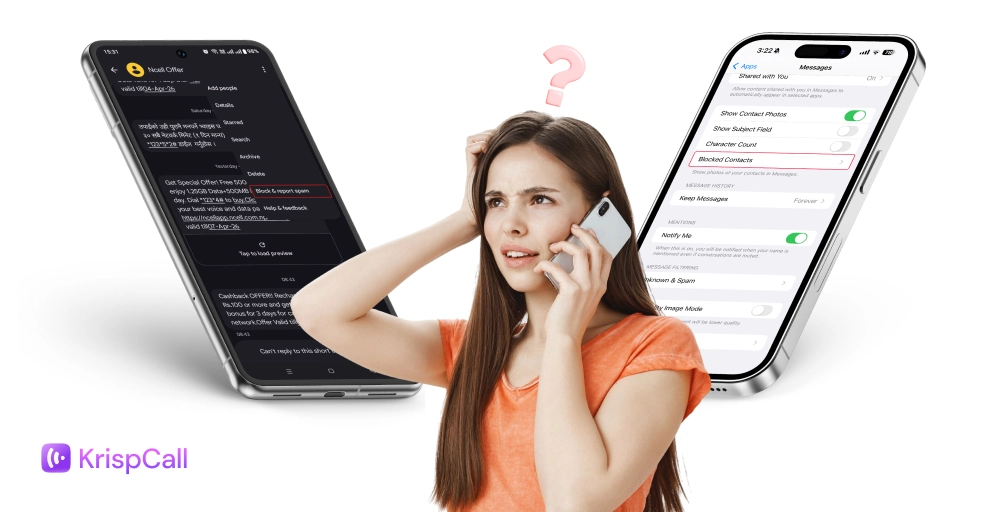
Spam texts and smishing (SMS phishing) attacks continue to rise, exposing users to scams, data theft, and unwanted interruptions. Recent 2025 Readiness Report findings show that spam text attempts have increased by 50%.
Many people also deal with persistent messages from unknown contacts or even harassment, which makes managing your inbox more important than ever.
So, knowing how to block text messages helps you stay in control of your conversations, protect your personal information, and keep your inbox organized.
In this guide, we’ll help you understand how to block a text on iPhone and Android, use third-party apps for extra protection, and manage text communication effectively for both individuals and businesses.
✨ Key Takeaways
- Both iPhone and Android offer built-in tools to block specific numbers and filter spam texts, making it easy to protect your inbox without any extra apps.
- When you block a number, the sender receives no notification. Their messages silently never reach you, keeping the block completely invisible to them.
- For stronger protection, third-party apps like Truecaller, RoboKiller, and TextKiller offer advanced filtering that goes beyond what built-in settings provide.
How to block text messages on iPhone?
Follow these simple steps to understand how to block text on iPhone:
Method 1: Block a specific number
To block a message from a specific number, here’s the step-by-step process:
Step 1: Open the Messages app on your iPhone.
Step 2: Select the conversation with the contact you want to block.
Step 3: Tap the contact’s number or name at the top of the screen.
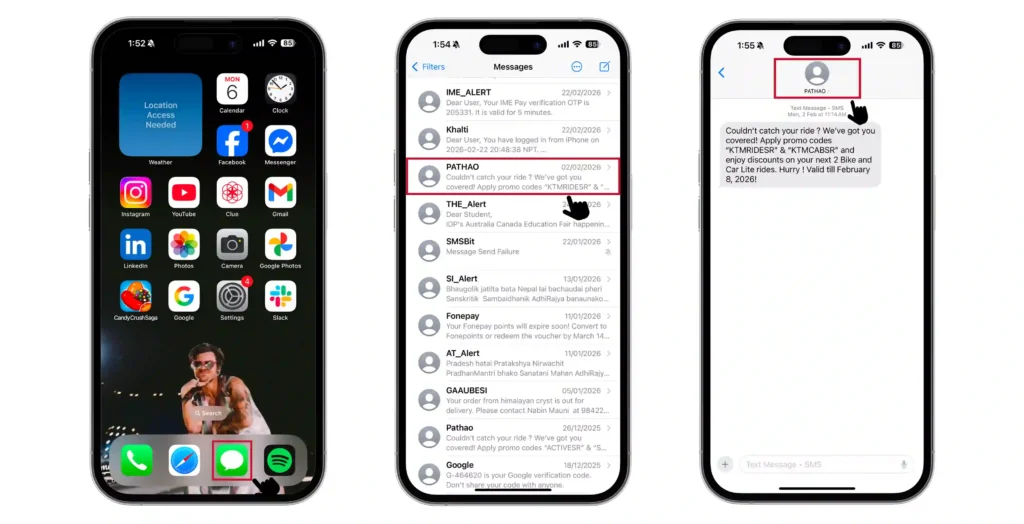
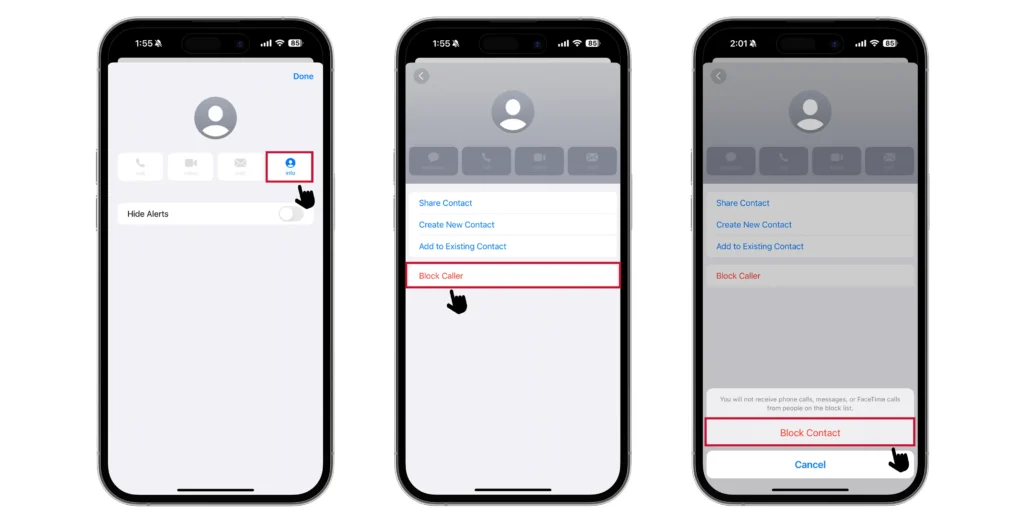
Step 4: Then, tap the info icon on the right side of your mobile screen.
Step 5: Tap on Block Caller to block messages from this contact or number.
Method 2: Filter unknown senders
It might not be entirely possible to block text messages from an unknown sender, but you can filter out text from unknown senders.
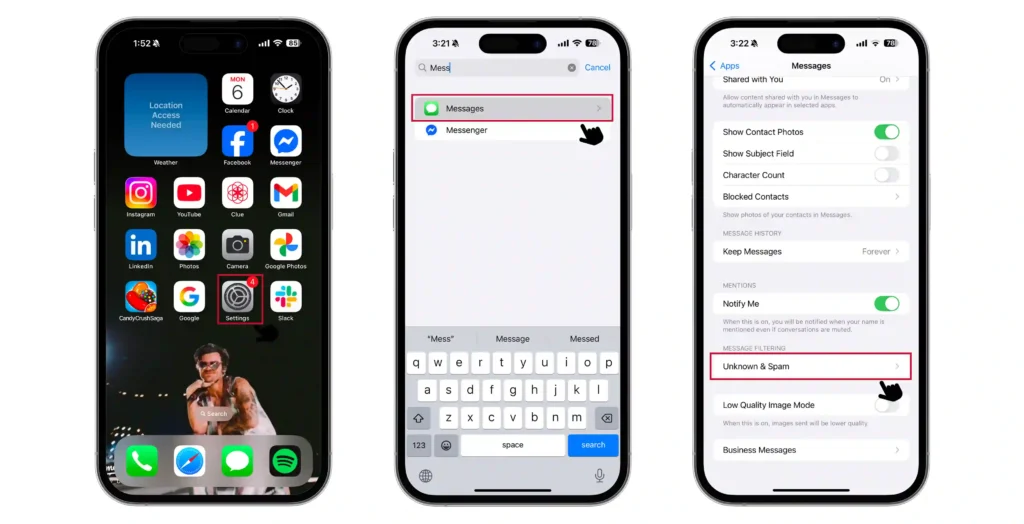
Follow these simple steps:
Step 1: Open the Settings app.
Step 2: Search for Messages or scroll down the menu.
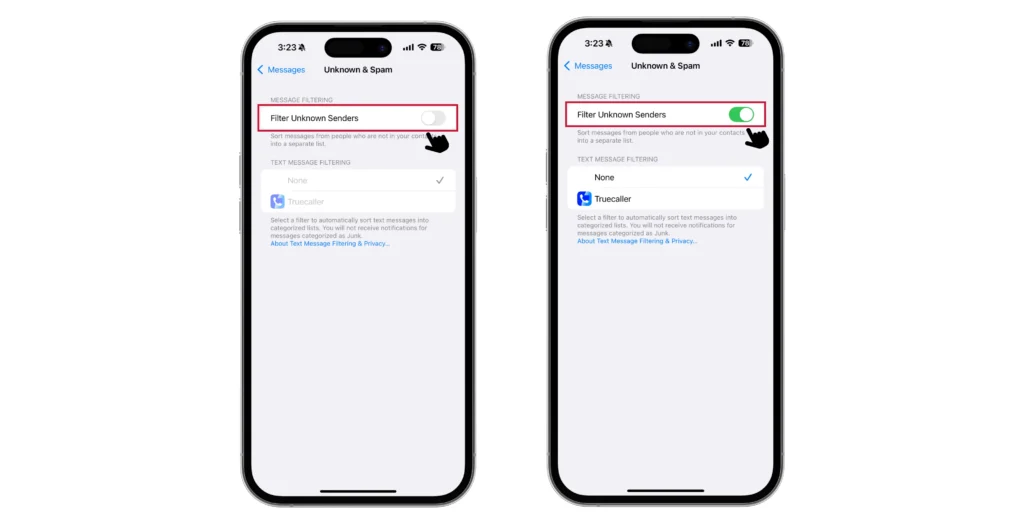
Step 3: Scroll down and click on Unknown & Spam.
Step 4: Toggle on the Filter Unknown Senders option.
How to block text messages on Android?
The process of message blocking on Android may differ from one brand to another. Just follow these simple steps to understand how to block someone text on Android:
Method 1: Block a number (Google Messages)
Step 1: Open Google Messages.
Step 2: Find and open any text message you want to block.
Step 3: Tap the 3 dots in the top-right corner of your mobile screen.
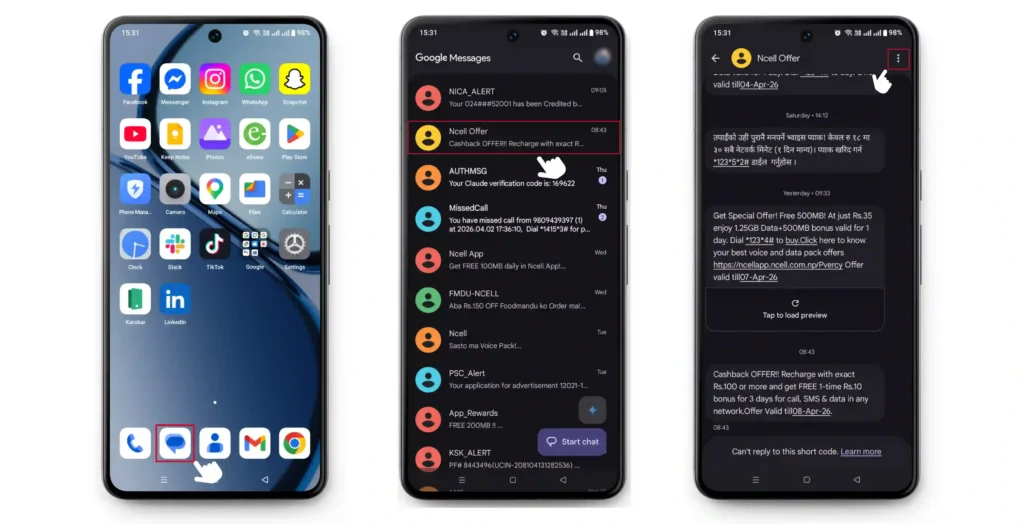
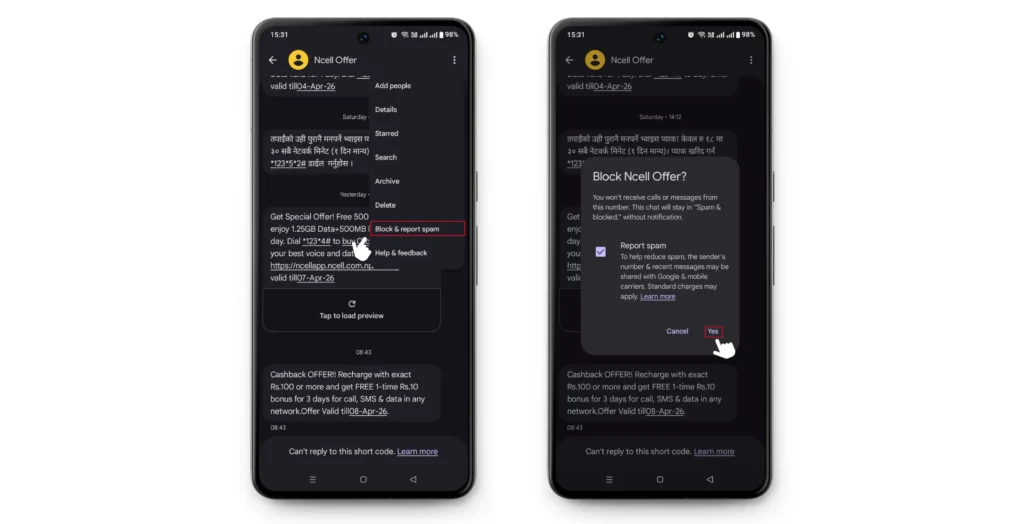
Step 4: It opens a list of options, click on Block & report spam. Then, check the Report spam and click Yes to confirm blocking.
Method 2: Filtering spam text
Unlike the iPhone, Android devices do not offer a filter for unknown-sender settings, but they automatically filter out suspected spam texts.
For Google Messages users, spam protection is enabled by default. To check whether spam filtering is turned on or not, follow the following steps:
Step 1: Open Google Messages.
Step 2: Tap your profile icon, and then go to Message Settings.
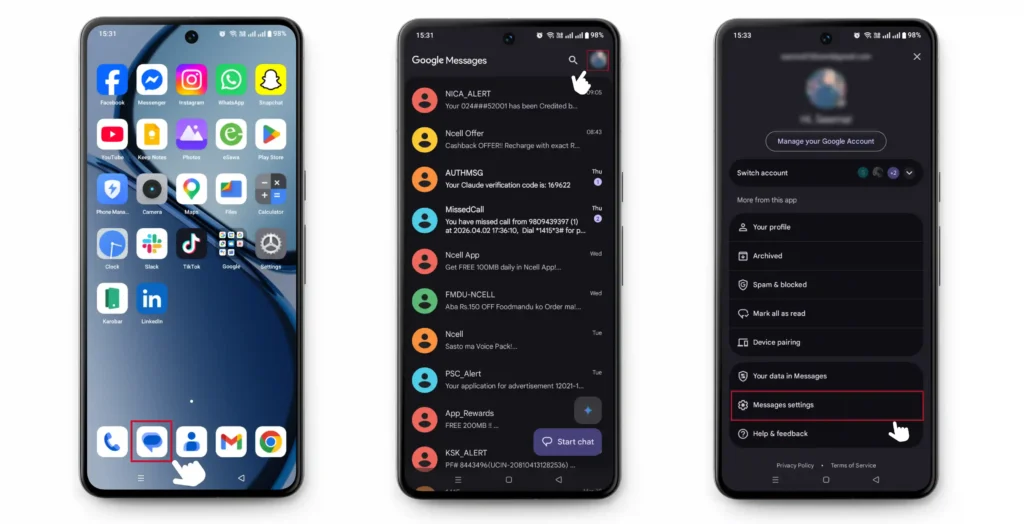
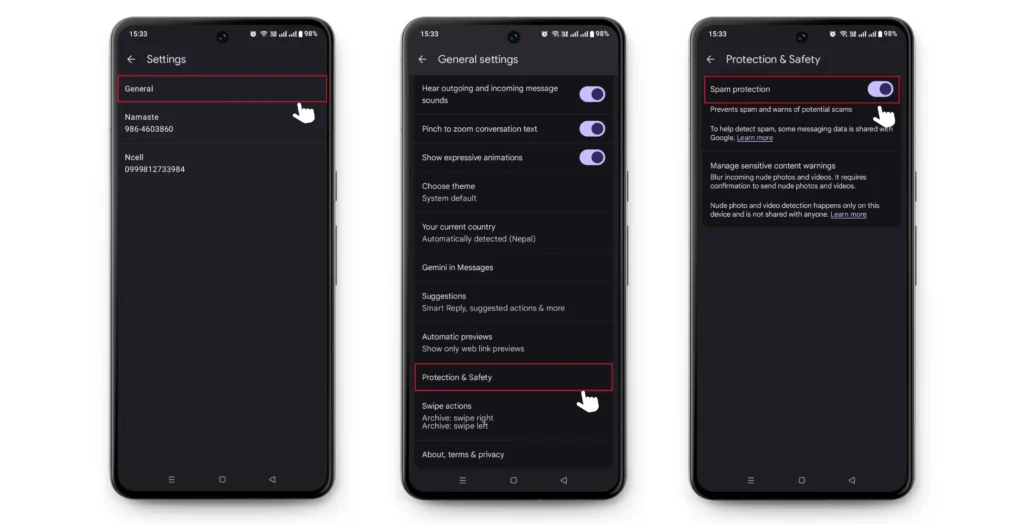
Step 3: Click on General settings.
Step 4: Scroll down to Protection & Safety.
Step 5: The Spam protection will be toggled on. If not, toggle it on.
How to Block Texts Using Third-Party Apps?
If built-in settings don’t give you enough control over unwanted messages, dedicated apps can help you manage texts more effectively on both iPhone and Android devices.
Before installing any app, take a moment to review the permissions it requests and avoid granting access to sensitive data unless necessary.
Several apps stand out for their reliability and features:
1. Truecaller: Uses a large community-driven database to detect spam messages and lets you search unknown numbers.
2. RoboKiller: Blocks spam texts and robocalls using a continuously updated database of known spam numbers.
3. TextKiller: It detects and blocks spam messages in real time, giving you more control over unwanted texts without affecting legitimate conversations.
If you need stricter filtering for robotexts, exploring one of these third-party solutions can give you greater control and peace of mind.
How to block text messages for Businesses
Businesses often deal with high message volumes, so understanding how to block messages effectively helps ensure only important conversations reach your employees and systems.
Here are a few practical ways to control and block unwanted texts:
- Use carrier-level filtering: Many telecom providers offer spam protection tools that can automatically filter suspicious or high-risk messages.
- Install filtering apps: Tools such as RoboKiller or Truecaller can be configured across devices to block known spam numbers.
- Set up keyword blocking: Block messages containing specific words or phrases commonly used in spam campaigns.
- Whitelist approved contacts: Allow messages only from trusted numbers to reduce noise and improve focus.
- Use VoIP and business phone systems: Many modern systems, like KrispCall, include built-in spam detection and message filtering controls.
How to prevent customers from blocking your messages?
Customers block messages when they feel overwhelmed, misled, or uninterested. Clear, respectful messaging practices help maintain trust and keep your communication channels open.
Follow these best practices to reduce the chances of being blocked:
- Get clear consent: Only send messages to users who have explicitly opted in.
- Keep the message relevant: Focus on useful, timely information rather than frequent promotions.
- Avoid excessive frequency: Space out messages to prevent annoyance or fatigue.
- Make opt-out easy: Include simple unsubscribe instructions in every message.
- Personalize the texts: Tailor messages based on user preference or behavior. A study shows that almost 80% of consumers are more likely to make a purchase from a brand that offers a personalized experience.
- Use recognizable sender IDs: Ensure your business name is clearly visible to build familiarity and trust.
Wrapping Up
Managing unwanted texts doesn’t have to be overwhelming. Whether you’re an iPhone or Android user, both platforms offer simple built-in tools to block specific numbers and filter out spam. For situations where native settings fall short, third-party apps provide an extra layer of protection.
Ultimately, staying on top of your messaging settings is a small habit that pays off in fewer distractions, better privacy, and a more organized inbox. Take a few minutes today to review your current settings; your future self will thank you.