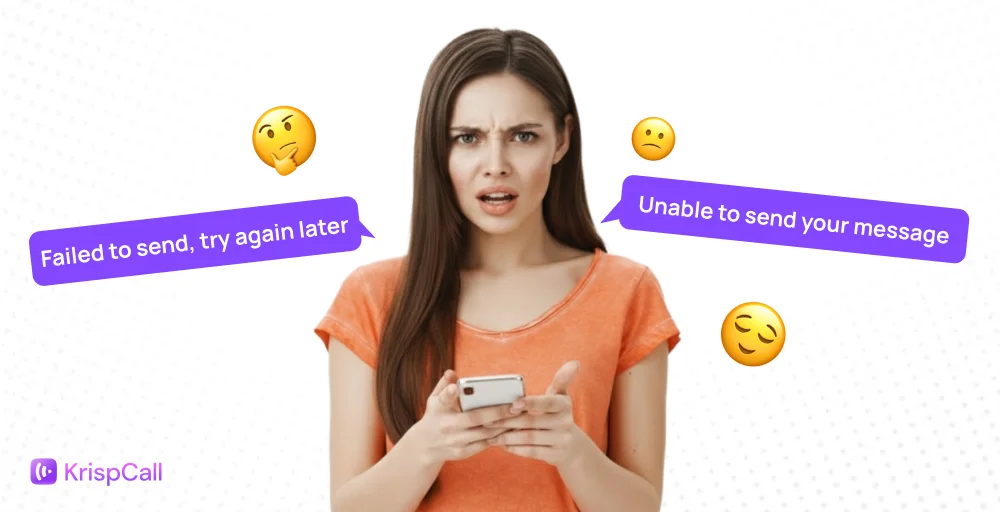
You tap “send,” expecting an instant reply, but your message gets stuck on “sending” or is tagged with “not delivered.” It’s a frustrating moment that leaves many people wondering, “Why are my messages not delivering?” or “Why won’t my messages send?”
Whether it’s a simple text, an iMessage, or a WhatsApp chat, message delivery issues can turn quick conversations into guessing games. The truth is, behind every message lies a delicate process of routing, network syncing, and carrier cooperation, and when even one step falters, your message may never reach the intended destination.
In this blog, we’ll explore the 13 most common reasons “why messages fail to deliver” and practical fixes for both iPhone and Android devices to help ensure your texts and replies reach the right person without delay.
✨ Key Takeaways
- Message delivery depends on multiple layers from your network connection, carrier routing, and app servers, all working together to ensure successful transmission.
- Most failed message deliveries stem from simple causes like weak internet, incorrect numbers, blocked contacts, or carrier restrictions rather than major technical faults.
- With the right troubleshooting steps, such as checking your network, updating apps, verifying contact details, and adjusting settings, you can quickly restore reliable message delivery across all devices.
Why are my message sending but not delivered?
The question, like “why aren’t my messages sending,” became common after messaging apps like Messenger, Viber, and WhatsApp introduced status indicators like the single tick for sent, double gray tick for delivered, and colored ticks for read.
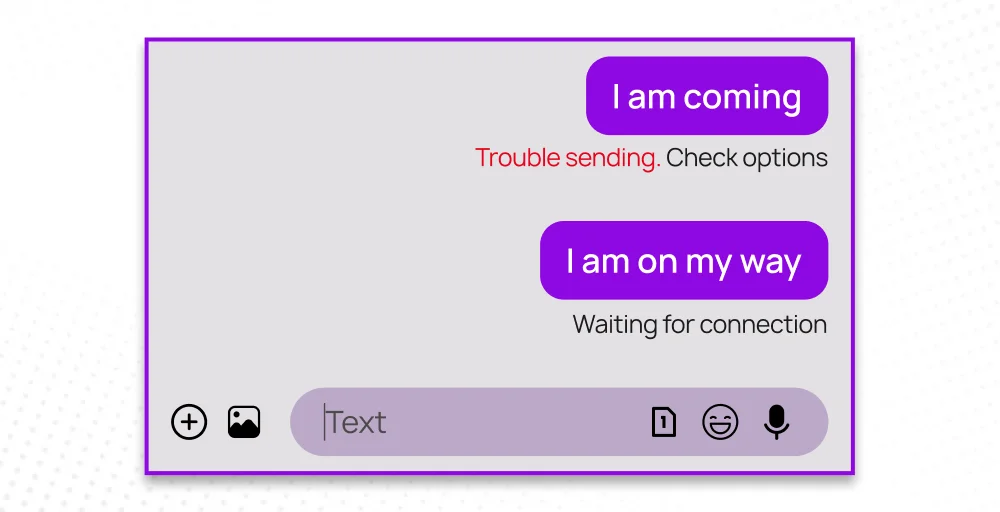
When a text message shows “sent,” it means your phone handed it off on the network or the app’s server. “Delivered” means that the message has successfully reached the recipient’s device, and “read” confirms the recipient actually opened it.
If your message remains undelivered, it usually means it’s stuck in transit, either due to network disruptions, app server delays, or the recipient’s phone being offline or out of coverage. Messaging systems rely on stable network connections (either cellular or Wi-Fi) and responsive systems for successful delivery.
13 reasons why your messages are not delivering with fixes
Sometimes, your messages won’t reach the other person even though they show as sent. So, you are left wondering, “Why aren’t my messages delivering?” It usually comes down to a few common issues. Here are 13 possible reasons why your messages aren’t delivering:
1. Poor Internet connection
A poor internet connection can disrupt the continuous data exchange between your device and the messaging app’s server. As a result, when your Wi-Fi signal drops or your mobile data slows, your text messages won’t go through, leaving them stuck in “sending” or “pending” status.
Solution: To avoid this, try toggling the airplane mode or restarting your router. Always connect to a strong network with enough bandwidth. And once the connection is steady, your pending messages will usually go through automatically.
2. Incorrect recipient number
Most of the time, the answer to “why is my message not sending?” is that you’ve entered the wrong number. It won’t necessarily say text messages not delivered, but it won’t be delivered to the intended person. You’ll see “Invalid Number” or “Unallocated” in same cases.
For instance, if you forget to add the correct country code for international contacts (e.g., +1 for the USA) can also cause delivery failure.
Solution: Humans are prone to making mistakes, so you will need to double-check the number format and confirm it with the receiver before trying to send message again. Also, make sure that the number is not deactivated and available in service to guarantee your message delivery.
Related Article 👉: How to Get a Second Phone Number Without a Landline or SIM Card
3. Insufficient balance or data
When you are a prepaid user, not having enough balance or mobile data is one of the reason behind your message being sent but not delivered. Verify your balance or mobile data if you’re using SMS, MMS, or internet-based messaging apps.
You’re not likely face these issues if you’re using Wi-Fi.
Solution: Make sure that your carrier doesn’t charge a high fee for sending MMS or international texts. Keeping an eye on your data usage and ensuring your plan supports messaging services can help you avoid such interruptions.
4. Blocked contact
When you are sending a bunch of messages, but the message is not reaching the intended person, then there’s a high chance that they have blocked your number. Messaging systems typically block or filter out any texts sent to contacts who have restricted your number.
There is no particular solution to this issue other than reaching out to them using a different medium or channel. You can also ask the recipient or the person you’re trying to reach to check their blocked list and unblock you.
Useful Tip 💡 : How do you know if you’ve got blocked?
If you’re blocked on social media platforms like Instagram or Facebook Messenger, the user’s profile gets restricted to you. Profile photo disappears, and you won’t be able to send messages.
5. Sending too many messages
Depending on the number you’re using, there are guidelines on how many messages you can send. Messages sent as part of A2P marketing (Application-to-Person) campaigns, like bulk promotional texts, can be flagged as spam and restrict you from sending more or completely block you.
Solution: Understand and follow the regulations and guidelines of each service provider or software. When you send messages as per their limits, then as long as you have the correct number, your messages will always reach the desired recipient.
6. Network restrictions
Sometimes, the issues arise from within your network, preventing you from sending any messages. There could be network congestion, compatibility issues between the sender’s carrier and the recipients, or issues with the receiver’s own network connection.
Solution: When sending SMS or MMS, try to minimize bandwidth usage to ensure these messages receive higher priority and are delivered. Try to use apps or servers that are compatible on both ends.
Related Article👉: Phone Echoing: Common Causes & Solutions
7. SIM card issues
A damaged, outdated, or loosely fitted SIM card can disrupt your phone’s connection to the carrier’s network. When your device fails to register properly, messages may appear as “sent” but never actually get delivered.
In such cases, the message fails before reaching the carrier’s server, resulting in no delivery reports or status updates.
Solution: Remove the SIM and reinsert it carefully. If the problem continues, test it on another device to confirm whether the issue lies in the card or the device. If the issue is with the card itself, you can replace it, or you can repair your card slot to restore connectivity.
8. Storage full
Though the idea of running out of SMS inbox storage is rare on modern smartphones, older legacy phones still have limits on how many messages they can store. Once the storage is full, any new message gets automatically rejected or is not delivered until the users manually delete all older text to free up some space.
Solution: You won’t exactly get an alert or notifications if any of your recipients’ inbox gets full. So, the only thing you can do is to ask the recipient to check if their inbox is full or not, so that you can cross this out as one of the reasons for your messages not being delivered..
9. Message contains illicit content
Messages flagged as containing illicit, harmful, or spam-related content are often blocked by carrier or spam filters before reaching recipients. This prevents the spread of malware, phishing, and other unwanted content.
Any content related to the acronym SHAFT-C puts the senders at risk for blocking.
Solution: Double-check your messages for suspicious or “spammy” words, excessive links, large attachments, and repetitive promotional phrases. If legitimate messages are still being blocked, talk with your provider or messaging service.
10. Fallback failures
The fallback feature is often used by many messaging platforms like iMessage (iOS) or RCS (Android) to automatically re-route the message when the primary route fails. For example, sending an SMS if an internet-based message can’t go through.
However, when fallback routing fails too, your message won’t reach the recipient at all. This can happen if both the primary and secondary channels face downtime, or if your carrier or app hasn’t properly configured fallback settings.
Solution: Make sure your messaging app or service settings have fallback routing enabled and configured correctly. Use SMS APIs that can bypass device-dependent channels and deliver messages through the carrier network.
11. Texting a landline
If you’re trying to send a message to a landline number instead of a mobile number, it simply won’t go through. Landline systems are not designed to receive SMS or MMS messages, so while your message might show as “sent” on your end, it never actually reaches the recipient.
Solution: Always double-check that the number you’re messaging is a mobile number, not a landline. If it’s a business contact, look for an alternative mobile number or use another communication channel such as email or a VoIP-based system that supports text messaging.
Related 👉: How to Call a Landline Phone Locally & Internationally?
12. The number is roaming
When the recipient is outside their home network, their carrier may temporarily restrict message delivery due to network compatibility or coverage limitations. In some cases, roaming agreements between carriers can delay or block SMS and MMS delivery entirely, especially for international routes.
This makes your message appear as “sent” but not “delivered.”
Solution: If possible, confirm whether the recipient is currently roaming. Ask them to enable international messaging or roaming services with their carrier. On your end, ensure your plan supports sending texts to roaming numbers or use internet-based messaging apps that can bypass roaming restrictions.
13. Billing issues on the recipient’s carrier side
Sometimes, your message fails to deliver not because of your network, but because the recipient’s carrier has billing or account-related issues. If their phone bill is overdue, their carrier might suspend services like incoming SMS or MMS.
In some cases, the carrier also doesn’t allow sending A2P SMS messages when the account is inactive or under billing restrictions.
Solution: Make sure that the recipient has an active mobile data plan or has no billing or account-related issues. If they recently changed or paused their plan, that could interrupt the SMS delivery. Once their account is settled or reactivated, your messages should start getting delivered normally.
Related Article👉: Dropped Calls: Why They Happen and How to Prevent Them?
How to fix ‘iMessage not delivered’ on iPhone?
Here’s how to fix the “message not delivered iPhone” issue step by step:
Step 1. Check the internet connection
iMessage requires a stable Wi-Fi or cellular data connection. Open Safari or another app to confirm your internet is working.
Step 2. Toggle Airplane Mode
Swipe down to open “Control Center,” enable Airplane Mode for 10 seconds, then turn it off to refresh your network connection.
Step 3. Restart iMessage
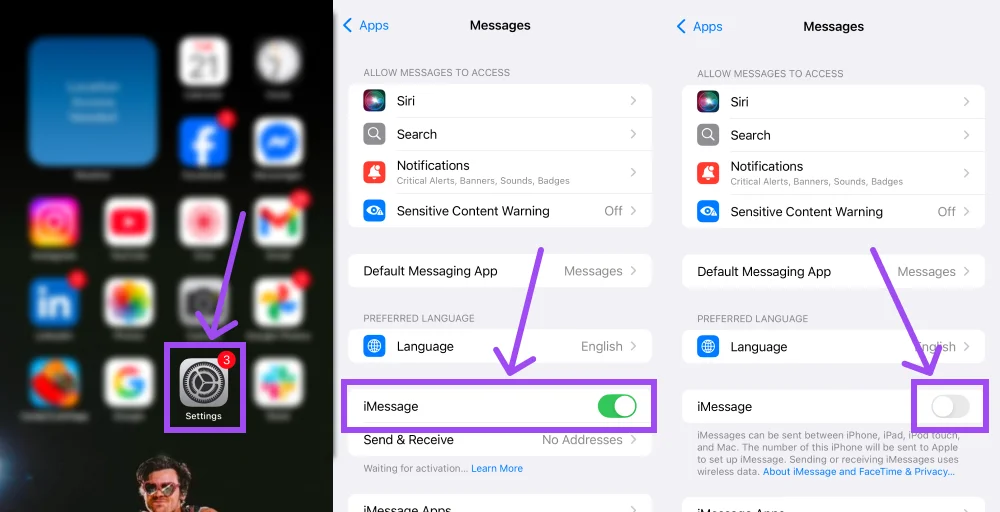
Go to settings > Message, turn off iMessage, wait a few seconds, then turn it back on.
Step 4. Restart your iPhone
Hold the power button and slide to power off. Wait 20 to 30 seconds, then turn your phone back on.
Step 5. Update iOS
Outdated software can cause message glitches. Go to settings > General > Software Update and install the latest version.
Step 6. Reset network settings
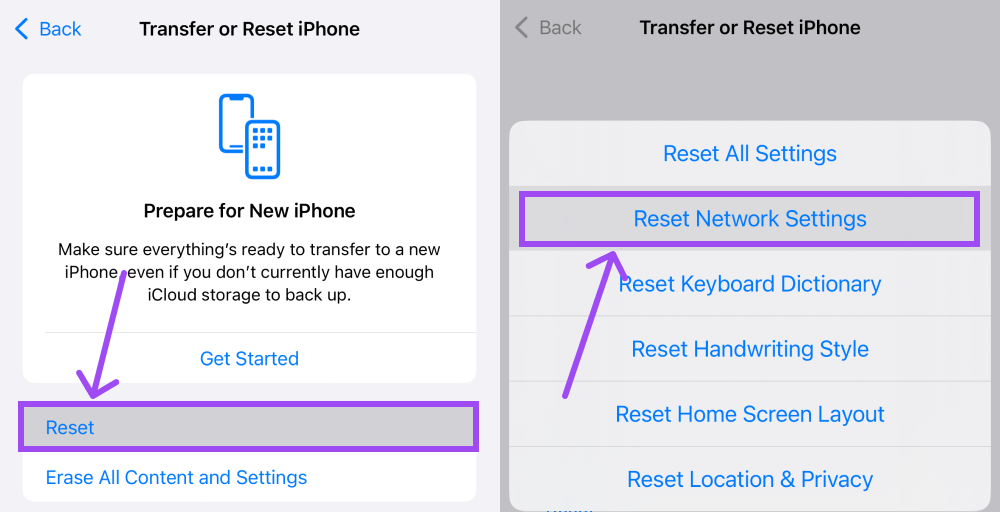
If the issue persists, go to Settings > General > Transfer or Reset iPhone > Reset > Reset Network Settings.
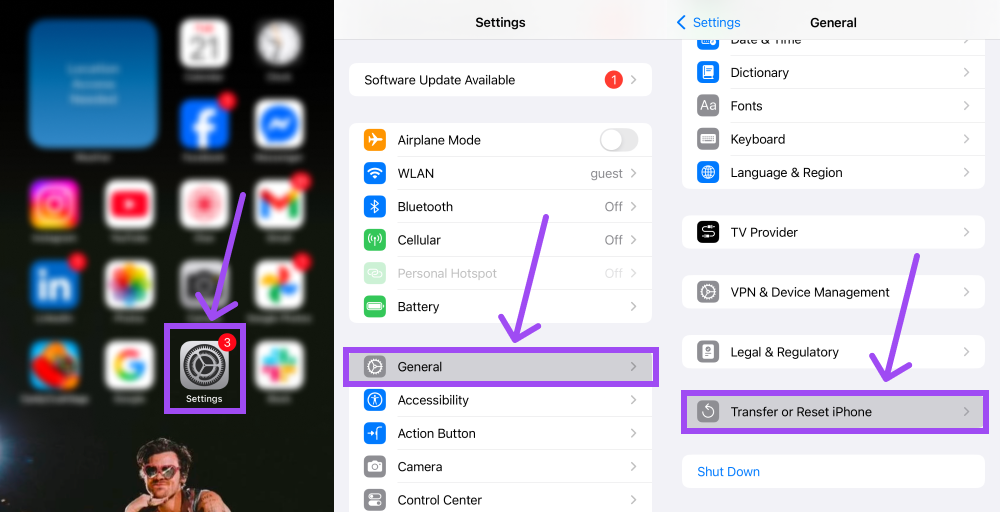
This will erase saved Wi-Fi passwords, but it often resolves connection issues.
Step 7. Contact Apple support or the carrier
If none of the above work, contact Apple support or your carrier to check for issues that might be blocking iMessage delivery.
How to fix “text message sent but not delivered” on Android?
Here’s how Android users can fix the “text message not delivered” issue on Android step by step:
Step 1. Check the signal strength
Make sure your phone has a stable cellular network. Weak or no signal can prevent texts from being sent or delivered.
Step 2. Toggle Airplane mode
Swipe down from the top of the screen, turn on Airplane Mode for 10 to 15 seconds, then turn it off to refresh your network connection.
Step 3. Restart your phone
Hold the power button and select Restart (or power off and turn it back on).
Step 4. Clear message app cache
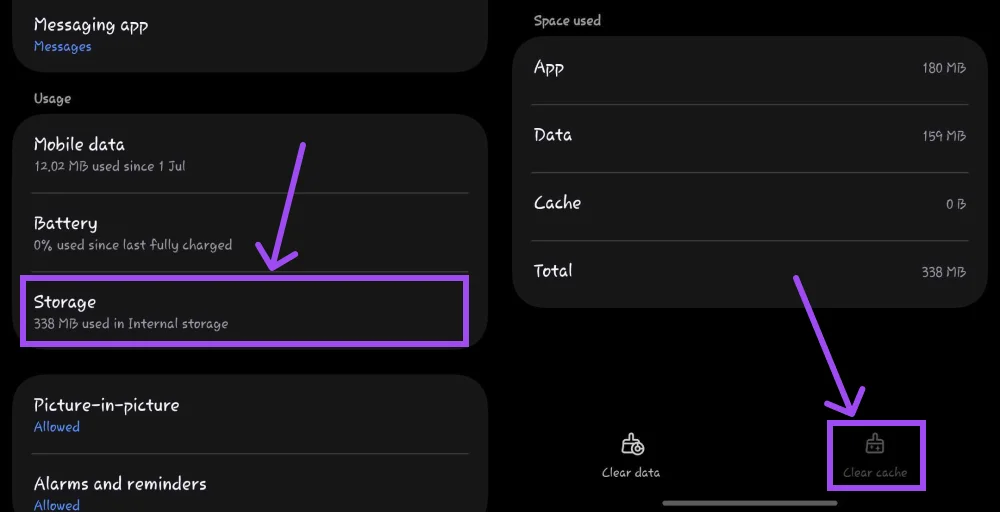
Go to Settings > Apps > Messages > Storage > Clear Cache.
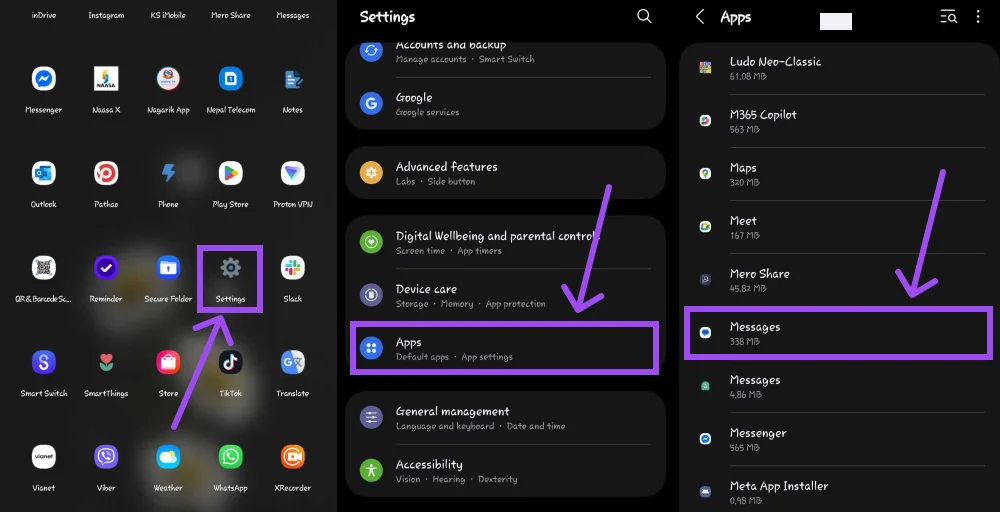
This removes temporary data that might be causing message failures.
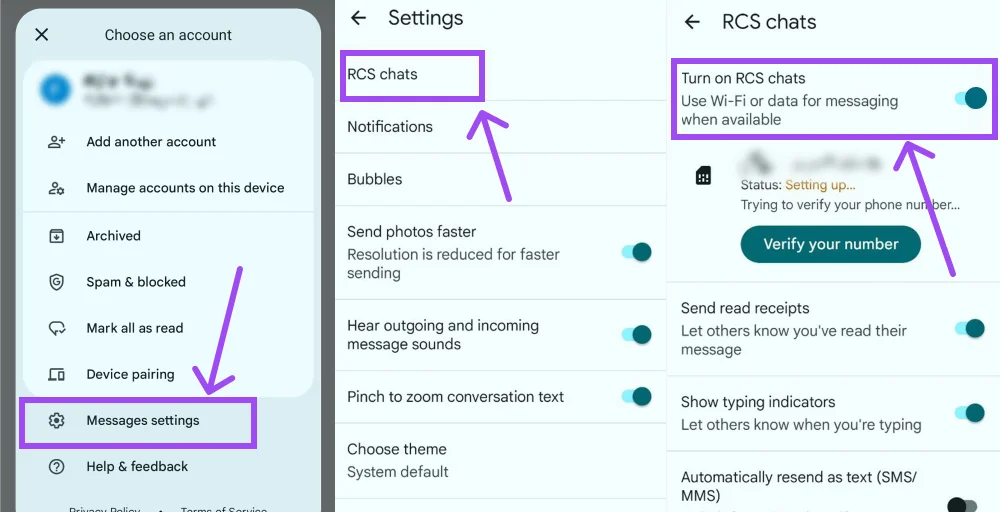
Step 5. Disable RCS (Chat feature)
Go to Messages > Message Settings > RCS Chat, and toggle off Enable chat feature. Then try sending the message again as a regular SMS.
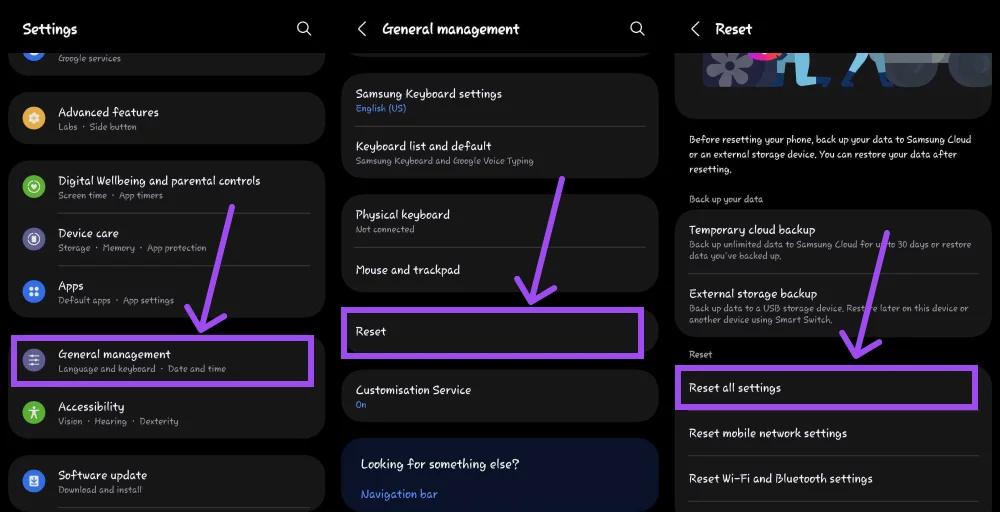
Step 6. Reset network settings
Navigate to Settings > General Management> Reset options > Reset all settings. This often fixes hidden network issues.
Step 7. Contact your carrier
If messages still fail, contact your mobile carrier.
Is it possible to fix message delivery problems?
Yes, most SMS delivery can be fixed once you know what’s behind them. Whether it’s an iPhone, Android, or a third-party messaging app, a few simple habits can keep your messages moving without a hitch.
Whenever you think of “Why is my message not sending?”, follow these quick steps to fix the message delivery problems:
Keep your network steady
Weak or unstable connections are behind most delivery failures. Make sure your Wi-Fi or mobile data is working properly before sending messages, and switch networks if needed.
Update your apps and software
Outdated software can cause hidden bugs that interrupt the SMS delivery. Keeping your phone’s OS and messaging app up to date can often clear those issues automatically.
Double-check the number
A single wrong digit or missing country code can stop a message in its tracks. Always confirm that you are dialing the correct phone number that is active and able to receive texts.
Avoid spam-like messages
Messages with suspicious links, repeated phrases, or promotional keywords can get filtered or blocked, especially A2P messages sent in bulk. Keep your text clear and personal to avoid being flagged.
Restart when in doubt
Restarting your device refreshes the network connection and clears temporary bugs. It’s one of the simplest yet most effective fixes for delivery errors.
Reach out for help
If the problem continues, contact your carrier or messaging service provider. They can check for billing issues, routing errors, or network blocks on either end.
Conclusion
SMS message delivery failures can be frustrating, especially when everything seems fine on your end. But as you’ve seen, most of the time, the issue comes down to simple factors such as weak networks, outdated software, carrier restrictions, or blocked numbers.
The best approach is to rule out the basics first: check your connection, verify the recipient’s number, and make sure your phone and apps are up to date. If you’re still stuck, reaching out to your carrier or messaging service usually helps uncover the root cause.
Whether it’s an iPhone or Android, every message has a path to follow. And once you find where it breaks, fixing it is almost always possible.