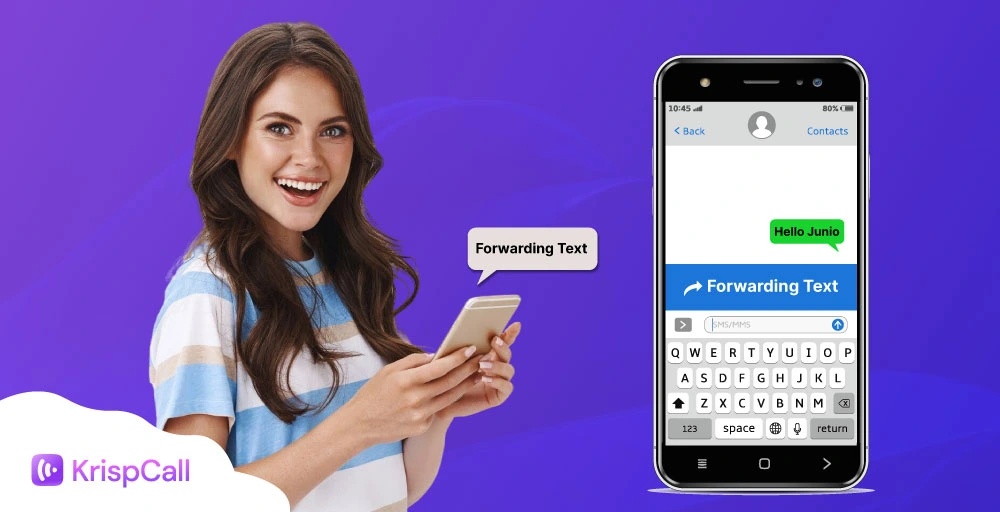
Text messages often contain important information, verification codes, work updates, customer queries, or even moments you simply want to share.
Knowing how to forward a text message across multiple mobile devices, or using text message forwarding features like iPhone, Android, email, Mac, iPad, or collaboration tools, can save time and prevent unnecessary back-and-forth.
Whether you’re switching phones, looping in a teammate, or archiving conversations outside your messaging app or across multiple devices, text message forwarding is a simple yet powerful feature.
In this guide, you’ll learn how to forward text messages on any device with ease, while keeping accuracy and privacy in mind.
✨ Key Takeaways
- Text message forwarding lets you resend SMS or chat messages without rewriting them.
- On iPhone and Android, long-press the message, tap Forward/More, choose a contact, and send.
- Texts can also be forwarded to email or business tools like Slack and KrispCall for better collaboration.
Understanding Text Message Forwarding
Text Message Forwarding is the digital equivalent of “passing it on.” Whether you are sharing a critical work update, a must-see meme, or a thoughtful note, both iOS and Android make it easy to relay messages to new recipients or to other platforms, such as email.
Forwarding a text message is important, and it’s a good idea to exercise a bit of digital caution before you hit send. Once a text is forwarded to another contact, it becomes part of their message history and cannot be retracted or deleted from their device.
Always double-check your recipient list to ensure your information, whether it’s a heartfelt note or a sensitive detail, is landing in the right hands.
How to forward a text message?
To forward a text message, the steps vary slightly between iOS and Android devices. However, you generally start by pressing and holding the message bubble.
1. Forward text on iPhone (iOS)
Using Apple’s built-in text message forwarding feature, you can forward multiple messages to contacts or other Apple devices. So, to forward a text message on iPhone, follow the steps below:
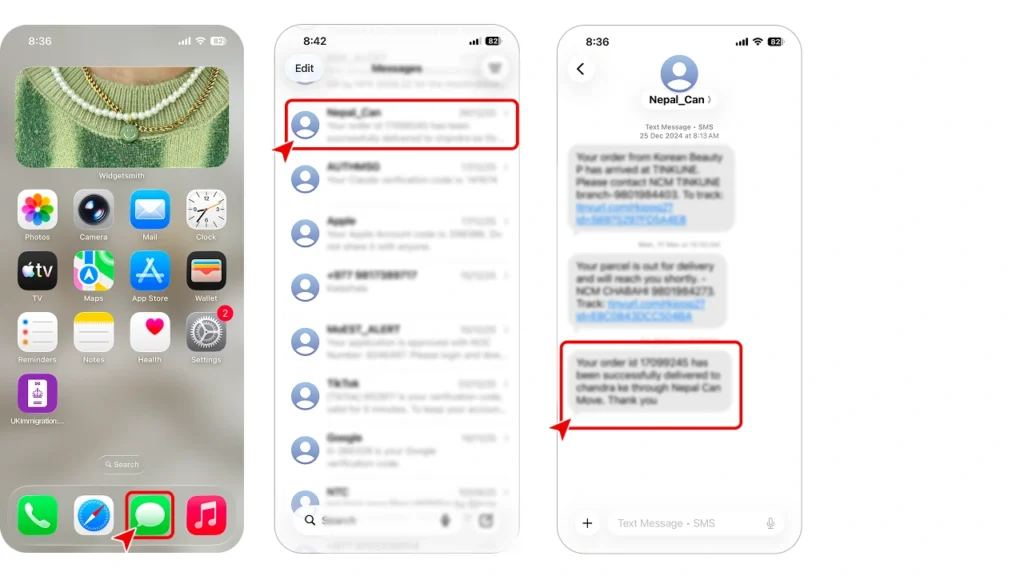
Step 1: From your home screen, open the Messages app.
Step 2: Open the message thread or conversation you want to forward.
Step 3: Tap and hold the selected message you want to forward until a menu appears.
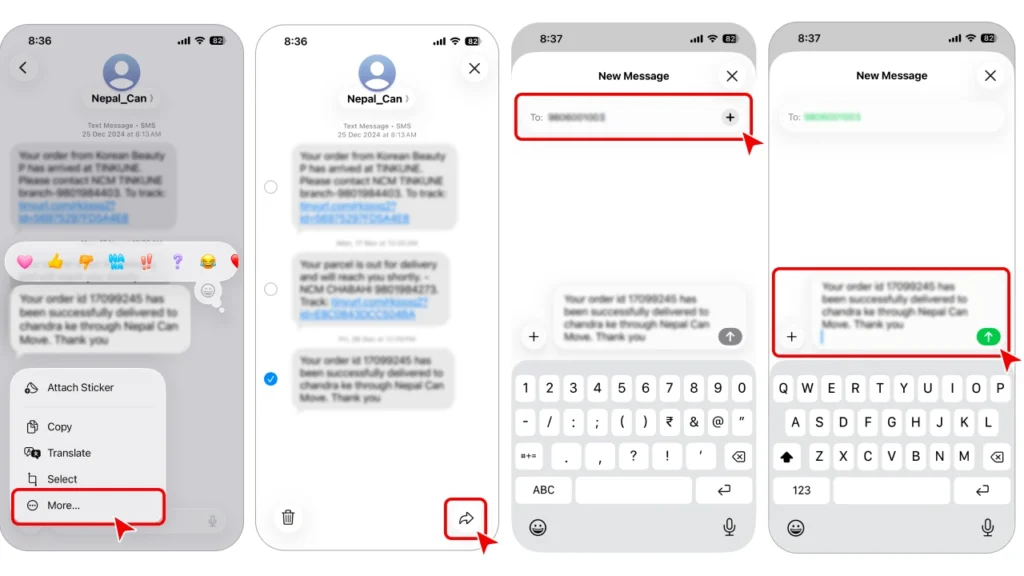
Step 4: Tap More in the pop-up menu, then select one or multiple messages.
Step 5: Tap the forward arrow (a curved arrow or box with a right-pointing arrow) in the bottom-right corner of the screen.
Step 6: A new message draft will appear with the selected message(s) attached. Enter the recipient’s phone number or choose a contact.
Step 7: After entering the recipient’s details, press the green arrow to send the message.
Check out 👉: Your Call Has Been Forwarded: What Does It Means?
2. Forward text on Android (Google Messages/Samsung)
As an Android phone user, forwarding SMS messages and RCS messages across phones, tablets, and even desktop window views.
This is true regardless of whether you’re using Google Messages, Samsung Messages, or any other texting app. Almost all Android phones follow the same basic procedure for forwarding a text message.
Step-by-step process to forward a text on Android:
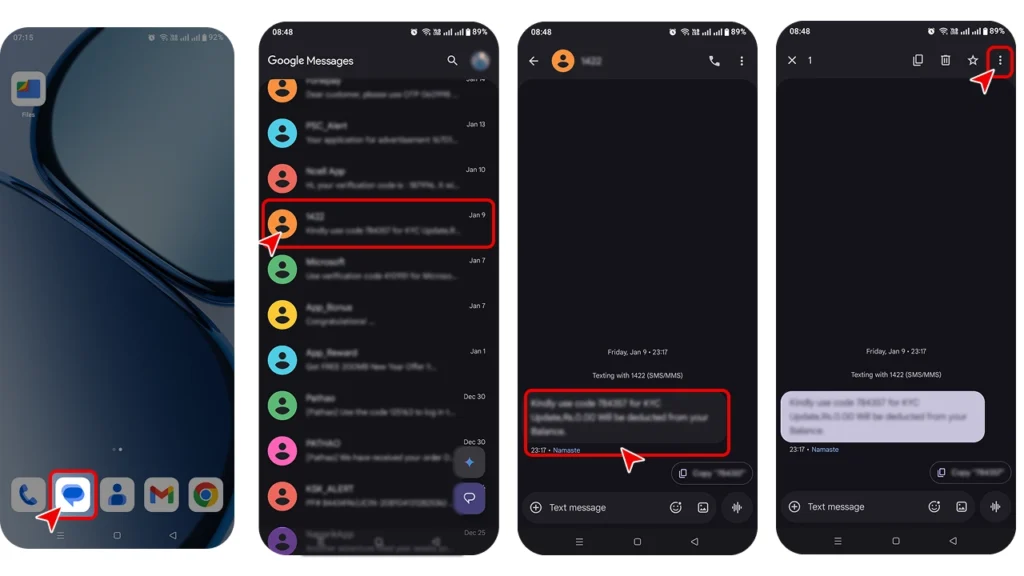
Step 1: Locate the Messages icon (a blue chat bubble) on your home screen or in your app drawer, then tap it to open your conversation list.
Step 2: Tap on the specific conversation containing the message you want to forward.
Step 3: Inside the chat, long-press the message bubble you want to share until it’s highlighted and a toolbar appears at the top.
Step 4: Tap the three vertical dots (⋮) in the top right corner of the screen to open the options menu.
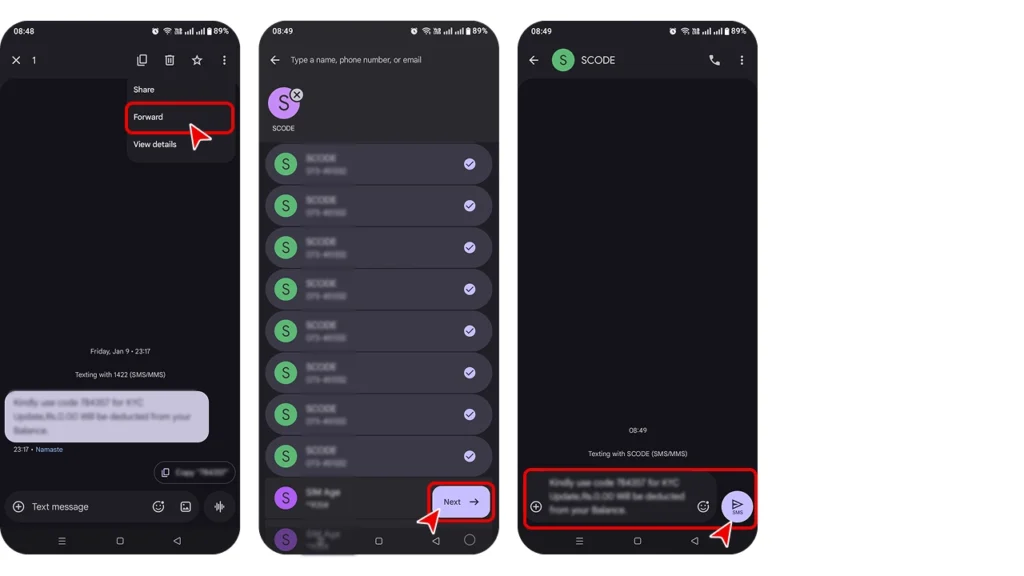
Step 5: Select Forward from the dropdown list. This will open your contact list.
Step 6: Scroll through your contacts or use the search bar at the top to find the person you want to message. Tap their name to select them.
Step 7: The message content will now appear in a new text box addressed to your chosen contact. Tap the Send button(the arrow icon labeled “SMS”) to finish forwarding the message.
Forward text messages on Samsung
Samsung phones already have a built-in default messaging application that makes forwarding text messages very easy. If you’re using a Samsung Galaxy phone, simply follow this straightforward step-by-step procedure to forward a message in just a few taps.
Step-by-step procedure to forward a text on Samsung mobile phones:
Step 1: Launch the Samsung Messages app.
Step 2: Select the conversation that contains the message you want to share.
Step 3: Press and hold the message to copy it.
Step 4: Press the three-dot menu in the bottom-right corner (or top-right, depending on your version) and select “Forward” from the list.
Step 5: Type in the contact name or number, and then press Send.
Check out 👉: How to Forward Calls From Landline to Cell Phone?
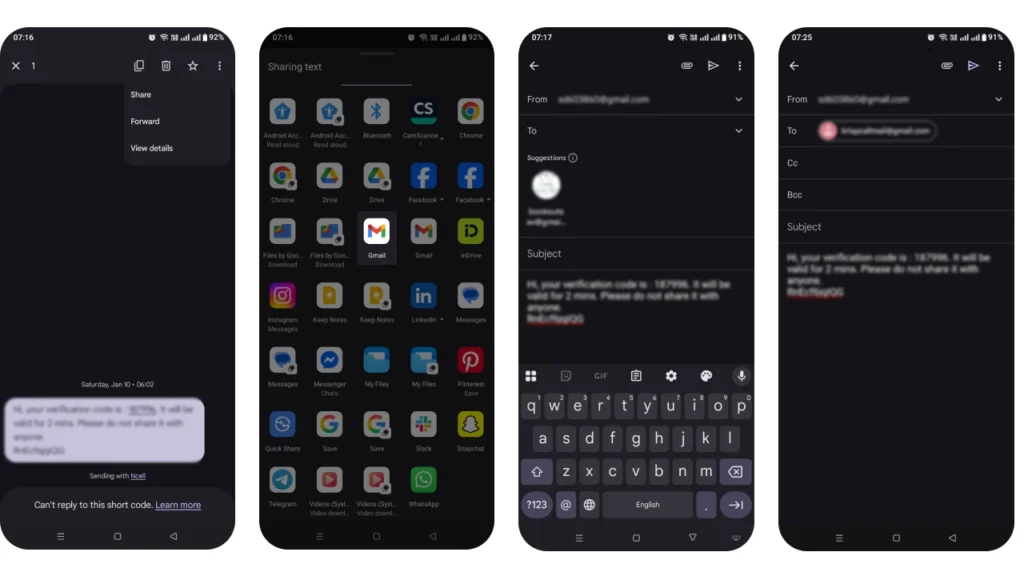
3. Forward text to Email
Forwarding texts to an email account is useful for documentation, compliance, or archiving. Here are the step-by-step instructions for forwarding a text message to an email address on a device:
Step 1: Locate and tap the Messages app icon on your home screen or in your app drawer.
Step 2: Find the specific conversation containing the message you want to forward and tap to open it.
Step 3: Long-press (press and hold) the specific text message bubble until it is highlighted.
Step 4: Tap the three vertical dots (overflow menu) in the top-right corner of the screen.
Step 5: From the dropdown menu that appears, select the Share option.
Step 6: A “Sharing text” panel will slide up from the bottom. Find and tap the Gmail icon.
Step 7: In the Gmail compose screen, the text message will automatically appear in the email body. Type the recipient’s email address into the “To” field.
Step 8: Once you have entered the email address and added an optional subject line, tap the Send icon (the paper plane arrow) in the top right corner.
4. Forward text message to Slack
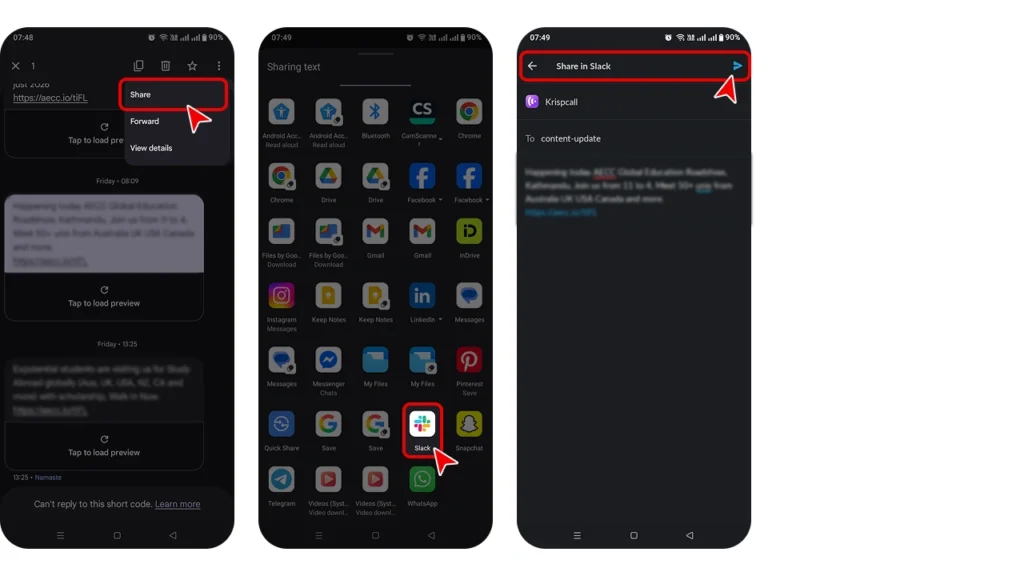
Forwarding texts to a selected Slack channel helps teams collaborate faster. Follow these sequential steps:
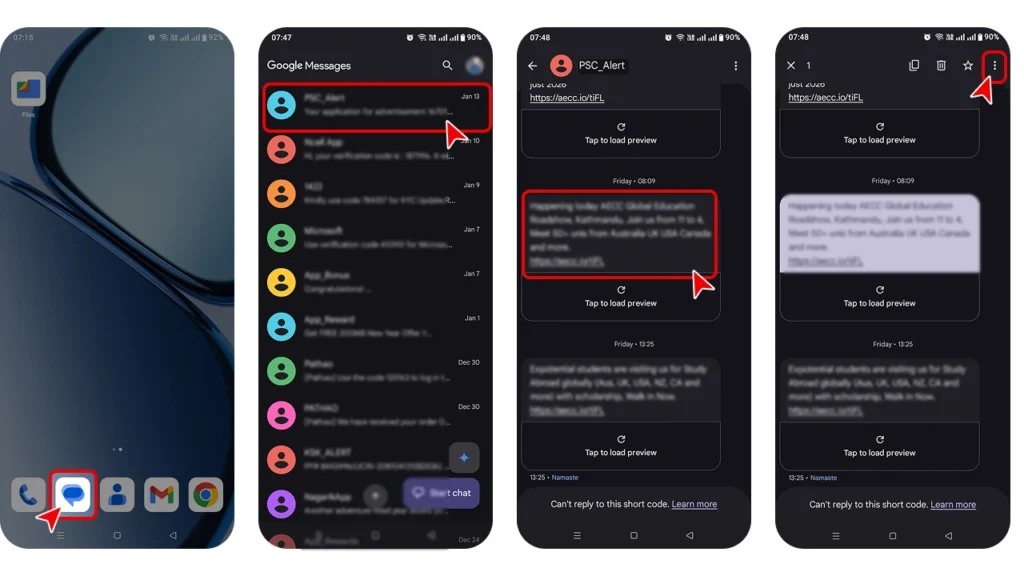
Step 1: From your home screen, tap the Messages app icon to access your text conversations.
Step 2: Find and tap on the specific conversation containing the message you want to forward.
Step 3: Long-press the specific text message bubble until it is highlighted and the options menu appears at the top.
Step 4: Tap the three vertical dots in the top-right corner and select Share from the dropdown menu.
Step 5: In the “Sharing text” panel that appears, locate and tap the Gmail icon.
Step 6: The message text will automatically populate a new email draft; simply enter the recipient’s email address in the “To” field and tap the Send icon.
Check out 👉: How to automatically forward text messages to another phone
How to forward a text message with KrispCall?
KrispCall’s SMS forwarding feature lets you automatically forward messages from one number to another, ensuring your team can receive messages on multiple devices without missing anything. So, to forward a text message with KrispCall, follow the steps below:
Step 1: Visit krispcall.com and sign up for an account or log in if you already have one.
Step 2: From the dashboard, choose one of your owned numbers on the left.
Step 3: Click the three dots (ellipsis icon) and select Number Settings.
Step 4: Find the SMS Forwarding option and toggle it to enable.
Step 5: Input the alternate phone number where you want to forward messages.
Step 6: Finally, click Save Changes and start using the SMS forwarding service.
Wrapping Up!
Forwarding a text message may seem like a small task, but it plays a big role in communication, especially when information needs to move quickly across people or platforms. From basic smartphone forwarding to sending messages via email or integrating with business tools like KrispCall, you now have multiple ways to ensure no message gets missed.
Just remember to double-check the recipients and consider the content’s sensitivity before forwarding. With the right approach and tools, text message forwarding can be both effortless and secure, helping you stay connected wherever you are.