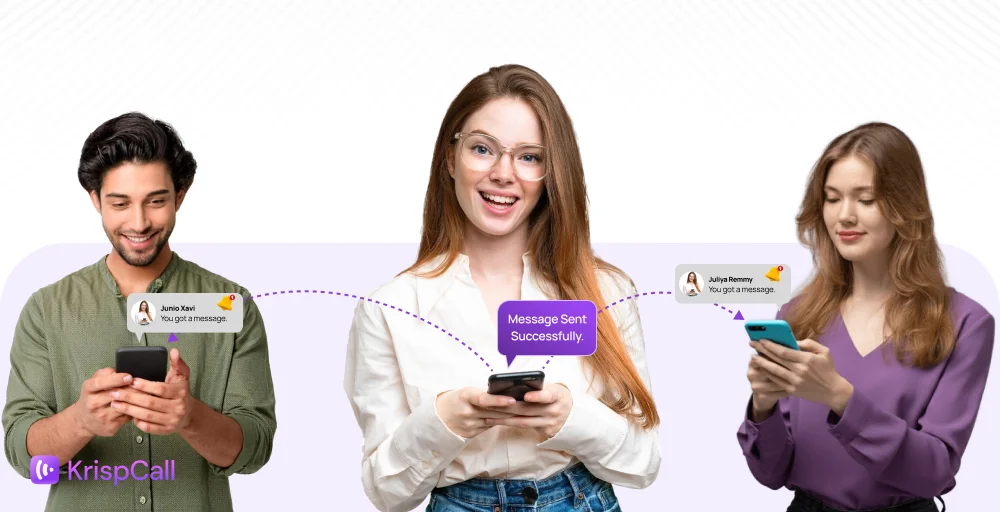
Ever tried sending the same messages to multiple people one by one? It’s exhausting and a huge time taker. If you’ve been wondering how to send text to multiple people without wasting hours, you’re not alone.
There’s a smarter way to do it. Group or mass texting lets you reach your entire audience in just a few clicks instead of sending messages individually. But how does it actually work?
Let us break down the most effective methods for sending bulk texts and share a modern alternative that makes the process even easier.
✨ Key Takeaways
- To send a group text from your iPhone, open Messages, tap Compose, add your contacts, type your message, and hit the send arrow.
- To send a group text from your Android, open your messaging app, start a new chat, add the contacts, type your message, and tap Send.
- Group and mass texts can cause cluttered replies, raise privacy concerns, and sometimes fail to deliver properly across devices or carriers.
How to send text to multiple people in a group message
If you want to send a single message to multiple people in one thread, you can create a group and send a text. It can be viewed and replied to by every member of the group. This is especially useful for conversations where shared replies are important.
How to send a text to multiple contacts in a group message from your iPhone?
Here’s how you can text multiple contacts from your iPhone:
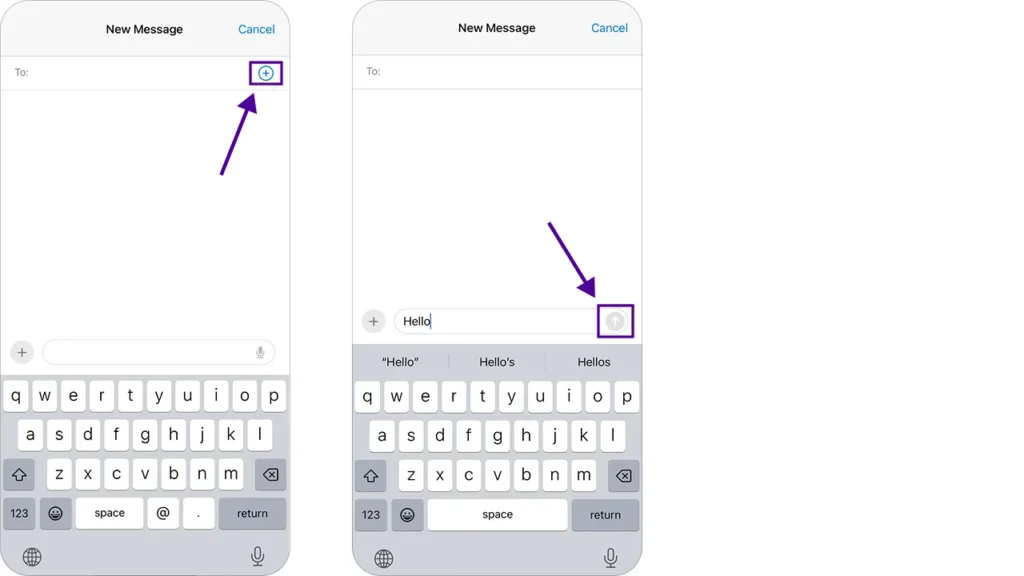
- Open the Messages app, and click on Compose.
- Click on the Add button to add contacts. You can also type manually.
- Type a message you want to send and click on the up arrow.
How to send a text to multiple contacts without a group message from your Android?
Follow these steps to text multiple contacts from your Android:
- Open your preferred texting app (it doesn’t have to be Google Messages).
- Start a new chat.
- Type your message and add the contacts you want in the conversation.
- Hit Send to create a group message.
Keep in mind: The message you send can be viewed and replied to by every member.
How to send text to multiple people without a group message
Sending the same messages to multiple people has got easier, whether you are using an iPhone or an Android. Group texting allows you to select the people and send it in just one click.
How to send a text to multiple contacts without a group message from your iPhone?
Here’s how you can text multiple contacts from your iPhone:
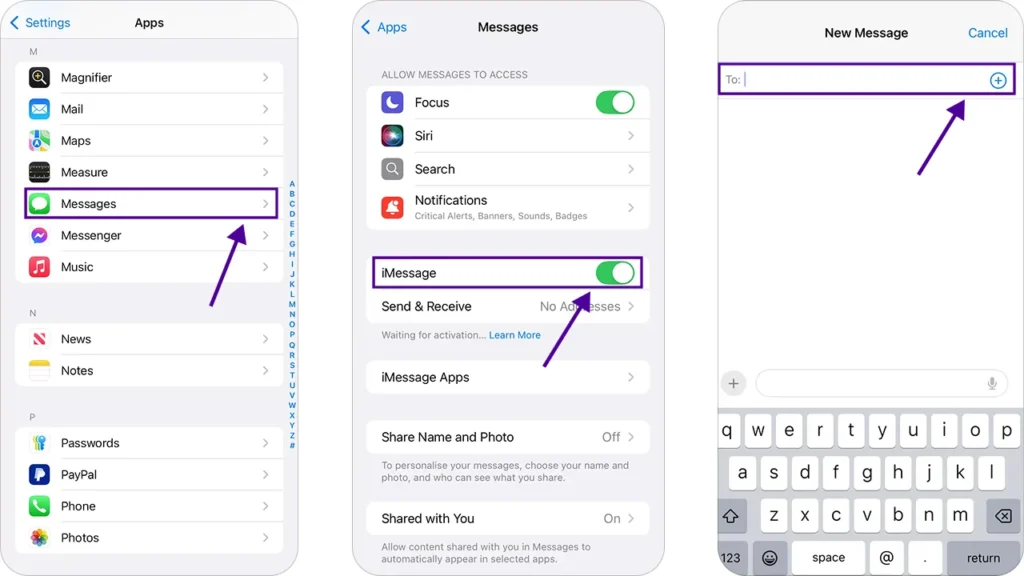
- Go to Settings, choose Apps, and select Messages.
- Find the iMessage toggle and switch it off.
- Next, open the Messages app and compose your message.
- Tap the Plus (+) icon in the top-right corner to add recipients.
- Finally, send your SMS and wait for responses.
Each of your texts should show up in its own thread.
How to send a text to multiple contacts without a group message from your Android?
The default Android messaging app doesn’t support group messages. The alternative is to download the Google Messages app and set it as the default. It allows you to send a blind group message from your Android device.
Follow these steps to text multiple contacts from your Android:
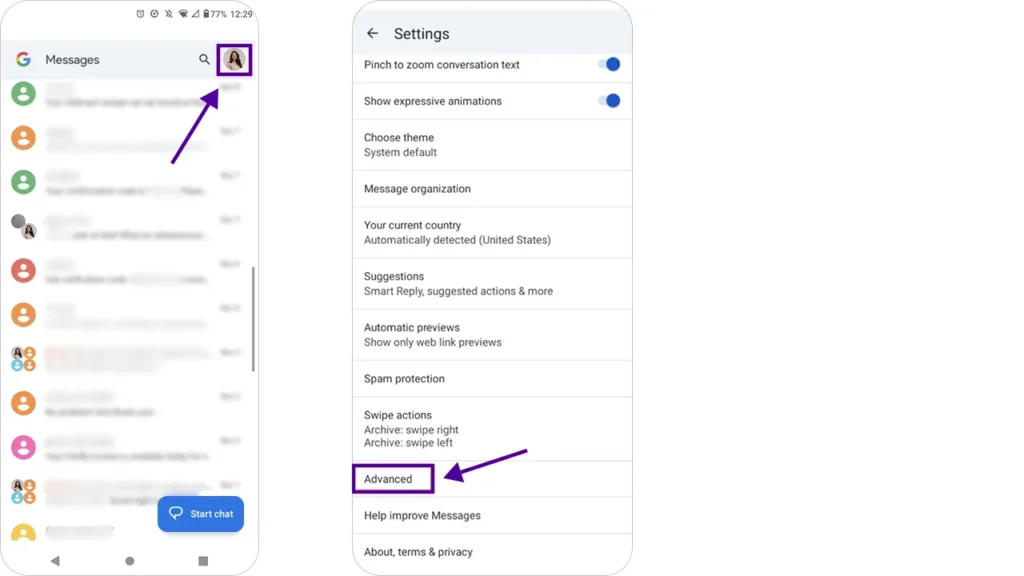
- In Google Messages, tap your profile picture.
- Go to Message settings and select Advanced.
- Scroll to Group messaging and enable Send an SMS reply to all recipients and get individual replies (mass text).
- Open Google Messages and start a new conversation.
- Add the recipients you want to message.
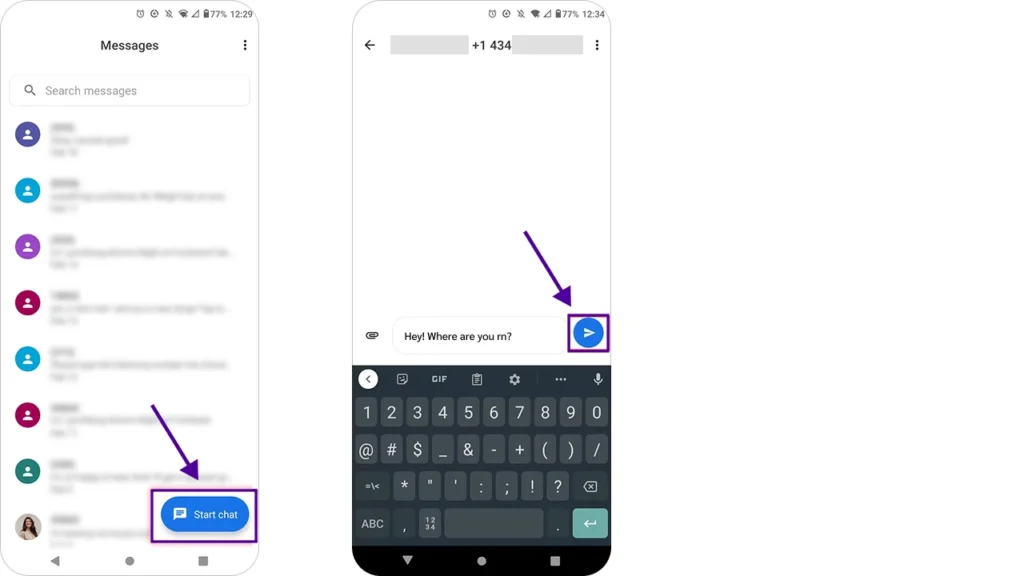
6. Your texts will now be sent individually to each person, without creating a group chat.
Messages will be sent to the group individually, without creating a group chat.
Why are group and mass texts not the best way to contact multiple people?
Group texting seems like a quick way to reach multiple people. However, they are not always the best option for building connections. The method can save time but lacks personalization. This isn’t the single reason; let’s have a look at the other major ones:
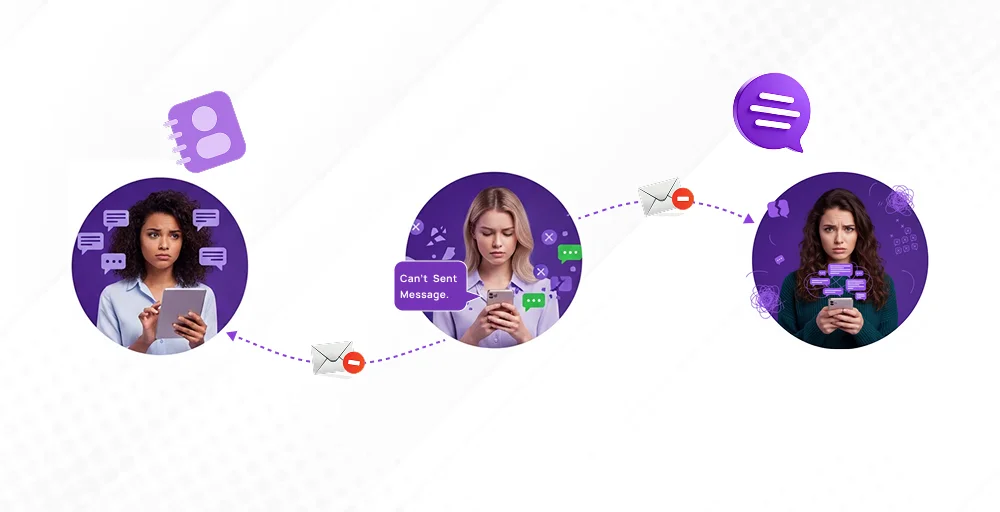
1. Privacy concern
The biggest drawbacks of group and mass texting are the lack of privacy. Sending a group message means every recipient can see the other participants’ names and phone numbers. Customers or clients might feel like a serious breach of trust, resulting in complaints, damaging brand reputation, and even violating data protection regulations.
2. Poor management and clutter
In a group message, multiple recipients reply, which makes it difficult to track responses. The unmanaged conversation creates confusion, especially when handling customer queries or coordinating with a large team. Important messages can get unnoticed in a flood of replies, and there’s no easy way to organize or prioritize them. Over time, this clutter wastes time and also increases the chances of missing critical information.
3. Recipient limits
You can only add a limited number of recipients to the mass texting in a single message. Default messaging or even some business texting platforms set a limitation on the number of recipients you can add to a group. This means if you are trying to reach a large audience, like hundreds of customers or team members, you will ned to create multiple groups.
4. Lack of business features
Standard messaging app isn’t built for group text messages. It is extremely basic and lacks the advanced features businesses need. You can’t automate, schedule, or analyze to track engagement. Additionally, you can’t personalize messages at scale, segment your audience, or integrate with CRM systems. These limitations make it hard to run professional campaigns or maintain consistent communication with customers.
Shared phone number: A better way to send SMS to multiple people
The default messaging app might be suitable for sending group messages to friends and family. But for growing businesses, it’s far from ideal. It’s hard to stay organized, and it doesn’t look professional. The better solution is to use a shared business phone number that your entire team can access.
- Team-wide visibility: Every team member gets the same notifications, so anyone can jump in and respond without the customer noticing a switch.
- Centralized conversation history: A shared Unified Callbox keeps all texts, calls, voicemails, and recordings in one place. Everything you need is right there in one place.
- Protect personal privacy: Set business hours and team schedules to avoid after-hours pings. When you are offline, someone else can pick up the conversation.
- Work from anywhere: With a virtual SMS number, you can send mass text messages from any device, phone, laptop, or browser.
- Automate routine tasks: Schedule texts, set auto-replies, and integrate with tools like Zapier for reminders, updates, and more.
- Collaborate effortlessly: Add internal notes, tag teammates, and even leave comments on call recordings for coaching opportunities.
Some useful messaging etiquette you should know
Here are 6 effective messaging etiquette tips you can follow:
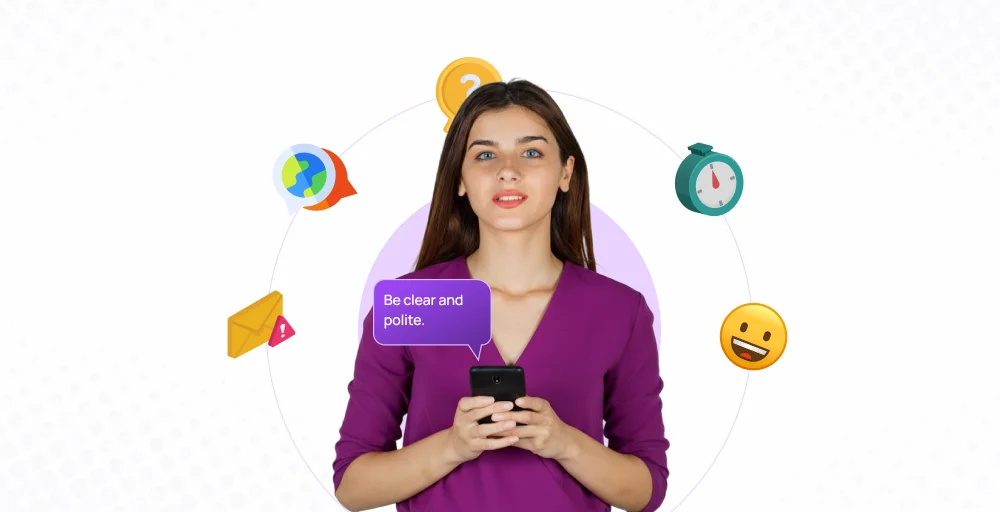
- Keep messages clear and concise: The default messaging app limits the length of messages you can send. It only accepts 160 characters per message. So, keep the message short and get straight to the point. The message will not be sent if it crosses the limits.
- Use a professional tone: If you are sending a business message, keep the tone professional. Even in casual conversations, maintain respect and avoid slang.
- Respond promptly: Replying late may harm your business reputation. You must respond promptly as soon as you view the messages. It shows professionalism and keeps your business communication flowing.
- Avoid sending messages outside business hours: You may not get a reply from the recipient if the message is sent after business hours. Respect the recipient’s time unless it’s urgent.
- Personalize when possible: Personalizing messages helps to increase client satisfaction. Use names and contexts to make messages feel relevant.
- Double-check before sending: Proofread the message before sending. Check whether the name and messages are correctly written without spelling mistakes.
Mass messaging made easy with KrispCall
Mass messaging doesn’t have to be complicated or time-consuming, and KrispCall proves it. The intuitive dashboard and SMS-enabled virtual numbers allow businesses to launch bulk campaigns in just a few clicks.
Here’s how you can send mass texts with KrispCall:
- Sign up or log in to your KrispCall dashboard.
- Once inside, purchase an SMS-enabled virtual phone number from your preferred country to start sending messages.
- Go to the Bulk SMS Marketing section.
- Start your mass texting campaign by composing your message and choosing your recipients, either by importing a contact list or selecting from your saved contacts.
- Review your message and recipient list carefully.
- When everything looks good, click Send. Your message will be instantly delivered to all selected contacts.
Try KrispCall’s mass texting feature and experience hassle-free mass messaging that saves time and boosts engagement.