For businesses, staying connected with your employees and customers is more important than ever. But what if you’re away from your desk and need to send an important message quickly? Imagine being able to draft a message on your phone and have it delivered directly to your contacts’ email inboxes, without opening a laptop or logging into an email client.
This is where sending text messages to email comes in handy. It’s a simple, efficient way to keep communication flowing, whether you’re on the move, managing multiple tasks, or simply want to save time.
In this step-by-step guide, we’ll walk you through how to send a text to email, ensuring your messages reach the right people seamlessly, anytime, anywhere.
✨ Key Takeaways
- Text to email refers to sending a message from a mobile phone (via SMS or iMessage) that is delivered to the recipient’s email inbox instead of their phone.
- To send a text message to an email on Android, open your messaging app, enter the recipient’s email in the ‘To’ field, type your message, and tap the send arrow.
- To send a text message to an email from your iPhone, use the Message app to tap and hold a message, select “More,” then the forward arrow, and type the email address in the ‘To’ field, type the text messages and send.
What does text to email mean?
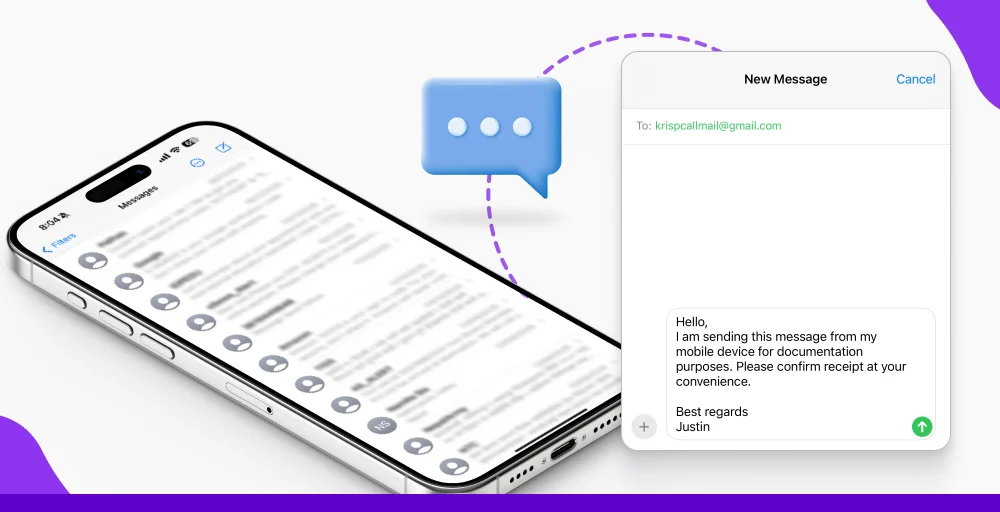
Text-to-email refers to sending a text message (SMS) to an email inbox rather than a mobile phone. This can occur when a sender uses their mobile device to send a message to an email address, which then appears as a text in the recipient’s email.
It’s also used in marketing contexts, where email marketing software automatically converts emails into SMS messages for recipients. This cross-channel approach allows businesses to send personalized text messages that reach customers who may ignore their inboxes but check their texts almost instantly.
Advantages of sending text to email
Sending SMS messages to email offers several benefits for businesses and individuals.
Here’s why this method is valuable:
1. Maintain a clear record
Sending text messages to email allows you to maintain a digital record of all communications. This is particularly useful for businesses to ensure compliance and to track customer interactions over time.
2. Personalize your messages
Businesses can personalize text messages sent via SMS-to-email, tailoring content to specific customers or scenarios. Tools that help find the email addresses of potential leads, along with an email validator to verify their accuracy, make it easier to target the right audience, reduce bounce rates, and enhance customer experience and satisfaction.
3. Cost saving
Text-to-email services offer a cost-effective alternative to traditional phone calls and extensive text message marketing campaigns. These services are particularly advantageous for businesses that aim to manage their expenses while effectively engaging with their audience.
4. Automate and save time
Automating text-to-email communication enables businesses to quickly send updates, order confirmations, product catalogs, appointment and payment reminders to customers. This is particularly beneficial for e-commerce or dropshipping businesses that need to communicate efficiently at scale.
5. Centralize your workflow
Integrating SMS with email enables automation of workflows. Businesses often use tools that can extract email from text to automatically capture contact details from incoming messages and organize communications more efficiently.
How to send text to email: 3 Methods
To send a text message from your phone to an email, start a new conversation. Enter the email address in the “To” field, then type your message in the message field. Tap the send arrow to send it.
To send an existing text message, tap and hold the message, then choose Forward or Share. Enter your email address in the “To” field and send it to get the text in your email.
1. Using iPhones
You can send text to email on the iPhone by following the given steps:
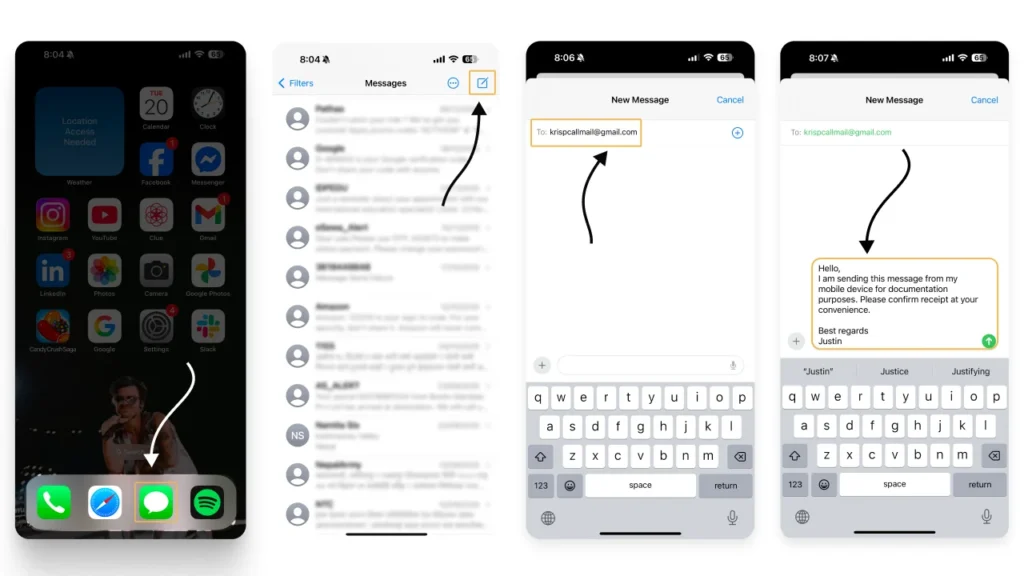
Step 1: Open the Messages app. Tap the Messages icon (a white speech bubble on a green background) on your Home Screen.
Step 2: Start a new message. Tap the New Message icon in the top-right corner. If Messages opens to an existing conversation, tap the Back arrow first.
Step 3: In the “To” field at the top, type the email address you want to send the message to, then tap Return on the keyboard. Tap the message field.
Step 4: Enter the text you want to send to the email address. Tap the Send arrow (white arrow on a green button). The message should arrive in the email inbox within a few minutes.
2. Using Android Phones
On Android phones, you can send a text message to an email address using the default SMS app. Follow the steps below to send a new message or forward an existing one.
Step 1: Open the Messages app on your Android phone from the Home screen or App Drawer.
Make sure you are using the default SMS app that came with your device, such as Messages by Google, since third-party apps like WhatsApp cannot send texts to email addresses.
Step 2: Next, tap the +, Start Chat, or New Messages/Edit icon, which is usually at the top or bottom of the screen. If the app opens to an existing conversation, tap the Back button to return to the main Messages screen.
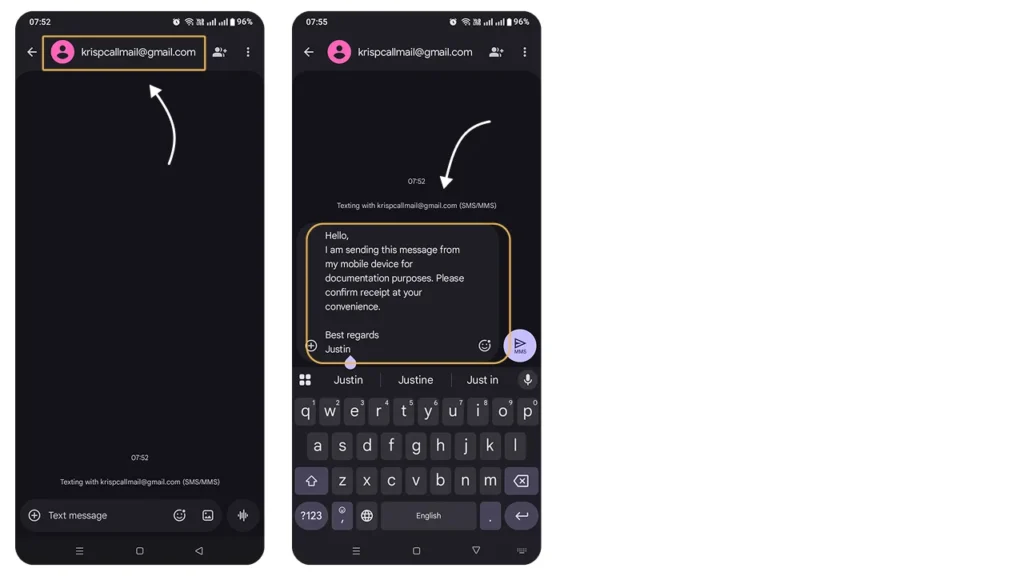
Step 3: Enter the recipient’s email address in the To field at the top of the screen. This will automatically open your on-screen keyboard.
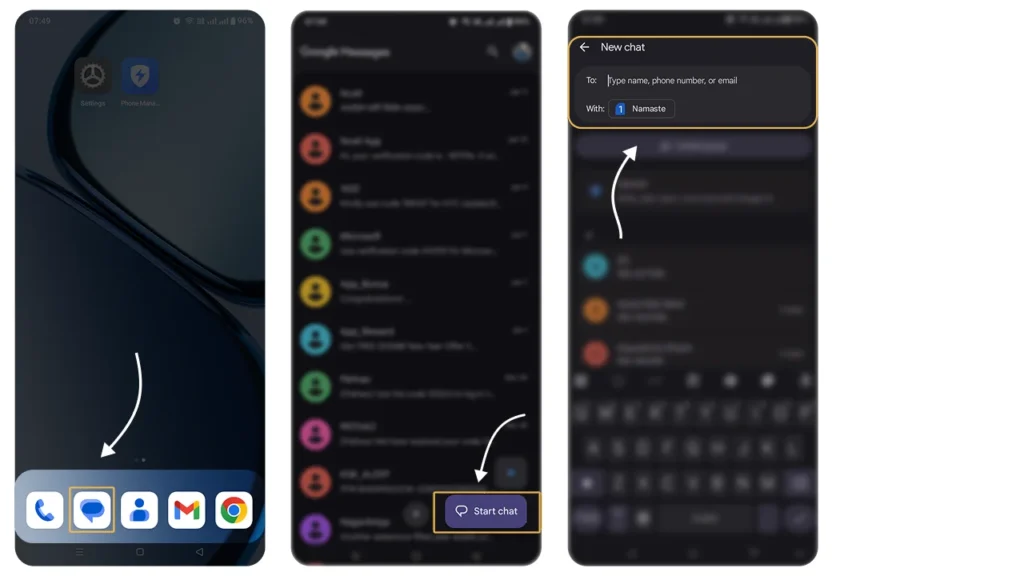
Step 4: Tap the Message field at the bottom of the screen and enter the text you want to send.
In some cases, you may need to tap Send to or select an email option before typing.
Step 5: Finally, tap the Send icon on the right side of the message field. The text will be delivered to the email address and should arrive within a few minutes.
3. Using SMS-to-Email Gateway
An SMS-to-email gateway allows you to send a text message directly to someone’s email address using your phone’s SMS service. This method works with most mobile carriers.
Step 1: Open your messaging app
Launch your phone’s default text messaging app (SMS). You cannot use third-party messaging apps like WhatsApp or Telegram for this method.
Step 2: Enter the recipient’s email address
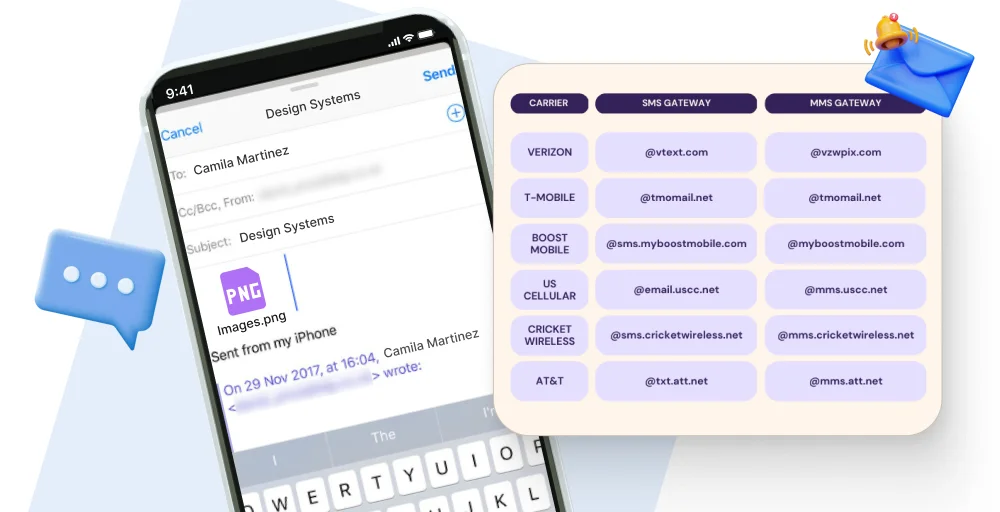
In the recipient field, enter the email address of the person you want to send the message to. Your carrier will automatically convert your text message into an email using their SMS-to-email gateway. Essentially, your phone number acts as the sender’s email address.
Example:
- Phone number: 1234567890
- Carrier: AT&T
- Sender email: 1234567890@txt.att.net
The recipient will see this email address when they receive your message.
Tip: Different carriers use different SMS-to-email gateways. Check your carrier’s gateway list to ensure proper delivery.
Step 3: Compose Your Message
Type your message in the text box. Keep it under 160 characters to avoid splitting the message.
If you include images, audio, or video, they will be sent as attachments.
Step 4: Send the Message
Tap Send. Your message will be delivered to the recipient’s email inbox within a few minutes.
Use cases of sending text to email
Sending text to email or email to text enables businesses and individuals to deliver timely alerts, appointment reminders, payment notifications, and customer surveys.
Here are some common use cases:
1. Email marketing
Businesses can send promotional messages, offers, or announcements directly to customers’ inboxes via SMS-to-email. This ensures faster delivery and higher engagement. By bridging these channels, businesses can capture leads from mobile interactions and funnel them directly into their primary CRM for long-term nurturing.
2. Send out important alerts, reminders, and notifications
Send urgent alerts such as payment reminders, security alerts, or system notifications directly to a recipient’s email to ensure they are seen promptly. This creates a reliable digital paper trail, allowing users to reference critical security codes or billing details later from any device.
3. Appointment management
You can use text-to-email to confirm, remind, or reschedule appointments with clients, patients, or team members. Automating this process reduces the likelihood of noshows and allow staffs to manage schedule changes in real-time without manual data entry.
4. Surveys and feedback
To collect customer feedback or conduct surveys by sending MMS and SMS messages that reach the recipient’s email, making it easier for them to send. This approach significantly boosts response rates by allowing customers to provide detailed insights at their convenience through a professional email interface.
5. Customer service
Businesses can provide support updates or respond to queries through email or SMS (with AI-drafted replies polished to avoid AI detection before sending), ensuring a seamless communication channel for customers. Centralizing these conversations in an email inbox allows support teams to collaborate on solutions and maintain a complete history of the customer journey.
Conclusion
Sending text messages to email is a simple yet powerful way to stay connected, especially when you’re on the go. Whether you’re using an iPhone, Android, or an SMS-to-email gateway, this method allows you to reach recipients quickly, maintain records, and streamline communication without being tied to your computer.
From business alerts and marketing campaigns to appointment reminders and customer support, text-to-email can save time, reduce costs, and enhance efficiency. By leveraging this tool wisely, you can ensure that important messages are delivered promptly and effectively, keeping your workflow smooth and your audience engaged.