


You might be wondering how to fix it when your phone number is showing as “Private or Unknown number” on the receiver’s phone.
Most people tend to ignore such calls. In fact, about 67% of Americans avoid answering calls from private or unknown numbers. Such calls usually happen due to an error in settings, or you mistakenly turned off your caller ID. But there is nothing to worry about.
In this guide, we will explain how you can remove the number showing as a private number on multiple devices like Android, iPhone, Samsung, Infinix, Itel, and Techno.
✨ Key Takeaways
- If your number is showing private or unknown number on the receiver’s end, it’s probably because your caller ID is hidden from your call settings.
- To remove a number that shows “Private or Unknown number”, you can simply configure your caller ID setting or contact your service provider.
- You can also remove your number from private number through third-party apps like Hiya and TrapCall.
Why does my phone number show as private or unknown when I call someone?
If your number gets displayed as “Private Number” when you call someone, it usually means your caller ID is turned off. Caller ID is a feature that displays your number on the receiver’s screen. When this feature is disabled, your number stays hidden and your calls appear as “Private Number” or “No Caller ID” on the receiver’s end.
Here are a few common reasons why this usually happens,
- Caller ID blocking is enabled: Caller ID gets enabled once you turn on the “Hide Number” or turn off the “Show My Caller ID” option in your phone settings.
- Network or carrier settings: Some service providers automatically block numbers for privacy reasons or technical configurations.
- Dialing code used: If you dial *67 (in the U.S. or Canada) before a number, it hides your caller ID for that call. Which again means your number stays hidden or appears as private on the receiver’s end.
In order to fix this issue, you can simply turn on the “Show My Caller ID” in your phone settings or get help from your service provider and make sure your number isn’t blocked by default.
How to remove private numbers on Android?
Simply configure the call settings to get your number visible again on the receiver’s phone.
Here’s how to do it:
- Launch the Phone application on your Android device.
- Tap the Menu icon and choose Settings from the options.
- Go to Call settings or Supplementary services (the name may vary by device).
- Tap Caller ID or Show My Caller ID.
- Select Show number or Network default to make your number visible when calling.
Once the process is completed, text by calling your family or friend to confirm whether the number appears.
Related 👉: How to Get a Business Phone Number
How to remove a private number on an iPhone?
If your calls are appearing as “Private” or “No Caller ID” on an iPhone, you can fix it by adjusting your settings or contacting your carrier.
Here’s how you can remove the private number on an iPhone:
Option 1: Adjust caller ID settings
- Open the Settings app on your iPhone.
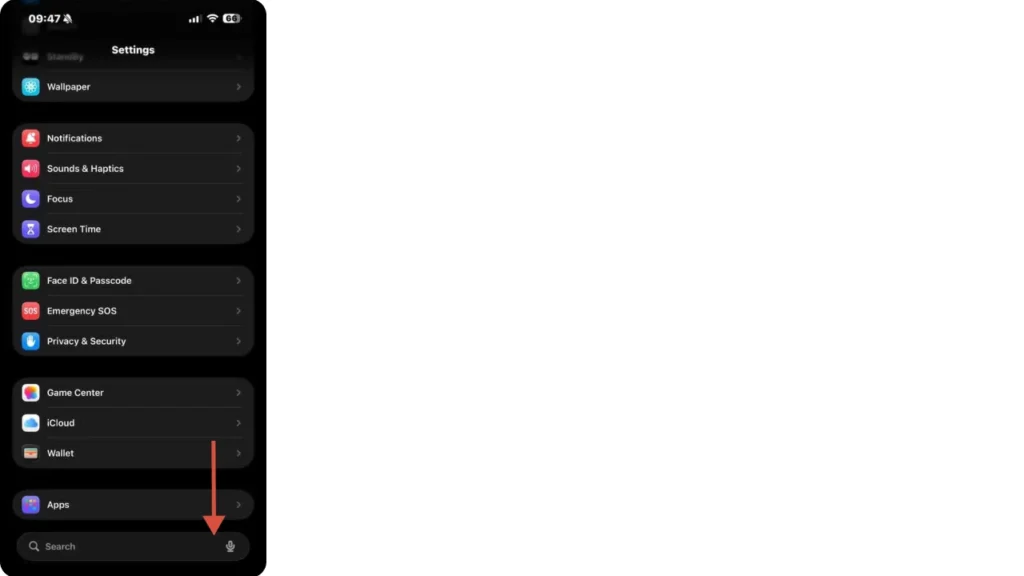
- Scroll down and tap Phone.
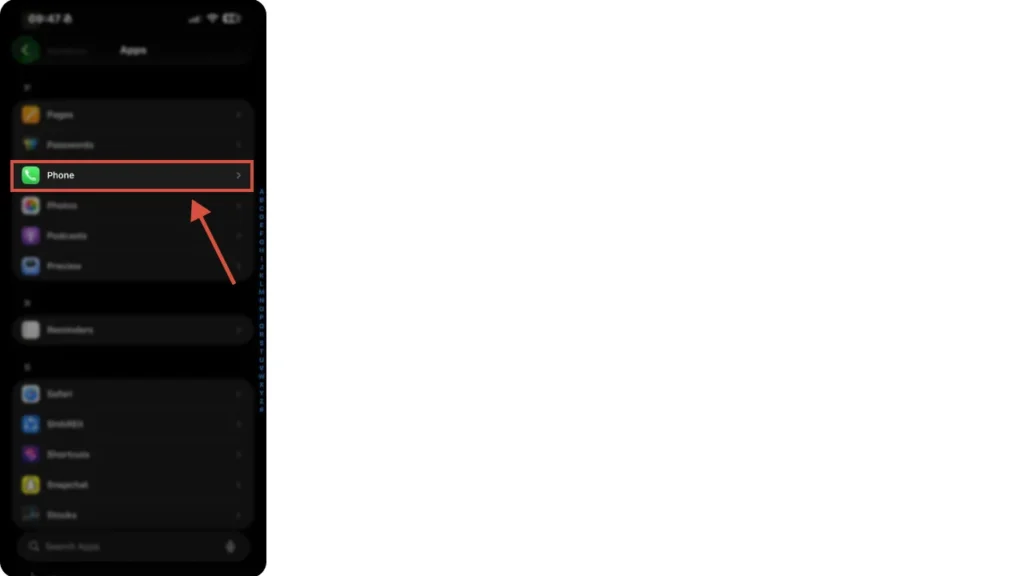
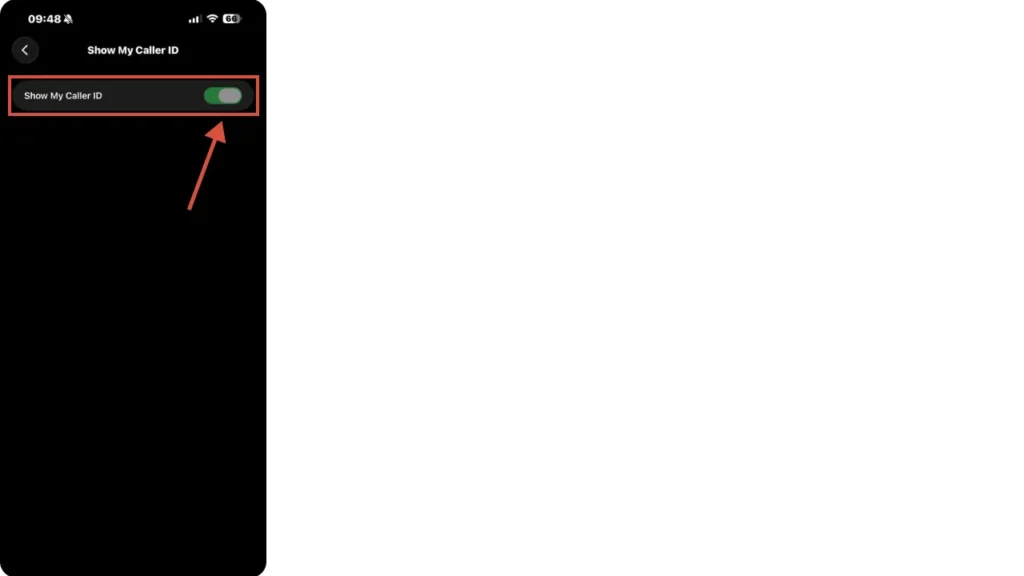
- Then select Show My Caller ID.

- Turn the icon ON to display your phone number when making calls.
Option 2: Try Caller ID or network codes
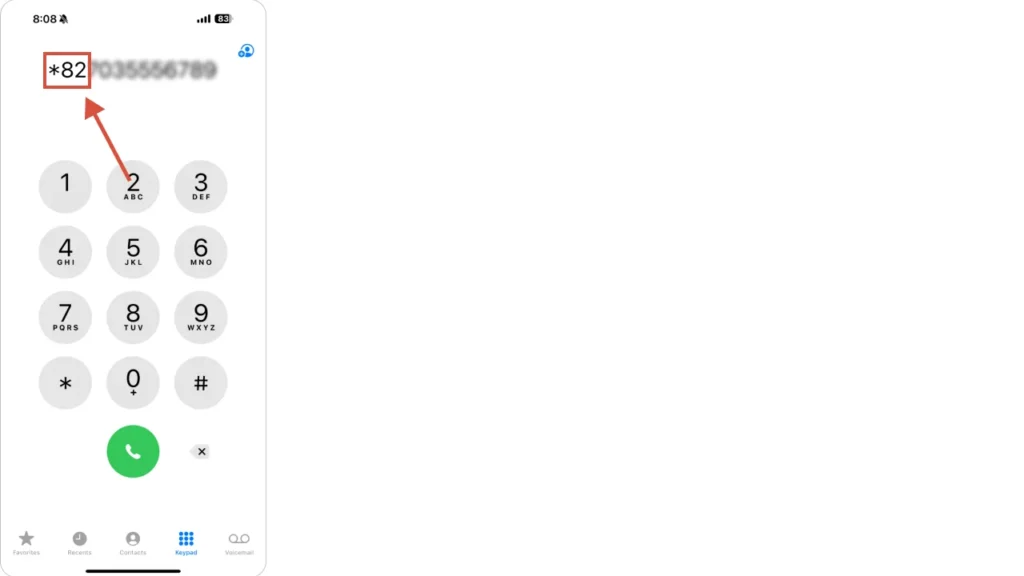
If adjusting Caller ID settings does not work, you can simply use a dialing code to remove private numbers from your caller ID settings.
Start by dialing *82 before the phone number to show your caller ID for a specific call.
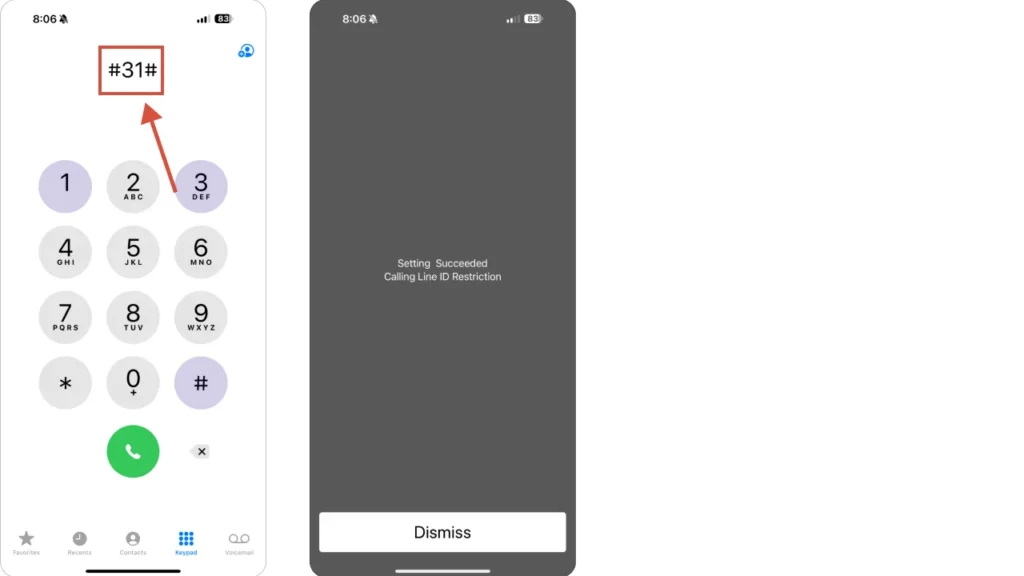
If not, then dial #31# followed by your number to reveal your ID.
Option 3: Get assistance from your carrier
If your number still shows as private, contact your mobile carrier. Sometimes, caller ID blocking is activated at the network setting, and your carrier can help you disable it or reset your caller ID settings.
How to remove my number from private number in Samsung phones
If your number appears as “Private” or “Unknown” when calling from a Samsung phone, you can fix it by adjusting your caller ID settings or contacting your provider. Here are 3 methods you can follow to remove the private number on Samsung:
Method 1: Change caller ID display settings
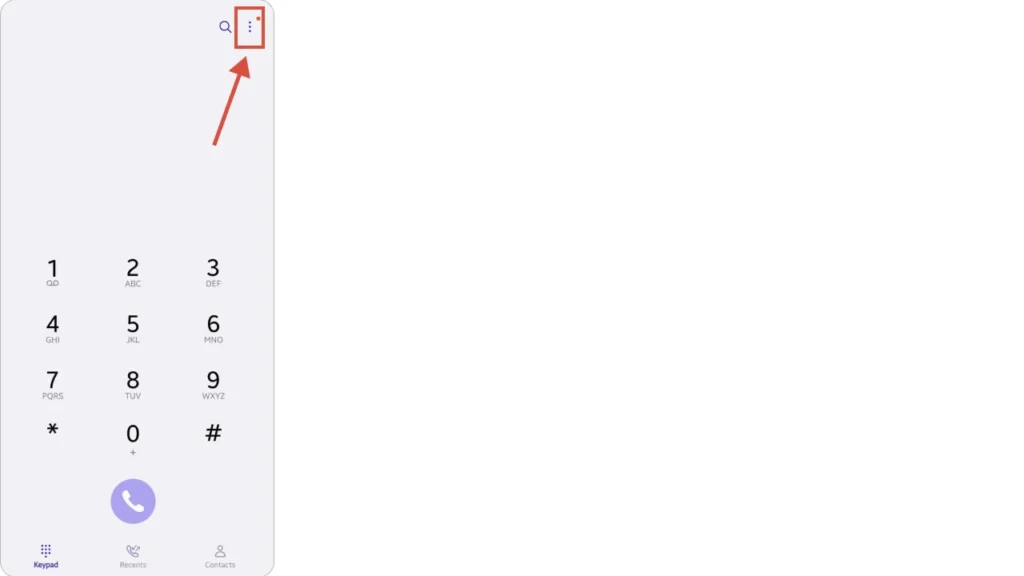
- Launch the Phone app on your Samsung device.
- Click on the three dots (⋮) located in the top-right corner.
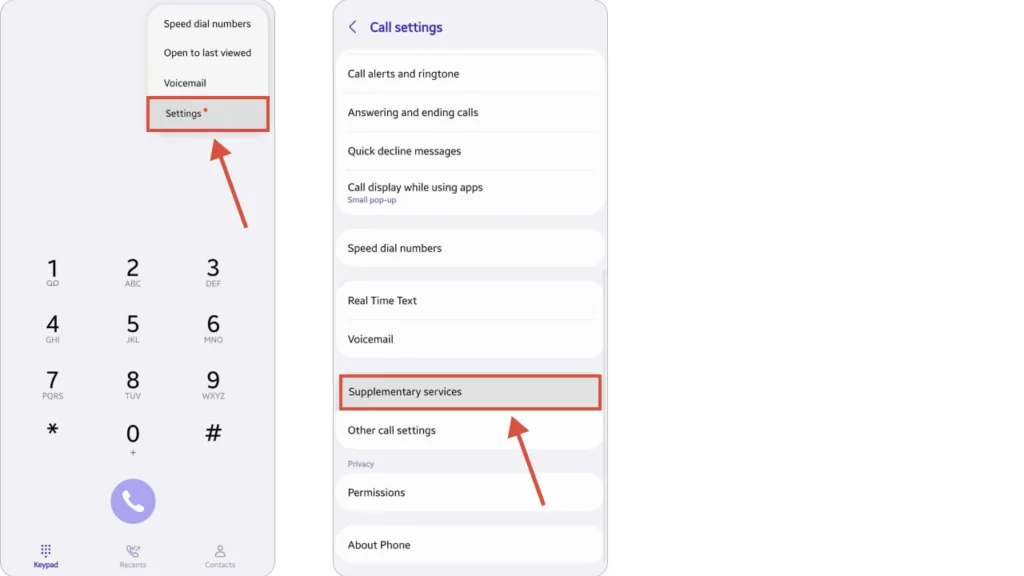
- Go to Settings and then Supplementary services.
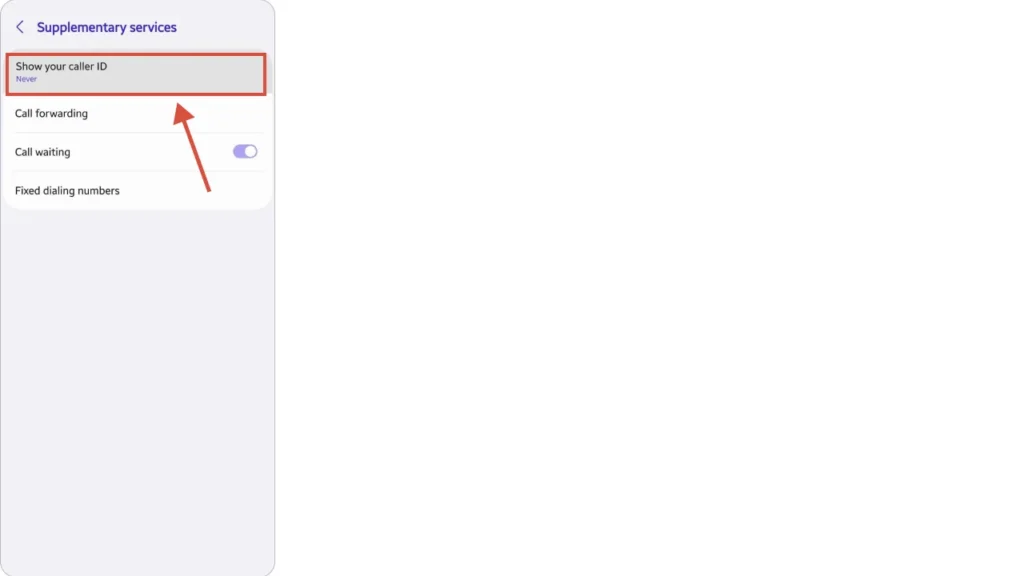
- Click on Show your caller ID
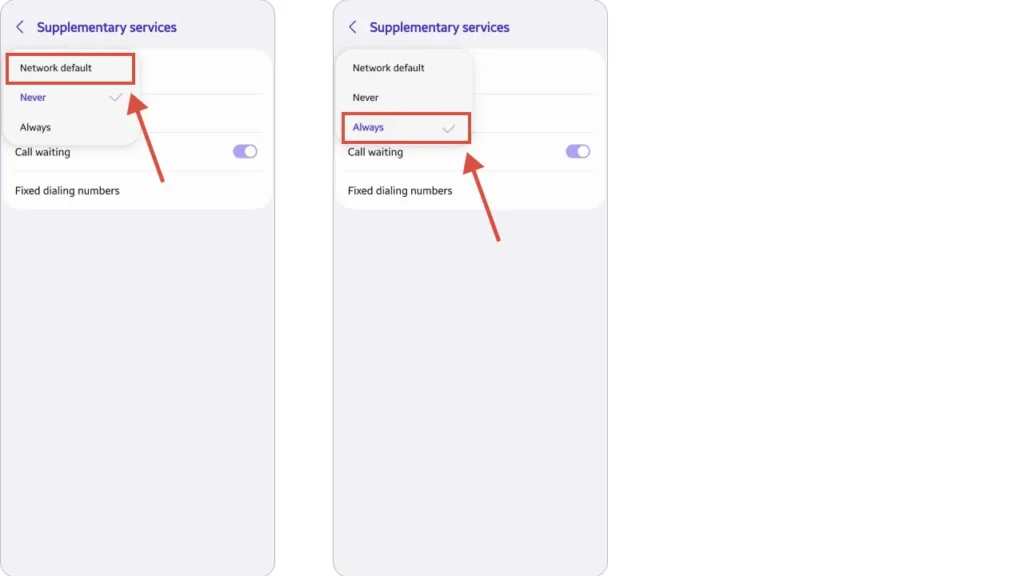
- And select Network Default or Always to make your number visible when calling.
Method 2: Use dial codes to disable Caller ID blocking
You can also use special dialing codes to unhide your number:
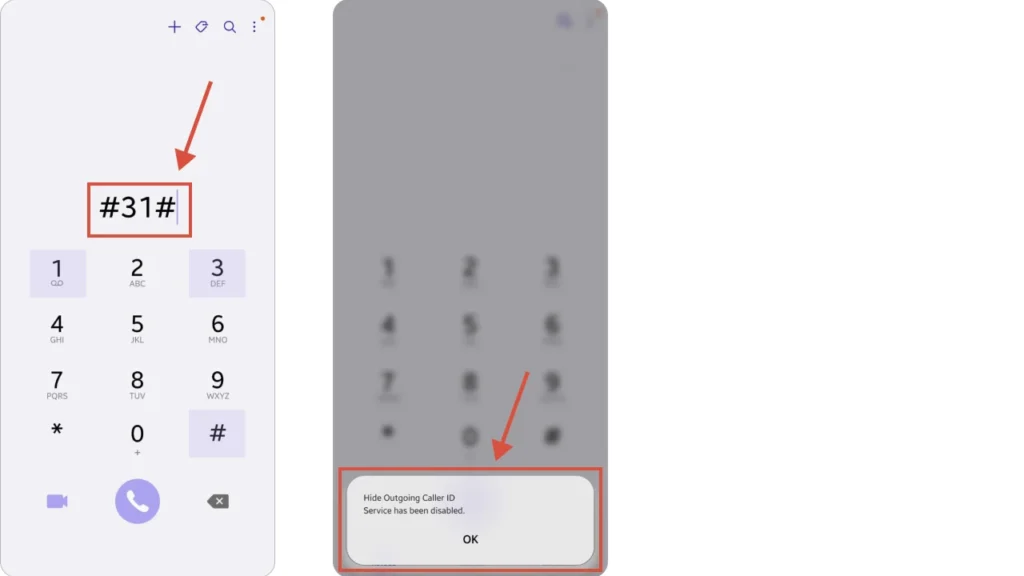
- Dial #31# before the phone number to show your caller ID for that specific call.
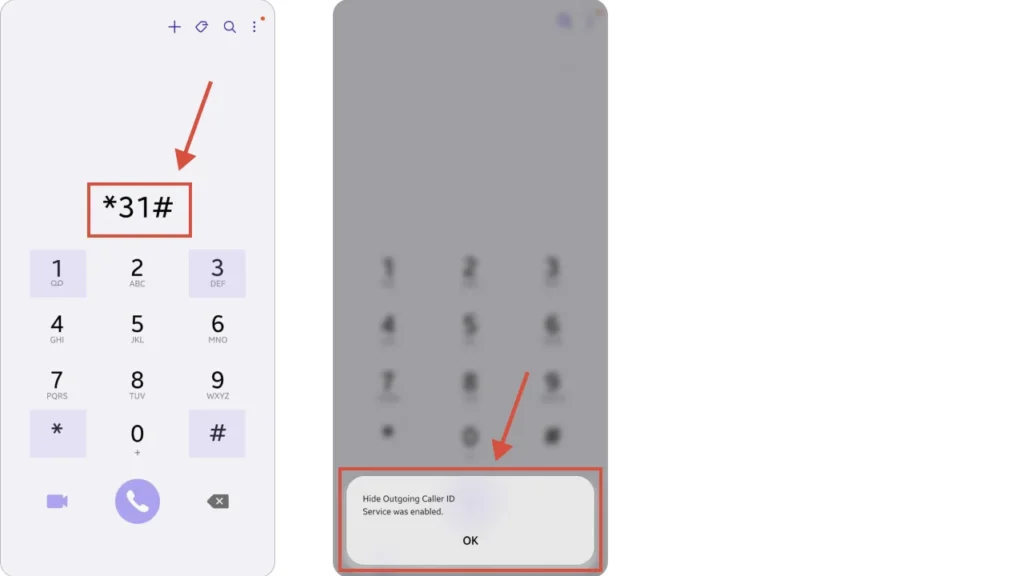
- Dial *31# to block private caller ID based on your carrier.
Method 3: Get help from your network provider
If the above options don’t work and still appear as a private number, contact your network provider. Sometimes, your carrier controls the private number settings. Contacting them will walk you through the information to disable it.
How to remove private number and show your caller ID on Infinix phones?
If your calls are showing as “Private number,” you can fix it by enabling your caller ID. Here’s how to remove the private number and display your caller ID on Infinix phones:
- Open the Phone app on your Infinix device.
- Tap the three dots menu(⋮) icon and select Settings.
- Go to Call settings → Caller ID
- Select Show number to display your phone number when making calls.
How do I stop my itel phone from displaying my number as private number when calling?
If your Itel phone hides your caller ID, you can turn it off in just a few steps.
Steps:
- Go to Phone app and tap the three dots (⋮) icon.
- Select Settings → Calling accounts.
- Tap Caller ID under your SIM settings.
- Choose the Show number to make your number visible to others.
How to remove my number from private number on Tecno?
If your Tecno phone displays your number as “Private,” you can fix it through the call settings.
Steps:
- Open the Phone app on your Tecno device.
- Tap the Menu icon or three dots (⋮) and go to Settings.
- Navigate to Call settings → Caller ID.
- Select Show number or Network default to reveal your blocked caller ID during calls.
Related 👉: How to Get a Specific Phone Number
Top third-party apps to remove a number from a private number
If your calls are showing up as “Private” or “No Caller ID,” third-party apps can help reveal the caller’s identity. Here are three popular apps that can assist in unmasking private numbers:
1. Truecaller
In Truecaller, your number might appear as a private number. This means when you call someone who uses the app, your call may show as “Private Number,” and they might ignore or decline it. You can fix this by removing your number’s private status from Truecaller through the following steps:
- Unlist your number: Go to the official Truecaller Unlisting Page, enter your phone number, including the country code, and then click “Unlist Phone Number.”
- Deactivate your account: If you currently have an active Truecaller account, open the Privacy Settings section and choose Deactivate Account.
Once you complete these steps, your number will be removed from the Truecaller database, ensuring it’s no longer shown as a “Private Number.”
2. Hiya
Hiya is a call protection service that ensures caller ID services and blocks spam calls using AI-driven analysis of spam calls. It’s designed to enhance your calling experience by identifying and blocking unwanted calls. It is used by both consumers through the mobile app and by mobile carriers.

Steps to unmask private numbers:
- Download and Install: Get Hiya from the App Store or Google Play Store.
- Set Up: Open the app and follow the on-screen instructions to set it up.
- Enable Caller ID: On iPhone, go to ‘Settings,’ tap ‘Phone,’ then ‘Call Blocking & Identification,’ and toggle on Hiya.
- Unmask Calls: Hiya will now display caller information for incoming calls.
3. TrapCall
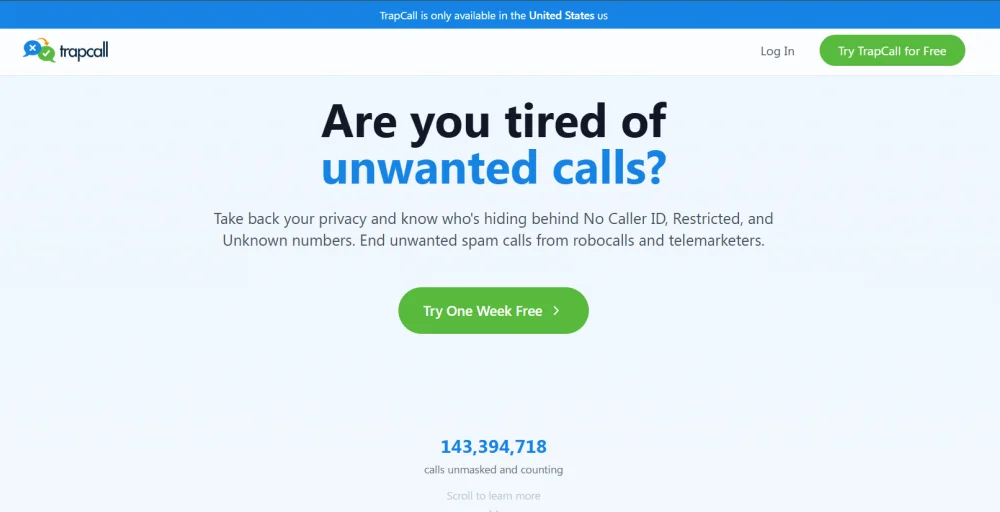
Trapcall is an application that reveals the real phone number behind the blocked, unknown, and restricted calls. It is a global application that allows you to see who’s calling even when the number is blocked. It unmasks the caller ID and allows you to see who’s calling.
Steps to unmask private numbers:
- Download and Install: Get TrapCall from the App Store or Google Play Store.
- Set Up: Open the app and sign up for an account.
- Activate Service: Follow the instructions within the app to activate the service and purchase your plan.
- Unmask Calls: TrapCall will now reveal the caller’s information for private or unknown calls.
Note: While these apps can help identify private numbers, they may not work in all regions or with all carriers. Additionally, some features may require a premium subscription. Always review the app’s permissions and privacy policies before installation.