Are you trying to connect with three or more people in a call? You want a quick team sync or a family catch-up. Then, look no further.
With your Android group calling app, you can easily set up a conference call to merge calls on your mobile.
In this blog, we will cover two important key points:
- How to conference call on Android and
- 4 important tips before making the conference call on you Android device.
✨ Key Takeaways
- Most Android phones, including Samsung models, have a built-in conference call feature, but with a limit on the number of participants.
- To make a conference call on Android phone, tap “Add Call” > Dial the second person’s number > Tap “Merge” > Repeat to add more participants.
- Join early, find a quiet spot with a strong signal, eliminate distractions, and use headphones for clear and professional group calls.
Is your smartphone ready for a conference call?
Most Android and iPhone smartphones come with built-in options to make and manage conference calls. It means you can use any mobile device to host or attend the conference call.
However, even if your mobile device supports the conference call service, certain factors can still impact your calling experience. Look for these factors before you make or join the call:
1. Number of participants
Most phone brands limit the number of participants in a call. These phones only support 3-way calls, which limits the number of participants to 5 or 6 users.
If you need a service that allows you to add a large number of individuals, you can obtain a hosting VoIP number from any business communication app.
A business app not only increases participant limit, but also gives you access to advanced VoIP features like call recording.
2. Tech needs
Conference calls heavily depend on technology. To experience a smooth calling experience, you need a stable mobile signal and a headset with clear audio quality. Therefore, it is recommended to test your equipment and network before initiating a call.
Furthermore, you may require more than just an audio service, like video calling. In this situation, consider using a business telephony or hosted app that allows video conference calling.
3. App permissions
A group calling app requires access to certain features on your phone to function properly.
So, you must ensure you have enabled all necessary app permissions in your phone’s settings.
To activate conference call settings,
- Android: Go to Settings > Apps > [App Name] > Permissions.
- iPhone: Go to Settings > Privacy > [Permission Type] (e.g., Microphone, Camera).
Then, make sure the microphone permission is turned on. Without this, others won’t hear you during the call. If you plan to share video, enable the camera permission as well.
4. Time zones
When your team or clients are in different time zones, it is essential to verify the time zone of each individual.
Then, choose a time using your phone’s calendar app. Many calendar apps have a time zone feature that automatically adjusts meeting times for each participant. This makes it easier to schedule calls without needing to calculate time differences manually.
5. Battery level
A low battery can cause your phone to shut down during a call. This may result in dropped calls or missed discussions. Therefore, make sure your phone has a sufficient battery.
To avoid interruptions, charge your phone in advance. This way, you can stay connected without worrying about power running out.
How to make a conference call on Android?
Most Android conference calls have a 3-way phone call feature. You can set up this feature from your default group calling app screen. It means you won’t have to install third-party software to make a conference call on Android.
Here are the steps to make a 3-way call on Android to help you start a group call:
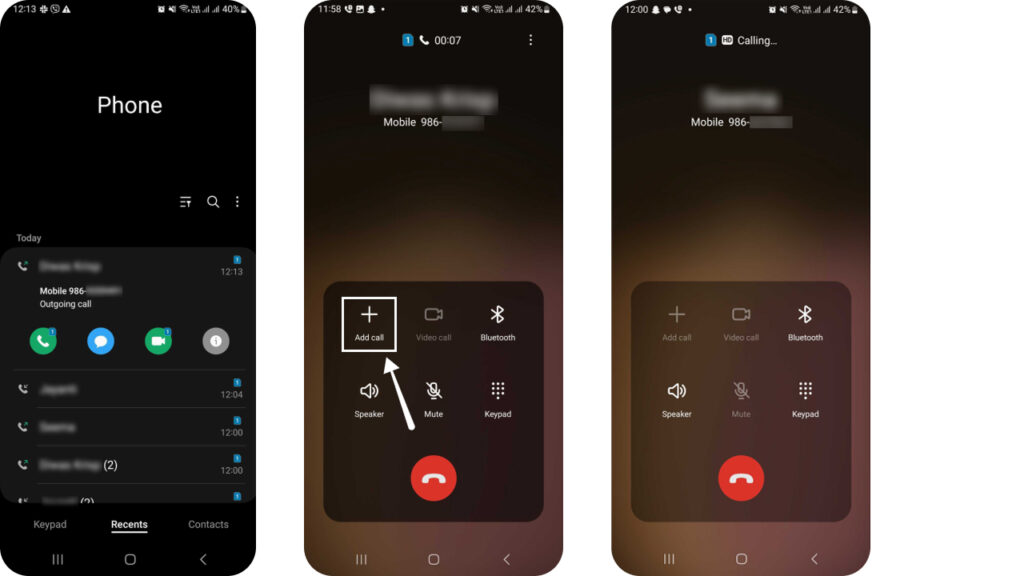
1. Make the call to the first person.
2. Once connected, tap the “Add Call” button to add the second person.
3. Once you press the button, your first caller will be automatically placed on hold.
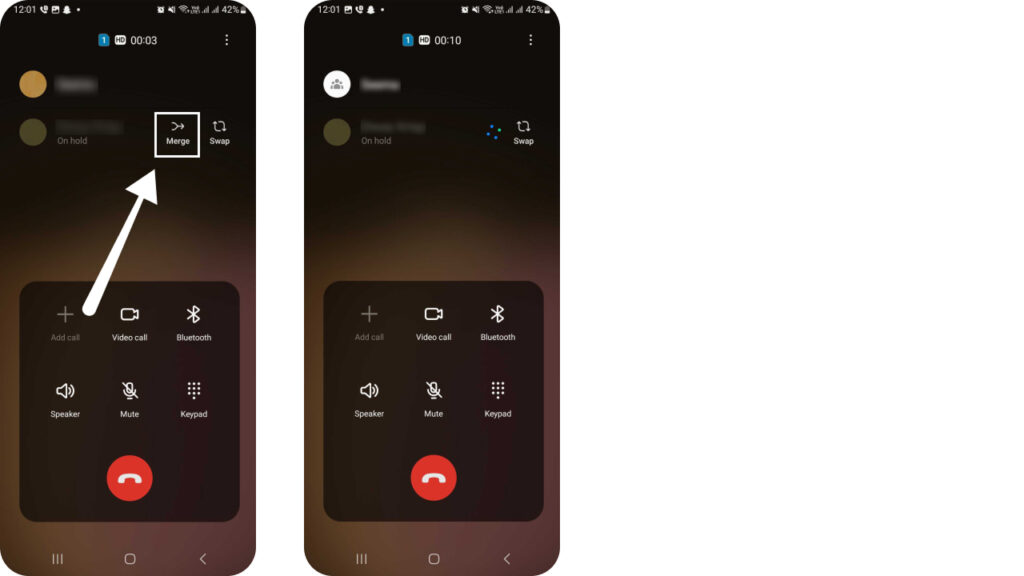
4. Dial the second person’s number.
5. Tap the “Merge” icon.
6. When you tap it, the calls merge, and the screen displays “Conference Call.”
Note: If you can’t make 3-way calls, your phone plan might not support this feature. Some providers charge extra for it. So, check with your service provider to be sure.
If you want to remove someone from the conference call on an Android, follow these steps:
- Tap “Manage”
- Choose the person’s name or number,
- Then tap “Disconnect”
How to conference call on an iPhone (IOS)?
Similar to Android, you can easily merge calls on an iPhone without requiring a conference call app. Follow these steps to use the iPhone for a 3-way phone call:
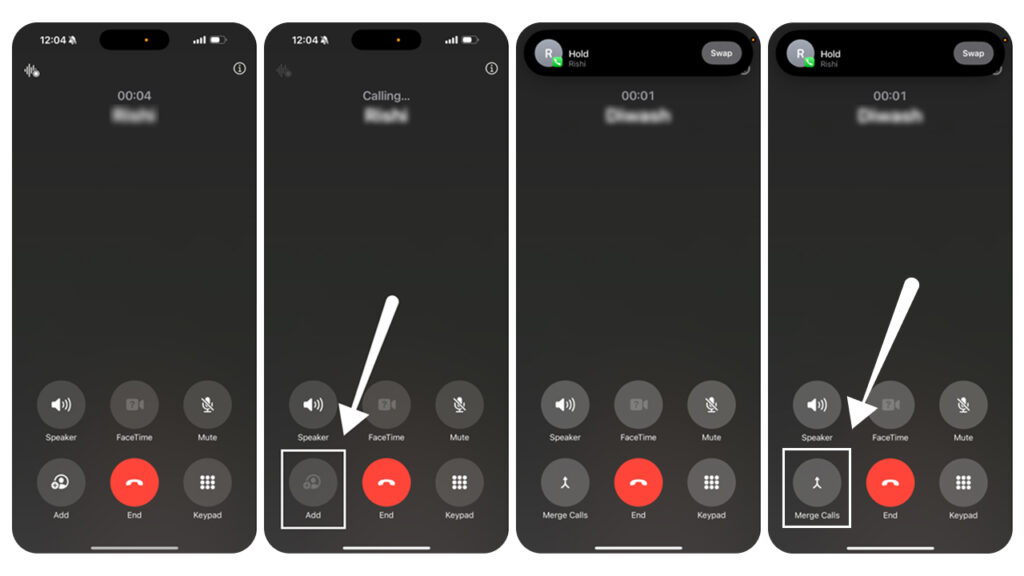
1. Call the first person you want to speak with.
2. Tap the “Add Call” button on your screen.
3. Choose the next person from your contacts or dial their number manually. When you do this, your first caller will automatically be placed on hold.
4. Tap the “Merge Calls” button.
5. Repeat the process to include more participants until you reach the five-person limit.
Note: iPhone conference call limit is 5 participants, excluding the call initiator.
Sometimes, it’s necessary to conduct a private conversation during a group call. In this situation, the following steps show how to hide a conference call on an iPhone.
- Tap “Conference” to start the group call.
- Tap “Private” next to the person with whom you want a private conversation.
- Tap “Merge Calls” to return to the main conference call.
If you want to disconnect someone from the iPhone call, follow these steps:
- Tap “Conference”
- Then tap the red phone icon next to the number,
- Finally, press “End Call” to disconnect.
Tips for making a conference call on Android and iPhone
Making a good impression on a conference call is just as important as in a face-to-face meeting. To help you manage your calls smoothly, follow these simple yet practical tips:
1. Prepare yourself before the call
Effective conference calls begin with proper preparation, so don’t wait until the last minute. Instead, join the call a few minutes early. This gives you time to solve any unexpected issues without stress.
If you’re using a conferencing app, open it ahead of time and check if your internet connection is stable. Doing so saves you from technical surprises once the meeting begins.
2. Find a quiet space with a strong signal
It is important to choose a quiet spot where background noise won’t disrupt the conversation. It is because even small sounds can make it harder for others to understand you. If you’re in a noisy place, using headphones can help block out distractions.
Signal strength is also important, so choose a quiet location wisely. If your network seems weak, move to an area with better coverage before the call starts.
3. Eliminate distractions
To help yourself concentrate, turn off notifications and put your phone on silent mode before the meeting begins. Also, keep your phone’s battery charged so you don’t lose connection in the middle of a conversation.
Most importantly, avoid multitasking during the call. It is essential to keep your attention on the conversation. It ensures you don’t miss important details and allows you to participate more effectively.
4. Use headphones for clearer sound
Instead of using your phone’s speaker, use a headset or earphones. This blocks out surrounding noise and improves the clarity of your voice.
A clear sound makes the conversation easier for others and also helps you sound more professional and confident throughout the call.