 Download KrispCall
KrispCall x karmaCRM
karmaCRM Integration Overview


karmaCRM Integration to Connect Calls, Contacts, and Customer Conversations
Track Customer History Automatically
Every call log, SMS conversation, and agent note syncs directly to the corresponding karmaCRM record, ensuring your team has full historical context before every phone call.
Less Manual Work
Customer data, call activity, and notes sync automatically between KrispCall and karmaCRM, so your team spends less time updating records.
Flexible Sync Controls
Choose which calls, SMS, and numbers should sync with karmaCRM. Control logging settings based on your team's workflow.
Better Follow-Ups
See previous calls, notes, and messages before following up with customers. Your team always knows what was discussed and what happens next.
Connect KrispCall with karmaCRM to Bring Calls, SMS, and Notes Into One Record
Automatically sync call logs, track text messages, and update customer profiles as changes are made. This keeps every important interaction connected to customer records, helping your team follow up faster and deliver better customer experiences.
Install KrispCall Browser Extension for Instant Calling
Click any phone number inside karmaCRM to launch a call instantly. The KrispCall browser extension detects contact numbers, pops up the dialer with the number and country flag pre-filled, and logs every interaction straight back into karmaCRM.

Make Calls Without Leaving karmaCRM
Place calls directly from a karmaCRM contact using the dialer icon on the contact record. Reach prospects and customers faster while keeping your workflow in one window.
Every outbound call is logged automatically, and recorded when auto-record is enabled, associating the recording with the contact record.
Send Text Messages Without Leaving karmaCRM
Text contacts straight from the Chrome dialer, including Quick SMS during an active call. Confirm appointments, follow up on leads, or send reminders without switching tools.
Inbound and outbound message is synced to the contact’s Notes in karmaCRM, so your team has a complete record of every touchpoint.
Access Every Conversation, Anytime
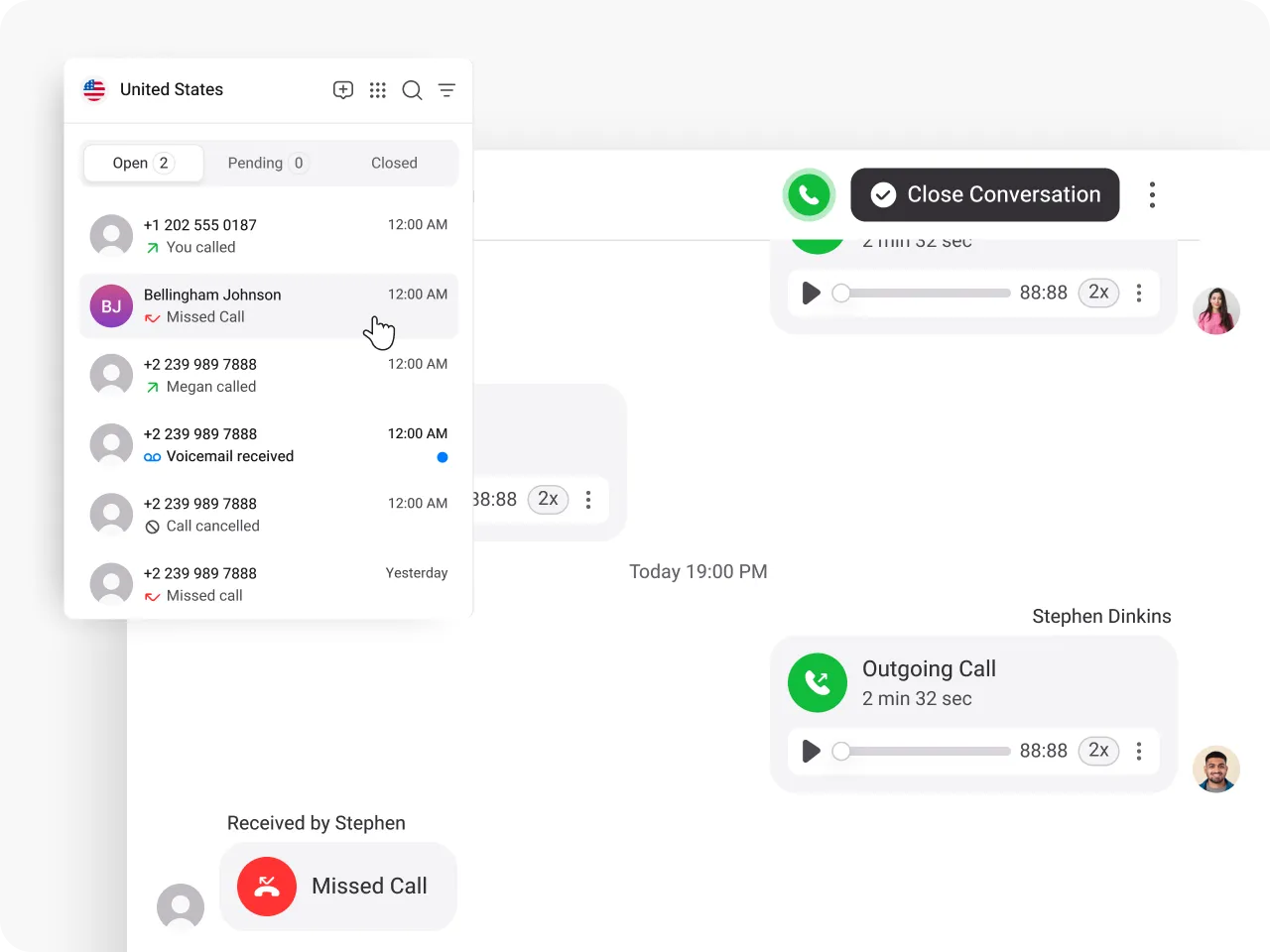
Calls are recorded and synced to karmaCRM automatically when auto-record is enabled, giving your team an accessible history for training, quality review, or catching missed details.
Missed calls and voicemails sync too, based on your workflow settings, so nothing falls through the cracks.
Capture Details and Sync Them Instantly
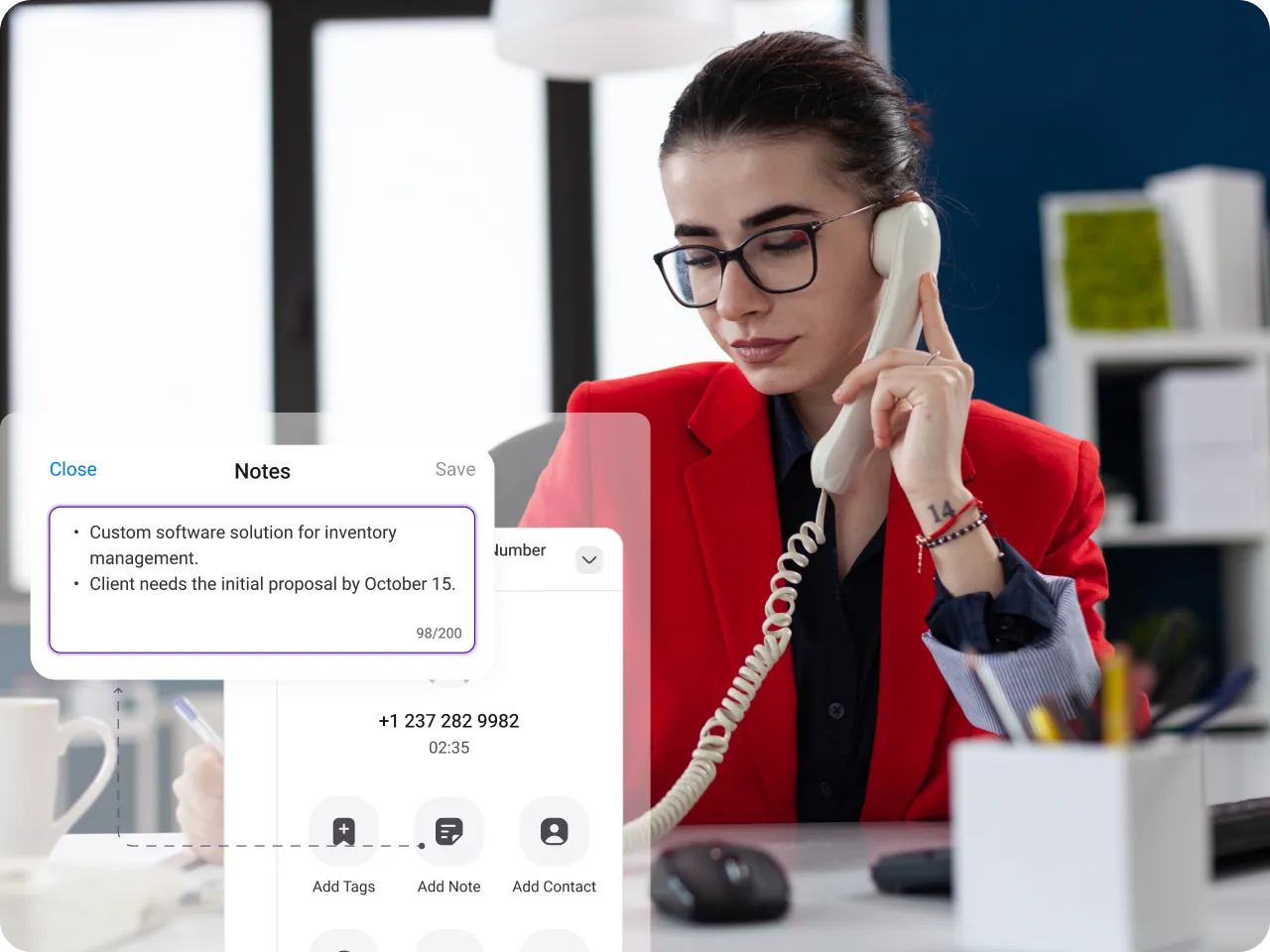
Notes added during a call, or created, edited, and deleted from the conversation box, sync automatically to the matching karmaCRM record.
Your team can see exactly what was discussed and what’s next, without relying on memory or digging through call logs.
Sync Contact Data Accurately in Both Directions
With two-way sync, contacts created, edited, or deleted in either KrispCall or karmaCRM are automatically updated in the other platform without creating duplicates.
Bulk contact uploads and edits in KrispCall sync too, and an initial sync aligns existing contacts from both platforms the first time two-way sync is turned on.
Benefits of Integrating karmaCRM with KrispCall
Reduced Manual Updates
Automatically sync contacts, calls, SMS, and notes, so your team doesn't have to update information in multiple places.
Full Account Visibility
Call history, recordings, SMS, and notes all live under the same karmaCRM contact, giving anyone on the account the full picture at a glance.
Faster Team Onboarding
New team members see a contact’s complete communication history from day one instead of piecing it together from memory or scattered files.
Granular, Per-Workspace Control
Choose exactly which call types, numbers, and sync directions matter, and manage multiple karmaCRM integrations independently within the same workspace.
Optimizing Sales, Support, and Remote Teams
Sales Teams
Support Teams
Remote Teams
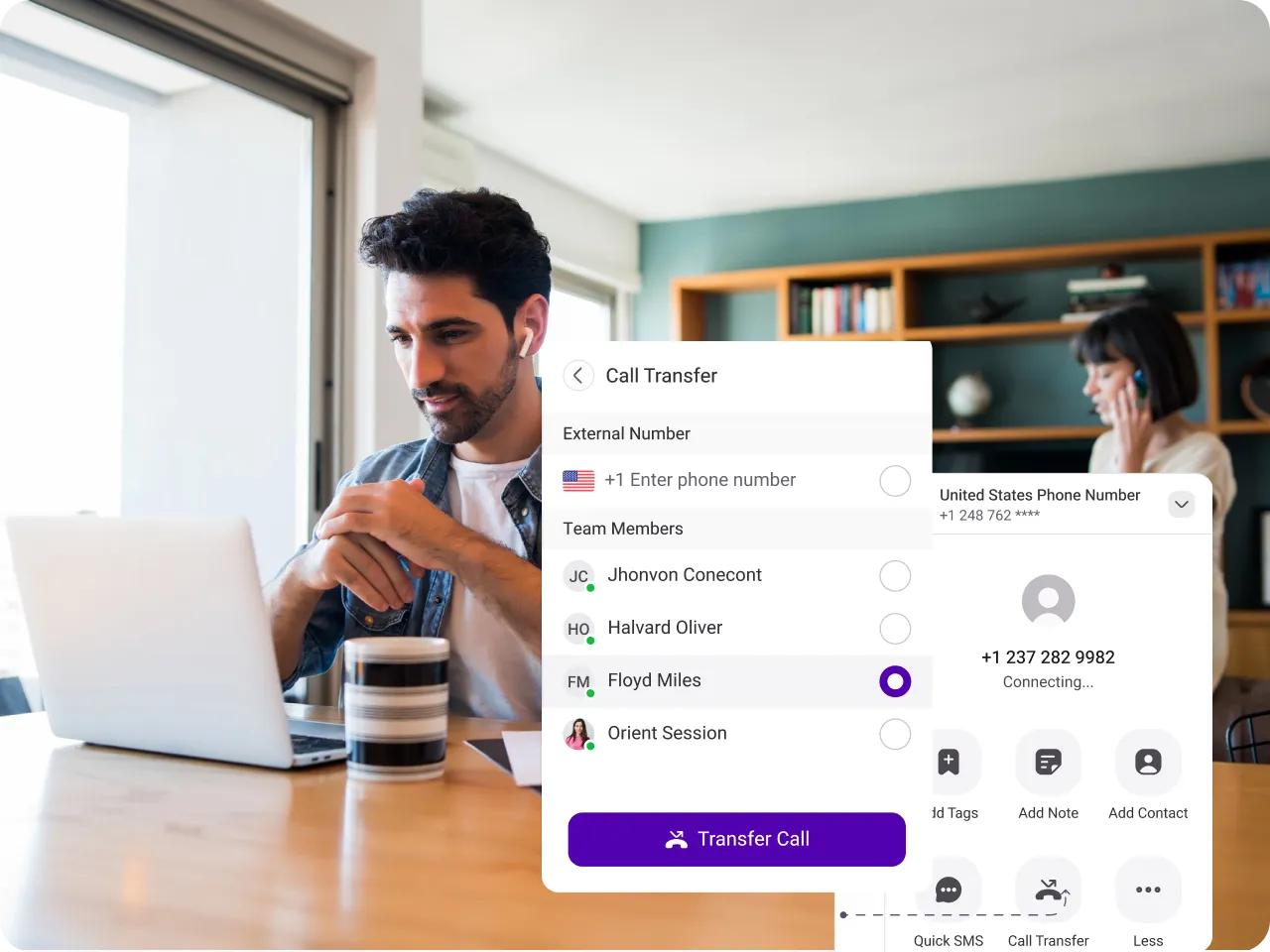


Integrate karmaCRM With KrispCall Easily With Our Guide
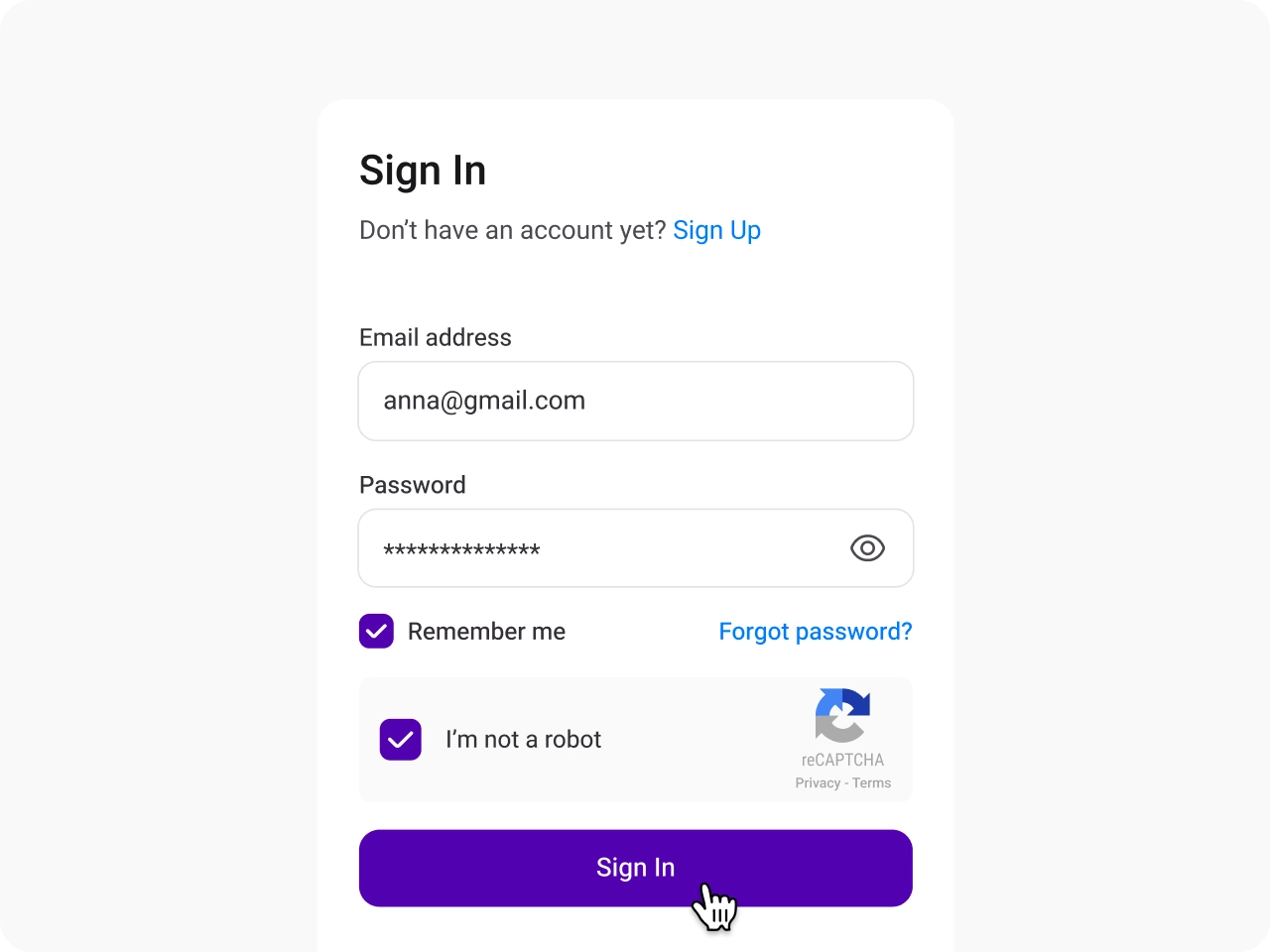
Log in to KrispCall
Sign in to your KrispCall account, then go to Settings.
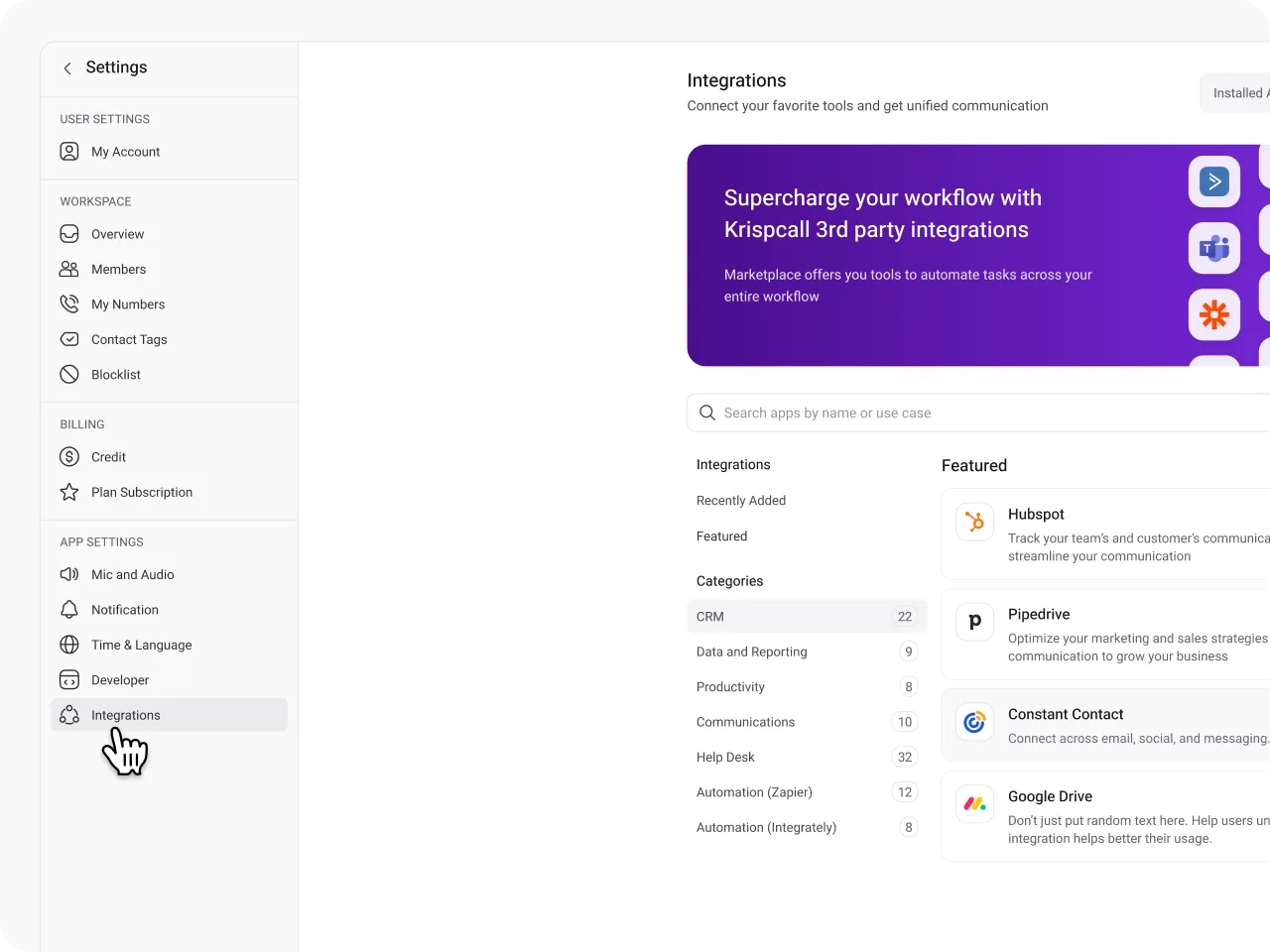
Open Integrations
Under App Settings, click on Integrations, then open the Marketplace.
Find and Connect karmaCRM
Search for karmaCRM in the Marketplace, then click it to open the integration page.
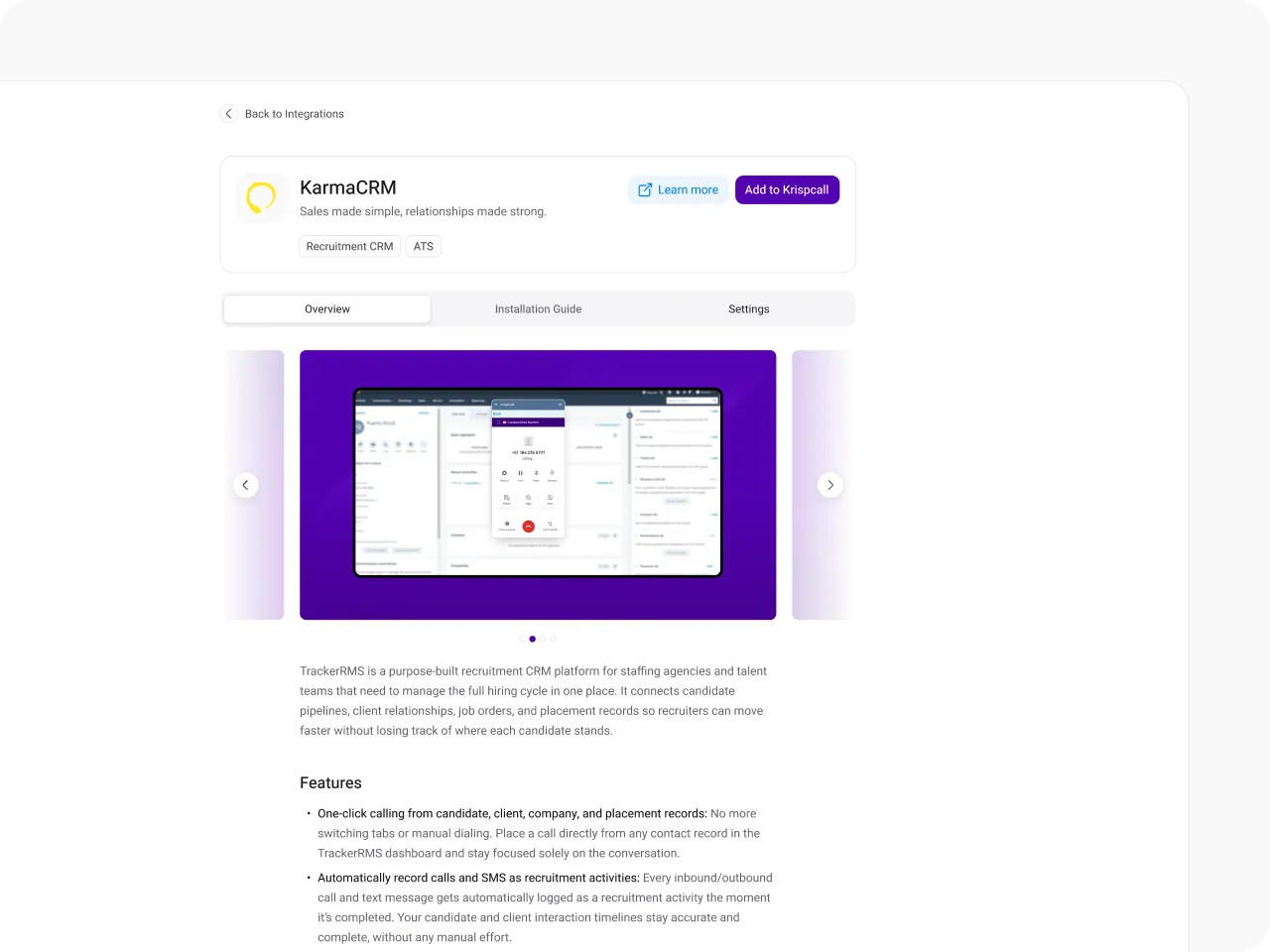
Enter Your Credentials
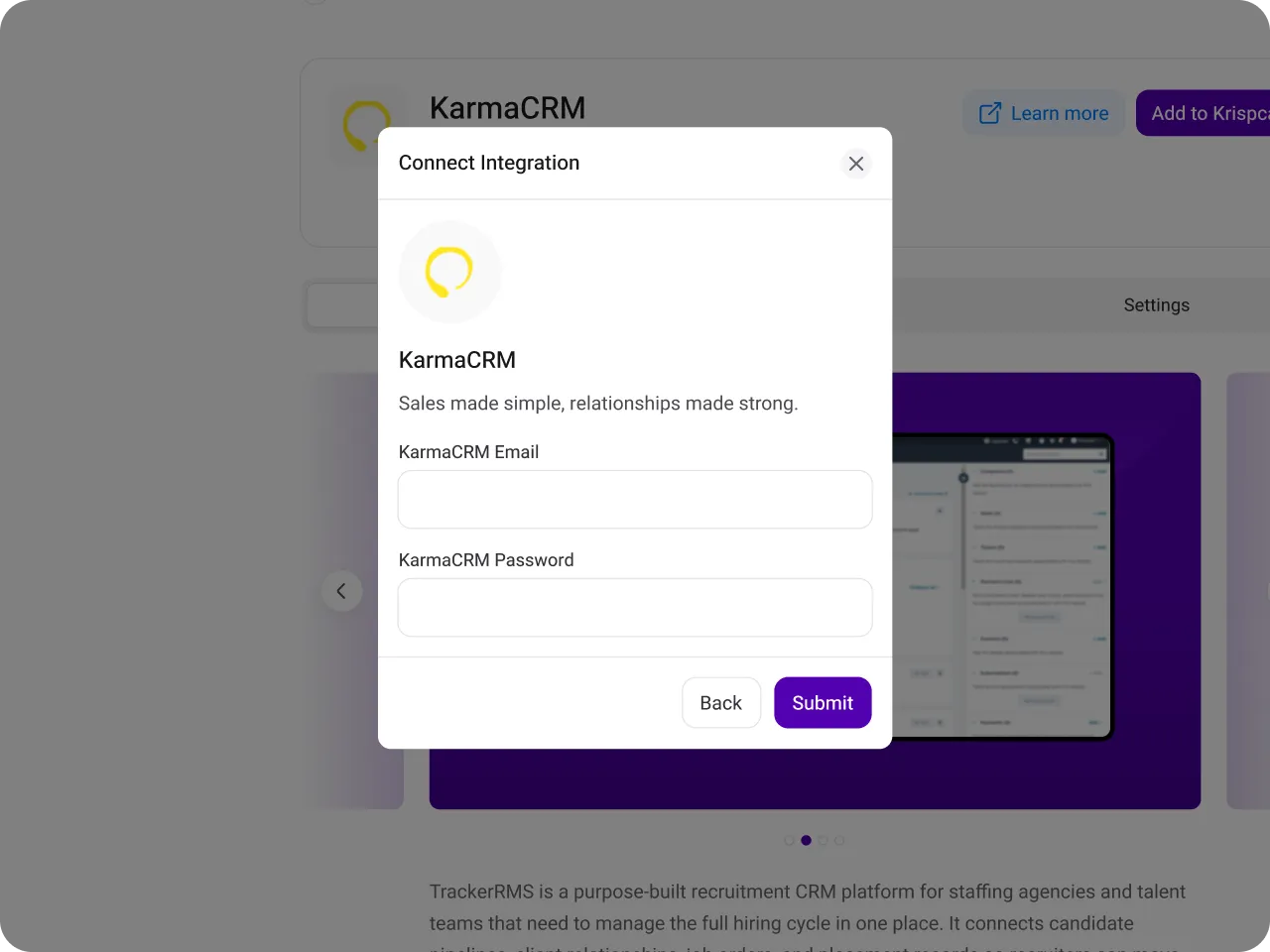
Click Add to KrispCall, then enter your karmaCRM email and password in the pop-up window and click Submit.
Complete the Integration
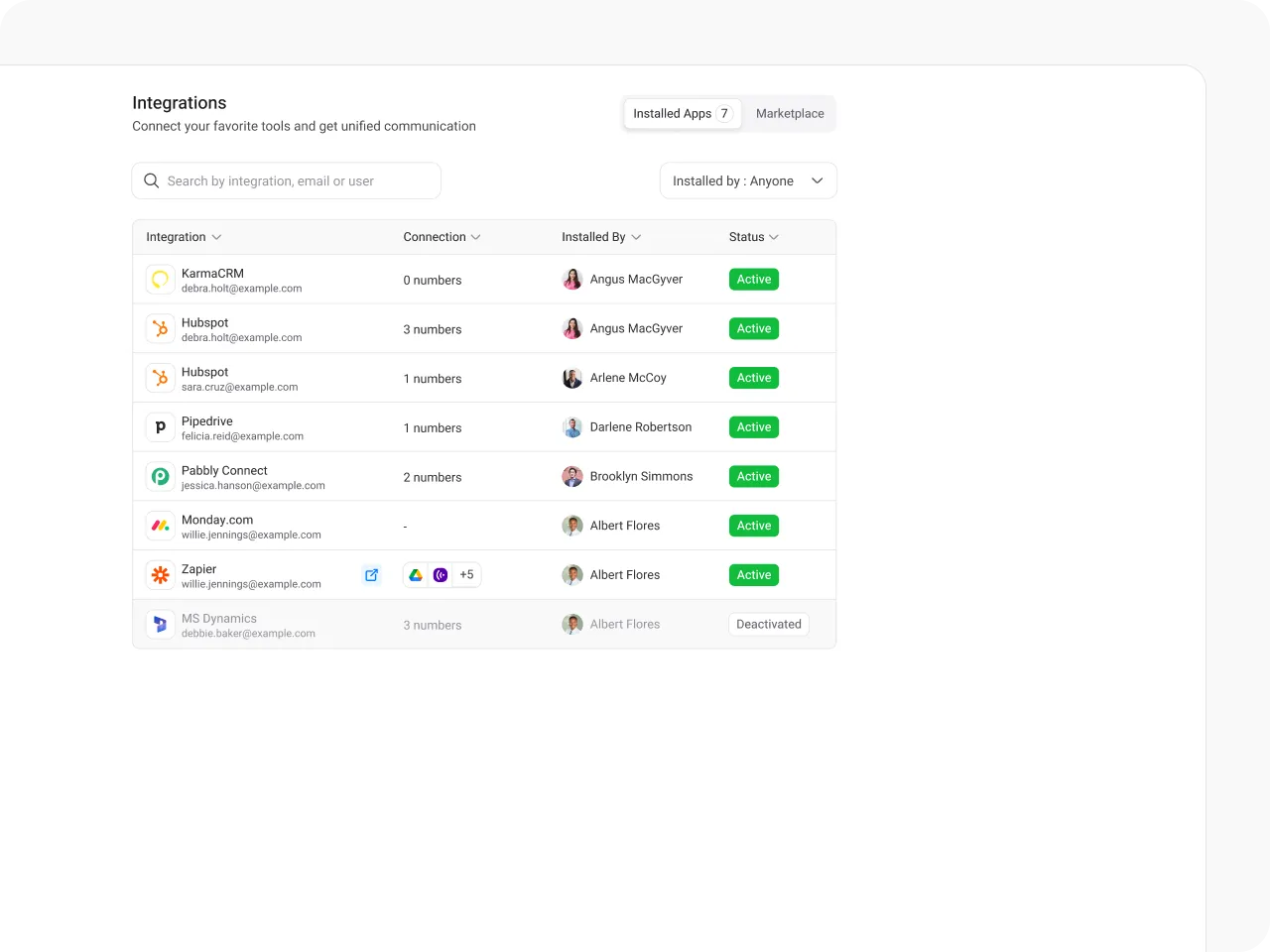
A success message confirms the integration, and karmaCRM appears under your Active Integrations.
Install the Chrome Dialer
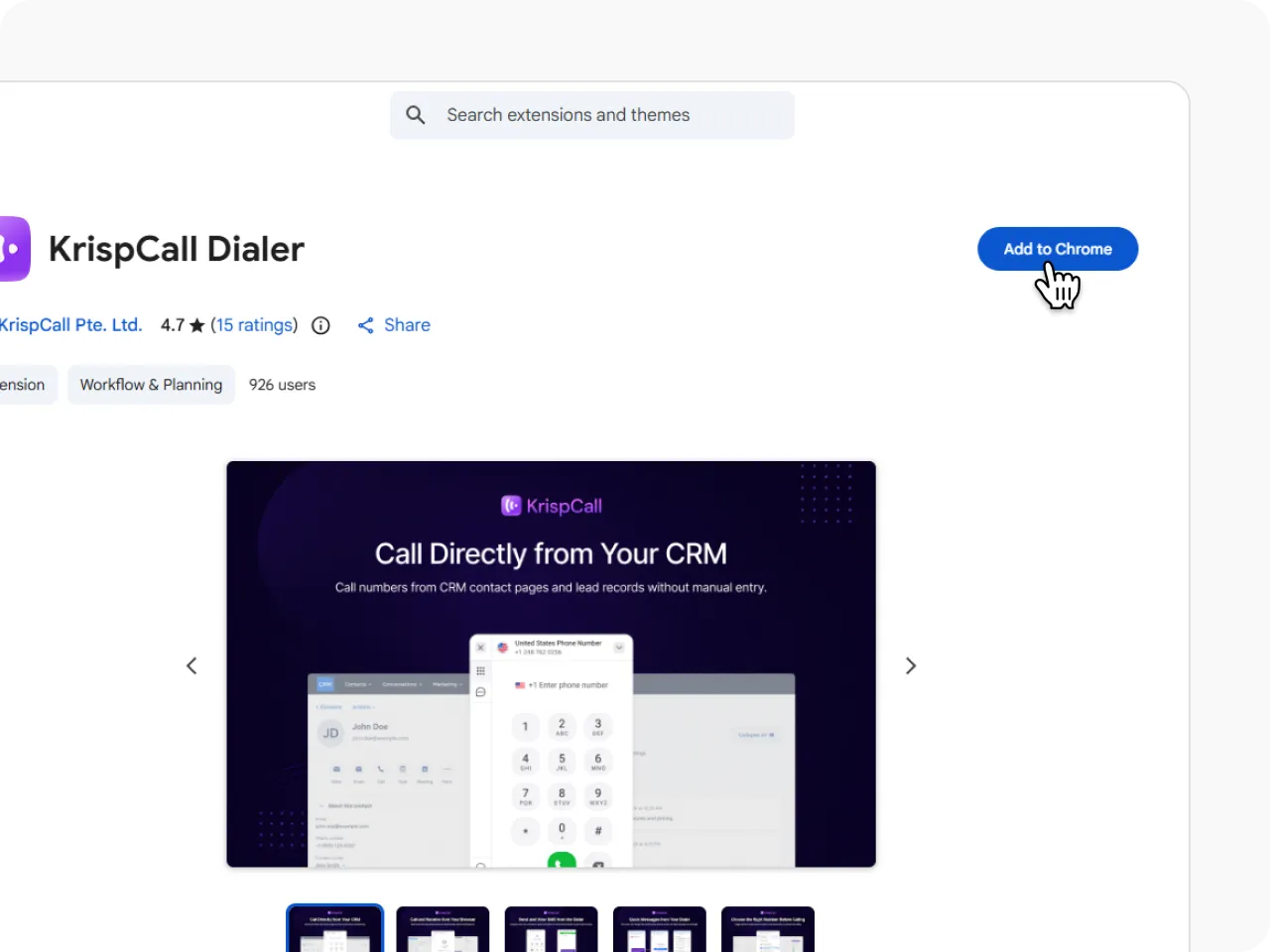
Add the KrispCall Chrome Dialer from the Chrome Web Store and sign in with your KrispCall account to enable click-to-call directly from karmaCRM.
Frequently Asked Questions
Didn’t find the Answer you were looking for? Visit our Help Center or Contact Support
Yes, a workspace can integrate multiple karmaCRM accounts at once, and each integration keeps its own independent settings; changes to one don’t affect the others.
Turning on two-way contact sync triggers an initial sync that merges existing contacts from both platforms. The process does not create duplicate contacts.
Yes, you must add numbers purchased after the initial integration manually to Connected Numbers; otherwise, calls and SMS on that number won’t sync to karmaCRM.
No, members cannot view the admin’s or owner’s integration, and changes on one side don’t affect the other. Admins and owners can, however, view and adjust member integration settings.
Recordings and voicemail logs sync into karmaCRM, but the links themselves aren’t clickable within karmaCRM; you’ll need to access them from KrispCall directly.
